

35 Primavera P6 Tips, Tricks and Shortcuts Schedulers Can’t Do Without
Looking to upgrade your Primavera P6 knowledge with some handy tips and tricks? P6 is a complicated and sophisticated planning and scheduling tool used across many industries. Most users never touch many of its most advanced features, and many are not aware of the power the tool holds. This article covers 35 Primavera P6 tips, tricks and shortcuts every scheduler should know.
Start here: the five tips that save the most time. If you read nothing else, these give the biggest return.
- #1 F9 + View Log — schedule the project and immediately see the issues it found.
- #2 DCMA 14 assessment — check the quality and logic of any XER or XML schedule against an industry standard.
- #10 Global Change — update many activities at once instead of one by one.
- #30 Reflections — test big changes safely, then merge them if they work.
- #32 Progress Spotlight — see exactly which activities need updating for the period.
The Primavera P6 tips and tricks
#1 – Detecting project schedule statistics and issues quickly: the log
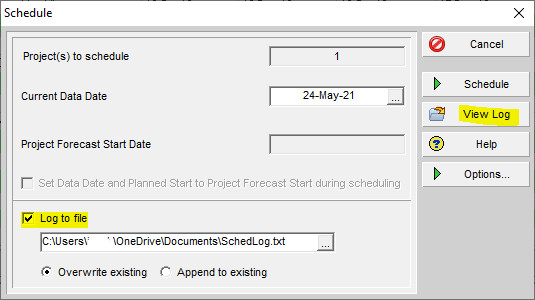
Project schedules can contain an array of issues or inconsistencies, and one of the quickest ways to detect them is the Schedule Log or View Log report. Use the F9 key, or the View Log button at the schedule dialog prompt, to display a range of analytical data about the schedule:
Stop wrestling with Primavera XER schedules.
Your team can see your schedule without buying a P6 license.
Start Free Trial No credit card · Windows & Mac · From $344/yr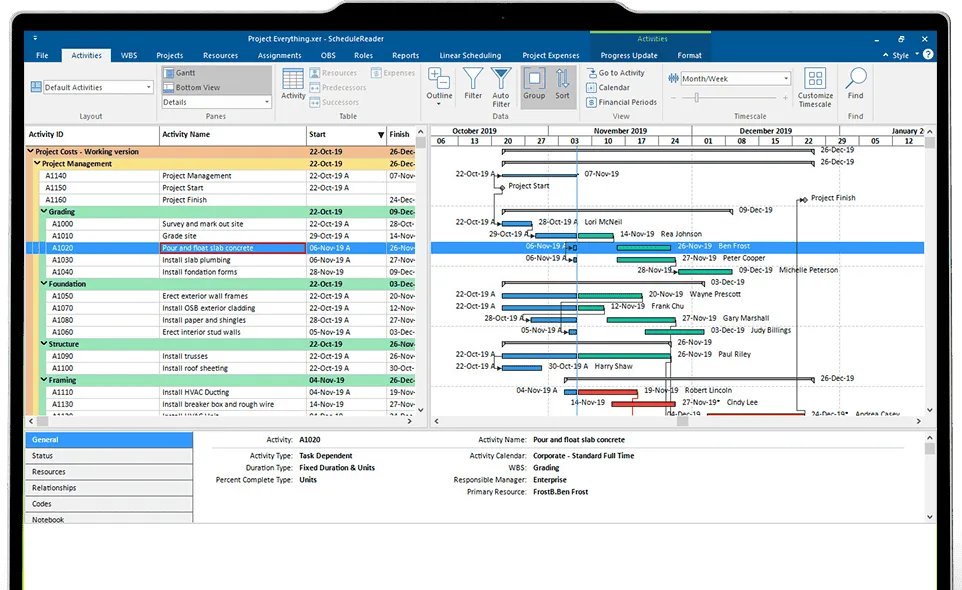
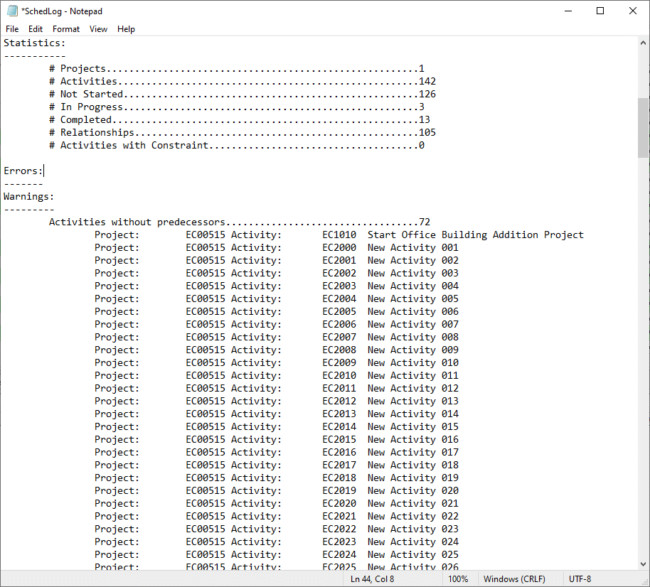
The schedule log presents a quick overview of important information in the schedule, including alerts or highlighted issues such as activities missing predecessors and successors, and activities containing constraints:
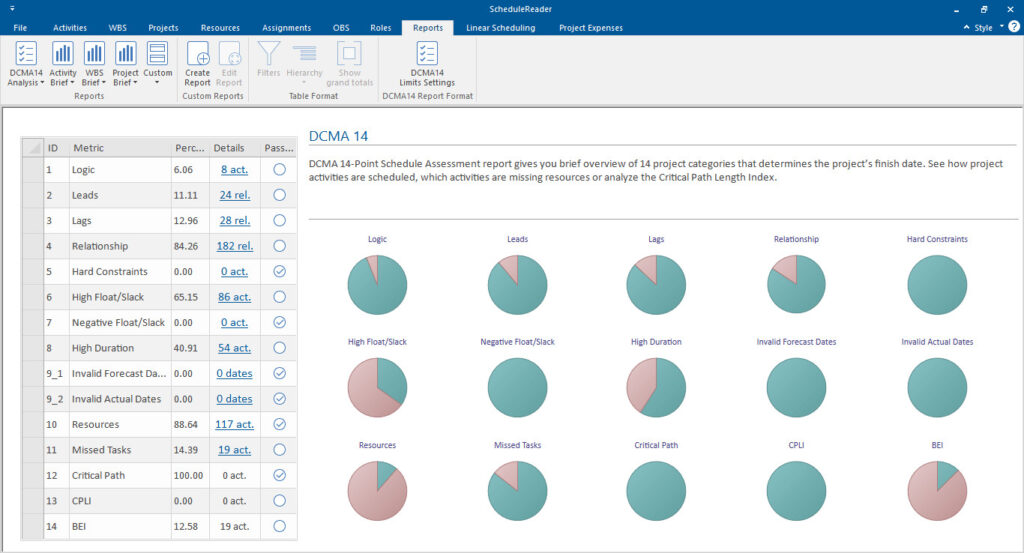
#2 – Detecting schedule statistics and issues in external schedules with the DCMA 14 assessment
Another common way to check for issues and test the quality of XER and XML schedules is the DCMA 14 schedule assessment framework. With a companion tool such as ScheduleReader, you can check the health and logic of a schedule against the 14 DCMA standards and present the findings in a report or dashboard.
#3 – Set up your default settings from the beginning
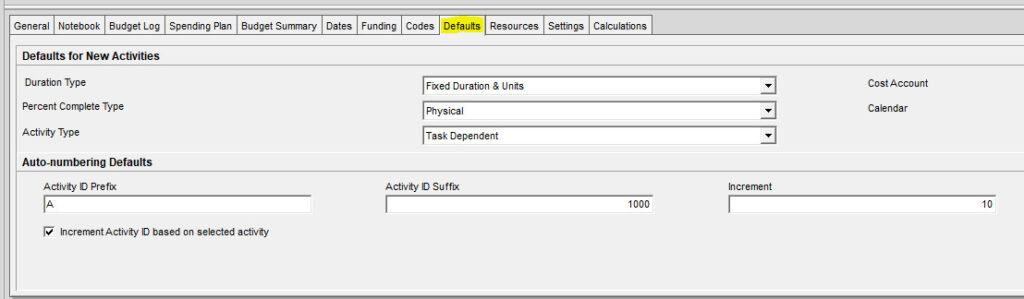
Use the bottom tab of the Projects window and select the Defaults tab to update the default settings for all the project’s activities, such as duration type or percent complete:
#4 – Making a quick time and date update
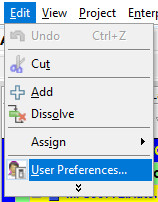
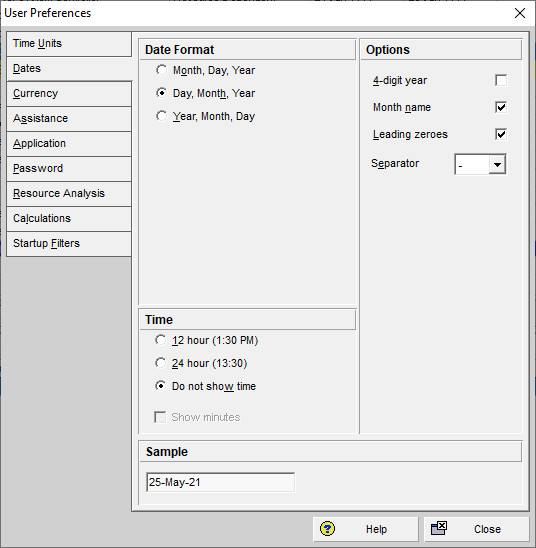
To change your Primavera P6 time units or date format, select User Preferences from the Edit tab, or press Alt-E-U:
#5 – Create and add your custom units of measure
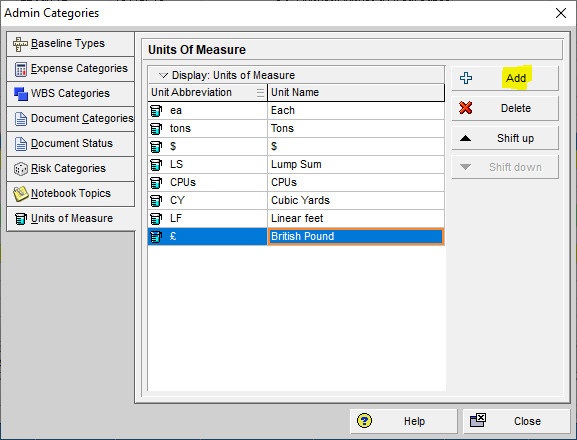
Primavera P6 ships with only a few default units of measure. To create a custom unit, use hotkeys Alt-A-C, or go to the Admin tab and select Admin Categories. In the Admin Categories dialog, select Add and assign your custom unit. New units of measure appear in the dropdown when you create or modify material resources:
#6 – Quickly fill down information by column
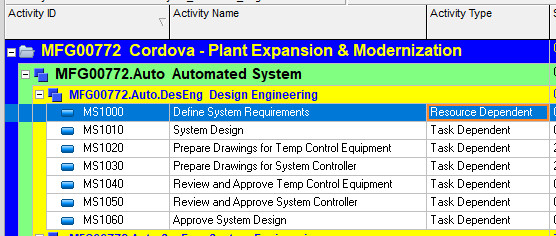
To fill down schedule information such as activity type, select the first line in the column:
Highlight the desired selection, right-click, and choose Fill Down:
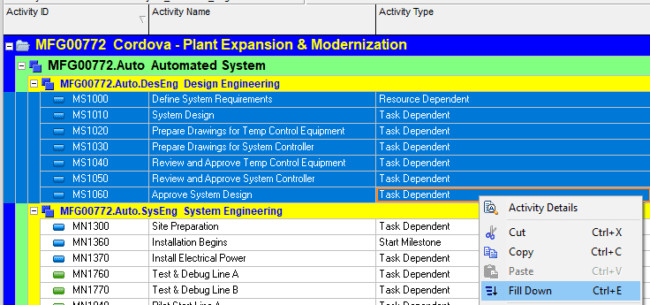
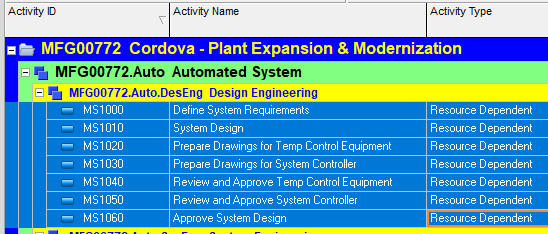
Alternatively, use the shortcut key Ctrl-E:
#7 – Quickly renumber your schedule activities
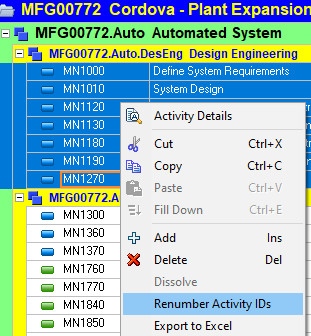
Instead of renumbering activities one by one, select the whole schedule or a large portion of activities, then right-click and select Renumber Activity IDs:
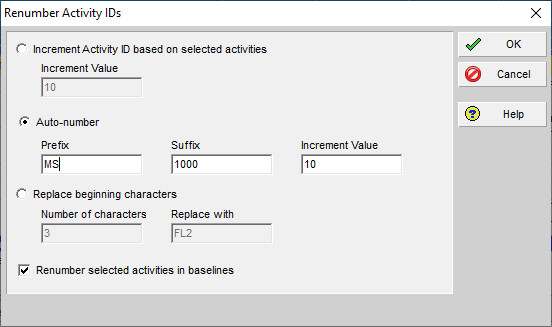
In this example, we change the auto-number prefix of the schedule milestones from “MN” to “MS”:
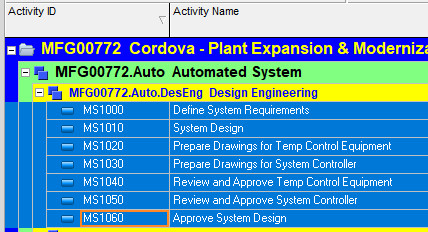
The result is the automatic update of the Activity ID prefixes for the selected activities:
#8 – Disable the dreaded auto-reorganization
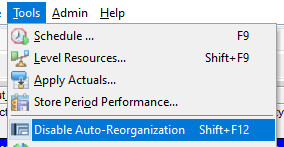
Grouped activities using a layout may auto-reorganize while you update the schedule, meaning activities can relocate based on updated information. To prevent this, use Shift-F12, or go to the Tools tab and select Disable Auto-Reorganization:
#9 – Sequence your schedule activities
The activities bar contains a small arrow in each column when you hover over it, which lets you quickly sequence the view of your activities in ascending or descending order. For example, you can sequence activities alphabetically or numerically by choosing the option in the Activity ID column:

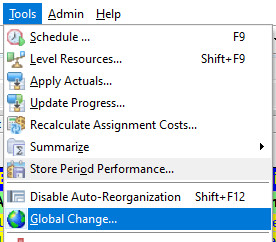
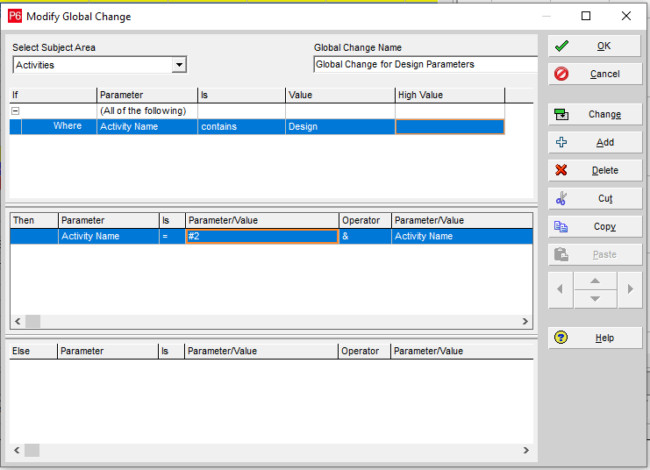
#10 – Use Global Change to update project information quickly and simultaneously
To make a blanket change across an entire schedule, use a global change. Go to the Tools tab and select Global Change, or press Alt-T-G. You can create a new global change, and in the Modify Global Change dialog specify criteria to determine the changes you want to commit. For example, you can rename activities that contain a certain word or phrase:
#11 – Open several Primavera P6 schedules at the same time
Primavera P6 lets you work on several projects simultaneously and create logic ties between them. In the main projects menu, hold Ctrl to select the projects of interest, then Ctrl-O to open them all at once. Ctrl-W closes all open projects at once.
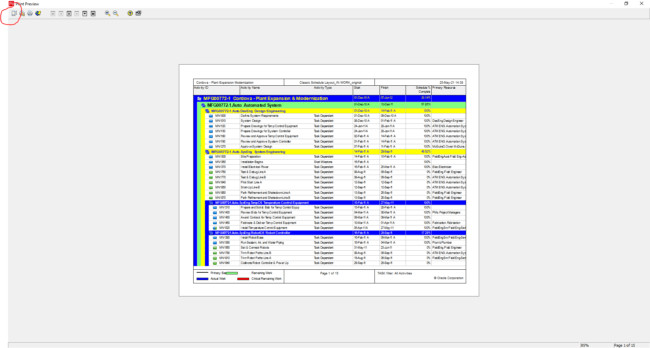
#12 – Scale the schedule to appear on a single page
To scale your schedule to fit a single page, use hotkeys Alt-F-V, or use the File tab to select Print Preview and then the Page Setup icon:
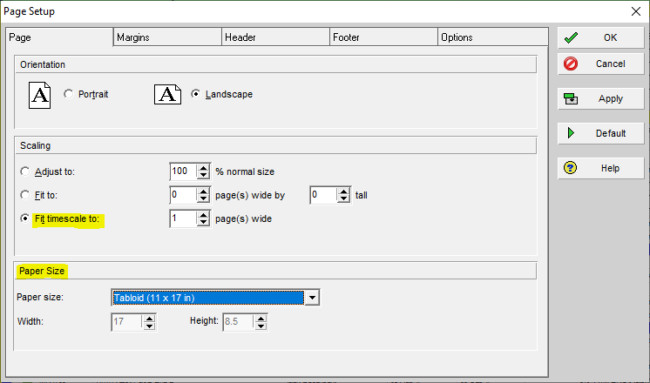
Choose the option to fit the timescale to one page. You have a better chance of fitting the full schedule on a single page if you choose a large paper size such as tabloid:
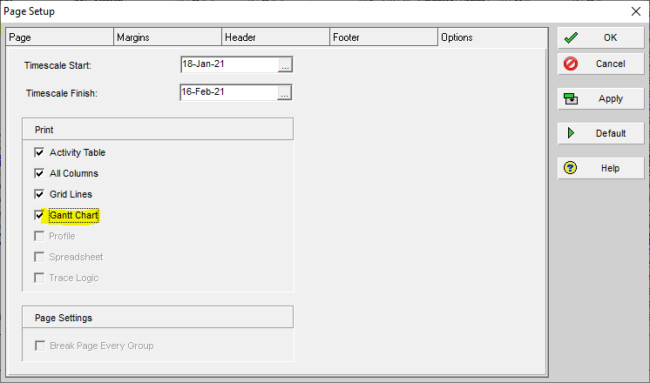
The timescale also matters for the Gantt. On the Options tab, if you set the Gantt as visible, you need to adjust the timescale start and finish of the project view to fit both the columns and the Gantt onto a single page:
#13 – Quickly find your activities
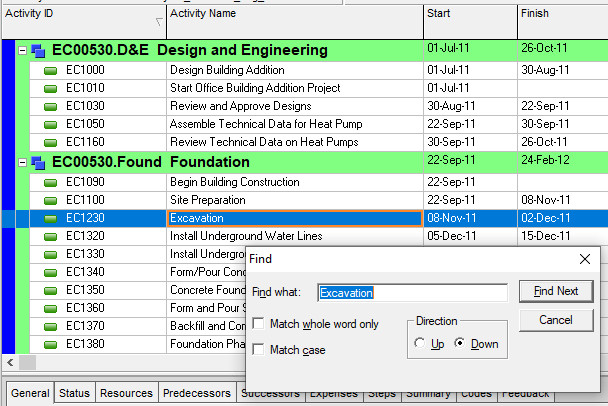
To find activities quickly, use Ctrl-F to perform a search:
#14 – Simple export to MS Excel
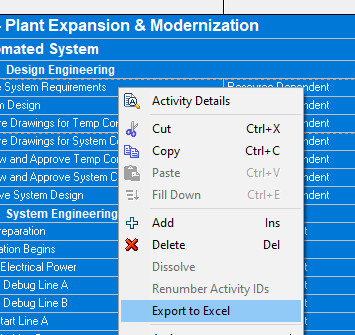
If a client requests your schedule activities in a more common format, you can export to Excel in seconds. Use Ctrl-A to select all activities, right-click, and select Export to Excel. Alternatively, use Ctrl-C to copy after Ctrl-A, then Ctrl-V to paste into a blank Excel file:
#15 – Import to Primavera P6 from MS Excel
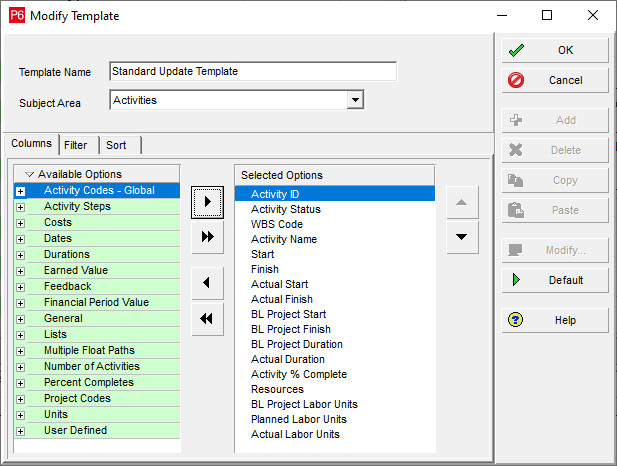
When bulk updates need to happen in Excel and then go back into the schedule, P6 lets you import from Excel. It is most efficient to create a template first in Excel:
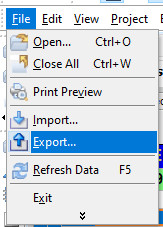
Export to Excel format:
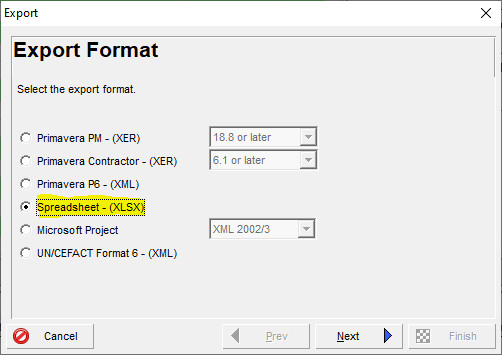
Select all the elements you want to export, such as activities, relationships, expenses, resources, and resource assignments. On the next screen, you can modify the template and save it:
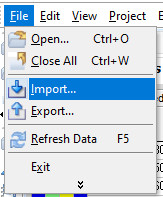
Next, import the Excel file:
#16 – You can import and export Primavera P6 layouts
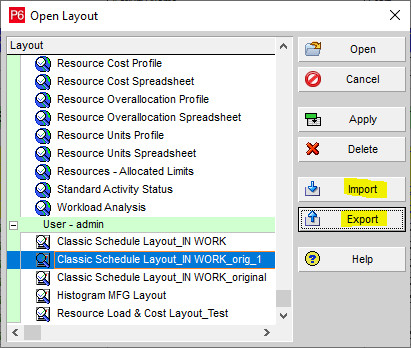
P6 layouts can be exported and shared with other team members. Go to the View tab, select Layout, then Open, and choose the layout you want. Click Export, and choose a location to save the layout as a *.plf file. Other P6 users can use the Import button to bring the *.plf file in:
#17 – You can export Primavera P6 filters
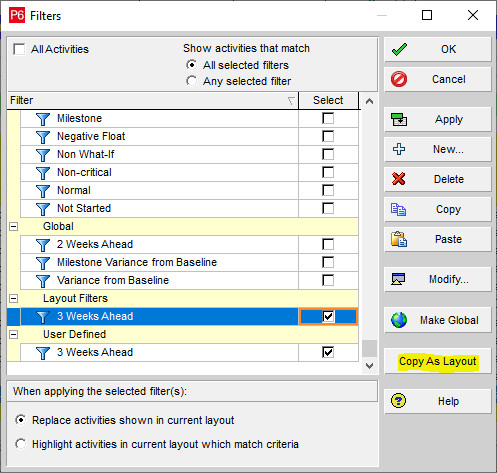
Like layouts, filters can be exported and used among team members. After creating a layout and filter, use hotkeys Alt-V-F, or right-click in the tasks and select the View tab, then Filter By, then Customize. Use your filter under Layout Filters and select Copy As Layout:
#18 – Use key delivery dates and crucial events as milestones
Many well-structured schedules contain a separate section at the top called “Key Milestones”. This separate WBS element shows important deliveries and key dates as milestones:

#19 – Format bars in the Gantt to make it simpler to interpret
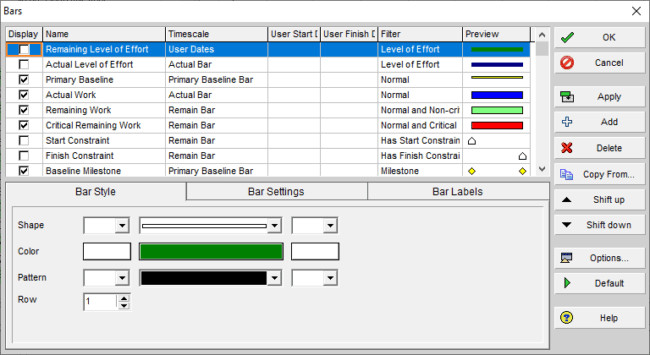
Use P6’s formatting features to present the Gantt in a form that is easier to read. Right-click in the Gantt area and select Bars. From there, adjust and customize the bars and colors:
#20 – Format bar chart options in the Gantt
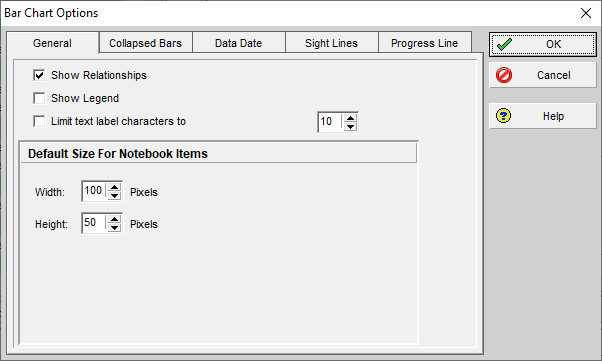
You can also right-click in the Gantt area and select Bar Chart Options. This lets you modify features such as sightlines in the Gantt for easier viewing:
#21 – Easily compare Primavera P6 schedules
Export the schedule in .xer or .xml format and open the file with ScheduleReader. ScheduleReader is a standalone solution that visualizes project data as seen in Primavera P6, separately from it. Open one or more instances of the reader (for side-by-side comparison) alongside your P6 tool and compare schedules visually across multiple windows.
#22 – Make quick logic ties (finish-to-start relationships)
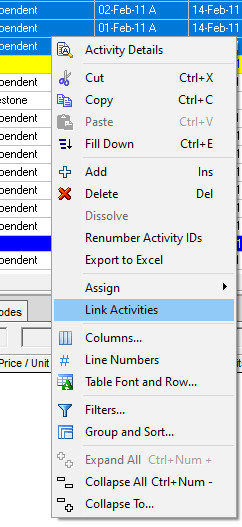
To quickly link tasks in succession, highlight the tasks, then right-click the selection and select Link Activities:
#23 – View project variance data in a single view
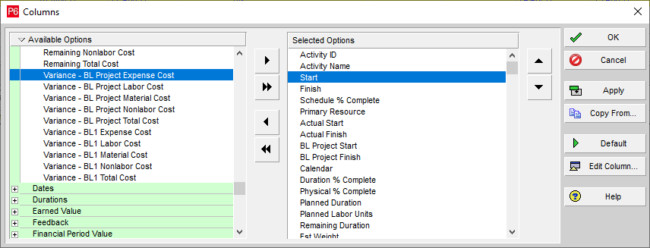
When considering any type of variance, make sure a baseline is set for the schedule. Then go to the View tab, select Columns, and move any variance options from Available Options to Selected Options:
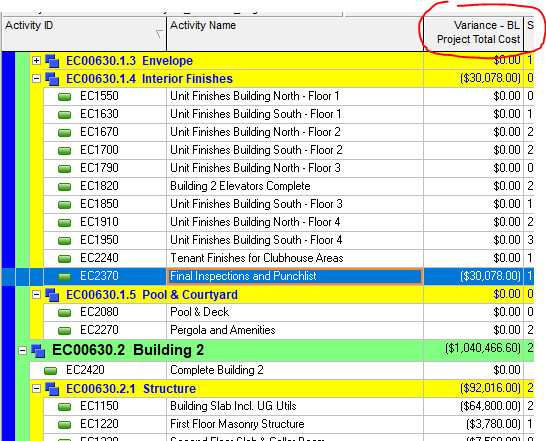
The variance columns show any deviation from the baseline:
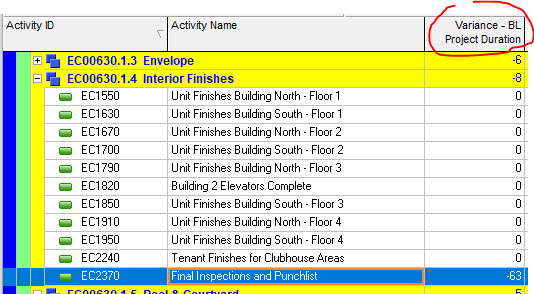
Variance factors include not only cost values but date and numerical values as well:
#24 – Longest path, total float, and critical path
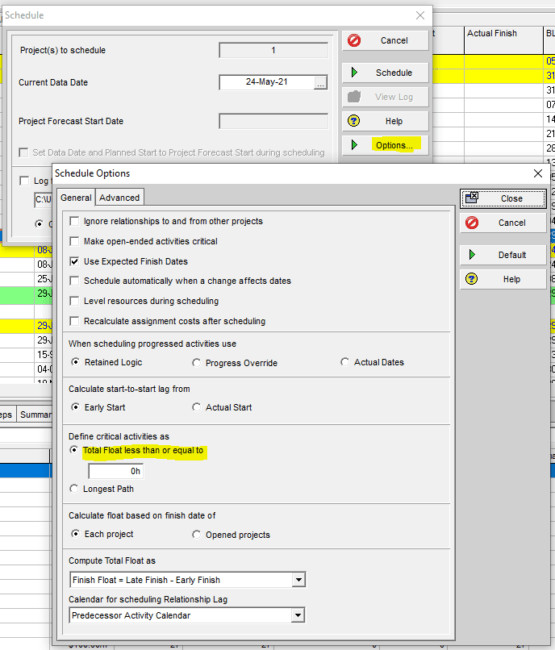
The Critical Path Method (CPM) determines project duration by identifying the longest path of activities from start to finish. P6 offers two options in its settings: Total Float Less Than Or Equal To (typically zero), and Longest Path. Longest Path may disregard activities considered critical under the Total Float method if they are not on a continuous path from start to finish. Which you use is a matter of preference.
To adjust the setting, use the Options button from the schedule (F9) function, under “Define critical activities as”:
#25 – Use activity steps to add schedule detail without increasing the number of activities
Sometimes a team wants more granularity without adding more activities, and P6’s steps feature is built for that. After selecting the project of interest from the main projects menu, go to the Calculations tab at the bottom of the Projects screen and tick “Activity percent complete based on activity steps”:

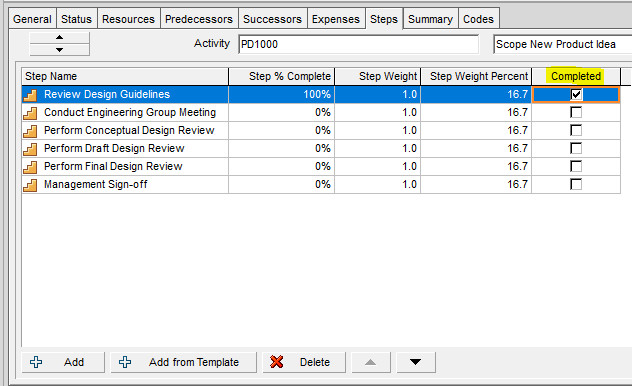
From there, you can create weighted steps for each activity and measure performance based on step completion:
#26 – Take advantage of Primavera P6’s reporting options
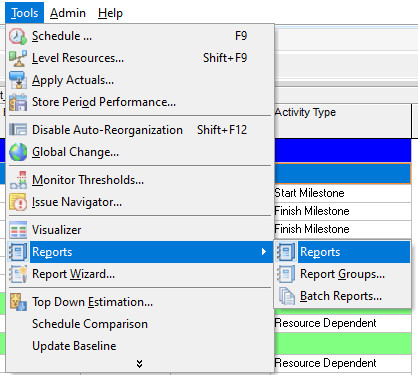
Use P6’s reporting options and choose from the array of standard reports that come with the tool. Use hotkeys Alt-T-P, or go to the Tools tab and select Reports:
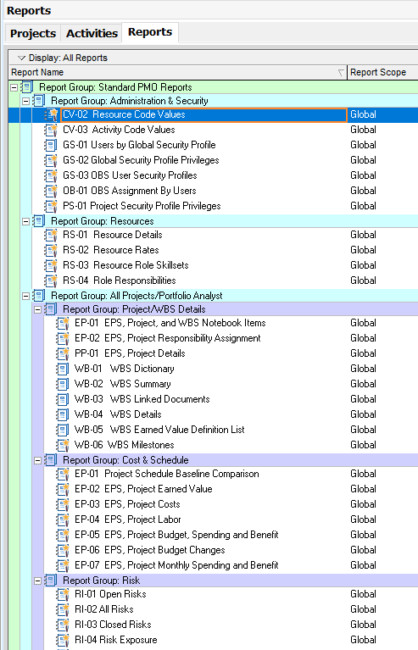
You can then use one of the standard reports or create your own:
#27 – Import an older-version XER into a newer version of Primavera P6
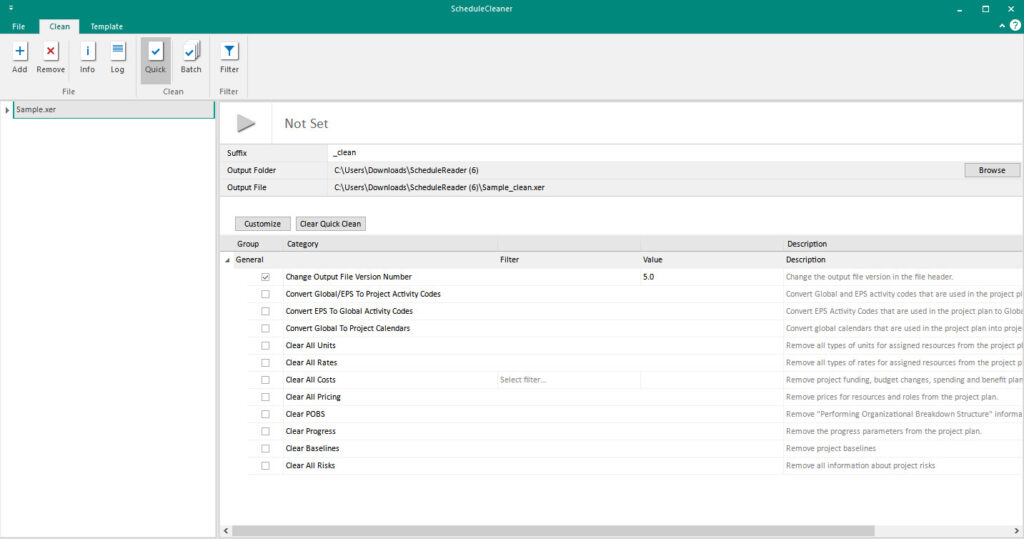
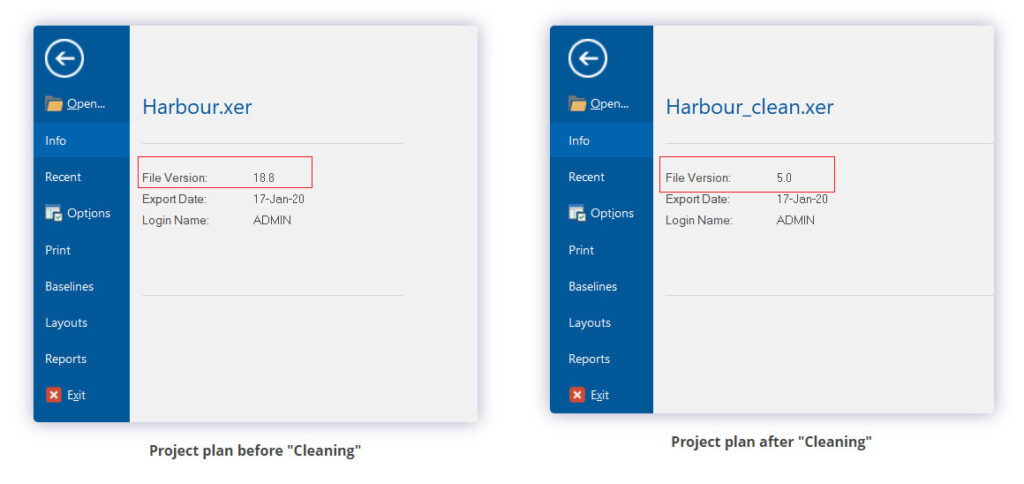
If you receive an error while importing an XER into the database because the older file type is not accepted, there is a neat workaround. The ScheduleCleaner software can change the file version from one to another with a click. Open the file with ScheduleCleaner, select the Quick Clean options, set the desired version, and press Clean. The software creates a copy of your .xer with the updated version:
#28 – Manage Primavera P6 calendars to manage tasks and resources efficiently
Use P6 calendars to manage tasks and resources efficiently. Go to the main bottom menu’s General tab and assign the appropriate task calendar to the schedule:
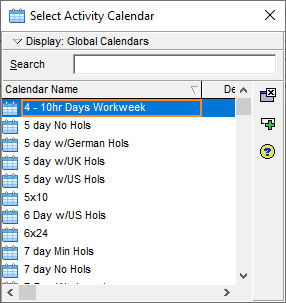
You can also create a custom calendar if the one you need is not already in P6.
#29 – Use Primavera P6 resource codes
Take advantage of resource codes to create custom rates, overtime factors, and internal and external rates within different resource codes. Use hotkeys Alt-N-S, or go to the Enterprise tab and select Resources:

#30 – Use reflections to minimize errors when making significant changes
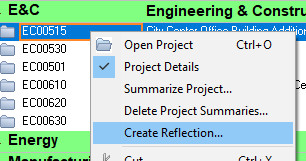
When significant scope changes need to be implemented, P6’s reflections are an excellent way to minimize mistakes. A reflection lets you make significant changes and review them without those changes becoming permanent in the master file. It is a “what if” schedule, and if the changes are acceptable they can be merged into the master file.
Go to the main projects menu, right-click the project of interest, and select Create Reflection…:
#31 – Identify resource over-allocation easily
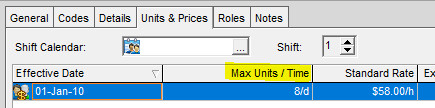
Resource management does not have to be difficult. Use the Max Units/Time column in the Units & Prices tab in the bottom menu to assign the maximum limit for each resource expected to work. This automatically calculates when a resource becomes over-allocated:
#32 – Use Progress Spotlight to highlight activities that need updating
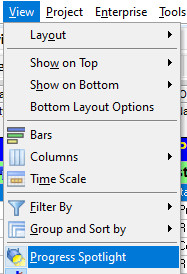
While updating the schedule, a team member can see which tasks need status inputs by using Progress Spotlight. Use hotkeys Alt-V-P, or go to the View tab and select Progress Spotlight:
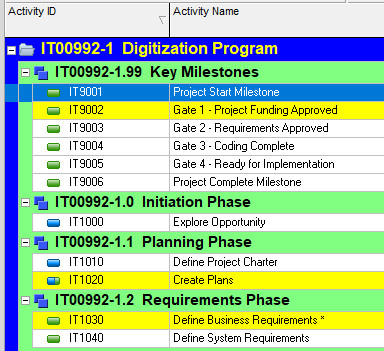
Tasks that require updates for the reporting period appear highlighted:
#33 – Use the split-screen for easier viewing and updating
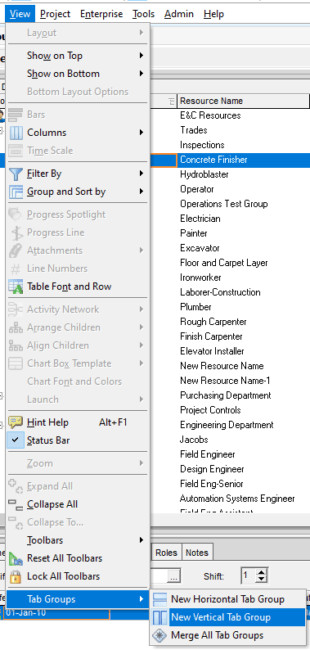
P6 uses tabs to overlap views and menus, but there is also a split-screen option. Go to the View tab and select Tab Groups, then New Vertical Tab Group:
Here is an example of the split-screen view:
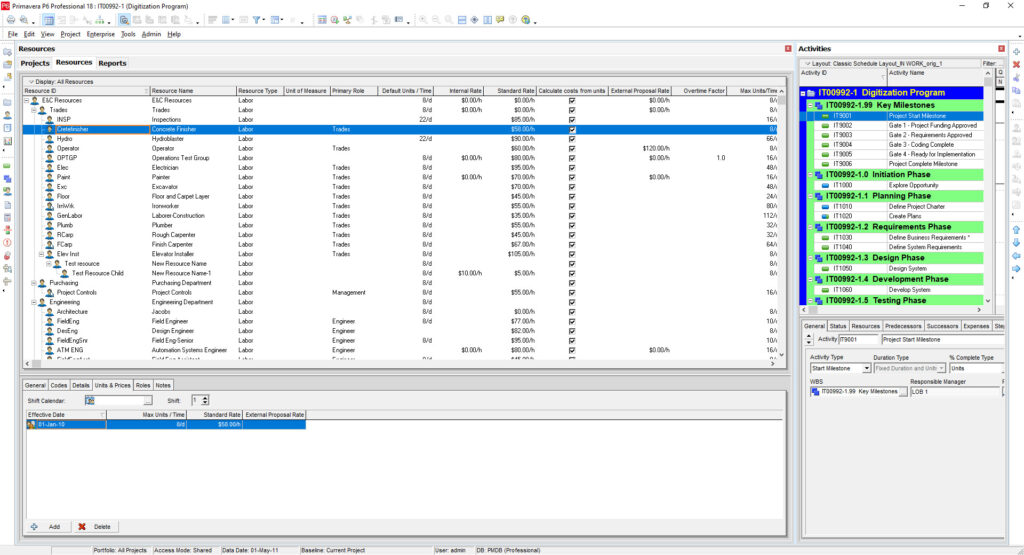
After repeating the step, an additional screen is added to the split-screen view:
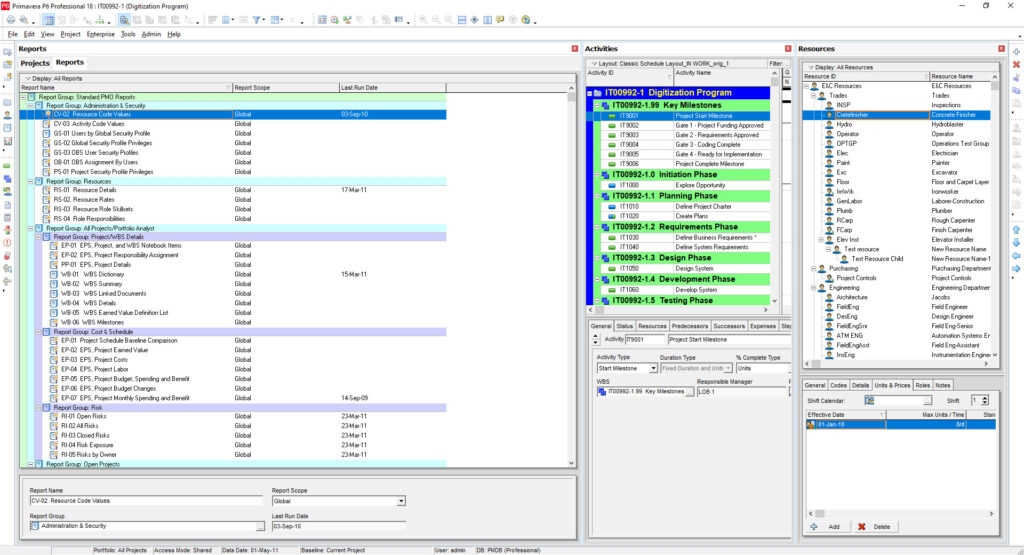
#34 – On an enterprise system, find out who is logged into a schedule
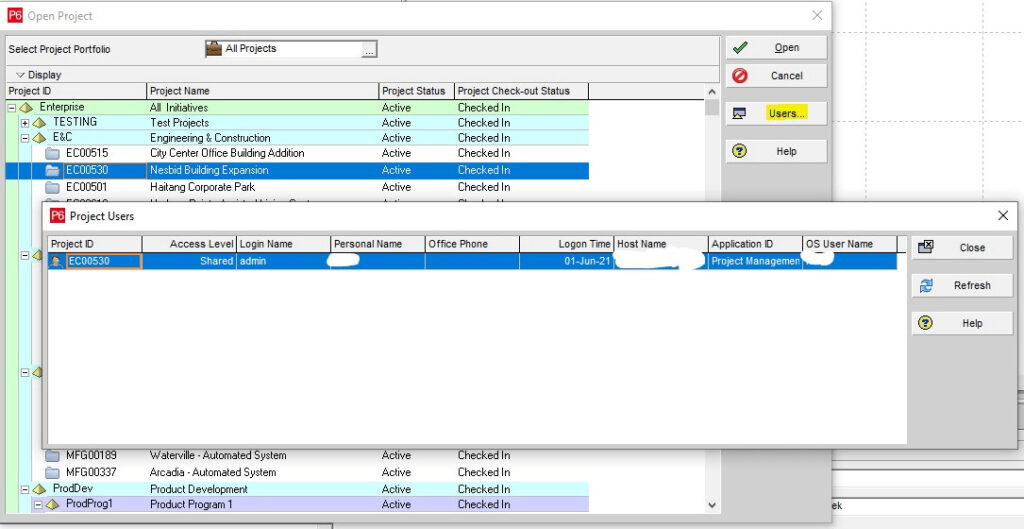
If you use a P6 enterprise system with other users, you can see who is currently checked into a schedule. Go to the File tab and select Open, or use Ctrl-O, then choose the Users… button to view the current users in the project:
#35 – Who made modifications to the project schedule?
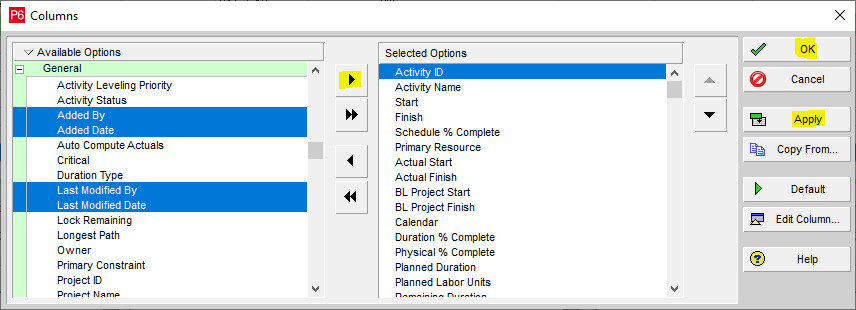
In the same enterprise environment, it is often helpful to know which user made a particular change or update. Right-click on the schedule columns to add new columns to your current view, or go to the View tab and select Columns. Add four new columns from Available Options to Selected Options as shown below: