

See Exactly What Changed Between Two Versions
Compare Projects analyzes differences between two versions of the same project, side by side, highlighting schedule shifts, task changes and dependency modifications.
The idea
See What Moved Between Two Versions of the Plan
Compare Projects puts two versions of the same project side by side, so the changes are visible instead of buried in two separate files.
Two Versions, One View
Analyze differences between two versions of the same project, displayed side-by-side.
Same Project ID
Only projects that share the same Project ID can be compared.
Visual, Not a Spreadsheet
Interactive Gantt charts highlight schedule shifts, task changes and dependency modifications.
What you get
Spot Differences Between Schedule Versions
Read the Change in Three Connected Ways Pro
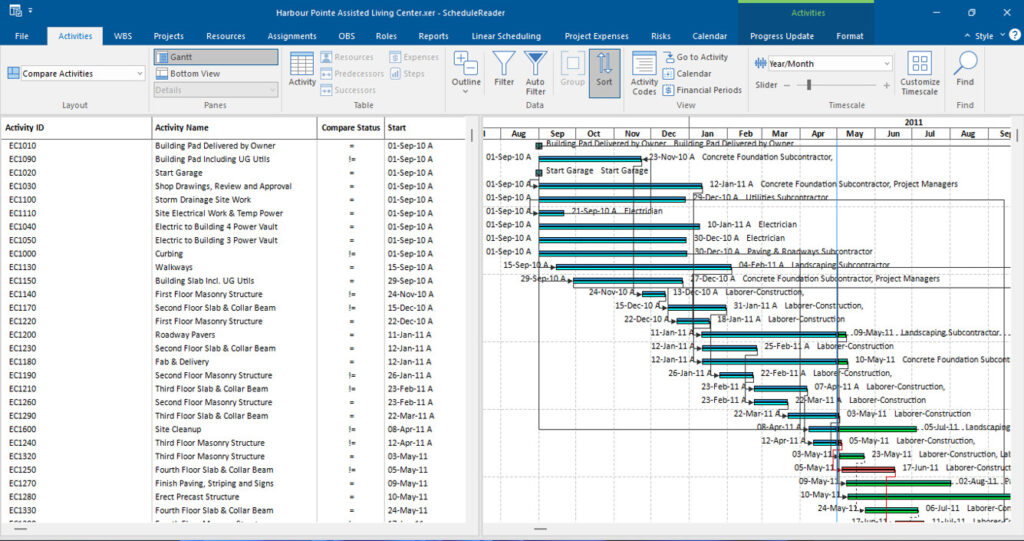
Bring in a second version of the project and read the difference through the views that suit the review.
- Interactive Gantt charts that highlight schedule shifts, task changes and dependency modifications
- An Activity Table with a line-by-line breakdown of changes for selected activities
- A bottom view that switches between Activities, WBS, Project Budget and high-level project metrics
How it works
Compare Two Plans in Three Steps
Open the XER File
Start with the current project open in ScheduleReader.
Go to File, Then Compare
Open the Compare sub-menu in the File menu to set up the comparison.
Import the Second Version
Click Import, load the baseline project and click Open. The Compare Activities layout shows both versions at once.
Focus the review
Choose What Counts as a Difference
Users can apply filters to choose which activity parameters are highlighted or shown when differences are detected.
In the Compare Activities layout, the current project is shown with top-oriented bars and the imported baseline with bottom-oriented bars, so task shifts are visible at a glance.
- Filter on duration, name and relationships
- Modify the bar layout and color on the Gantt chart
- Insert additional parameter columns into the Activity Table
Why it matters
Data-Driven Decisions for Project Control
The comparison is built to support the decisions that keep a project moving, from spotting scope creep to shortening the review cycle.
Identify Changes and Scope Creep
Quickly detect variances, delays or improvements across activities, durations, costs and other project parameters.
Track Progress Against Baselines
Compare versions against baselines, saved snapshots or updates over time, without a full P6 setup.
Fasten Review Cycles
A focused, parameter-based comparison with all changes in one centralized view fits each team context.
FAQ
Frequently Asked Questions
Which Projects Can I Compare?
Only projects with the same Project ID can be compared. The feature compares two versions of the same project, such as the current plan against a baseline, saved snapshots, or updates over time.
Is Compare Projects Included in Standard?
No. Compare Projects is a ScheduleReader PRO feature, alongside dynamic reports and dashboards, the DCMA 14-point assessment and linear scheduling.
What Do the Two Sets of Bars Mean?
In the Compare Activities layout, the current project is shown with top-oriented bars and the imported baseline with bottom-oriented bars, so task shifts are visible at a glance.
Can I Choose What Counts as a Difference?
Yes. Apply filters to choose which activity parameters - such as duration, name and relationships - are highlighted or shown when differences are detected.
Do I Need Primavera P6 to Compare Schedules?
No. ScheduleReader analyzes the exported .xer files read-only, so you can compare versions without a full P6 setup.
Get started
Compare Two Versions of Your Own Project
The 15-day trial includes every Standard and PRO feature. Open a real .xer file and see the change.