
Calendar View
Allows you to effortlessly review your project activities in a clear and organized calendar format. The activity bars in this view elegantly span the days or weeks that the tasks are scheduled, providing an intuitive visual representation of your project’s timeline.
With this familiar and user-friendly format, you can swiftly identify activities scheduled for specific days, weeks, or months. You can utilize the Calendar view to gain a comprehensive overview of the activities planned for a particular week or a range of weeks.
Moreover, the Calendar view becomes your invaluable assistant in efficiently tracking activities scheduled on precise days, weeks, or months. Embrace the power of this feature to stay on top of your project’s schedule and effortlessly manage your tasks.
Calendar tab
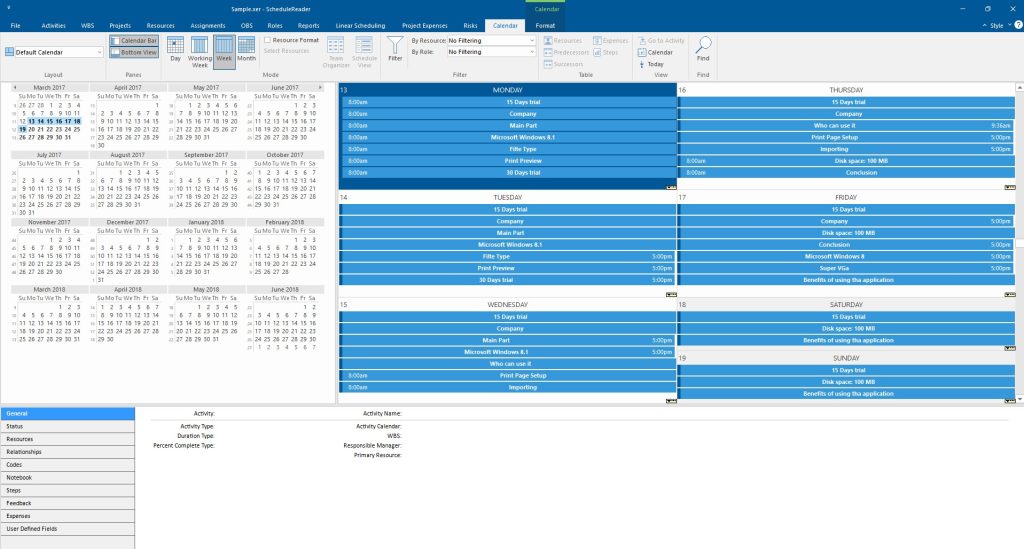
The following functionalities are placed in the Calendar tab:

- Layout – Choose how project data is displayed in the currently active view. Each layout shows different columns and applies different groping and sorting of data.
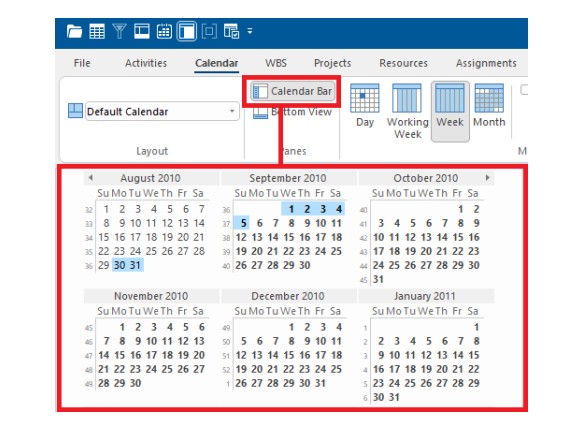
- Calendar Bar – Provides a graphical view of the calendar along the calendar-format view. Click on the random day or select a group of days and view the activities that are scheduled in that period.
- Bottom view – Show on bottom project information details for the selected activity.
- Day – Present the project activities scheduled in a particular day.
- Working Week – Presenting the project activities in calendar format brought down to the level of the week. Non-working days are not included in the view.
- Week – Presenting the project activities in calendar format brought down to the level of the week. All weekdays are included in the view.
- Month – Presenting the project activities in calendar format brought down to the level of one month.
- Resource Format – Activate the option for viewing the resource assignments in calendar format.
- Team Organizer – Expands all collapsed items in a hierarchical table view.
- Schedule View – Collapses all expanded items in a hierarchical table view.
- Filter – Filter the activity view based on selected criteria.
- By Resource – Filter the activities in the calendar by the assigned resources
- By Roler – Filter the activities in the calendar by the assigned roles.
- Resources Table – Customize columns for resources assigned to selected activity.
- Predecessor table – Customize columns for activities assigned as predecessors.
- Successor table – Customize columns for activities assigned as successors.
- Expenses table – Customize columns for expenses assigned to the activity.
- Steps – Customize columns for activity steps assigned to the activity.
- Go to activity – Navigate to the selected activity in Gantt chart view.
- Calendar – View details for assigned global, project and resource calendars.
- Today – Navigate to the current date in the calendar.
- Find – Find items in the current Table view.
Activity details in the Calendar View
You can enable details to be shown on the bottom of the activity table. Select an activity from table to view detailed information for it as presented in following tabs:
- General – General information for ID, name, activity and duration type, calendar, % complete, WBS, responsible manager and primary resource.
- Status – Provide information for activity durations, dates and constraints.
- Resources – Details for resources assigned to selected activity.
- Relationships – Displays predecessors and successors of the selected activity in two, separate tables.
- Codes – View assigned activities codes and values.
- Notebook – Activities notes.
- Steps – Used to break activities down into smaller units and track the completion of those units. Calculate activity percent complete based on the weight you assign to each activity step.
- Feedback – View the feedback from various sources related to specific activity.
- Expenses – Displays the expenses that are assigned to the selected task.
Calendar Bar
The Calendar Bar is situated along the left edge of the Calendar window, offering a user-friendly way to switch to a specific day with just a simple click on the corresponding date. In the event that the desired day is not immediately visible on the Calendar Bar, you can easily scroll to the relevant month and then select the specific day you wish to view.
Should you prefer not to have the Calendar Bar visible in ScheduleReader, you can simply disable this feature by unchecking the “Calendar Bar” option on the main tab. This allows for a customized viewing experience that suits your preferences.