

In the Page Setup dialog box, you can define time periods, scaling, margins, and page header and footer.
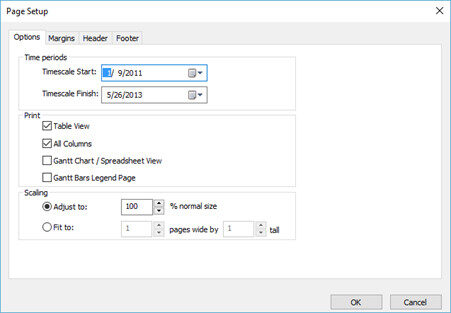
In the Options tab you can find the following settings for time periods, print view and scaling:
| Timescale start | From start date. |
| Timescale finish | To end date. |
| Table view | Print only the visible columns in the active table view. |
| All table | All columns in the active table. |
| Gantt chart view | Print only the Gantt chart. |
| Adjust | Magnify or reduce a print by an exact percentage. |
| Fit to | Small pages up and large pages down to fit the paper. |
In the Margins tab, define the empty space to be left from top, down, left, and right in inches.
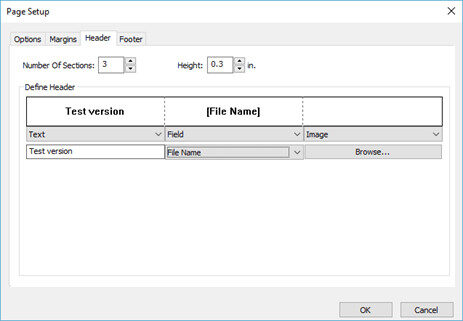
Under the Header tab, you have the following options:
- Number of sections – you can choose how many sections or columns, the Header area will be divided in;
- Height – the height of the Header row
- Type of data – Text, Image, or Field
Supported Field data types:
| Current Date | Page Number |
| Current Date Time | Project Finish |
| Current Month | Project ID |
| Current Week | Project Name |
| Date/Date | Project Start |
| File Name |
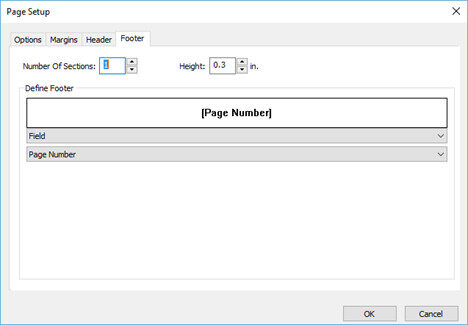
Under the Footer tab, you can do the following options:
- Number of sections – you can choose how many sections or columns, the Header area will be divided in;
- Height – the height of the Header row;
- Type of data that will be inserted in the defined number of sections with a specific value.
Print Preview
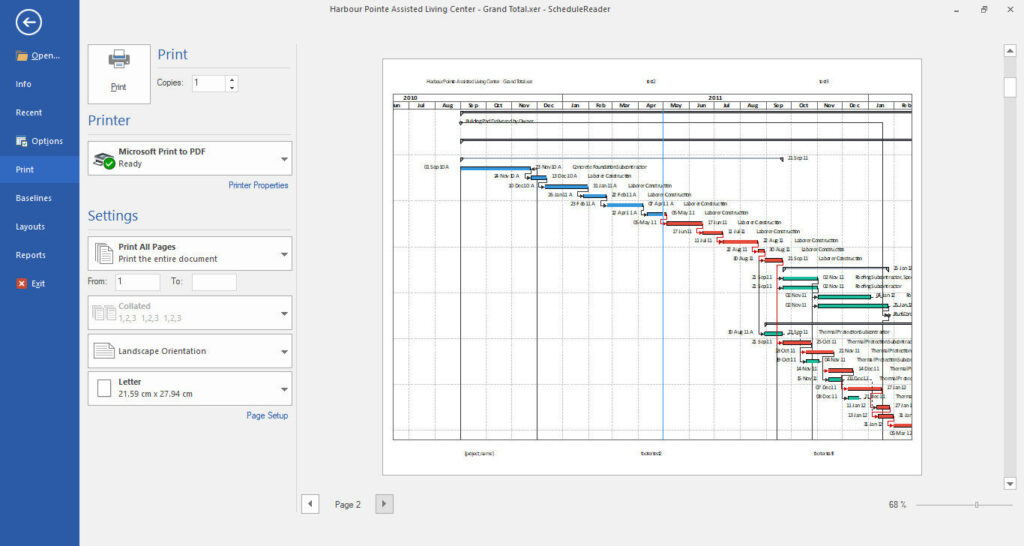
From File->Print open the Print Preview to see the print output of the current view. In this window, you can define pages, print settings, and printer properties.
Print Settings
Under Settings, you can specify how project pages are to be printed out.
- You can select to print the entire project, the current page, or a range of pages.
- To sort your multiple copies select collated to print pages in order 1,2..1,2 or uncollated to print pages in order 1,1..2,2.
- Change the page orientation to portrait or landscape.
- Select a page size (A3, A4, A5, Letter, etc.) that best suits your needs.