
In ScheduleReader™ you can create custom user-defined filters which can be saved and applied to any project for faster filtering. In order to d a custom filter, you need to take the following steps:
-
In the Activities ribbon tab, click on the Filter option.
-
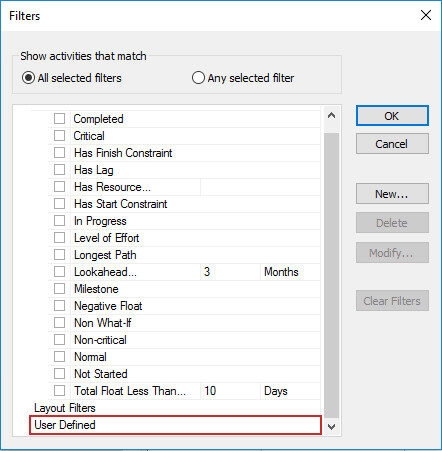
In the Filters dialog box, click on the New button.
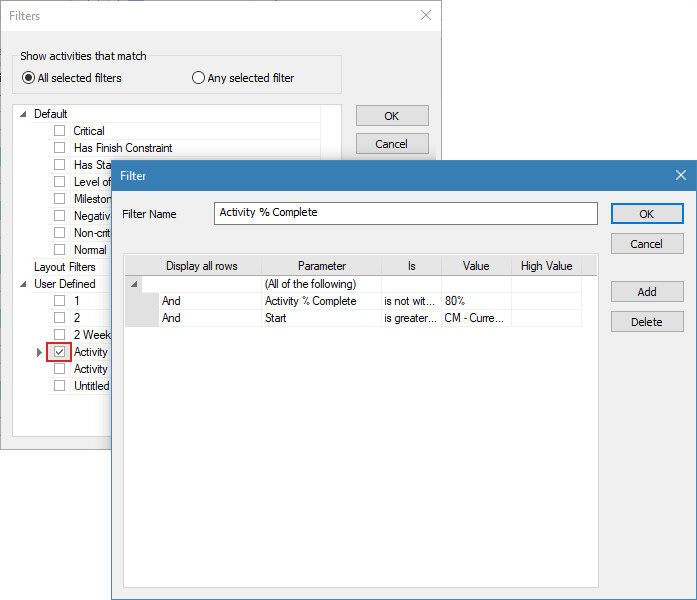
- A new Filter dialog opens, and add a name for the new filter e.g. (Activities with less than 50% Complete).
Fill in the necessary filter criteria fields:
- Any of the following or All of the following;
- Displaying all rows field– display the fields that will be filtered;
- Parameters field – Displays the chosen parameter for each filter criteria. (e.g. Activity % Complete);
- Is field – Contains the corresponding operator for specific filter criteria;
- Value/High-Value fields – Presents the values for each filter criteria.
-
In order for the filter criteria to be saved, click OK.
-
To apply the filter, select the check-box in front of the user-defined filter and click OK.