
How to Install ScheduleReader™?
In order to install your Company License Key, you should check the notification and perform the following steps below:
Existing Previous Installation of ScheduleReader™?
If you have previous version of ScheduleReader™ installed on client computers within your Company, before installing the latest version of the product you will have to uninstall the previous installations.
As an administrator you can remove the previous installation using the install/uninstall tool to remove the program from the previously installed computers. After uninstalling you will need to check if all the files/keys have been removed from the registry. To accomplish this please check if the following registry folders exist:
- “HKEY_LOCAL_MACHINE\SOFTWARE\ScheduleReader"- delete the " ScheduleReader " folder if it exists. (for 32 bit Windows OS).
- “HKEY_LOCAL_MACHINE\SOFTWARE\WOW6432Node\ScheduleReader"- delete the " ScheduleReader " folder if it exists. (for 64 bit Windows OS).
- “HEKY_CURRENT_USER\ SOFTWARE\ScheduleReader"— delete the " ScheduleReader" folder if it exists.
Installing\deploying ScheduleReader™ in Your Company
Once the previous installation has been removed or if this is your first installation, please follow the set of instructions below for the deployment of the ScheduleReader ™:
- Open your ScheduleReader™ setup MSI file in an installation tool with the method and tool that you wish to use (Group Policy, SMS or Other tool). The MSI setup gives the administrators options to open the file in installation tool and creating additional MST (transform) file which can contain customizations that the administrator wishes to provide to the end users (ie. setting up the license key, the options to install shortcut on the desktop, etc).
- Create additional MST (transform) file, which contains customizations Of your choice (i.e. your License Key, shortcut on the desktop, quick launch, etc). There are many tools that can be used for creating the MST file.
Note: In case you do not have such tool, support team can assist you in creating this file. For that purpose, you can send email to the following information:
- the language Of the application that you want to install o should the XER files always be associated with ScheduleReader™ or should there be a ScheduleReader ™ desktop shortcut icon on the users PC's
- should there be a ScheduleReader™ Quick Lunch icon
- should the application be installed on the default location (C:/Program Files/ScheduleReader) or other.
Publish ScheduleReader™ setup MSI file to the end-user computers synchronized with the MST (transform) file. Below you can see example of how you can synchronize them:
msiexec 'i "[path to setup folder]\ PR_COMPANYNAME_ [version].msi” TRANSFORMS-"[path to MST folder]\PR_COMPANYNAME_[version].mst
You can additionally add at the end of the line "/qb" for deployment with basic user interface or "/qn" for deployment without any user interface.
When the windows installer runs the setup transparently for the user, the MST file acts as if the user has run the setup themselves and chosen the options preselected by the administrator.
Installing ScheduleReader™?
To start the installation of ScheduleReader™ double-clicking on the setup file or use the “Run” command from Start menu.
In order to install the application you will need Administrator privileges on your device.
Note: ScheduleReader™ runs on all supported version of Windows.
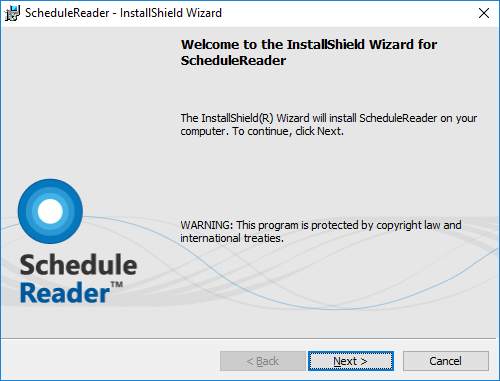
Step 1: Setup Welcome
Once setup is run, the initial preparations for installation begins. The setup wizard will display the Welcome dialogue box from where you can select Next to continue, or Cancel if you want to exit the setup.
Step 2: License Agreement
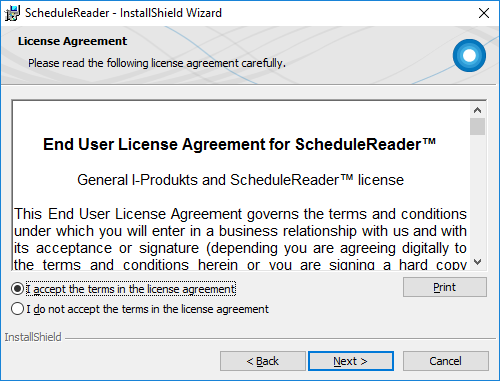
License agreement shows the end user license agreement for using ScheduleReader™. Read it carefully and if you agree select “I accept the terms in the license agreement”, otherwise, Cancel the installation wizard.
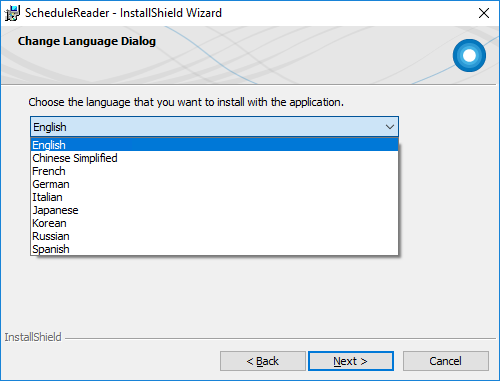
Step 3: Choose Application Language
From the list of available languages select your language in which application content will be presented.
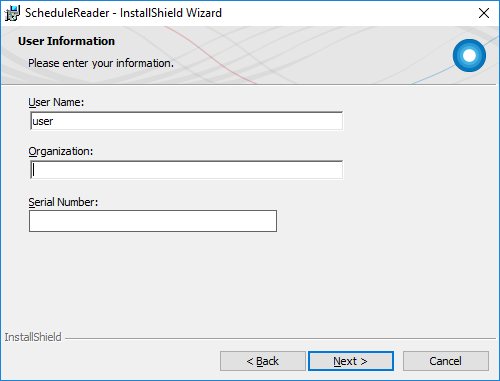
Step 4: User Information
This dialog box collects the information about the user who performs the installation, and if the install is only for the current user or for all users of the PC. In this dialog the user enters his purchased License Key information - the Serial Number. You must insert the correct serial number if you want to continue the Setup, otherwise you will not be allowed to install the product on your computer.
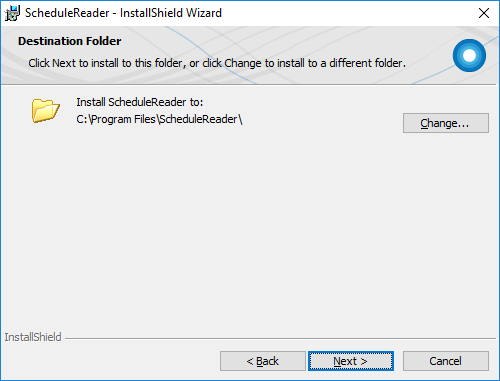
Step 5: Destination Folder
Select a destination folder where ScheduleReader™ to be installed on your PC. By default, it is installed in: C:\Program Files (x86)\ScheduleReader™. If you want to install application on another location click on the Change button.
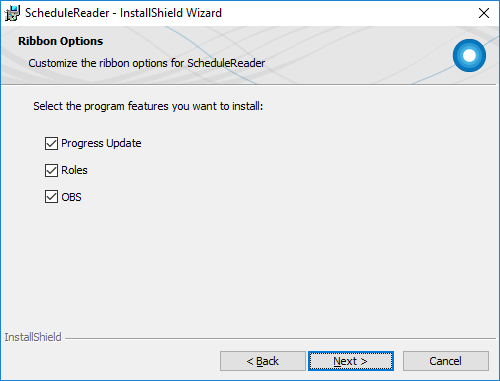
Step 6: Ribbon Options
In Ribbon option dialog box you can specify which program features will be installed additionally. By default Activities, WBS, Projects, Resources and Assignments ribbons are available for work.
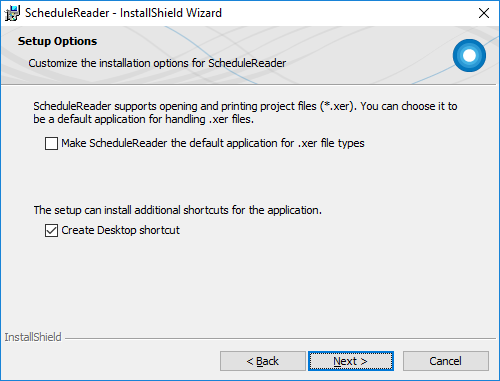
Step 7: Setup Options
In Setup option dialog box you can specify whether ScheduleReader™ to be your default application for opening .xer files. Also, if you want to create application shortcut on your desktop.
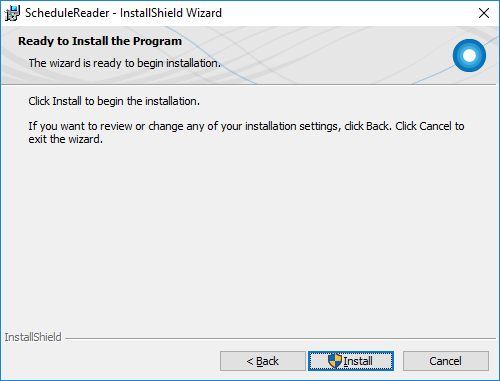
Step 8: Ready to Install the Program
When you have defined with your setup preferences for ScheduleReader™ click on Install button or go Back to change any setting.
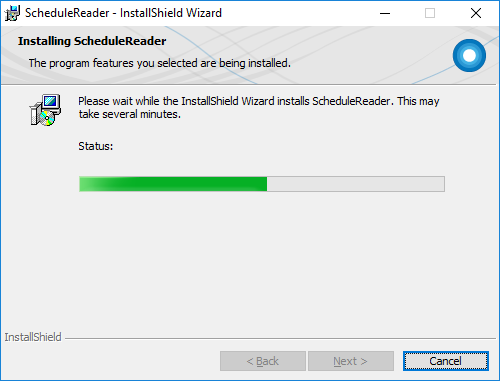
Step 9: Progress
You can see the progress in the Installation dialog. You can stop the installation by click on Cancel button. This will roll back the installation and remove all data related to this product on your device.
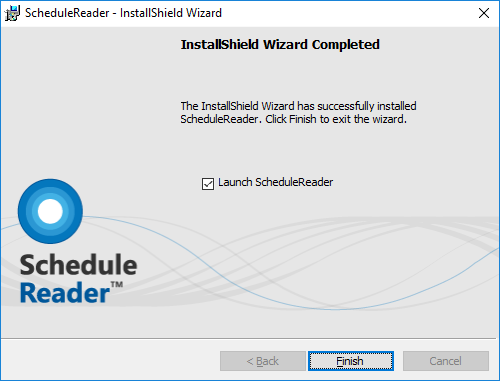
Step 10: Setup Completed
Once installation is completed you will get a message that application is successfully installed on your computer. Click Finish to open ScheduleReader™.
How to Uninstall ScheduleReader™?
To uninstall ScheduleReader™ follow these steps:
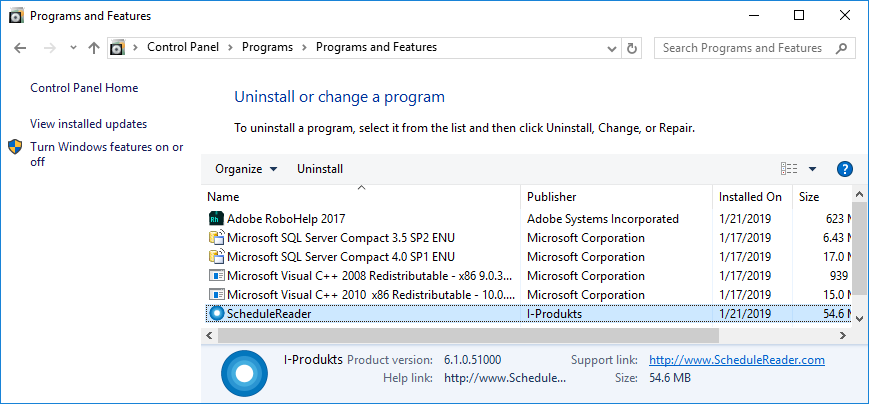
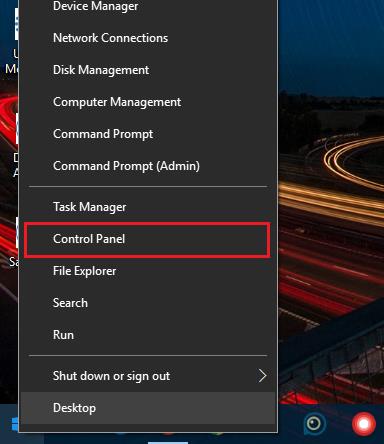
- Right-click the Start button and choose the Control Panel from the pop-up menu.
- When the Control Panel appears go to Programs and Features category and choose Uninstall a Program.
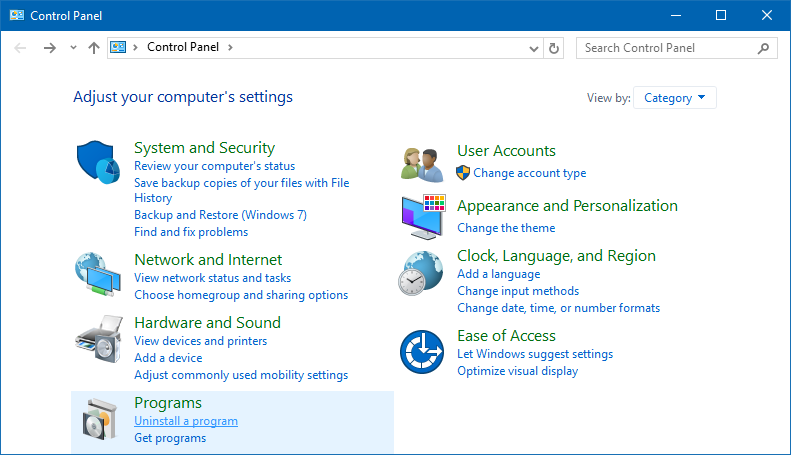
- Find the ScheduleReader™, click once to select it, and then click Uninstall.