
Software Activation
Once the trial period expires, user must activate the software in order to continue working with ScheduleReader™. Two options are available:
- Activation over internet;
- Manual Activation.
Activation over Internet
To activate ScheduleReader™ over internet, follow the instructions steps below:
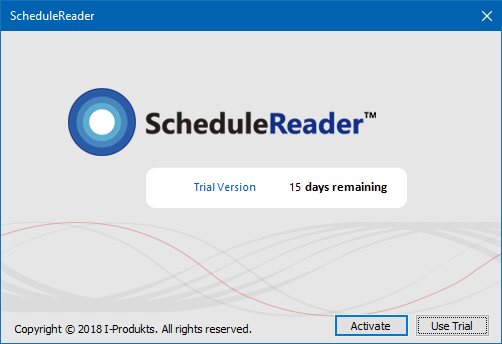
- In the Trial window, click on the Activate button. You can do this during the trial period or after the trial period expire.
- In the Enter Your License Key field, insert the license key that you had received from the customer center. The License Key can be for the Standard version of for the Professional version.
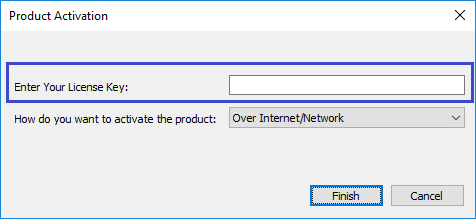
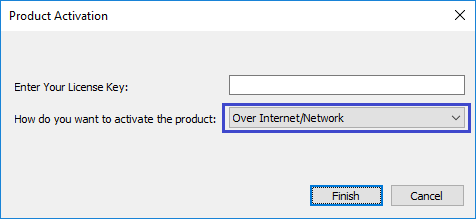
- In the How do you want to activate the product drop-down list select the Over Internet/Network option and click on the Finish button.
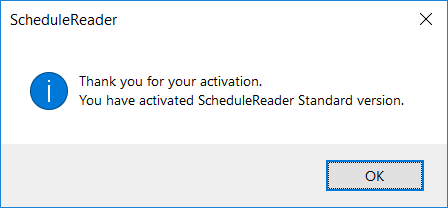
- If the License Key is valid and the activation passed successfully, you will be notified with the following pop-up:
Manual Activation
In order to successfully activate your ScheduleReader™, you will need to have read/write privileges on the registry. We recommend you to have Administrator privileges.
To manually activate ScheduleReader™, follow the instructions steps below:
- In the Enter Your License Key field, insert the license key that you had received from the customer center. The License Key can be for the Standard version of for the Professional version.
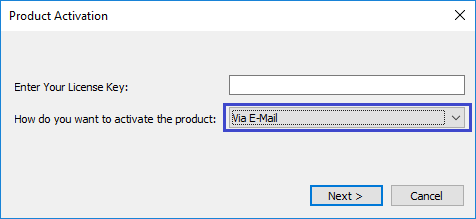
- In the How do you want to activate the product drop-down list select the Via E-Mail option and click on the Next button.
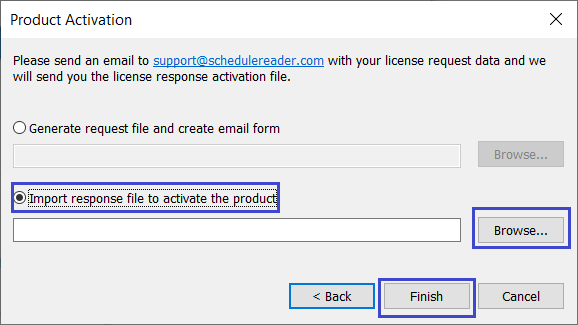
- Select the “Generate request file and create email form” in the activation dialog. Once you have selected the location of the requested file using the Browse button, complete the procedure using the Finish button.
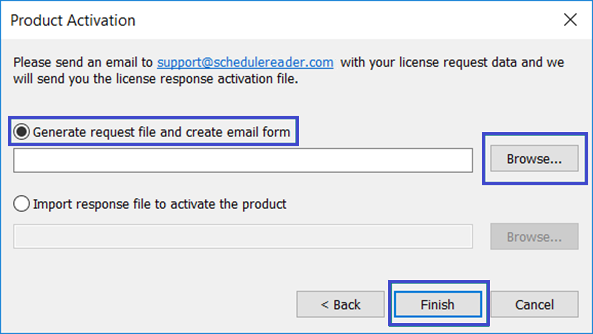
- Once we receive your request, we will generate a respond file and send it back to you. Save the attachment from the e-mail on location on your PC. Start the activation procedure once again. Select the “Import response file to activate the product” radio button. Browse the file tat you have previously saved and complete the activation procedure.
Upgrade from Standard Version to Professional Version
You can upgrade your ScheduleReader™’s Standard version into Professional by inserting the appropriate license key and activate it.
How to Know Which Version I’m Running?
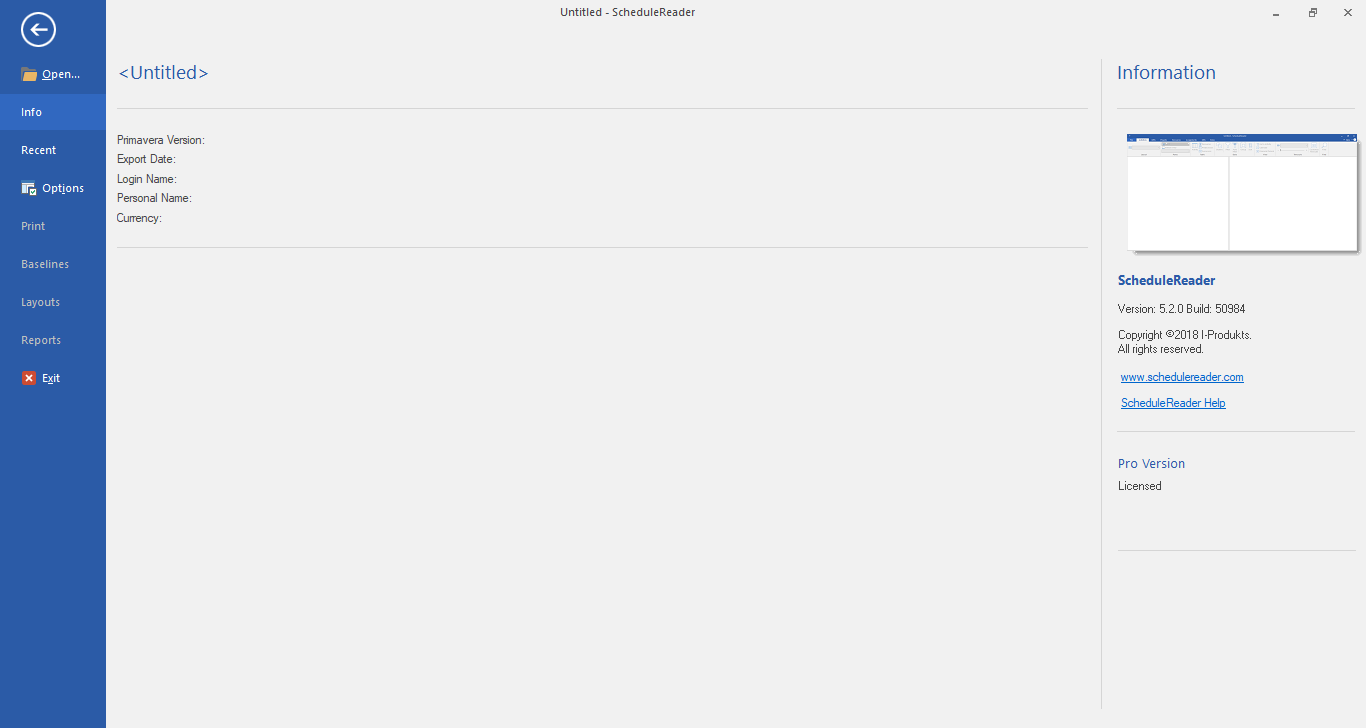
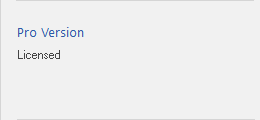
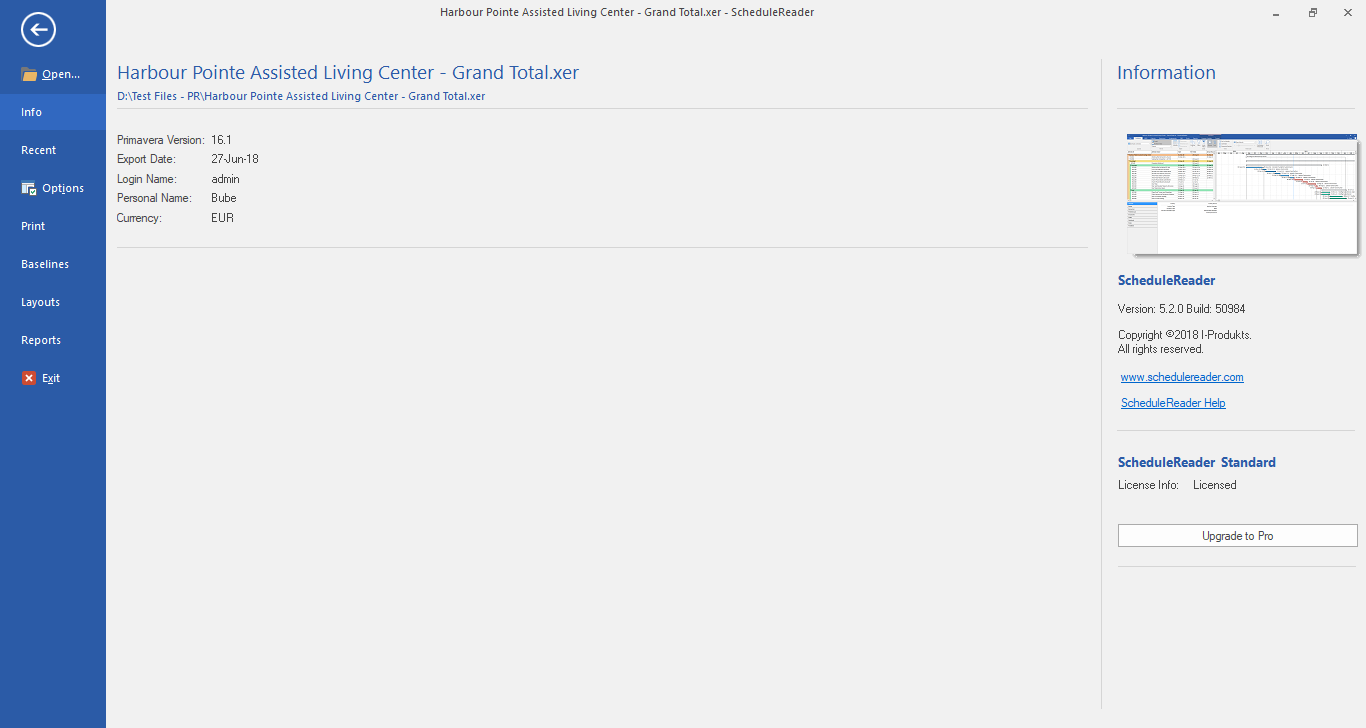
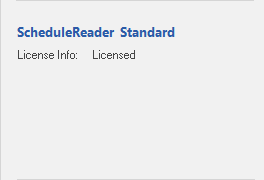
Inside the Info sub-menu, in the lower right corner, there is information about your license.
For upgrading to Professional version, perform the following steps:
- Click on the Upgrade to Pro button, located in the Info sub-menu.
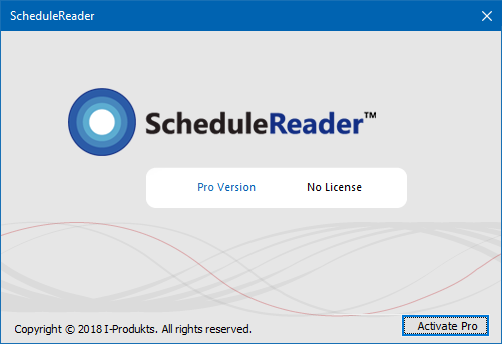
- In the newly open dialog, you will see the information about the status of the Professional version. To continue with the process, click on the Activate Pro button.
- In the Enter Your License Key field, insert the license key for the Profession version, that you had received from the customer center.
- In the How do you want to activate the product drop-down list select the Over Internet/Network option and click on the Finish button.
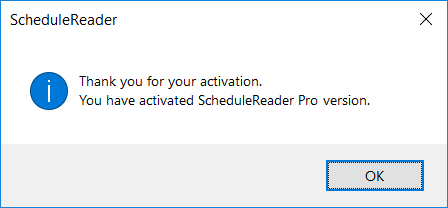
- If the License Key is valid and the activation passed successfully, you will be notified with the following pop-up:
- After the activation, the information in the Info sub-menu will look like the image below.