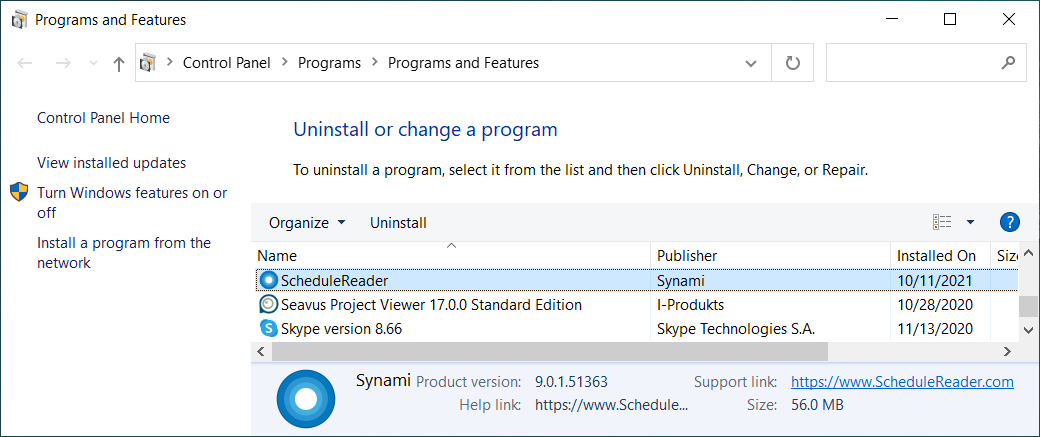

How to Install ScheduleReader™?
To start the installation of ScheduleReader™ double-clicking on the setup file or use the “Run” command from Start menu.
In order to install the application you will need Administrator privileges on your device.
Note: ScheduleReader™ runs on all supported version of Windows.
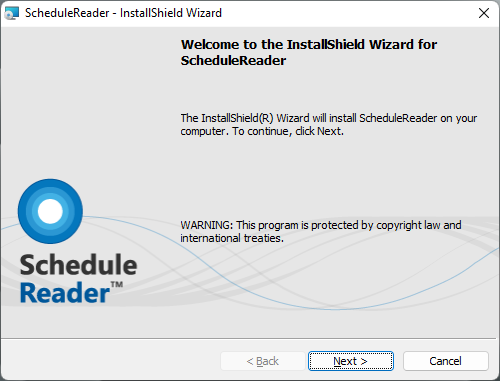
Step 1: Setup Welcome
Once setup is run, the initial preparations for installation begins. The setup wizard will display the Welcome dialogue box from where you can select Next to continue, or Cancel if you want to exit the setup.
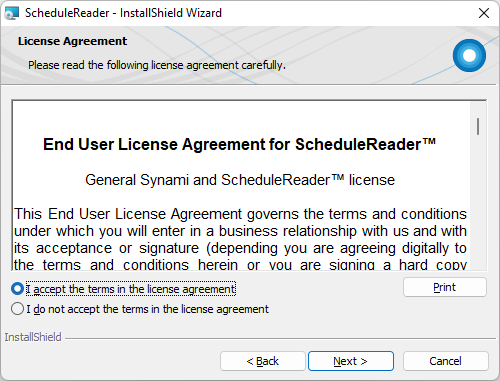
Step 2: License Agreement
License agreement shows the end user license agreement for using ScheduleReader™. Read it carefully and if you agree select “I accept the terms in the license agreement”, otherwise, Cancel the installation wizard.
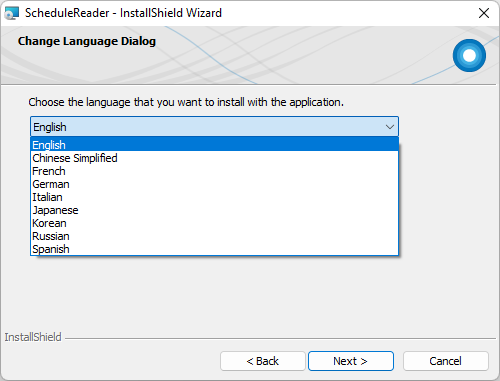
Step 3: Choose Application Language
From the list of available languages select your language in which application content will be presented.
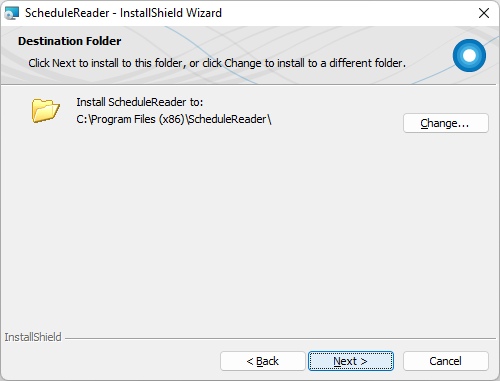
Step 4: Destination Folder
Select a destination folder where ScheduleReader™ to be installed on your PC. By default, it is installed in: C:\Program Files\ScheduleReader. If you want to install application on another location click on the Change button.
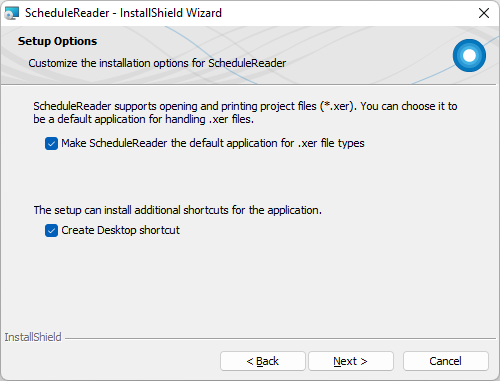
Step 5: Setup Options
In Setup option dialog box you can specify whether ScheduleReader™ to be your default application for opening .xer files. Also, if you want to create application shortcut on your desktop.
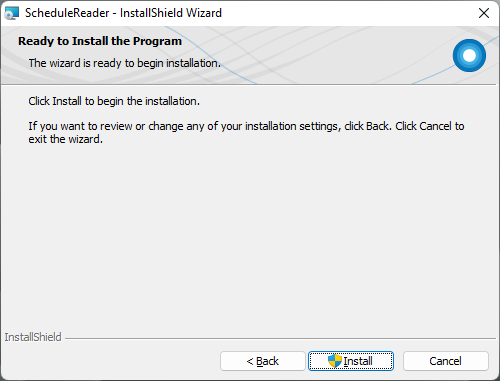
Step 6: Ready to Install the Program
When you have defined with your setup preferences for ScheduleReader™ click on Install button or go Back to change any setting.
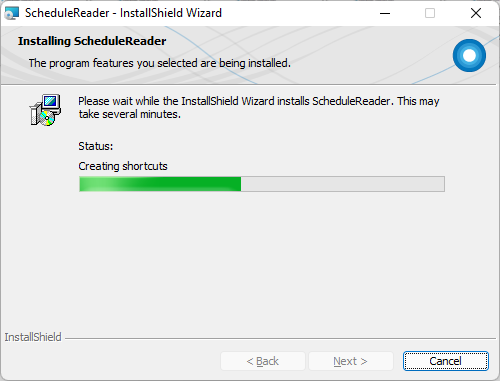
Step 7: Progress
You can see the progress in the Installation dialog. You can stop the installation by click on Cancel button. This will roll back the installation and remove all data related to this product on your device.
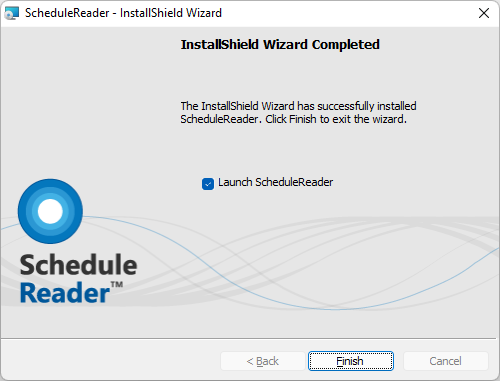
Step 8: Setup Completed
Once installation is completed you will get a message that application is successfully installed on your computer. Click Finish to open ScheduleReader™.
Step 9: Product Activation
ScheduleReader™ trial version can be used up to 15 days. Once trial version has expired, you should activate the application by providing your License key.
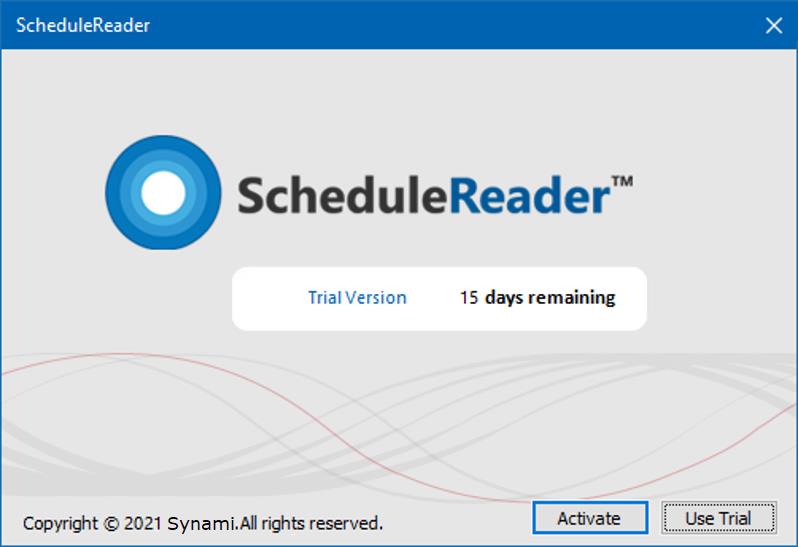
Product activation can be performed:
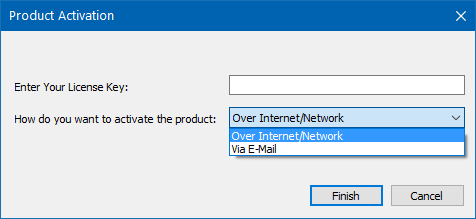
- Over Internet/Network
- Via Email – send an email at [email protected] along with your Request File that is automatically generated by the application and wait our support team to send you the Response File for activation.
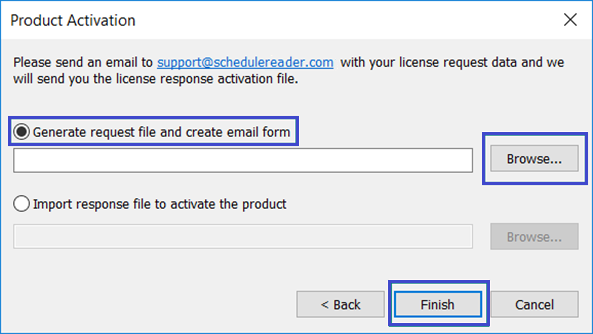
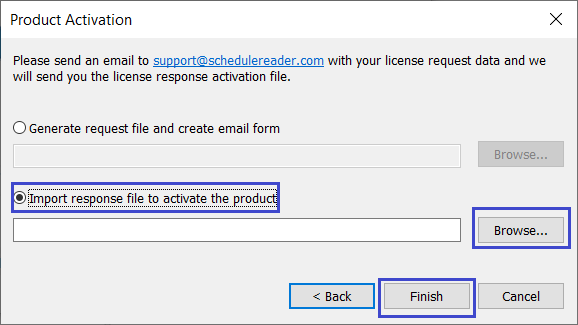
- Save the attachment from the e-mail on location on your PC. Start the activation procedure once again. Select the “Import response file to activate the product” radio button. Browse the file that you have previously saved and complete the activation procedure.
Note: If you reinstall the operating system on your device, change any computer components or change your computer, you will require a new installation of the product. In this case, please contact our Customer Service representatives on [email protected] to help you reactivate your license for ScheduleReader™.
How to Uninstall ScheduleReader™?
To uninstall ScheduleReader™ follow these steps:
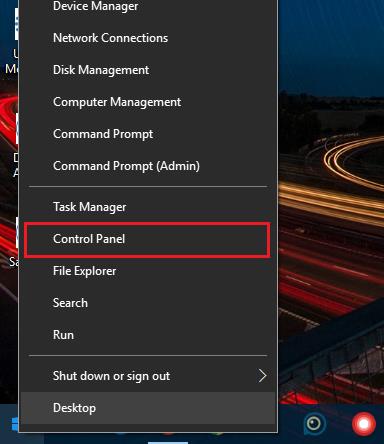
- Right-click the Start button and choose the Control Panel from the pop-up menu.
- When the Control Panel appears go to Programs and Features category and choose Uninstall a Program.
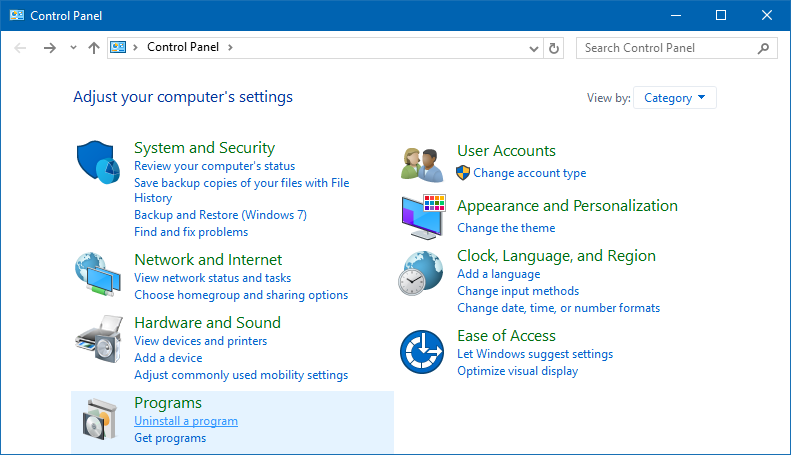
- Find the ScheduleReader™, click once to select it, and then click Uninstall.