

Introduction
ScheduleReader™ is a standalone application that allows you to open and view project data exported from Oracle® Primavera P6 in .xer and .xml file format. It is designed to deliver the well-known view of project information among all parties involved, without having an Oracle® Primavera P6 license.
Key Features
In ScheduleReader™, project participants such as team leads, team members, contractors, and subcontractors can have complete visibility on project progress by using the native views for:
- Activities
- WBS
- Projects
- Resources
- Assignments
- OBS
- Roles
- Reports
- Progress Update
- Time-Location diagram
Views
The project information for activities, WBS and project are given in a particular organized table view and the corresponding graphical Gantt chart. With these views, the user can see how the smallest work package (activity) is scheduled, the WBS of the project i.e. the phases that project is composed of and the placement of the project plan itself in time.
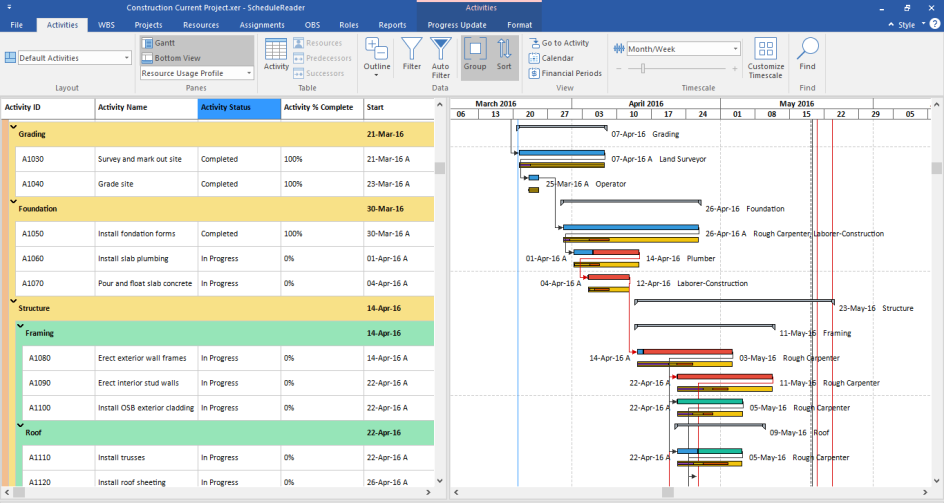
Customization of the Gantt Chart in the Activity view is fully supported. Users can decide whether some type of activity will be displayed in the view; modify the bar style of every activity category in terms of change the shape and color of starting, the middle and ending point of the bar or insert bar labels for particular activity type.
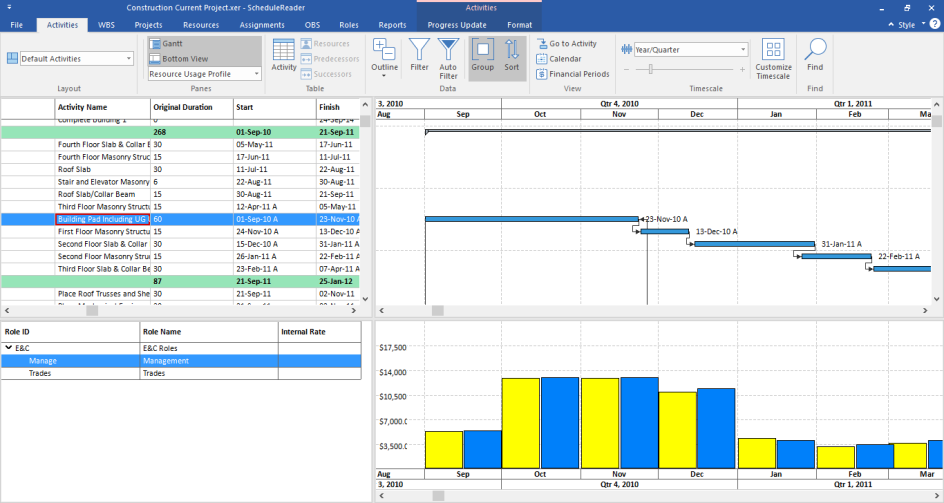
Trace Logic and Resource Usage Profile view are special views that are always combined with the Activity view. Trace Logic is a very useful view for detail analyzes of a specific portion of the project plan, where users can see the immediate predecessors and successors of a particular task, their current status, and assigned resources, scheduled dates, etc. Resource Usage Profile view allows the user to view how resources or roles Units are distributed over time.
Baselines
A baseline is a referent point in time from which the incoming project’s performance is compared. They are unavoidable parts of every project plan, used to determine the project’s parameter variation.
ScheduleReader™ fully supports the Baseline feature, allowing the user to insert up to three versions of baselines for a particular project. All differentiation between project baselines is presented graphically, in the Gantt chart, where every baseline is colored with different colors and presented with a unique bar style and with various baselines columns in the activity table.
Custom Groups and Filters
The project plan is a set of interconnected activities with different parameters and constraints. Sometimes it can be very hard to view activities with specific characteristics: completed, activities that are starting next period, milestones, or to organize them according to the remaining or original duration, etc. Groups and filters can help you to arrange the activities’ order according to the current needs to determine future steps or to view specific activities that require attention.
Customization of the group(s) is performed in a special dialog where the user defines the dataset and the criteria, according to the project activities will be organized. Group is saved in the layout, meaning that groups, together with the layouts, are saved on the application level. Users can open any project file and through the layout will apply the group.
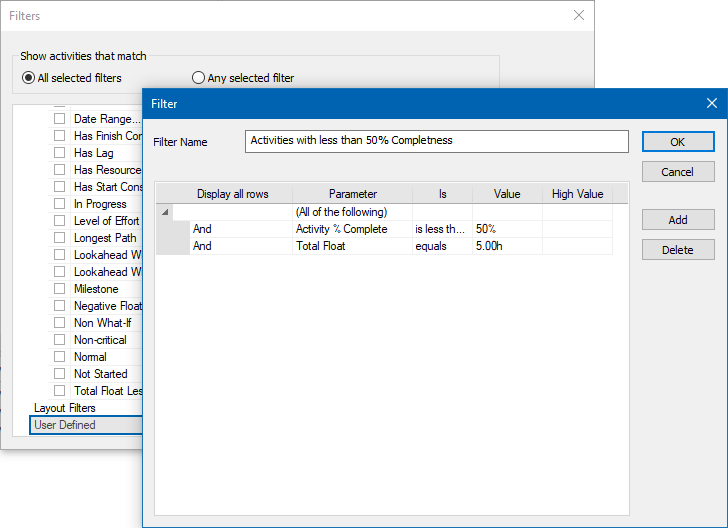
Filters are very useful because you can get the required information in a fraction of second. During project execution, you will need filters with complex definitions and filtering criteria. With ScheduleReader™ you can create user-defined filters, that will include or exclude activities in the view, based on the criteria that you specified. User-defined filters are saved on the application level, i.e. you can use them in any project plan.
Graphical Reports
One of the main factors for a successful project is to communicate different project information to a variety of people. This will ensure that everyone who is involved in the project plan shares the same information and is well informed about the current progress and costs. The most useful way to share this type of information is trough Graphical Reports and Dashboards. Compared with the traditional, table-text spreadsheet design, these reports are much easier for understanding, making the business reporting process meaningful.
In ScheduleReader™ there are two types of reports: predefined and user-defined. Predefined graphical reports give overall information about the status of the project plan and will help fewer experienced users to create graphical reports and dashboards and present the status of particular project parameters in front of management.
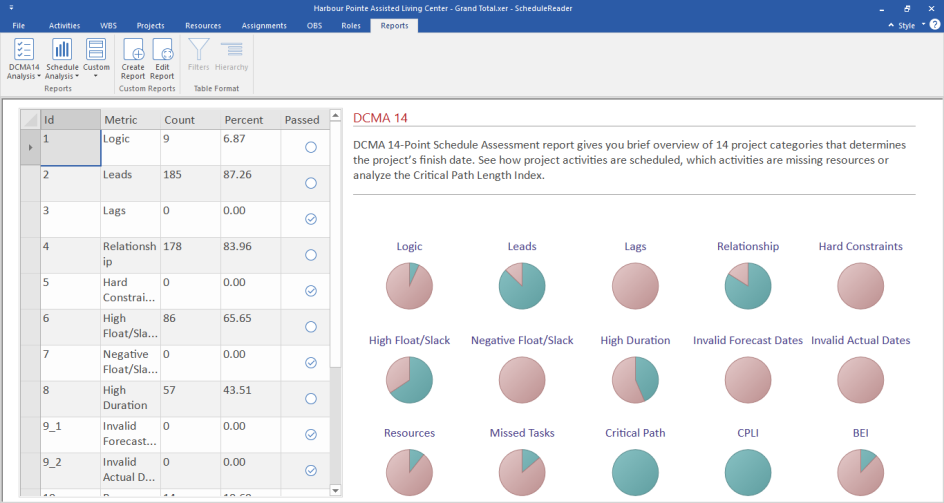
Advanced users can create complex graphical reports, by comparing different project categories into a one-page dashboard, containing key performance indicators (KPI), metrics and key data points for monitoring the health of the specific process.
Progress Update
One of the most important mechanisms that every project plan must-have in the execution stage is to have implemented quality status report procedures. Usually, companies have weekly status reports in case of short and middle-range projects and monthly status reports for long-range projects. In a good business process, the project manager is in the middle of the project information flow: he/she receives the updates from the team members, to be sure that the project milestones will be completed and then creates project plan reports for the upper management.
Following the concept for simplicity, functionality and without violates already established procedures, ScheduleReader™ will smoothly incorporate into any company workflow, boosting project productivity and efficiency.
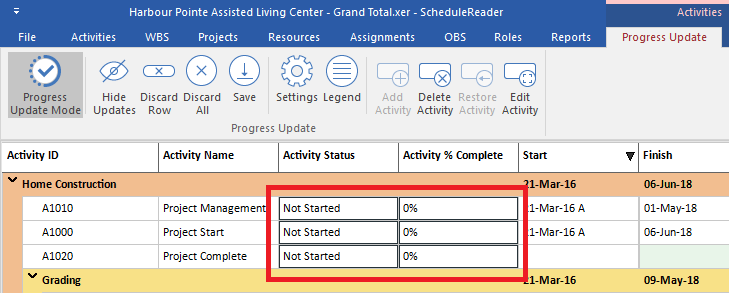
The project participant inserts the updates in the ScheduleReader™, according to the schedules activities. These proposals for the updates are saved in .xls/.xlsx file, created when ScheduleReader™ is in collaboration mode and located on the same location where the .xer file is saved. By importin the .xls/.xlsx file in Oracle® Primavera, the project scheduler can decide which updates will be accepted and which will be rejected.
Another beautiful thing is that project participants can insert proposals for new activities that are in progress on the field or to inform the scheduler which tasks are canceled and should be removed from the plan. While giving a proposal for new tasks or for deleting, they can view their updates directly in the Gantt Chart and see how their updates will impact the milestones in the project plan.
Layouts
Within ScheduleReader™ there are default layouts for the activities, WBS, projects, resources and assignments, that consists of information about the arrangement of different table elements in the appropriate view. There are several ways how users can work and manage the layouts in ScheduleReader™: by importing a .plf file that contains specific view information, by copying one of the default layouts and customize it, by exporting the customized layout as an XML file for the other project members.
Customizing the Gantt chart means that users can change the chart by selecting different bar’s type, color, shape and labels as well as insert different columns, filters and groups in the Gantt table.
Time-Location Diagram
Time-Location diagram is useful for those projects from Civil Engineering and Construction (Traffic engineering, Highway engineering, Railway systems engineering, Tunnel Engineering) and Power engineering and construction (Power line engineering) that are created and managed in Primavera P6. It is specific view that is used in projects that have repetitive activities. Repetitive activities are commonly found in projects for gas and oil pipelines, rails, bridges, tunnels, roads, high-rise buildings, transmission lines construction, etc. In the industry, these projects are known as linear projects.
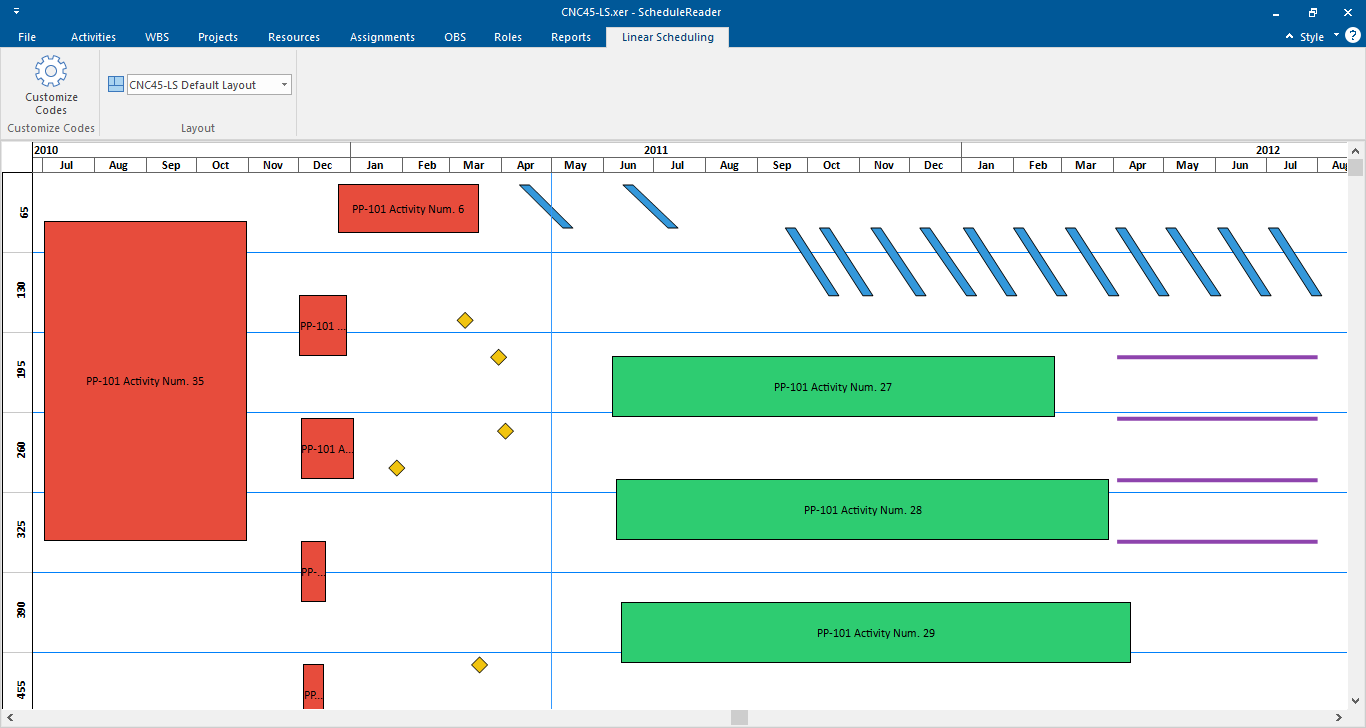
The time-location chart will help project managers and team leaders to view the time and location at which certain project teams will be work on the specified project’s assignment.