
Welcome to ScheduleReader™
Introduction
ScheduleReader™ is a stand-alone application that allows you to open and view projects exported from Oracle Primavera P6. It supports the import of native XER and .xml file format. ScheduleReader™ is designed to convert data from a project file and visually display the schedule progress over time.
ScheduleReader™ User Interface (UI) is very intuitive and easy to use. The UI incorporates the Table view, Gantt view and Details view while all functionalities are placed in the Ribbon.
Videos and Tutorials
Quick video tutorials with tips and tricks for getting the most out of ScheduleReader™. These walkthroughs are perfect to learn how to use ScheduleReader™.
Watch online
What’s New in ScheduleReader™?
What’s New in ScheduleReader™ Version 10.5
New Features:
- Support for XER and XML project files exported from Oracle Primavera P6 25.12.
- Show Critical Path in Trace Logic view.
- Font Customization in Activity table.
- New Floating license model.
Improvements:
- Improved work with Assignment view.
- Improved work with Trace Logic view.
Getting Started with ScheduleReader™
Workspace
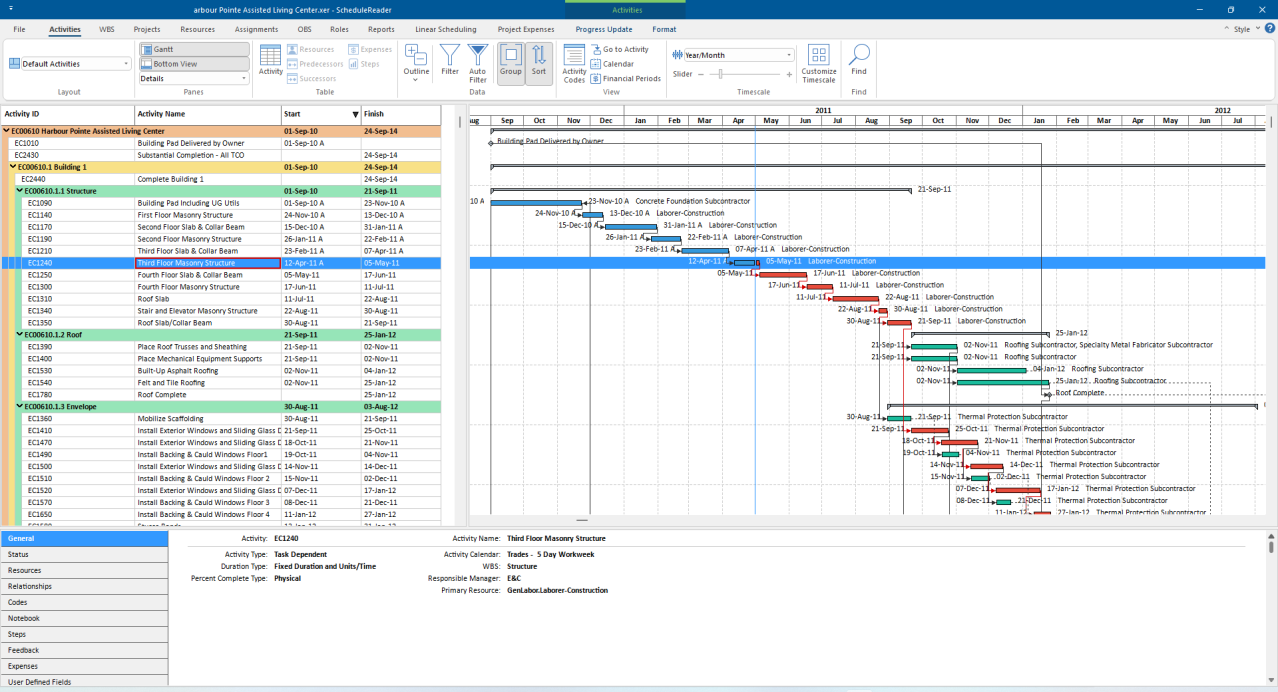
Users can quickly get started to work because the ScheduleReader™ user interface is very intuitive, as shown in the figure below.
Ribbon
All application features are placed on the ribbon, at the top of the screen, grouped by their similarities and functionalities. The main windows in ScheduleReader™ are given in different ribbons:

- Activities - view the open project activities
- WBS - view the Work Breakdown Structure that must be accomplished to complete a project.
- Projects - view the graphical representation of the project hierarchy that exists in your enterprise (EPS).
- Resources - view the resource structure and get details.
- Assignments - view resource cost and quantity information in the spreadsheet.
- OBS - view Organizational Breakdown Structure.
- Role - view the roles assigned to resources.
- Reports – view the project status through graphical reports.
- Linear Scheduling - view the project plan in the time-location diagram.
- Project Expenses - view the assigned expenses to each activity of the project plan.
- Progress Update view for inserting proposal for updates for activities and assignments
Besides the standard ribbons, ScheduleReader™ contains the so-called Format ribbon, that has features for customizing the Gantt Chart in the Activity view.
The Ribbon is designed to help you quickly find the functionalities that you need to complete an action.
You can expand the ribbon to view all functionalities in an active tab or minimize the ribbon to extend the workspace. Use the shortcut key CTRL+F1 to perform this action.
Details
Display detail information for a selected element of an active view such as project, WBS, activity and resources, at the bottom of the screen.
Quick Access Toolbar
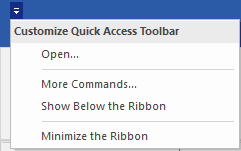
Customize your quick access toolbar to quickly reach your favorite commands. Select to show or hide the Open file dialog box. Place the toolbar above or below the ribbon. Option to minimize or maximize the ribbon.
FILE The first tab of the ribbon is the File menu which includes the following commands:
Open Select a file to open from a location.
Info View file properties and application information.
Recent List of the recently open files.
Options Set User preferences.
Layouts Create, import or export custom layout.
Baselines Compare several updated versions of the project file
Print Define the print setting for your projects.
Reports Import or export custom reports.
Exit Close application.
Style
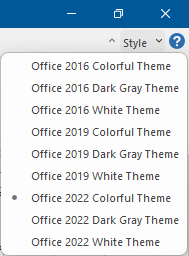
You can change the application theme from the Style drop-down menu placed in the upper right corner of the screen.
About
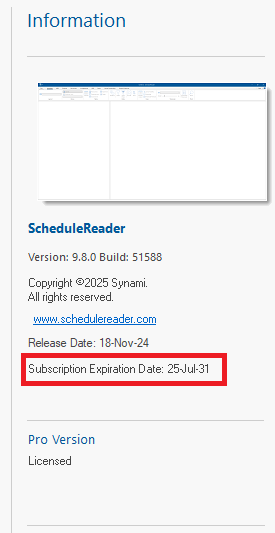
Application information such as version, build and the copyright is given under File → Info.
View Project
Open File
In ScheduleReader™ you can import project data exported from Oracle Primavera P6 in the following file formats:
- 1. XER - the Oracle proprietary format, 2. XML - designed to store and transport data with the Oracle P6 scheme.
There are two ways how you can open file:
- 1. From File click to Open and select file from your location 2. Drag and drop files in the main window of ScheduleReader™.
View Project Statistics
When you import file in ScheduleReader™ the application converts the data and visually presents project progress over time. Select a tab from the ribbon to get project insights as described below.
Activities View
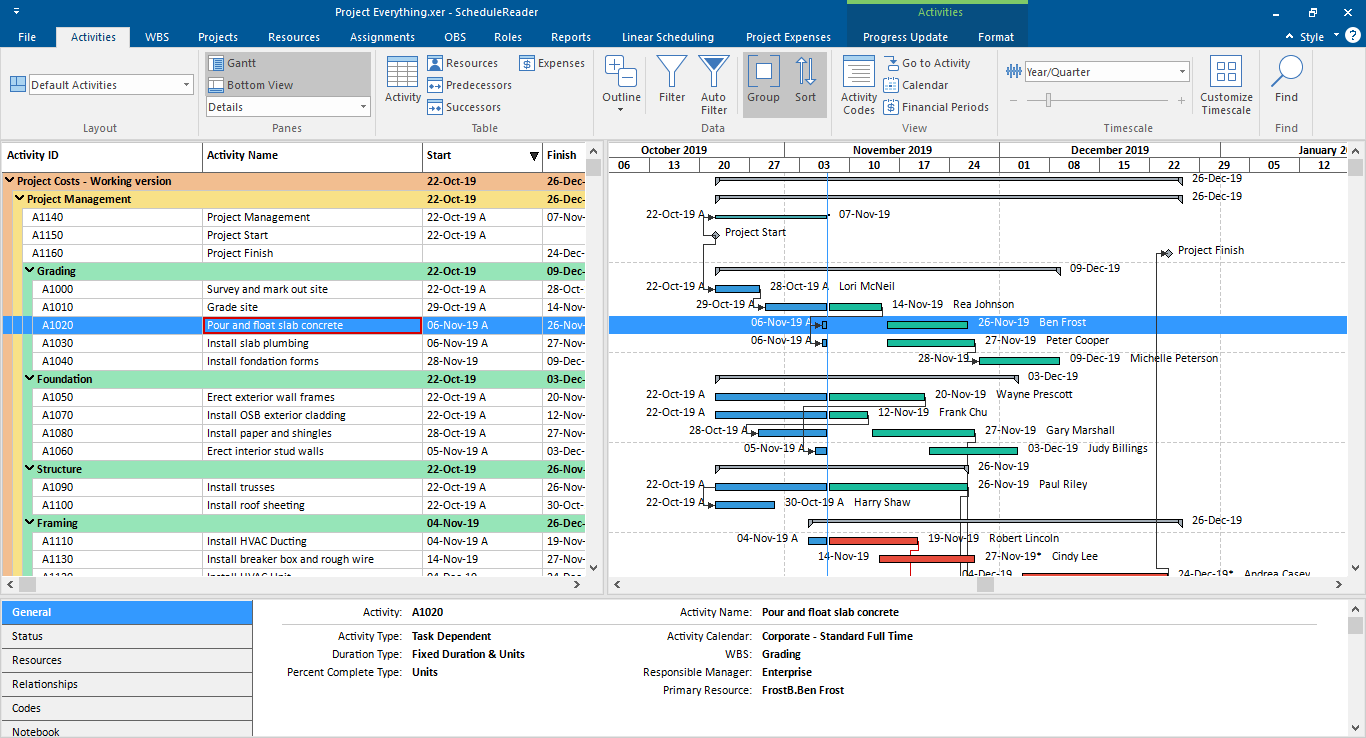
Activities are project elements that define the work that should be performed in a specific period of time. Use the Activity tab to view details for the open project. The activity view is divided between the Activity Table on the left side, the Gant chart on the right side, the ribbon at the top and the details view at the bottom of the screen as shown in the figure below.
Activities Tab
The following functionalities are placed in the Activity tab of the ribbon:
Layout Choose how project data is displayed in the currently active view. Each layout shows different columns and applies different groping and sorting of data. Gantt Provides a graphical view of schedule progress over the course of a project. Click to show or hide the Gantt chart. Bottom view Show on bottom project information details for the selected activity or the Trace Logic view. Activity table Add/Remove columns for a project. Resources table Customize columns for resources assigned to the selected activity. Predecessor table Customize columns for activities assigned as predecessors. Successor table Customize columns for activities assigned as successors. Expenses table Customize columns for expenses assigned to the activity. Expand All Expands all collapsed items in a hierarchical table view. Collapse All Collapses all expanded items in a hierarchical table view. Collapse to level Select a level to collapse to items in a hierarchical table view. Filter Filter the activity view based on selected criteria. Auto filter Filter data in the activity view based on cell values. Group Group the activities in the view by specific criteria. Sort Arrange the activities in the table in the custom order in ascending or descending sort order. Activity Codes View the activity codes used in the project plan as overall list. Go to activity Navigate to the selected activity in the Gantt chart view. Relationship Lines Show/Hide relationships in the Gantt chart view. Calendar View details for assigned global, project and resource calendars. Financial Periods View project's period performances Font & Color Customize how the Activity table and Gantt Chart are presented Timescale Adjust the timescale to reflect your planning period. Customize Timescale
Select the date format when showing the project’s primary or ordinal dates as well as labels for the ordinal dates. Find Find items in the current Table view.
Activity Table
Activity data is given in multiple columns of the Activity table. To add or remove columns in the Activity table click on the Activity Table button. The Customize Columns dialog box will be opened. From the Available columns list, select the desired Column and add to the right by clicking on the arrow. To apply the changes, simply close the window.
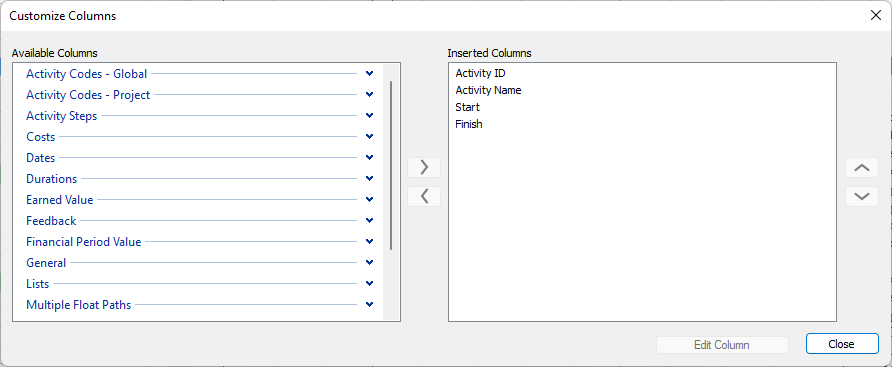
You can change the order of the columns in the Activity table, by dragging and dropping a column header to the desired position.
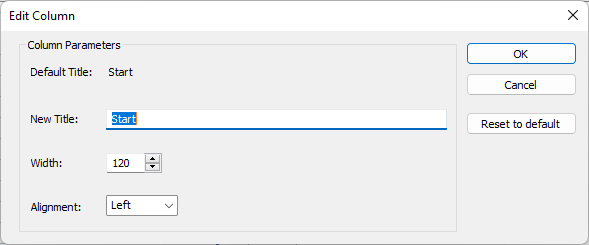
Using the Edit Column functionality, the user can rename the existing columns in terms of adding a title that is different from the field’s name and align it according to the specific need. The auto-resize functionality, every column will be resized according to the longest cell value eliminating the need for manually resizing.
Font & Color
ScheduleReader allows you to customize the font style, size, and color of the Gantt table in the Activity view. You can change how text appears in the entire table to match your project standards or improve readability. All font changes are saved in the active layout and can be shared with other team members through layout export.
Using the same Font & Color functionality, you can set a background color for the table area (left side) and background color for the Gantt Chart area (right side). This gives you full control over the visual appearance of the Activity view layout.
The changes in the font settings and background color are automatically saved in the layout and can be shared with the team(s), and any team member or stakeholder can see the same formatted view.
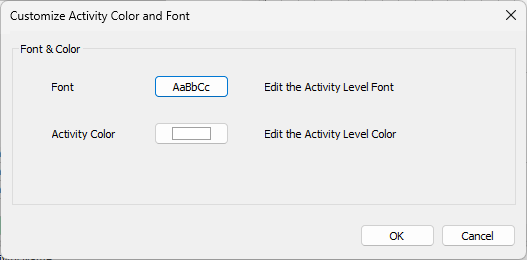
Change the Activity Table Font
To customize the table font, perform the following steps:
- 1. Click the Font & Color option in the Gantt group. 2. In the newly opened dialog click on the “Font” button. 3. In the Font dialog, select the desired font family (for example, Arial, Calibri, or Tahoma). 4. Select the Font size, or Font color. 5. Apply additional styling if needed, such as bold, italic, or underline. 6. Click OK to apply the changes.
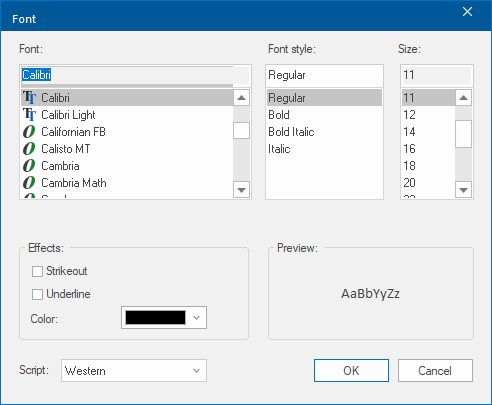
The Gantt table in the Activity view will updates to display the selected font settings. The entire table will reflect the new font family, size, color, and style.
Reset Font Settings to Default
To reset any font changes and get the default, initial layout, perform the following steps:
- 1. Navigate to the File menu. 2. Click the Layouts option. 3. Select the appropriate layout 4. Click Reset button.
The Gantt table font returns to the default font family, size, and color.
Change the Activity View Background Color
- 1. Click the Font & Color option in the Gantt group. 2. In the newly opened dialog click on the “Activity Color” button. 3. In the Font dialog, select the desired font family (for example, Arial, Calibri, or Tahoma). 4. Select a color from the default colors or create a custom color. 5. Click OK to apply the changes.
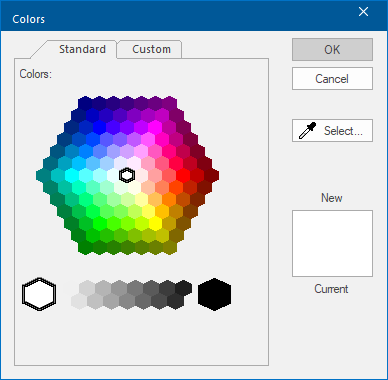
The background color of the Gantt table and Gantt chart in the Activity view updates to the selected color. Reset Font Settings to Default
Activity Details View
Enable details to be shown on the bottom of the activity table. Select an activity from table to view detailed information for it as presented in the following tabs:
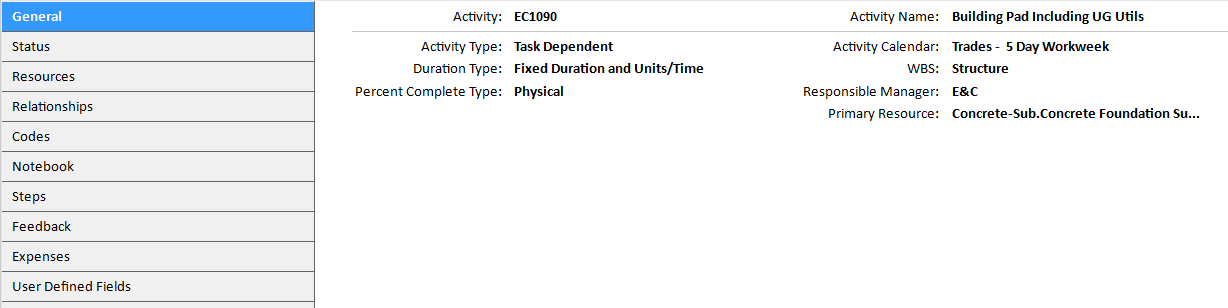
General General information for ID, name, activity and duration type, calendar, % complete, WBS, responsible manager and primary resource. Status Provide information for activity durations, dates and constraints.
Resources Details for resources assigned to the selected activity. Relationships Displays predecessors and successors of the selected activity in two, separate tables. Expenses Displays the expenses that are assigned to the selected task. Codes Activity codes and values enable you to filter, group, sort, and report activity information. View assigned activities codes, values and descriptions. Notebook Activities notes. Steps Used to break activities down into smaller units and track the completion of those units. Calculate activity percent complete based on the weight you assign to each activity step. Feedback View the feedback from various sources related to the specific activity. User defined fields
View the activity UDF assignments for the selected activity.
Trace Logic View
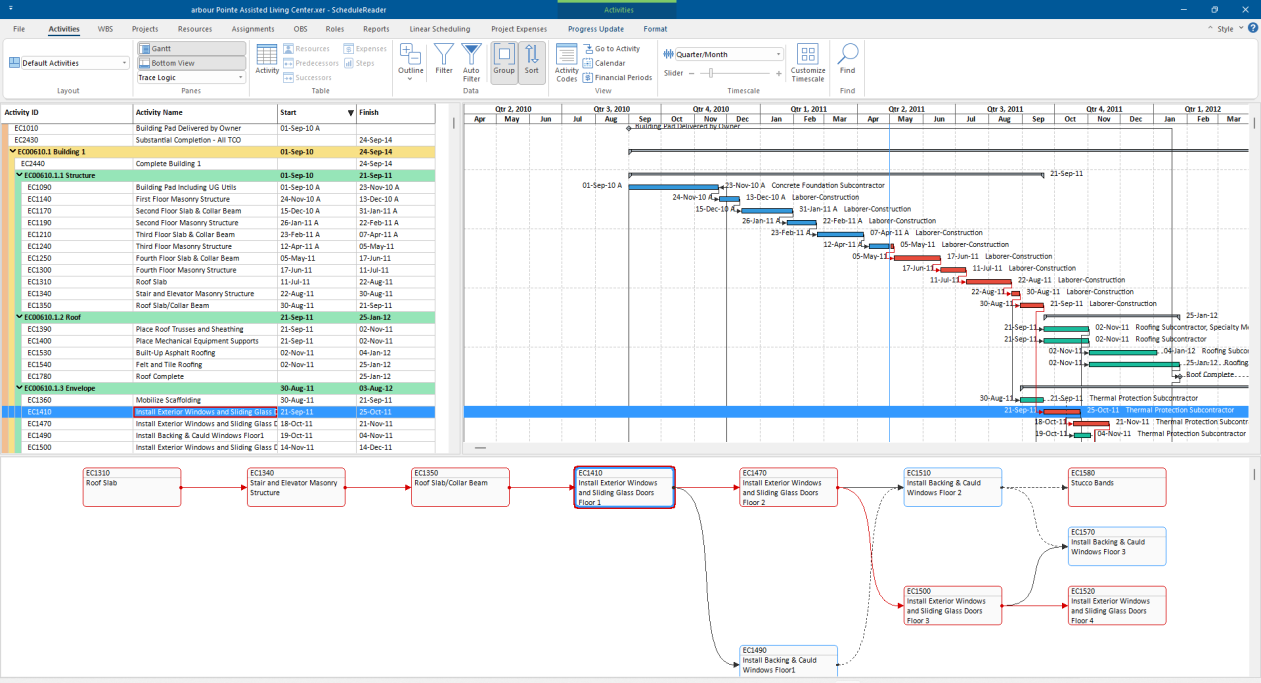
Trace Logic view is a special view that is always used in combination with the Activity view. It enables you to step or “trace” forward and backward through a sequence of activities, so you can focus on predecessor/successor relationships. It is usually used by Project managers and schedulers to examine why an activity is scheduled to occur at a particular time. This way you can easily determine if an activity’s predecessors were delayed or if existing constraints are still applicable. You can also see if relationship types portray the sequence in which the activities should occur.
In order to display the Trace Logic View, do the following:
- 1. In the Activities ribbon tab, select the Bottom View option. 2. In the drop-down menu, choose Trace Logic from the drop-down menu.
Activities in the Trace Logic view are presented as boxes and the lines that connect these boxes are the relationships that exist between the activities.
You can customize the design of the Trace Logic view, by using the formatting options in the Activities Format ribbon tab. Here you can change the level of predecessors and successors, type of information which is inside the boxes and the zoom level applied to the view.
Resource Usage Profile View
Resource Usage Profile view is the second view that is applied through the bottom view and can be viewed only in combination with the Activity view. Using the Resource usage Profile view, you can make an analysis of the number of units or costs for the resources and roles that are assigned on the project. After selecting the role that will be analyzed and the timescale is set to the right size, select that project information will be displayed: Units or Costs.
Resource Usage Profile view can help project managers, project stakeholders, team leads and other project participants to:
- Determine the work capacity for each resource or role in the project plan;
- Identify the overallocated resources or roles;
- View the maximum allowed scheduled units for each resource or role in the project plan;
- Analyze the cumulative costs and labor units during project execution.
A very important remark is that for the resources and roles, the Resource Usage Profile view can be used for viewing units and costs only for the projects that are exported in the XER file.
To display the Resource Usage Profile view, do the following steps:
- 1. In the Activities ribbon tab, select the Bottom View option; 2. In the drop-down menu, choose Resource Usage Profile from the drop-down menu.
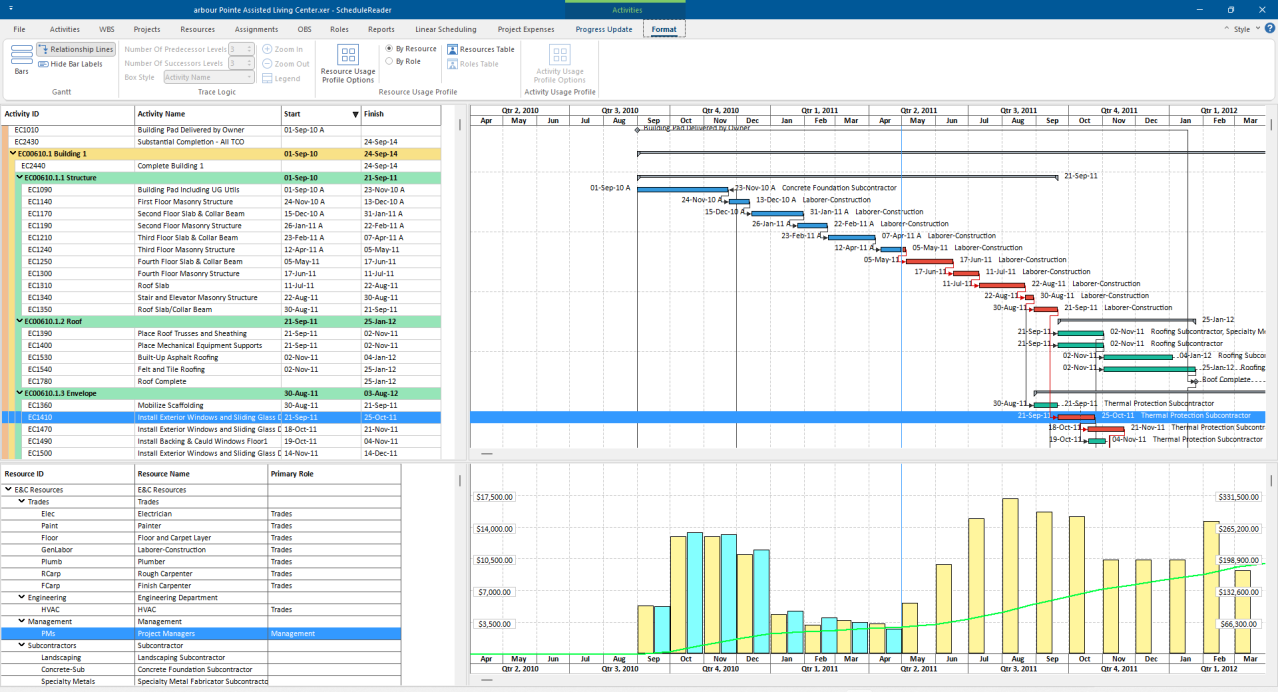
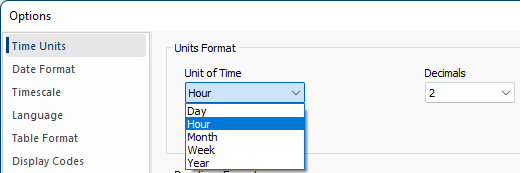
Resource Usage Profile view contains vertical bars, that represent how the work or unit changes over a certain period, for selected resources or roles. For changing the units that are used for displaying the data you have to go to Options dialog and in the Time Units sub-menu select the appropriate unit of time.
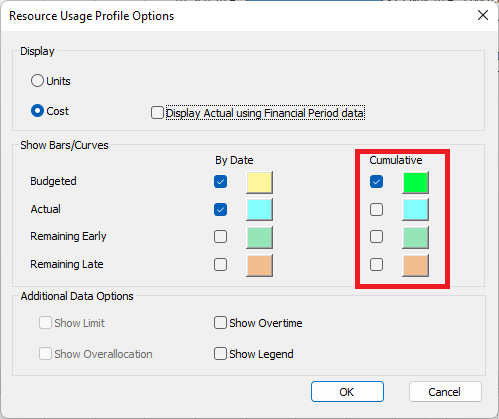
You can customize the data presentation of the Resource Usage Profile view, by using the formatting options in the Activities Format ribbon tab. Here you can choose which data to be displayed, the category parameters that will be presented on the chart and additional data options, such as presenting the limit, overallocation or overtime.
S-Curves
Besides presenting the units and cost data for the project plan, ScheduleReader is capable to draw the s- curves for the selected data: units or costs. The theory defines the S-curves as “display of cumulative costs, labor hours or other quantities plotted against time”. From the variety of s-curves that are applicable in project management, ScheduleReader supports the following:
- Man Hours versus Time S-curve;
- Costs versus Time S-curve;
- Actual S-curve.
To apply the S-curves into Resource Usage Profile view, do the following steps:
- 1. In the Activities Format ribbon, select the Options feature from the Resource Usage Profile group; 2. Select any check-box from the Cumulative column (for example Budget or Actual).
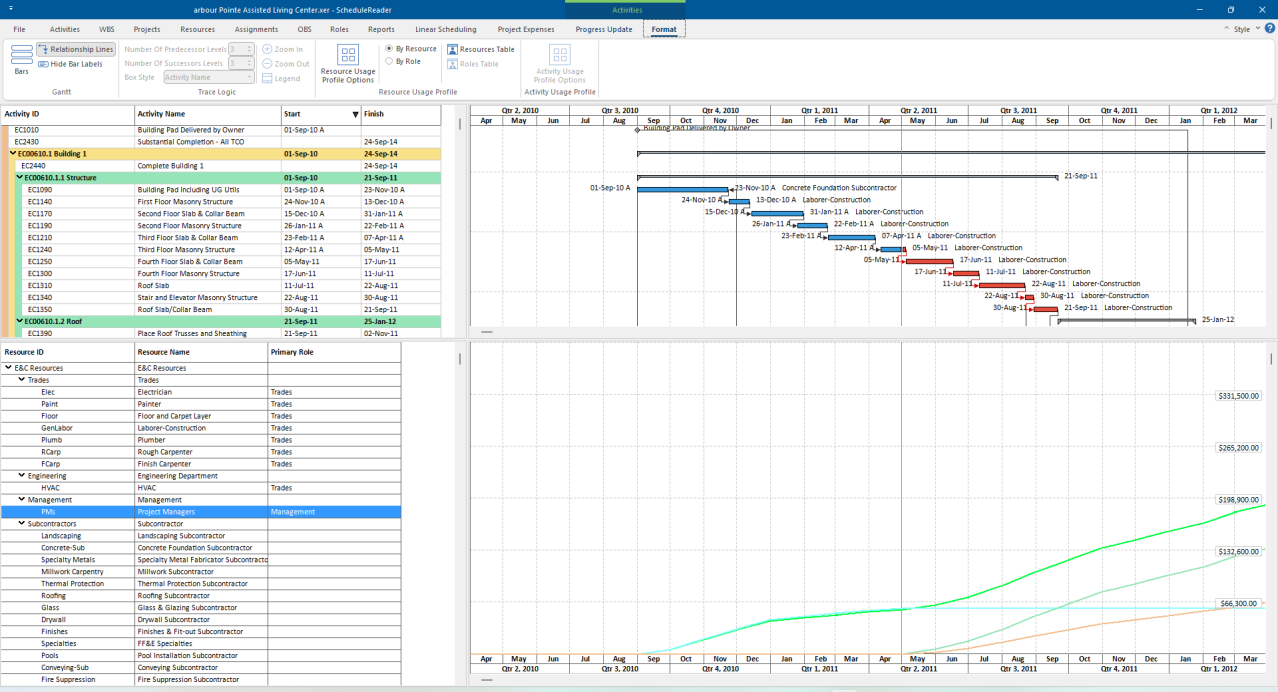
The look of the S-curves in ScheduleReader is presented in the image below.
Stacked Histogram (Stacked Resource Usage Profile View)
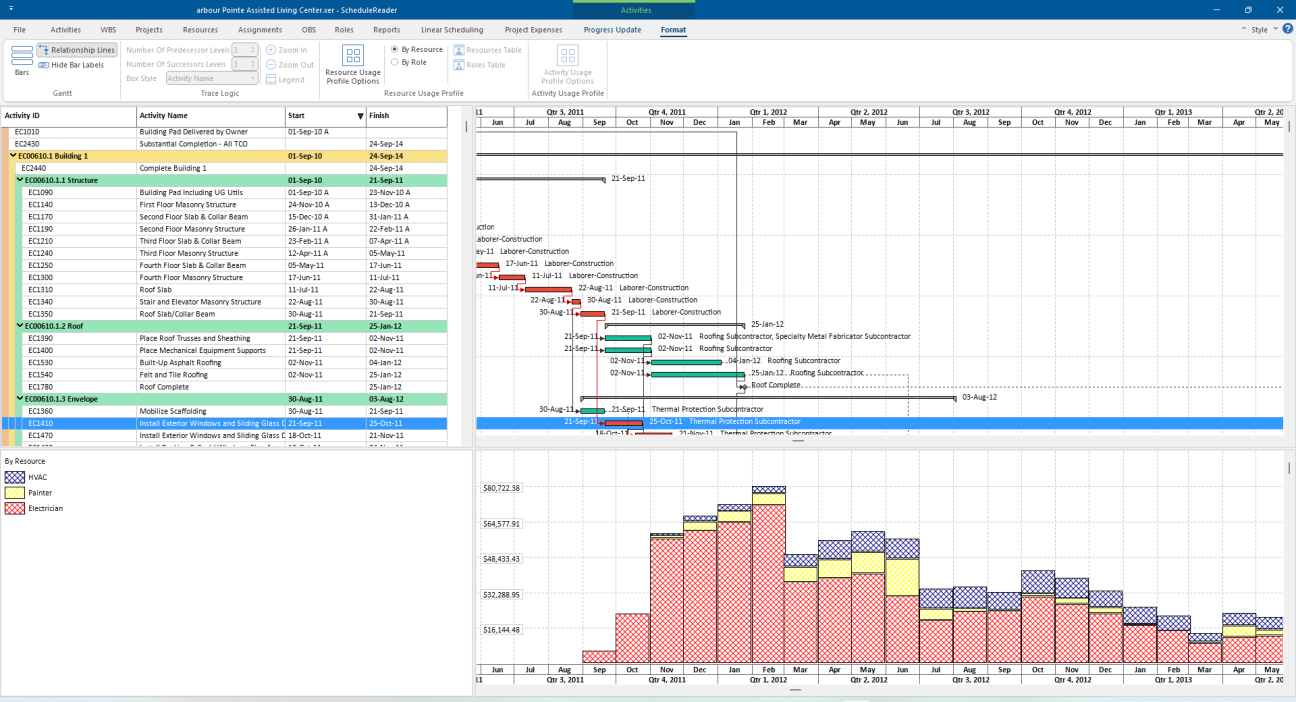
Stacked Histogram is a very useful view when the user wants to see all resource assignment levels over time. The assignments in the view are drawn for the resources or roles, depending on the selected scheduling method. Users can choose whеther to present values for “At Completion Units” or “At
Completion Costs”. Values for each resource/role are presented as bar loaded on top of each other for a defined period of time.
S-curves are also available in the Stacked Histogram. Users can view the cumulative S-curves for each resource or the cumulative S-curves for all resources that are assigned on the project plan.
The benefits of having and using the Stacked Histogram are numerous, but the most important are:
- Allows the users to analyze the trends of resources or roles allocation;
- Gives a relative proportion of the resource/role allocation over the duration of the project plan;
- Users can see how specific resource or role contribute to the total labor in a specific time period.
To display the Stacked Histogram view, do the following steps:
- 1. In the Activities ribbon tab, select the Bottom View option; 2. In the drop-down menu, choose Stacked Histogram from the drop-down menu. In the beginning, the histogram will be empty, without resources or roles; 3. Go to the Format ribbon and select the Resource Usage Profile view Options;
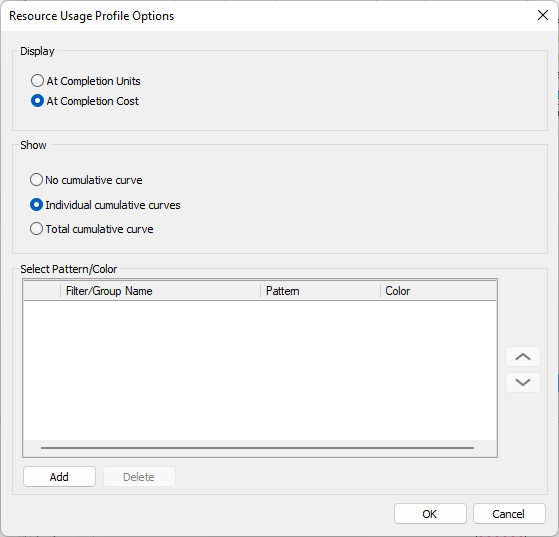
- 4. Select the parameter that will be displayed in the view. You can choose between “At Completion Units” or “At Completion Cost”; 5. You can choose to see the “Individual cumulative curves” or “Total cumulative curve”. These curves are the S-Curves; 6. For adding resource/role in the view, click on the “Add” button; 7. Insert the Filter name and create the filter criteria. In the image below, the “HVAC” resource will be presented in the view.
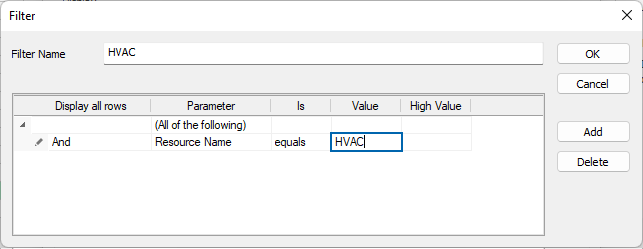
- 8. Repeat the previous step with different resources or roles; 9. Choose the Pattern and Color for each resource. 10. After customizing the pattern and color, the options dialog will look like the image below.
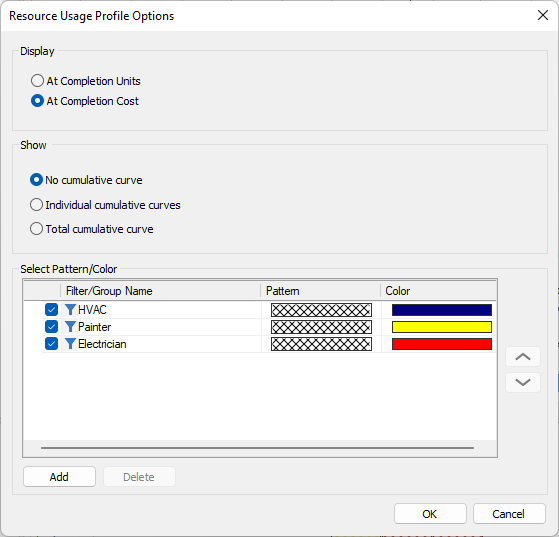
- 11. For presenting the resource’s parameters in the view, select the check-box in front of the filter.
The look of the Stacked Histogram in ScheduleReader is presented in the image below.
Activity Usage Provile View
The Activity Usage Profile view presents the resource allocation for all activities in the project plan. It is an integral part of the Activity view and it is activated using the Bottom’s pane drop-down list. In the Activity Usage Profile view, resource costs and units are presented.
Depending from the user’s need, the allocation can be for the entire project or for the selected activity in the upper pane.
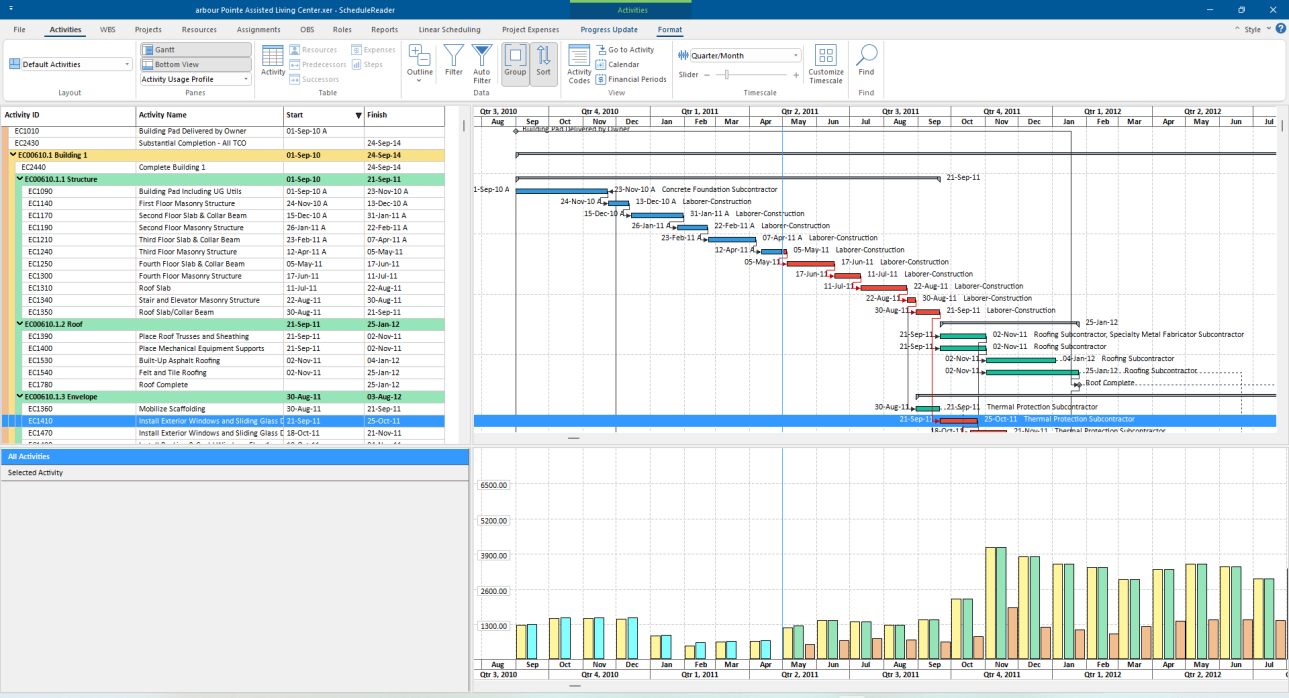
To display the Activity Usage Profile view, do the following steps:
- 1. In the Activities ribbon tab, select the Bottom View option; 2. In the drop-down menu, choose Activity Usage Profile from the drop-down menu; 3. Go to the Format ribbon and select the Activity Usage Profile view Options;
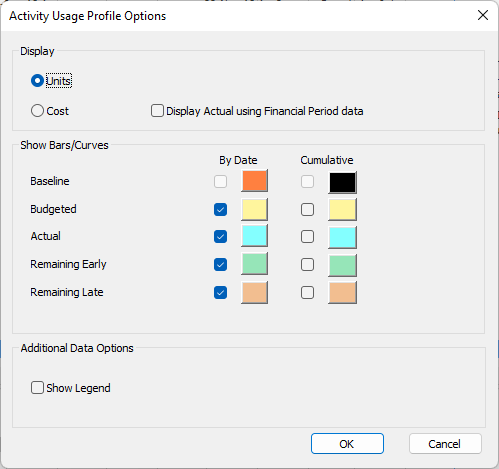
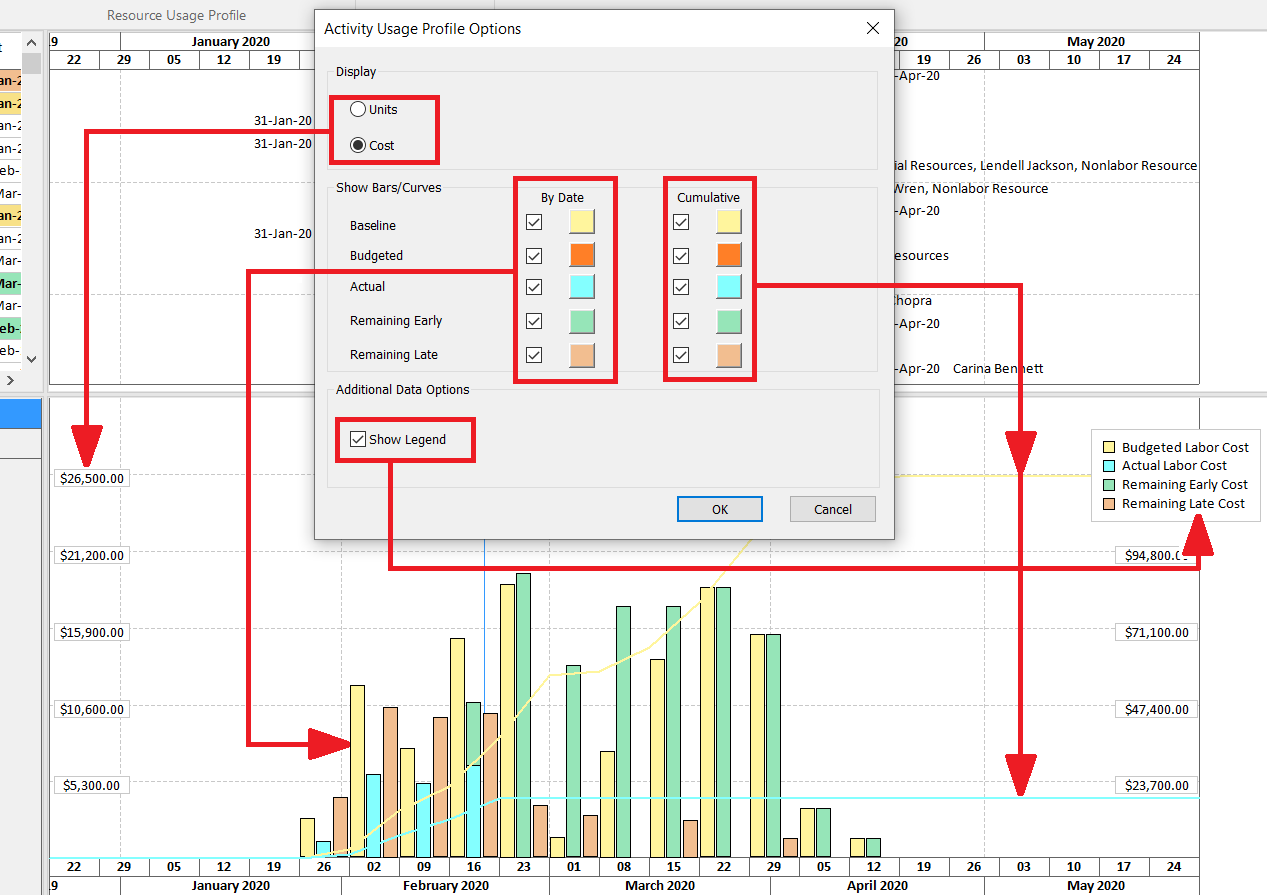
- 4. Select the parameter that will be displayed in the view. You can choose between “Units” or “Cost”; 5. Selecting the check-boxes in the “By Date” column, the project information will be presented with Bars. 6. Selecting the check-boxes in the “Cumulative” column, the project information will be presented with Curves. These curves are the S-Curves;
The vertical bars represent how the work or unit changes over a certain period, for selected activity or all activities. For changing the units that are used for displaying the data you have to go to Options dialog and in the Time Units sub-menu select the appropriate unit of time.
Show Critical Chain
ScheduleReader now provides a dedicated feature for displaying the Critical Path directly in the Trace Logic view.
Project managers or project controllers can isolate and examine only the activities that drive the project end date within the new "Show Critical Chain" view. They will have a clear visual representation of the Critical Path for schedule reviews, stakeholder meetings, and project audits.
To view the Critical Chain for the selected project, perform the following steps:
- 1. In the Activities ribbon tab, select the Bottom View option. 2. In the drop-down menu, choose Show Critical Chain from the drop-down menu.
All activities that belong to the critical path will be presented in the bottom view and colored in red. The relationship lines between the activities on the critical path are also colored in red.
You can adjust the "Show Critical Chain" view to focus your analysis, by performing the following steps:
- 1. In the Format ribbon tab, use the Number of Predecessors level control to increase or decrease the predecessor depth displayed.
- 2. Use the Number of Successors level control to adjust the successor depth.
- 3. Select a Box Style to change the information displayed inside each activity box (for example, Activity Name, Current Status, or Durations).
- 4. Use Zoom In or Zoom Out to adjust the view scale.
- 5. Click Legend to open a description of each visual element in the Trace Logic view, including Critical Chain indicators.
- The "Show Critical Chain".
- view reflects the selected predecessor and successor depth, box style, and zoom level. The "Legend".
- dialog includes a description of the Critical Chain visual style.
WBS View
The WBS view breaks down the project in its major deliverables, i.e. major product or service components. The Work Breakdown Structure of the project helps you maintain a top-down overview of the main project deliverables. When you create your WBS first and then the activities that fall within the project deliverables, you can maintain a focus on the final product or service, which is the whole purpose of the project.
Use the WBS tab to view the Work Breakdown Structure (WBS) for the currently open project.
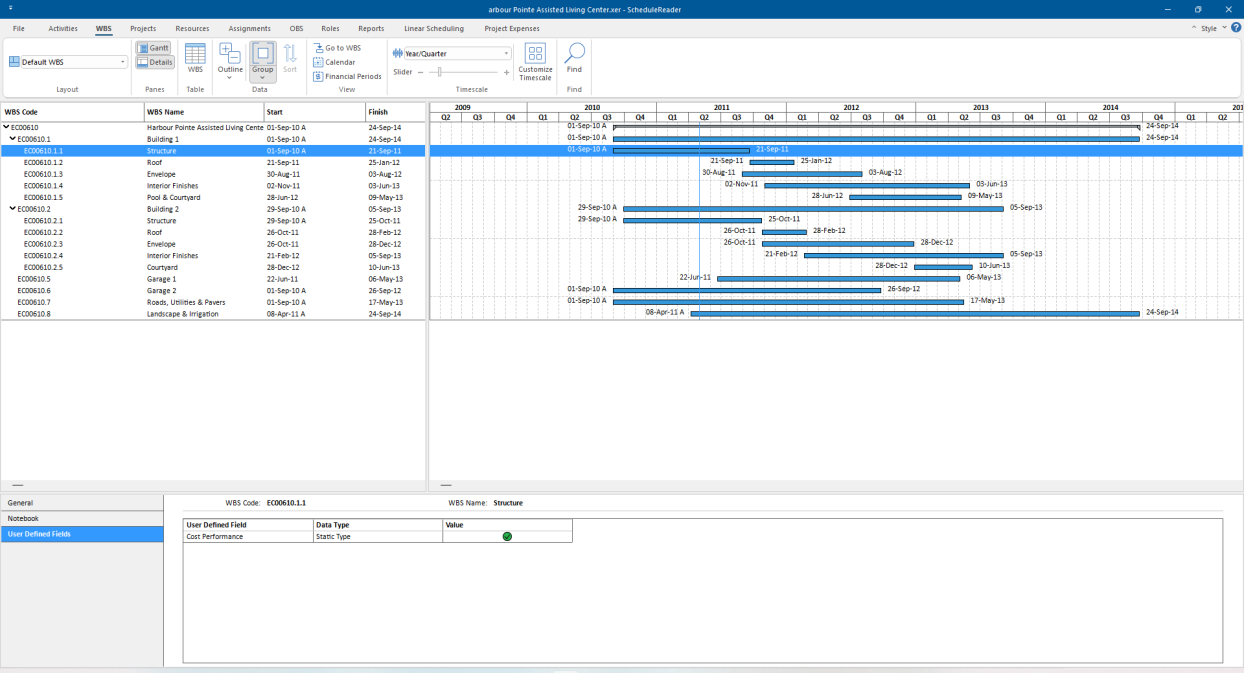
WBS Tab
The following functionalities are placed in WBS tab of the ribbon:
Layout Choose how project data is displayed in the currently active view. Each layout shows different columns and applies different groping and sorting of data. Details Show on bottom project information details for selected WBS. Gantt Provides a graphical view of schedule progress over the course of a project. Click to show or hide the Gantt chart. WBS table Add/Remove columns for a WBS. Expand All Expands all collapsed items in a hierarchical table view. Collapse All Collapses all expanded items in a hierarchical table view. Collapse to level Select a level to collapse to items in a hierarchical table view. Go to WBS Navigate to the selected WBS item in the Gantt chart view. Group Group the WBS in the view by specific criteria. Sort Arrange the WBS in the table in the custom order in ascending or descending sort order. Calendar View details for assigned global, project and resource calendars. Financial Periods View project's period performances Timescale Adjust the timescale to reflect your planning period. Customize timescale Select the date format when showing the project’s primary or ordinal dates as well as labels for the ordinal dates. Find Find items in the current Table view.
WBS Table
WBS data is given in multiple columns of the WBS table. To add or remove columns in the WBS table click on the WBS Table button. The Customize Columns dialog box will be opened. From the Available columns select the desired ones and add them to the right by clicking on the arrow button. To apply the desired changes, simply close the window.
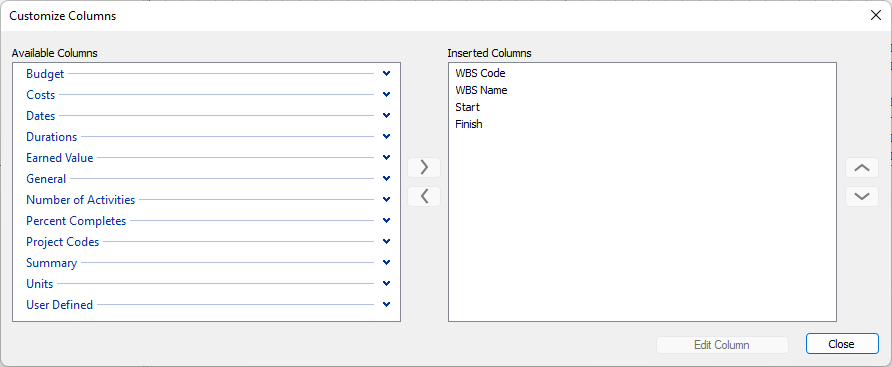
You can change the order of the columns in the WBS table by dragging and dropping a specific column header.
WBS Details
Enable details to be shown on the bottom of the WBS table. Select a WBS item from a table to view detailed information for it as presented in the following tabs:
General General information for code, name, status and responsible manager. Notebook View the WBS details.
User defined fields
View the WBS UDF assignments for the selected WBS.
Projects View
Use the Project tab to view the Enterprise Project Structure (EPS).
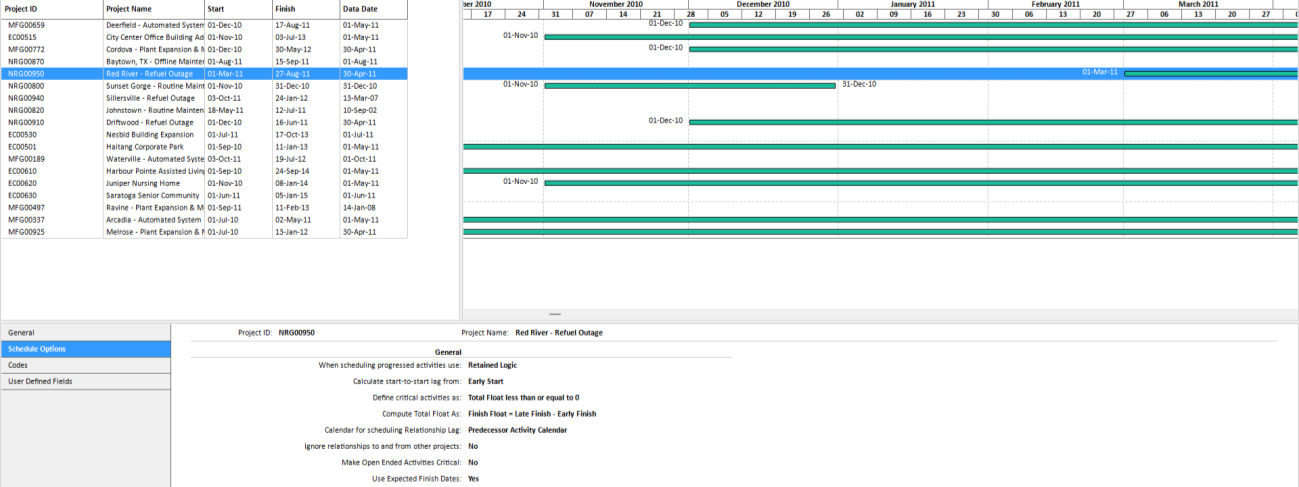
Projects Tab
The following functionalities are placed under the Projects ribbon tab:
Layout Choose how project data is displayed in the currently active view. Each layout shows different columns and applies different groping and sorting of data. Details Show on bottom project information details for the selected project. Gantt Provides a graphical view of schedule progress over the course of a project. Click to show or hide the Gantt chart. Project table Add/Remove columns for a project. Expand All Expands all collapsed items in a hierarchical table view. Collapse All Collapses all expanded items in a hierarchical table view. Collapse to level Select a level to collapse to items in a hierarchical table view. Go to Project Navigate to the selected project in the Gantt chart view. Calendar View details for assigned global, project and resource calendars. Financial Periods View project's period performances Filter Filter the project's view based on selected criteria. Auto filter Filter data in the project view based on cell values. Group Group the projects in the view by specific criteria. Sort Arrange the projects in the table in the custom order in ascending or descending sort order. Project Codes View the project codes used in the project plan as overall lists Timescale Adjust the timescale to reflect your planning period. Customize Timescale
Select the date format when showing the project’s primary or ordinal dates as well as labels for the ordinal dates.
Find Find items in the current Table view.
Project Table
Project data is given in multiple columns of the Project table. To add or remove columns in the Project Table click on the Project Table button.
In the Customize columns dialog box, there are two columns, one containing all the available columns that you can view for the project and the ones selected to be displayed in the Project table.
From the Available columns list select the desired columns and add them to the right by clicking on the right arrow. To apply the changes, simply close the window.
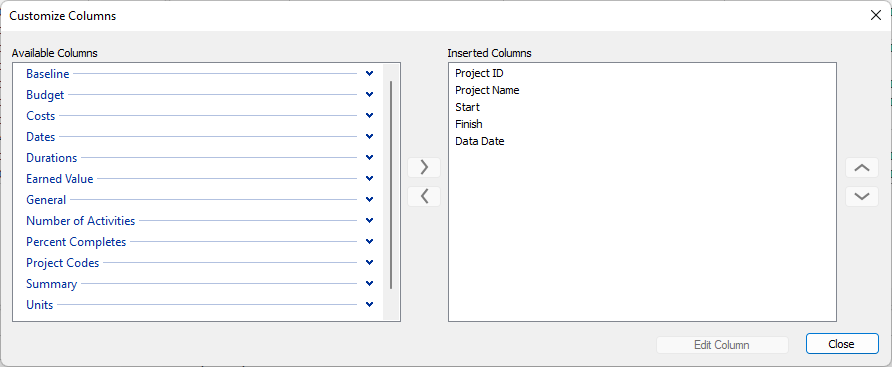
You can change the order of columns in the table by drag and drop a column header.
Project Details
Enable details to be shown on the bottom of the project table. Select a project from table to view detailed information for it as presented in the following tabs:
General General information for project ID, name, status and responsible manager. Schedule Options Settings that are used for scheduling the project plan. Codes Organize the projects in EPS in groups according to specific categories, for example, location and department. User defined fields
View the project UDF assignments for the selected project
Resources View
The resource tab shows a list of all resources necessary to complete the projects included in your enterprise project structure. For each resource, you can view the availability limits, unit prices, and a calendar that defines their standard work time and non-worktime.
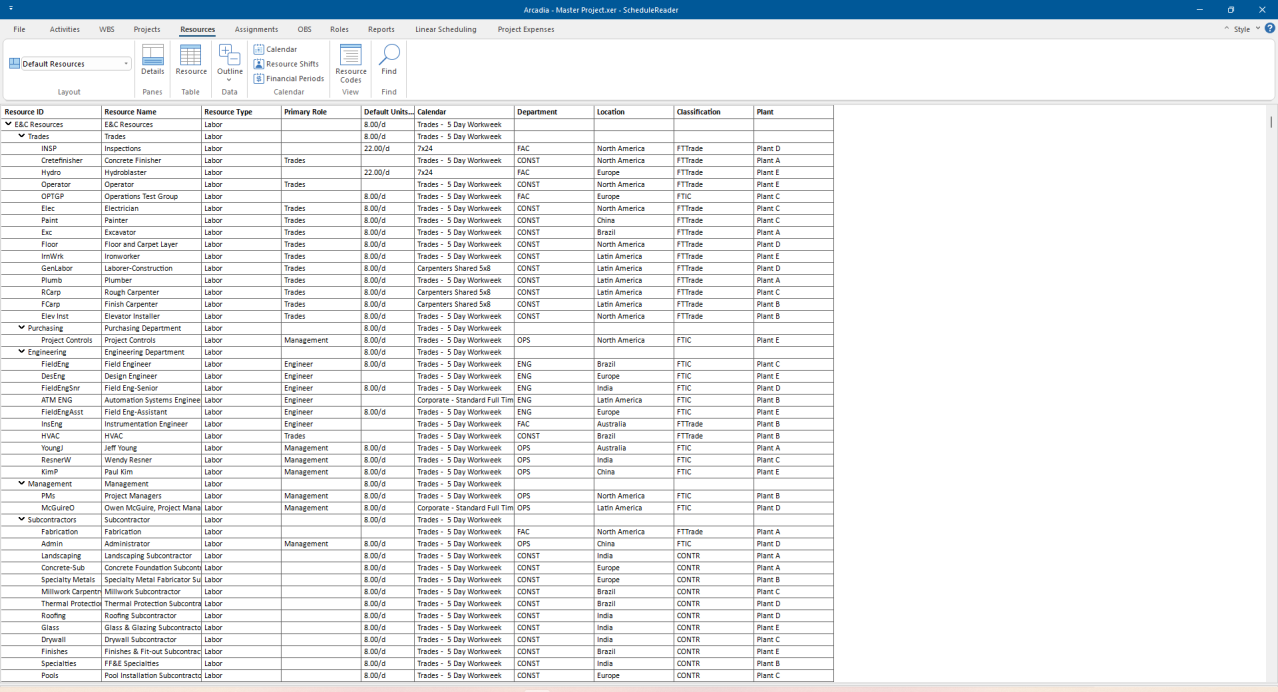
Resources Tab
The following functionalities are placed in the Resource tab of the ribbon:
Layout Choose how project data is displayed in the currently active view. Each layout shows different columns and applies different groping and sorting of data. Details Show on bottom project information details for the selected activity. Resource table Add/Remove columns for resources. Expand All Expands all collapsed items in a hierarchical table view.
Collapse All Collapses all expanded items in a hierarchical table view. Calendar View details for assigned global, project and resource calendars. Resource Shifts View the shift calendars for resources. Financial Periods Financial Periods Resources Codes View the assigned resources codes as overall list Find Find items in the current Table view.
Resource Table
Resource data is given in multiple columns of the resource table. To add or remove columns in the Resource table click on the Resource Table button. The Customize Columns dialog box will be opened. From the Available columns list select ones and add to the right. Close the window to apply changes.
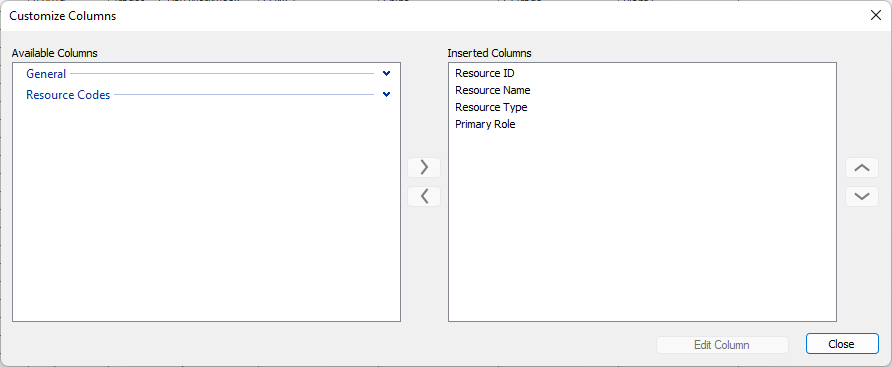
Resource Details View
Enable details to be shown on the bottom of the resource table. Select a resource from table to view detailed information given in the following tabs:
General General information for resource ID and name. Codes Categorize resources using codes. View assigned resource codes and values. Notes Notes related to the selected resource. User defined fields
View the resource UDF assignments for the selected resource
Assignments View
In Assignments view are displayed resource allocations across all imported projects. Resource usage and costs by default are distributed evenly during an activity. However, you can use curves to define any nonlinear distribution.
Note: Curves can be assigned only to activities with a duration type: Fixed Duration and Units/Time or Fixed Duration & Units.
In Spreadsheet view you can see the:
- Calculate timescale values depending on the assignment curve for Time Interval Fields. - Calculate timescale values depending on the assignment curve for Cumulative Fields. - Calculate timescale values for manually inserted values.
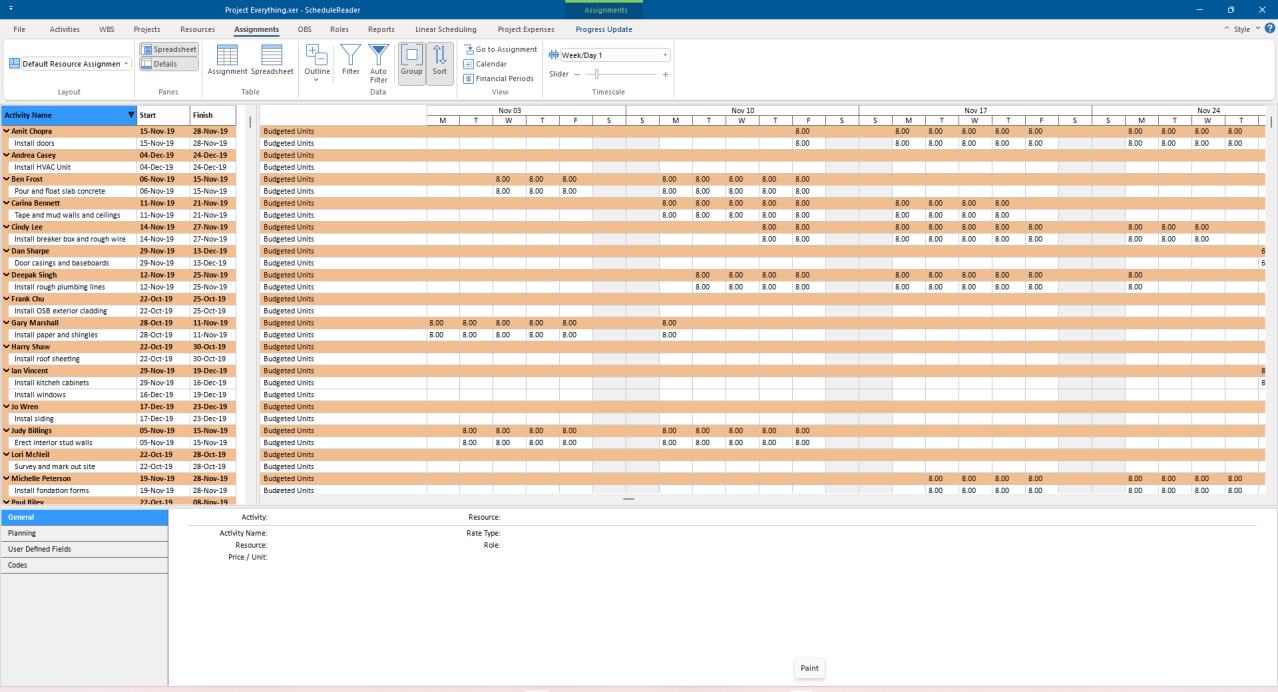
Assignment Tab
The following functionalities are placed in the Assignment tab of the ribbon:
Layout Choose how assignment data is displayed in this view. Each layout shows different columns and applies different groping and sorting of data. Details Show on bottom details for selected resource/role. Spreadsheet Show resource quantity and cost in a spreadsheet. Assignment table Add/Remove columns for resource assignments. Spreadsheet fields Add/Remove fields in a spreadsheet. Expand All Expands all collapsed items in a hierarchical table view. Collapse All Collapses all expanded items in a hierarchical table view. Filter Filter the activity view based on selected criteria. Auto filter Filter data in the activity view based on cell values. Group Group the assignments in the view by specific criteria. Sort Arrange the assignments in the table in the custom order in ascending or descending sort order. Go to Assignment Navigate to the selected assignment in the Spreadsheet view. Calendar View details for assigned global, project and resource calendars.
Assignment Table
Resource assignment data is given in multiple columns of the assignment table. To add or remove columns in the Assignment table click on the Assignment Table button. The Customize Columns dialog box will be opened. From the Available columns list, select the desired ones and add them to the right. To apply the changes, simply close the window.
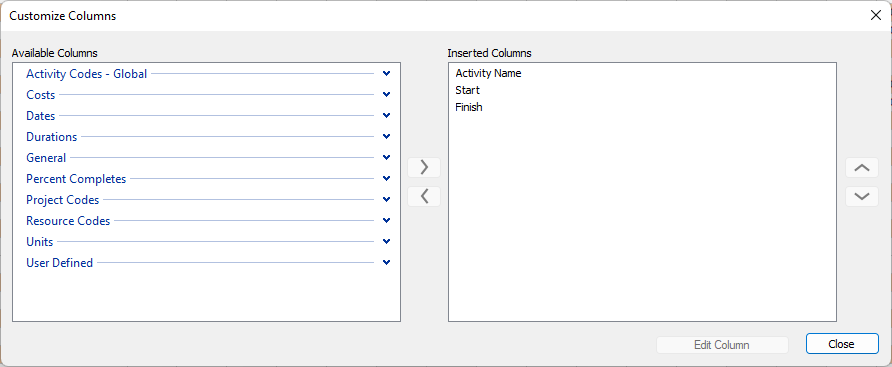
You can change the order of columns in the Assignments table by dragging and dropping a column header to the desired position.
Spreadsheet View
In the Spreadsheet view, you can see the resource cost and quantity information. From Spreadsheet fields you can choose which units to be presented.
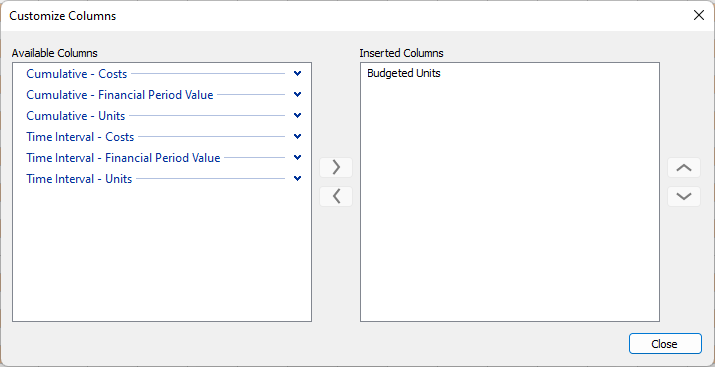
Assignment Details View
Enable details to be shown on the bottom of the assignments table. Select an assignment from the table to view detailed information given in the following tabs:
General General information about Activity name, Rate type and Price/Unit for selected resource/role assignment. Planning Display the expected, actual and remaining number of units for resource/role assignment. User defined fields
View the assignment UDF assignments for the selected resource assignment.
Codes View assigned assignment codes and values.
Risk
The Risk module in ScheduleReader provides a focused view of risks that have been exported from Primavera P6. Users can only view risks specifically assigned to the process activities, including key attributes such as risk name, impact, probability, and response strategy. By offering a clear and accessible overview of relevant risks, the module helps team members stay informed and aligned with project risk management efforts. This ensures accountability and supports timely responses to potential issues. While users cannot create, edit, or delete risks, the read-only access promotes consistency with the source risk data managed in Primavera P6.
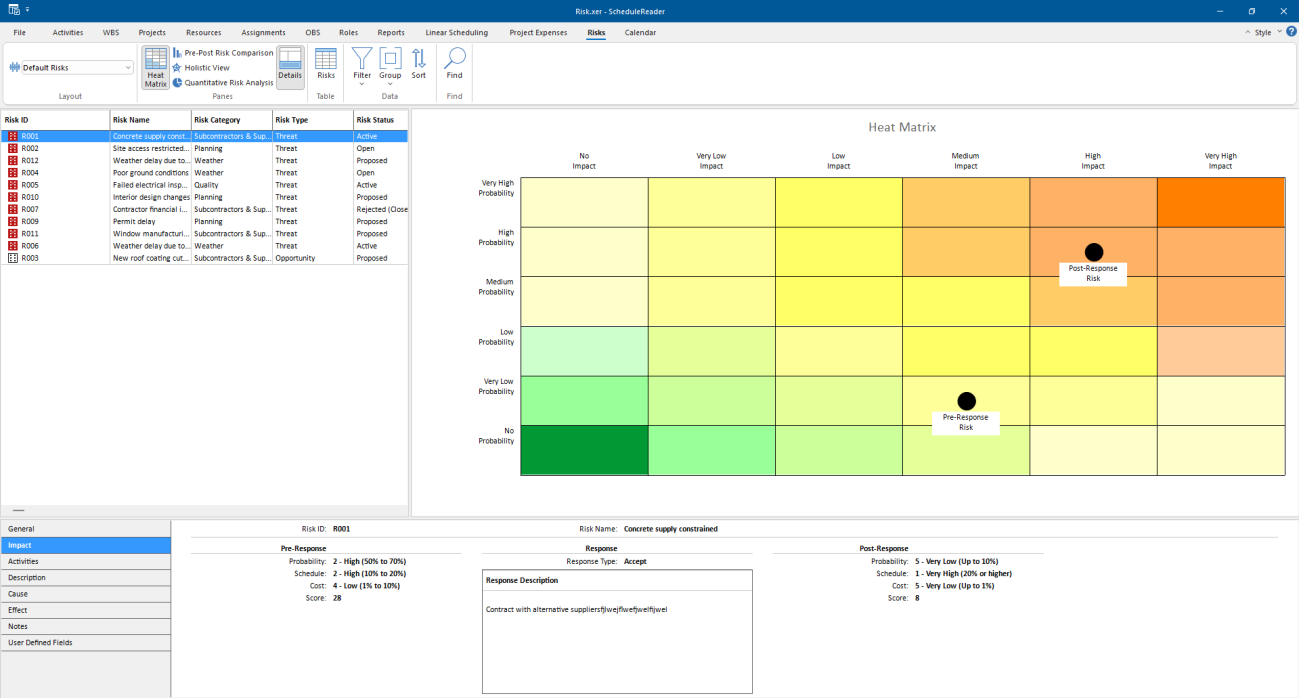
Risk Tab
The following functionalities are placed in the Risk tab of the ribbon:
Layout Choose how project data is displayed in the currently active view. Each layout shows different columns and applies different groping and sorting of data. Heat matrix Displays a color-coded matrix that visualizes the impact and probability of risks to help prioritize mitigation efforts. Pre-Post Risk Comparison
Shows a side-by-side comparison of risk parameters before and after mitigation to evaluate the effectiveness of risk response actions. Holistic View Provides an integrated overview of the selected risk, its categories, and statuses to support comprehensive risk analysis and decision-making. Quantitative Risk Analysis
Displays the overall risks status in the project plan and the resolution overview of the closed risks. Details view Show on bottom project information details for the selected risk or opportunity. Risk table Add/Remove columns for a project. Filter Filter the risk view based on selected criteria. Group Group the risks in the view by specific criteria. Sort Arrange the risks in the table in the custom order in ascending or descending sort order. Find Find items in the current Table view.
Risk Table
Risk data is given in multiple columns of the Risk table. To add or remove columns in the Risk table click on the Risk Table button. The Customize Columns dialog box will be opened. From the Available columns list, select the desired Column and add to the right by clicking on the arrow. To apply the changes, simply close the window.
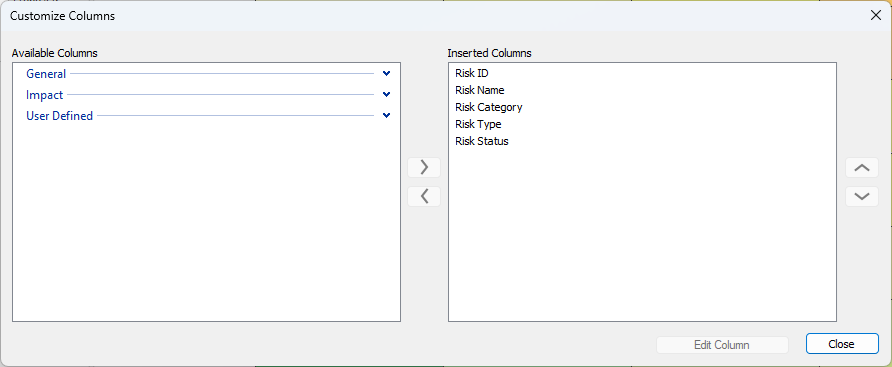
You can change the order of the columns in the Risk table, by dragging and dropping a column header to the desired position.
Risk Details View
Enable details to be shown on the bottom of the Risk view. Select a risk from table to view detailed information for it as presented in the following tabs:
General General information for the risk, such as ID, name, category, type, exposure start and exposure finish as well as pre and post exposure cost.
Impact View the pre-response, response and post-response information (probability, schedule and cost), as well as the calculated pre- and post-response scores. Activities View on which activities the selected risk is assigned. Description View the documented description of the selected risk. Cause View the recorded causes of the selected risk. Effect View the noted description of the effects of the selected risk. Notes View the documented notes relating to the selected risk. User Defined Fields
View the risk UDF assignments for the selected risk
Heat Matrix
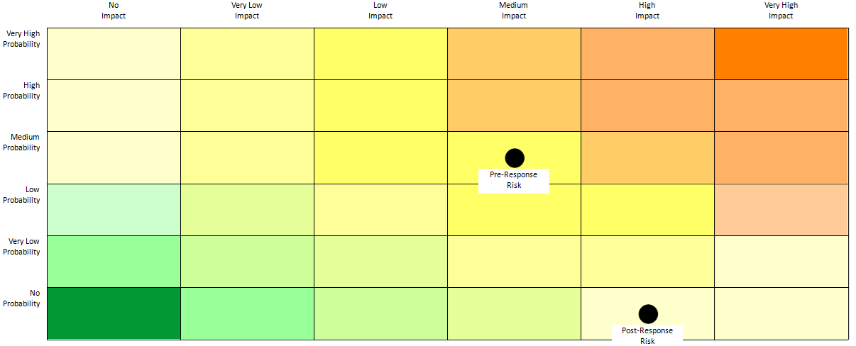
The Heat Matrix in the Risk module visually represents the severity of assigned risks based on their probability and impact. Each risk is plotted on a color-coded grid, making it easy to identify high-priority risks that require attention. The matrix helps users quickly assess the overall risk exposure of their assigned items. It supports better decision-making by highlighting which risks fall into critical, moderate, or low zones. This read-only visualization ensures users remain aligned with the risk data sourced from Primavera P6 while promoting awareness of potential project threats.
Pre-Post Risk Comparison
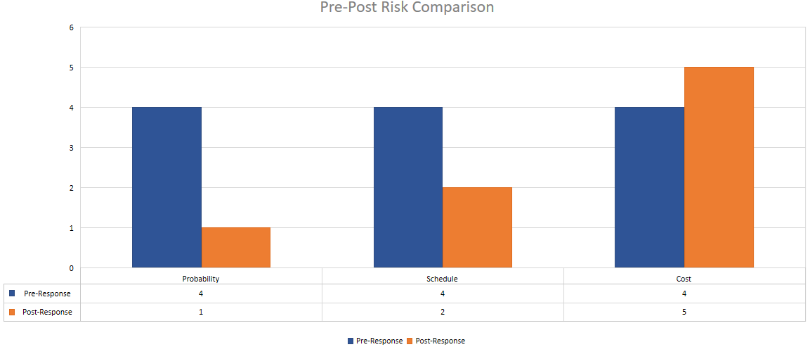
The Pre and Post Risk Comparison chart in the Risk module visualizes how each assigned risk’s probability, schedule impact, and cost impact change after a response is applied. It provides a side-by-side comparison of risk values before and after mitigation, enabling users to understand the effectiveness of risk responses. This helps team members assess how risk exposure has been reduced through planned actions. The chart supports informed decision-making by clearly displaying improvements or persistent risk levels. Since all data is sourced from Primavera P6, users can trust the accuracy and consistency of the information presented.
Holistic View
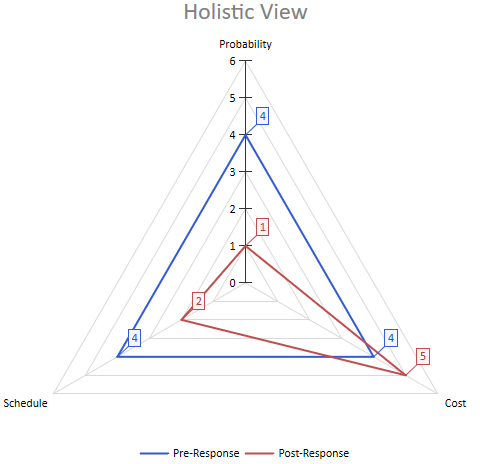
The Holistic chart in the Risk module presents a radar-style visualization of each assigned risk's probability, schedule impact, and cost impact before and after the risk response. This comprehensive view allows users to see all key risk dimensions at once, making it easier to evaluate the overall effectiveness of mitigation strategies. By displaying pre- and post-response values on the same radar graph, users can quickly identify which areas have improved and which may still require attention. The chart enhances understanding of risk dynamics across multiple factors in a single, intuitive format. All data is read-only and aligned with Primavera P6 to maintain consistency and accuracy.
Quantitative Risk Analysis
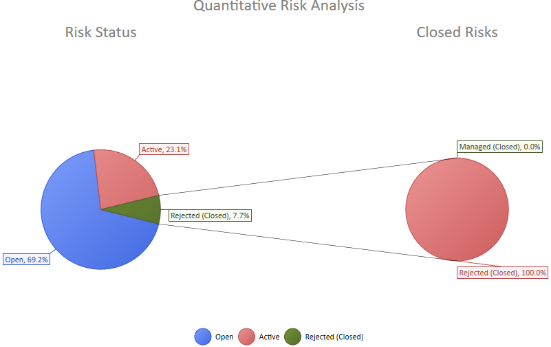
The Quantitative Risk Analysis chart in the Risk module provides a high-level overview of all risks included in the project plan. It displays the total number of risks, along with how many are currently open, closed, or rejected. This helps users quickly assess the overall status of risk management activities within the project. Additionally, the chart includes a pie chart breakdown of the reasons for rejected risks, offering transparency into why certain risks were dismissed. All information is read-only and directly sourced from Primavera P6, ensuring consistency and accuracy across platforms.
Calendar View
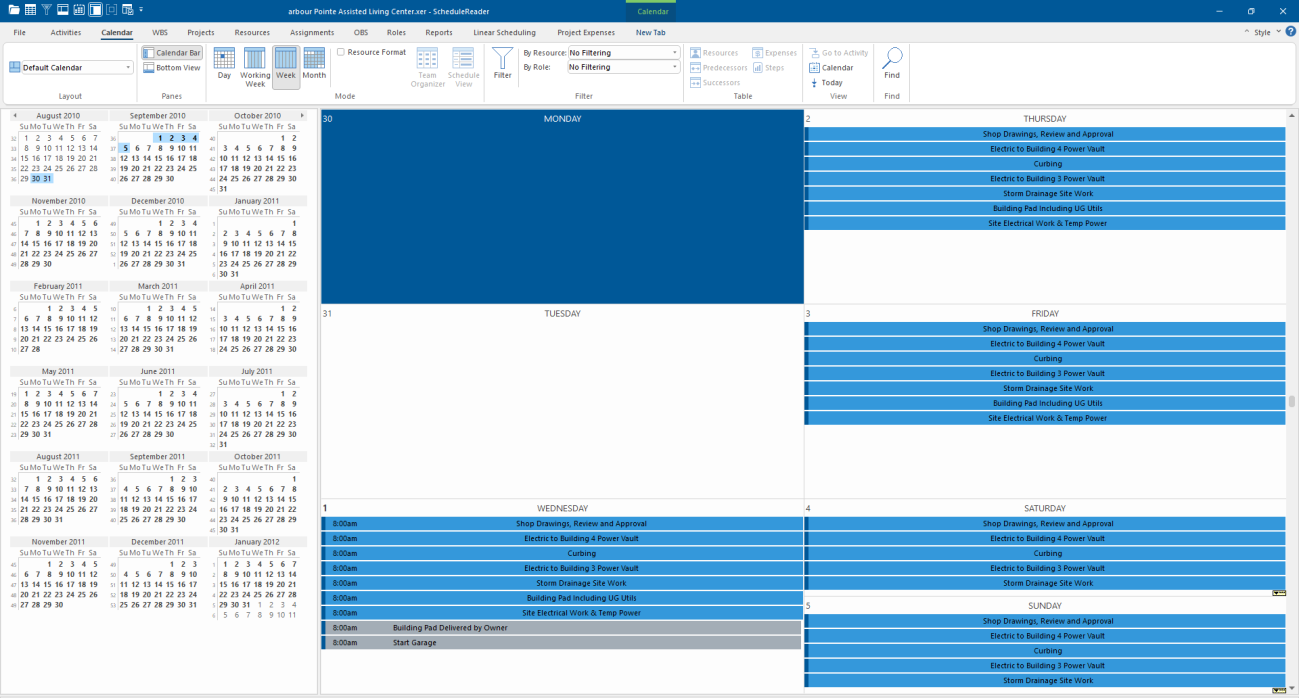
Experience the convenience of the Calendar view, which allows you to effortlessly review your project activities in a clear and organized calendar format. The activity bars in this view elegantly span the days or weeks that the tasks are scheduled, providing an intuitive visual representation of your project's timeline.
With this familiar and user-friendly format, you can swiftly identify activities scheduled for specific days, weeks, or months. Utilize the Calendar view to gain a comprehensive overview of the activities planned for a particular week or a range of weeks.
Moreover, the Calendar view becomes your invaluable assistant in efficiently tracking activities scheduled on precise days, weeks, or months. Embrace the power of this feature to stay on top of your project's schedule and effortlessly manage your tasks.
Calendar Tab
The following functionalities are placed in Calendar tab of the ribbon:
Layout Choose how project data is displayed in the currently active view. Each layout shows different columns and applies different groping and sorting of data. Calendar Bar Provides a graphical view of the calendar along the calendar-format view. Click on the random day or select a group of days and view the activities that are scheduled in that period. Bottom view Show on bottom project information details for the selected activity. Day Present the project activities scheduled in a particular day. Working Week Presenting the project activities in calendar format brought down to the level of the week. Non-working days are not included in the view.
Week Presenting the project activities in calendar format brought down to the level of the week. All weekdays are included in the view. Month Presenting the project activities in calendar format brought down to the level of one month. Resource Format Activate the option for viewing the resource assignments in calendar format. Team Organizer See how the work is organized for different resources. Schedule View View the resources work over the time. Filter Filter the activity view based on selected criteria. By Resource Filter the activities in the calendar by the assigned resources. By Role Filter the activities in the calendar by the assigned roles. Resources table Customize columns for resources assigned to the selected activity. Predecessor table Customize columns for activities assigned as predecessors. Successor table Customize columns for activities assigned as successors. Expenses table Customize columns for expenses assigned to the activity. Steps Customize columns for activity steps assigned to the activity. Go to Activity Navigate to the start of the chosen activity in the calendar. Calendar View details for assigned global, project and resource calendars. Today Navigate to the current date in the calendar. Find Find items in the current Table view.
Activity Details in Calendar View
General General information for ID, name, activity and duration type, calendar, % complete, WBS, responsible manager and primary resource. Status Provide information for activity durations, dates and constraints. Resources Details for resources assigned to the selected activity. Relationships Displays predecessors and successors of the selected activity in two, separate tables. Expenses Displays the expenses that are assigned to the selected task. Codes Activity codes and values enable you to filter, group, sort, and report activity information. View assigned activities codes, values and descriptions. Notebook Activities notes. Steps Used to break activities down into smaller units and track the completion of those units. Calculate activity percent complete based on the weight you assign to each activity step. Feedback View the feedback from various sources related to the specific activity.
Calendar Bar
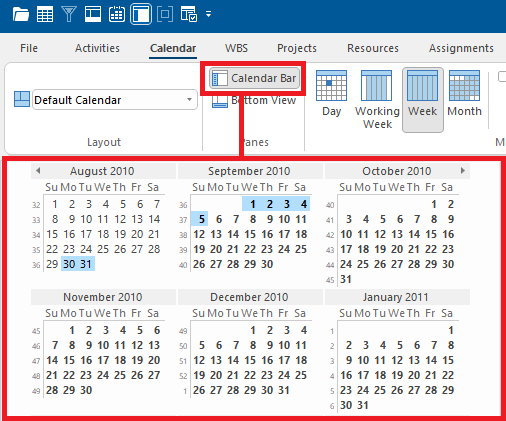
The Calendar Bar, an uninterrupted series of months, is situated along the left edge of the Calendar window, offering a user-friendly way to switch to a specific day with just a simple click on the corresponding date. In the event that the desired day is not immediately visible on the Calendar Bar, you can easily scroll to the relevant month and then select the specific day you wish to view.
Should you prefer not to have the Calendar Bar visible in ScheduleReader, you can simply disable this feature by unchecking the "Calendar Bar" option on the main tab. This allows for a customized viewing experience that suits your preferences.
OBS View
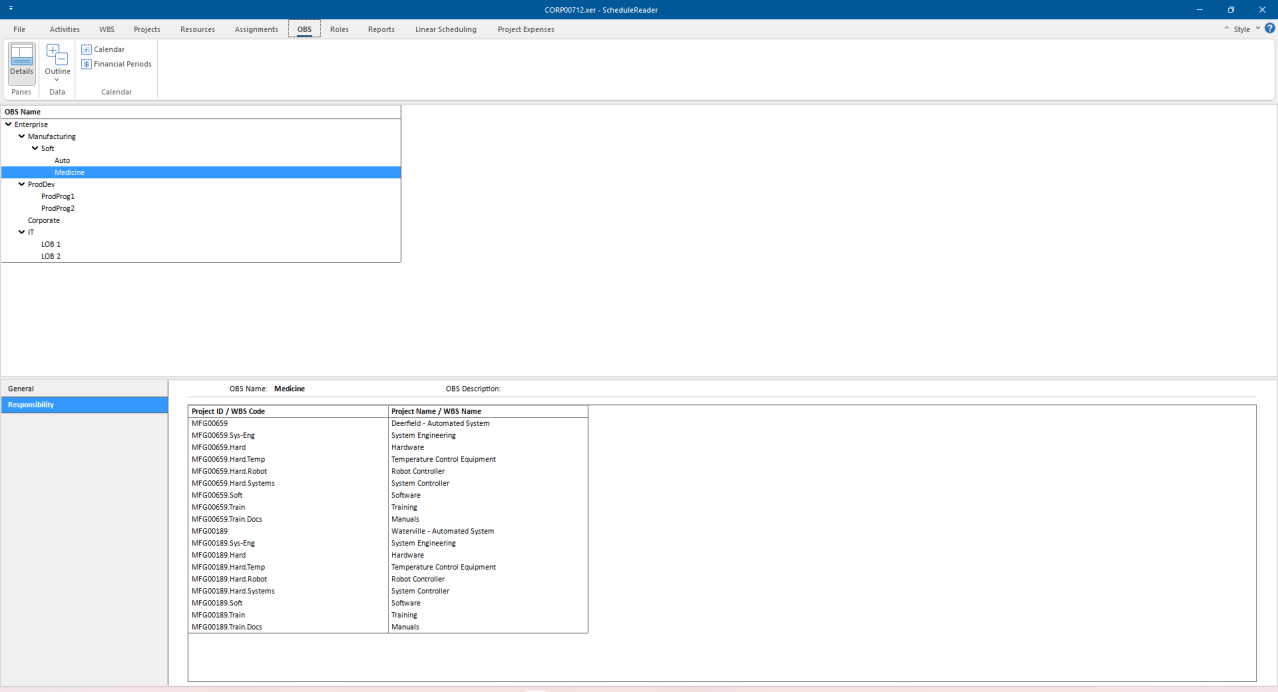
The organizational breakdown structure (OBS) shows the management structure established in your organization. For each person in the OBS, you can find projects and WBS nodes for which he/she is responsible for.
OBS Tab
The following functionalities are placed in the OBS tab of the ribbon:
Details Show on bottom project information details for selected OBS element. Expand All Expands all collapsed items in a hierarchical table view. Collapse All Collapses all expanded items in a hierarchical table view. Calendar View details for assigned global, project and resource calendars.
OBS Details View
Enable details to be shown at the bottom of the screen. Select an element from table to view detailed information given in the following tabs:
General OBS name and description. Responsibility List of all projects/WBS elements for which the OBS element is responsible.
Roles View
Roles are used to represent a specific set of knowledge, proficiency or skills personnel should possess to work on a project, such as a job title. Also, roles can be assigned to specific resources to further identify that resource's skills.
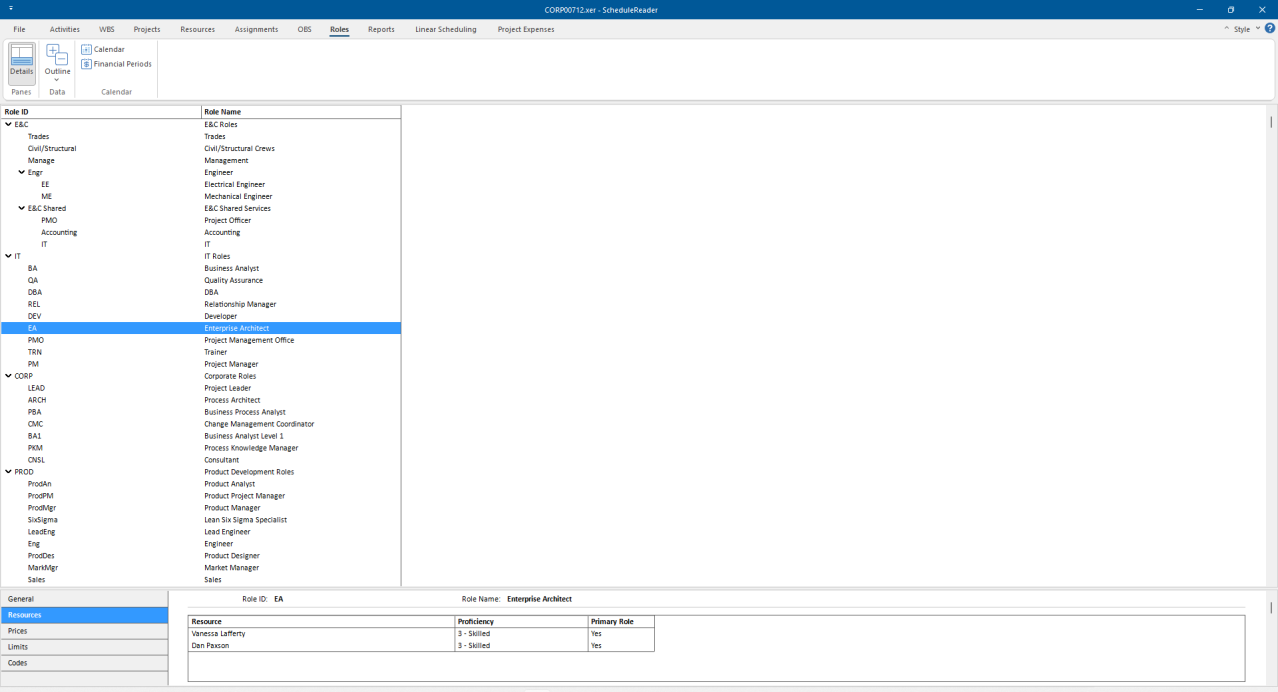
Roles Tab
The following functionalities are placed in the Roles tab of the ribbon:
Details Show on bottom project information details for the selected role. Expand All Expands all collapsed items in a hierarchical table view. Collapse All Collapses all expanded items in a hierarchical table view. Calendar View details for assigned global, project and resource calendars.
Roles Details View
Enable details to be shown at the bottom of the screen. Select a role from table to view detailed information:
General Role ID and Name. Resources List of resources assigned to the selected role. Prices Price/unit rates for each role. Limits Role availability over time. Codes View assigned role codes and values.
Project Expenses View
A simple explanation of the “expenses” would be that expenses are costs assigned to the activity, without global resource. Examples of expenses can be costs for working equipment, software, training, etc. Project Expenses view will give you a full overview of the assigned costs in the project plan.
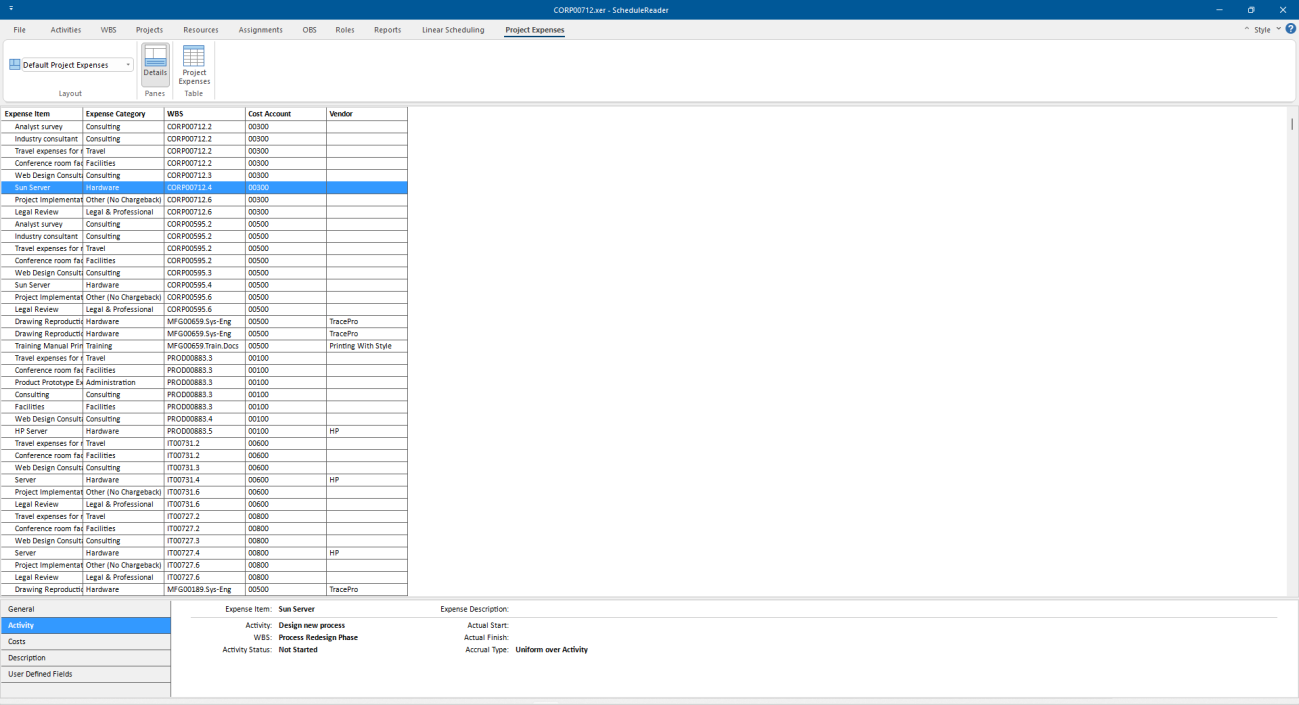
Project Expenses Tab
The following functionalities are placed in the Project Expenses tab of the ribbon:
Layouts Choose how project data is displayed in the currently active view. Each layout shows different columns and applies different groping and sorting of data. Details Show on bottom expense information details for the selected activity. Project Expenses table Add/Remove columns for a project.
Project Expenses Details View
General General information for the assigned expenses. Activity Present the item's activity assignment according to work breakdown structure (WBS) element, activity status, and activity start and finish dates. Costs View the cost amounts for the selected expense item, including Budgeted or Planned units, price/unit, budgeted or planned cost, actual cost, and remaining cost. Description View the description of the selected expense item. User Defined Fields
View the Expenses UDF assignments for the selected expense
Expenses Table
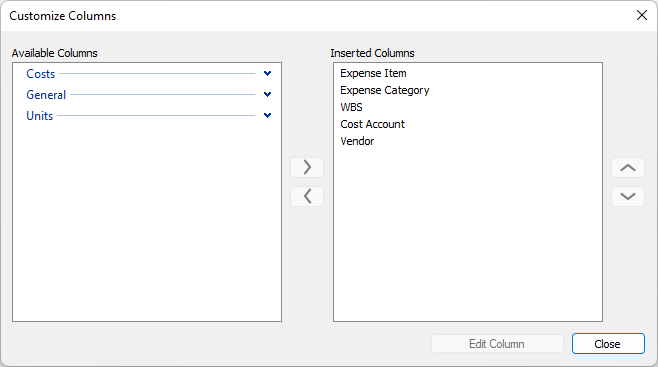
Activity expenses data is given in multiple columns of the Project Expenses table. To add or remove columns in the Activity table click on the Project Expenses Table button. The Customize Columns dialog box will be opened. From the Available columns list, select the desired Column and add to the right by clicking on the arrow. To apply the changes, simply close the window.
Linear Scheduling View
“Linear Scheduling” terminology is used in projects from the following industries: gas and oil pipelines, rails, bridges, tunnels, roads, high-rise buildings, transmission lines construction, etc. It allows users to see project elements in the time-location diagram.
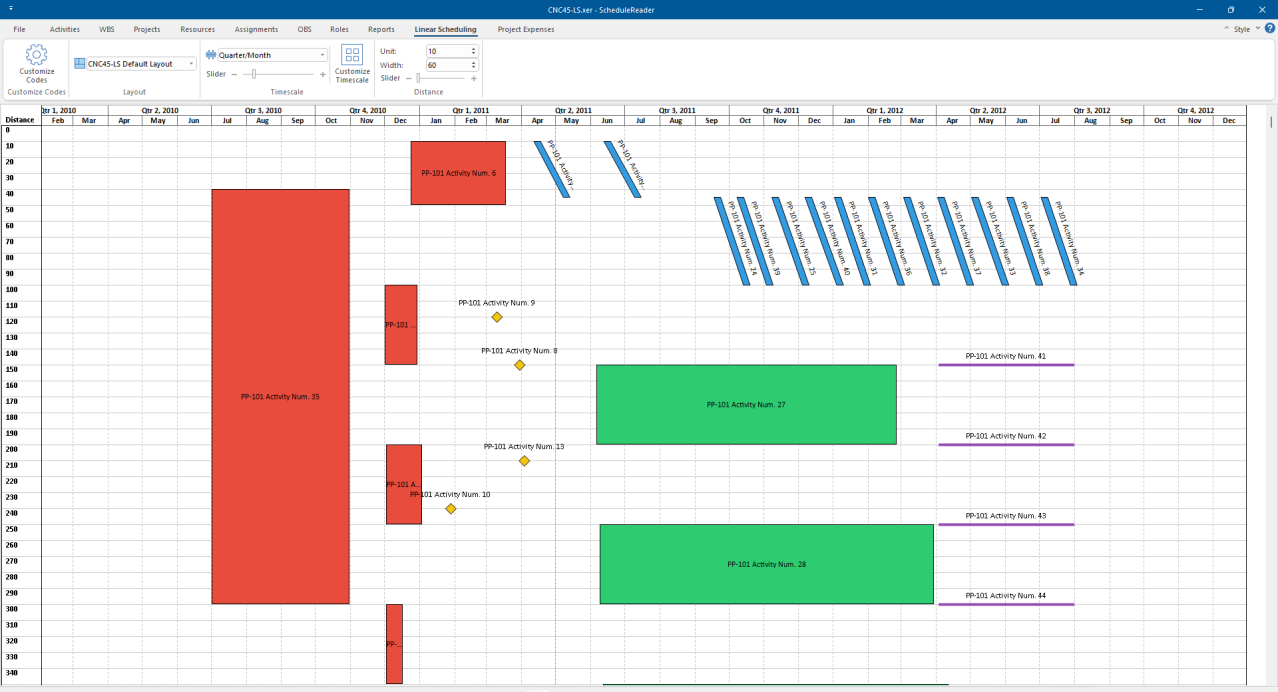
Linear Scheduling Tab
The following functionalities are placed in the Linear Scheduling tab of the ribbon:
Customize Codes Open the “Customize Liner Codes” dialog, containing information for the code types and colors that are used in the time-location chart. Layout Choose how project data is displayed in the currently active view. Each layout shows a different object on the chart. Timescale Adjust the timescale to reflect your planning period. Distance Select unit to divide the "Distance" axis. Use the "Zoom" functionality to get a close-up view of the chart elements.
Reports View
Graphical Reports view gives information about various project parameters. This functionality is available only in the Pro version and in the trial. Users can work with two types of graphical reports: predefined and custom.
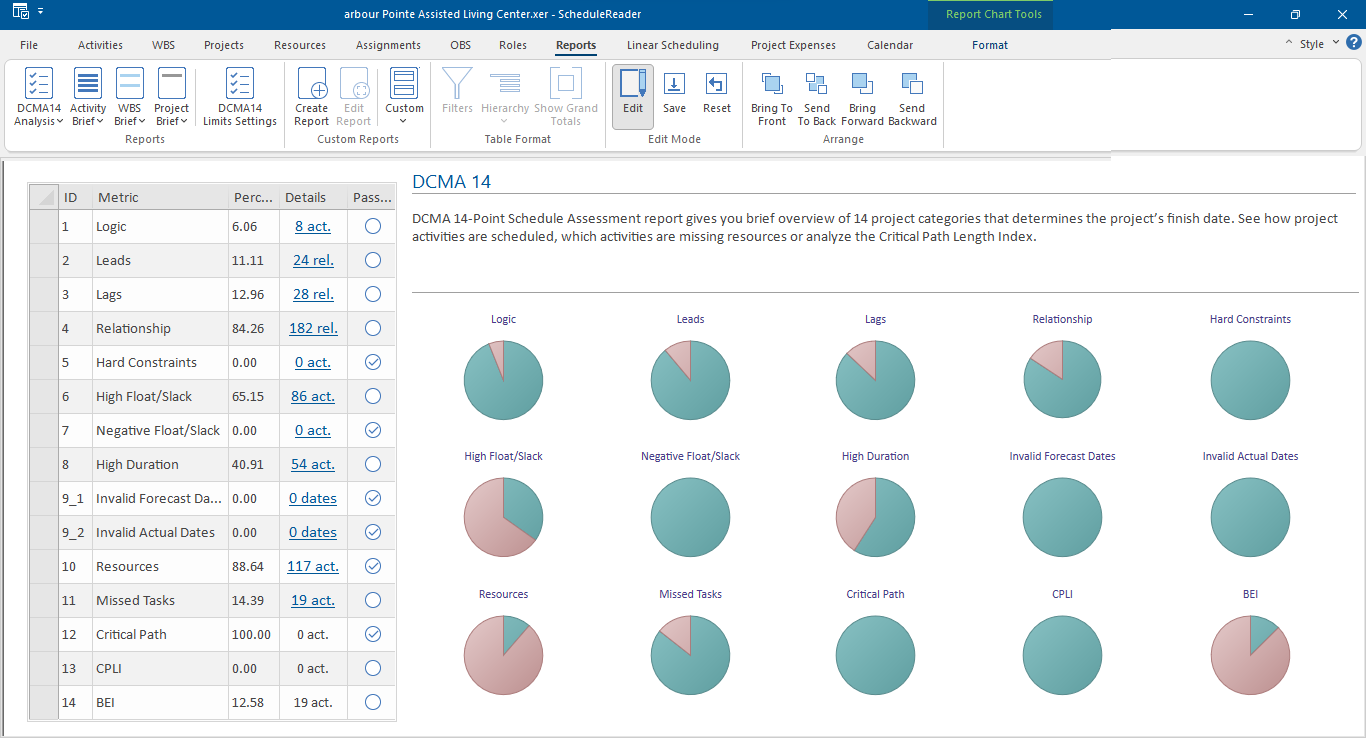
Reports Tab
The following functionalities are placed in the Reports tab:
DCMA 14
Analysis Graphical Reports that give an overview of the project schedule assessment. DCMA 14 Schedule Assessment report is located in this section. Activity Brief Graphical Reports that give an overview of the activity parameters, based on the information stored in the project plan. WBS Brief Graphical Reports that give an overview of the WBS parameters, based on the information stored in the project plan. Project Brief Graphical Reports that give an overview of the project parameters, based on the information stored in the project plan. DCMA 14 Limits Settings
Customize the limits criteria for the DCMA 14 Assessment report.
Create Report Create new, personal graphical reports for analyzing specific project data from the project plan and share it with your team. Edit Report Make changes in the custom reports or modify the imported reports. Custom Personal reports that are created using the “Create Report” will be presented here, as reports list. Filters Apply filters in the reports. Hierarchy Presents the outline level in the reports output. Three types of the hierarchy are available: by WBS, by Primary Resource and Without Hierarchy. Show Grand Totals Presents the “Grand total” values for the project in the reports output. Edit Switch between Edit and Read-Only mode. Save Save the changes in the project layout. Reset Reset the report layout to default. Bring To Front Bring the selected object in front of all other objects.
Send To Back Send the selected object behind all other objects. Bring Forward Bring the selected object forward one level so that it's hidden behind fewer objects. Send Backward Send the selected object back one level so that It's hidden behind more objects.
Progress Update
Progress Update ribbon contains features that allow users to insert a proposal for updates for particular activity or assignment.
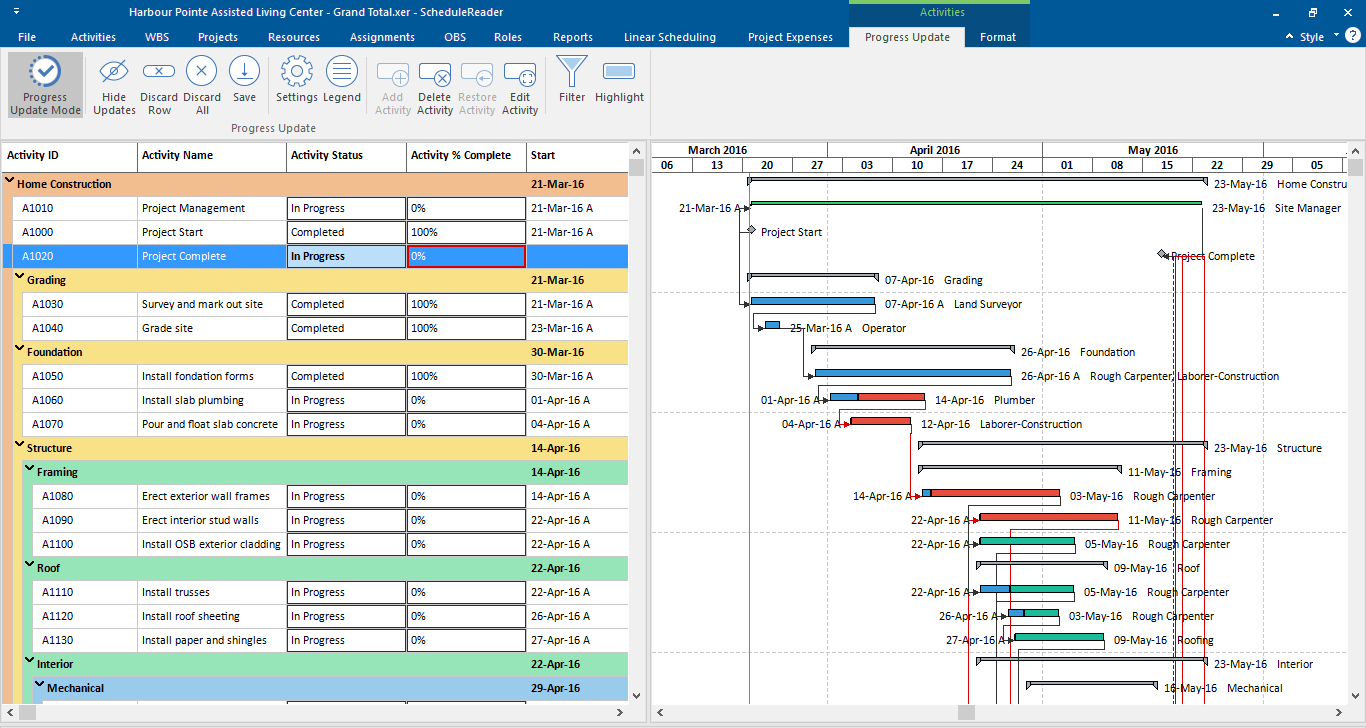
Progress Update Tab
The following functionalities are placed in the Progress Update tab of the ribbon:
Progress Update Starting or finishing the collaboration mode. Hide Updates Show or hide the updated values in the cells. Discard Row Discard the inserted values for updates from the selected row in the table. Discard All Discard all inserted values for updates from the entire table. Save Saves updated values in a .xls file. Settings Setup the environment for the updating process, such as Start and Finish UDF and how the Excel file will be created. Legend Shows a description of the used colors in the updating process. Add Activity Inserting a new activity, after selecting the WBS under which the activity will be created. Delete Activity Mark's activity that should be deleted. Restore Activity Remove the “Delete” flag from the activity marked for deleting. Edit Activity Customize the parameters of the newly inserted activity.
Filter Show only the updated activities in the project plan. Highlight Highlight the updated activities in the project plan.
Format Activity View
Any time when the Activity ribbon is selected, the Format ribbon will pop-up, as the last tab in the ScheduleReader GUI. It contains two sets of features, grouped into two groups: the “Gantt” group that allows customization of the Gantt chart in the Activity view and the “Trace Logic” group for customization of the Trace Logic view.
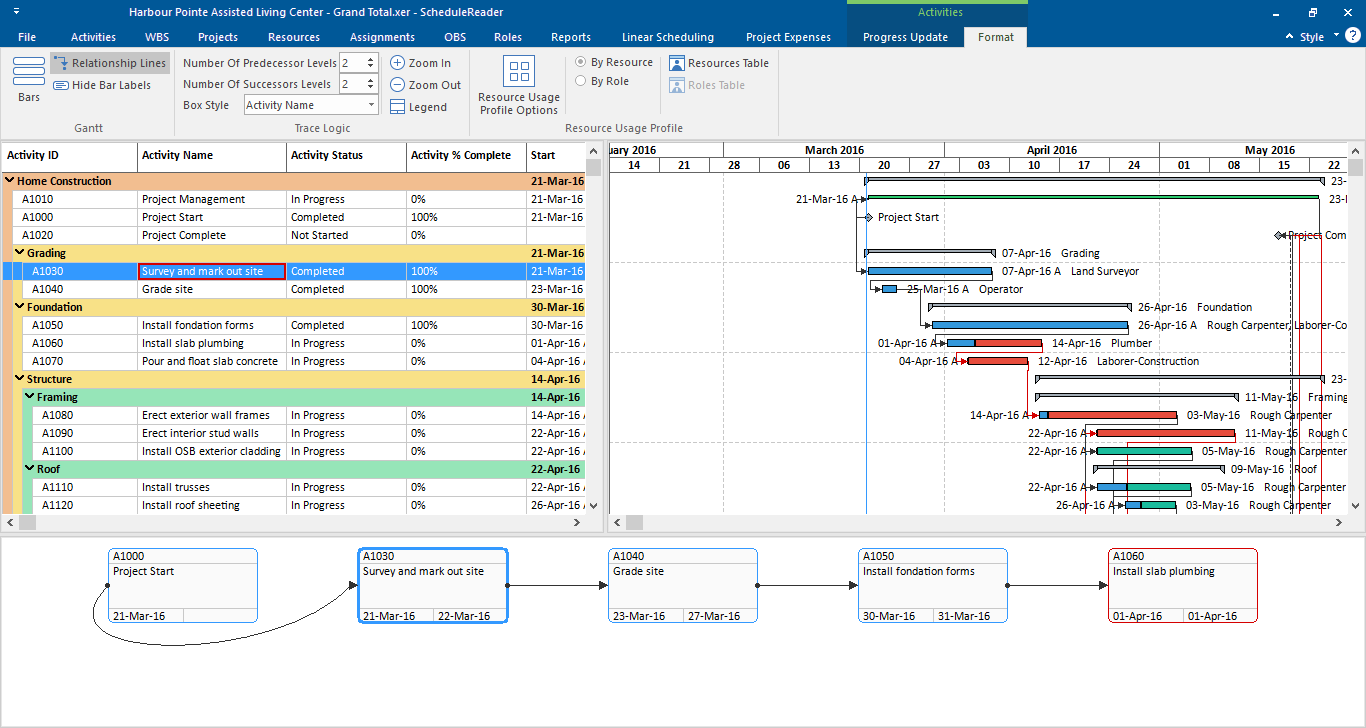
The following features are placed inside the Format ribbon:
Bars Open the Bar dialog, containing information for the bar types and colors that are used in the view Relationship lines Show or hide the relationships between activities in the Gantt chart. Hide Bar Labels Show or hide the labels around the bars in the Gantt Chart. Number of Predecessors level
Increase or decrease the predecessor’s number level that will be presented in the Trace Logic view. Number of Successors level
Increase or decrease the successor’s number level that will be presented in the Trace Logic view. Box Style Change the shape of the activity box and the information level inside the box Legend Open new windows with a description of each project information that is placed inside the activity box. Zoom In Increase the zoom level of the Trace Logic view. Zoom Out Decrease the zoom level of the Trace Logic view. Resource Usage Profile Option
Opens new dialog for Resource Usage Profile view/Stacked Histogram for customizing the view in term of viewing the S-curves, Cumulative lines, Legend, etc.
By Resource Presenting the resource parameters (costs or units) in the diagram. By Role Presenting the role parameters (costs or units) in the diagram. Resource Table Customize the resource table in Resource usage Profile view/Stacked Histogram by adding or removing columns. Roles Table Customize the role table in Resource usage Profile view by/Stacked Histogram adding or removing columns.
Trace Logic Box Legend
Depending on the level of the analysis that is required, the information inside the activity boxes can be change. ScheduleReader contains six predefined Trace logic boxes, each of them containing different types of information.
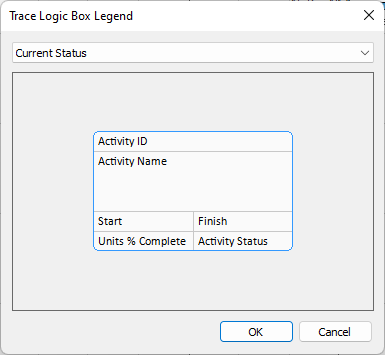
The description of the available box types is presented in the table below:
Activity ID The following information is placed inside the box: Activity ID Activity Name The following information is placed inside the box: Activity ID, Activity Name Current Status The following information is placed inside the box: Activity ID, Activity Name, Start, Finish, Units % Complete, Activity Status Durations The following information is placed inside the box: Activity ID, Activity Name, Start, Finish, Total Float, Original Duration, Remaining Duration Planned Dates The following information is placed inside the box: Activity ID, Activity Name, Planned Start, Planned Finish Resource View The following information is placed inside the box: Activity ID, Activity Name, Planned Start, Planned Finish, Resources
Resource Usage Profile
The customization of Resource Usage Profile view can be done using the features that are implemented in the Format ribbon. In order customization to be done quickly, the following features are implemented in the Resource Usage Profile group:
Opens a dialog in which the user can select whether units or costs will be presented in Resource Usage Profile view, whether the data will be presented by Date or Cumulative, to change the bar’s color or to show or hide additional data such as to show limit, overallocation or overtime. By Resource Presenting the resource parameters (costs or units) in the diagram. By Role Presenting the role parameters (costs or units) in the diagram. Resource Table Customize the resource table in Resource usage Profile view by adding or removing columns. Role Table Customize the role table in Resource usage Profile view by adding or removing columns.
Resource Usage Profile options
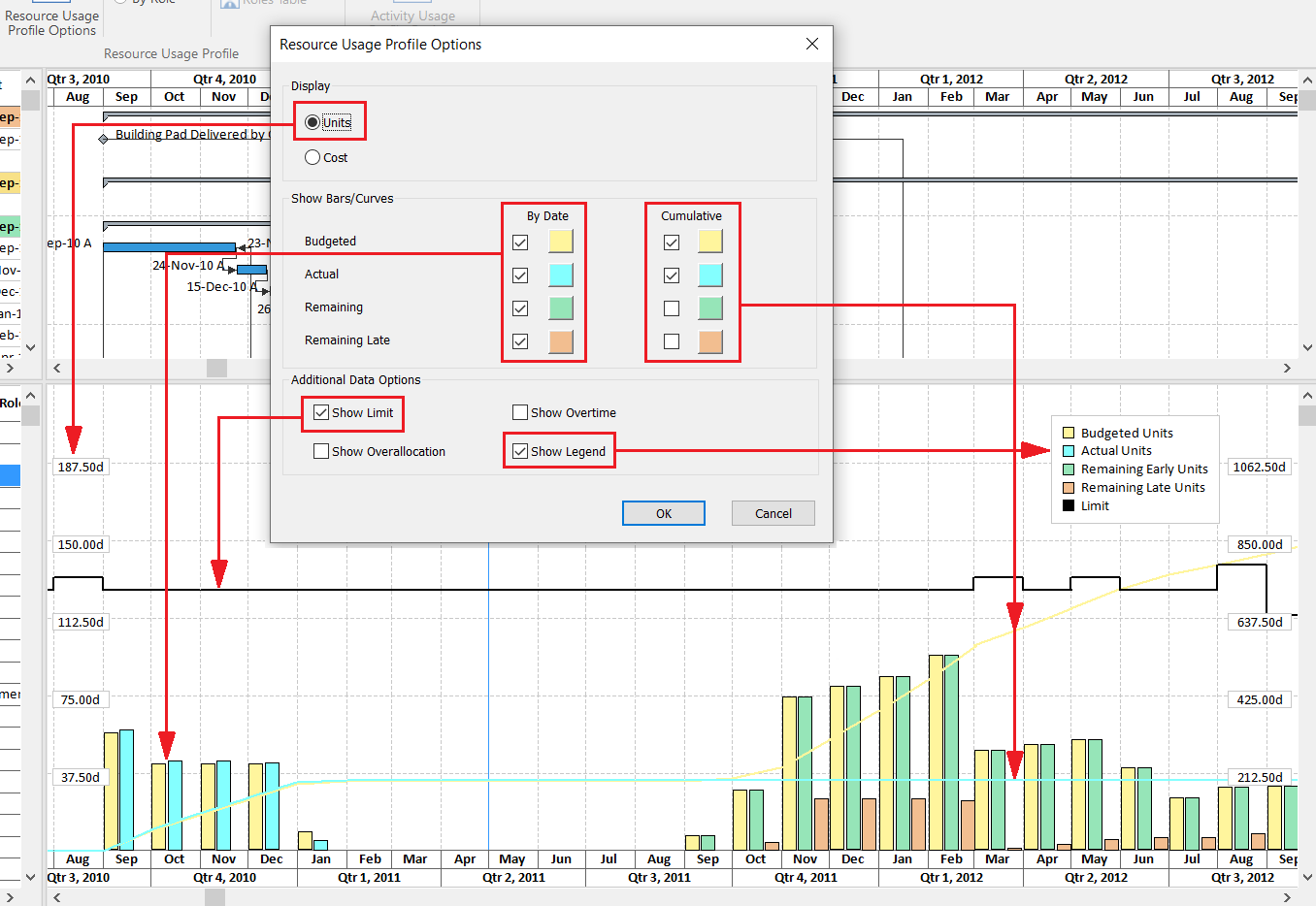
The core of the Resource Usage Profile view is the Options dialog. With the help of this dialog, the user can choose which category will be displayed on the graph (Units or Costs), to choose which subcategories will be displayed through the bars or curves graphic elements as well as additional data options that will of great help while analyzing the project data.
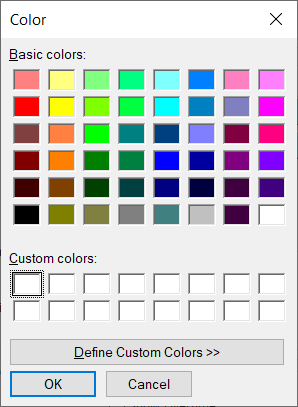
To change the bar’s color, you have to click on the colored box next to the feature’s name. In the newly opened dialog, you can choose one from the default colors or to create your own, custom color.
Once the color is changed, it will be applied both on the bar and curve.
Several Importing Remarks:
- Although all check-boxes from the “Bars/Curves” category can be selected, if the values don’t exist in the project plan, they will not be drawn on the graph;
- Although the check-boxes for “Show Overallocation” and “Shoe Overtime” can be selected, if the values don’t exist in the project plan, they will not be drawn on the graph;
- When the “Cost” category is selected, the “Show Limit” and “Show Overtime” check-boxes are disabled;
Activity Usage Profile
The customization of Activity Usage Profile view can be done using the feature that is implemented in the Format ribbon. In order customization to be done quickly, the following feature is implemented in the Activity Usage Profile group:
Opens a dialog in which the user can select whether units or costs will be presented in Activity Usage Profile view, whether the data will be presented by Date or Cumulative or to change the bar’s color. Activity Usage Profile options
Activity Usage Profile options
The core of the Activity Usage Profile view is the Options dialog. With the help of this dialog, the user can choose which category will be displayed on the graph (Units or Costs), to choose which subcategories will be displayed through the bars or curves graphic elements as well as additional data options that will of great help while analyzing the project data.
Format Reports
The contextual tabs (or Format tabs) are hidden tabs control in ScheduleReader that's displayed in the tab row when a specified object is selected in the report document. For example, when a diagram is selected in the report, the “Report Chart Tools” appears, allowing the users to modify specific elements of the chart.
To view the contextual report tabs, you must be in “Edit” mode, that will allow you to change different visual aspect of the report, such as: font color, font size, table colors, diagram type, etc.
There are three report contextual tabs in ScheduleReader: “Report Text Tools”, “Report Table Tools” and “Report Chart Tools”.
Report Text Tools
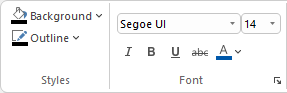
When a report title or report explanation is selected, the “Report Text Tools” format ribbon is open, allowing the user to change the visual display by changing the font type, font size and color and other font properties, as well as the background color of the text display.
The following features are implemented in “Reports Text Tools” ribbon:
Styles Pick the color, width, and line style for the outline of the report’s text shape as well as the background’s color. Font Customize the report's text using advanced font and character options to give it the exact look you want.
Report Table Tools
The "Report Table Tools" ribbon in ScheduleReader provides functionalities for formatting tables within the report document. Its purpose is to give users easy access to various design elements and formatting options to customize the appearance of tables.

The following features are implemented in “Reports Table Tools” ribbon:
Font Customize the table’s text using advanced font and character options to give it the exact look you want. Shape Style Library Choose one from the predefined mixed coloring sets of formatting options for tables, allowing users to quickly apply a consistent look and feel to their tables. Color Even Rows Select the colors for the background, text, cell borders and define the color’s gradient for all ever rows for the selected table.
Color Odd Rows Select the colors for the background, text, cell borders and define the color’s gradient for all odd rows for the selected table. Table Color Library Choose one from the predefined unified coloring sets of formatting options for tables, allowing users to quickly apply a consistent look and feel to their tables. Header Colors Select the color for the background, text, cell borders and define the color’s gradient for the header’s row, for the selected table. Offset Colors Select the color for the background, text, cell borders and define the color’s gradient for the definition cell of each row for the selected table.
Report Chart Tools
The "Report Chart Tools" ribbon in ScheduleReader is a set of tools and options aimed at helping users create, customize, and refine charts/graphs in their report space. Its purpose is to provide a wide range of features that allow users to design and format their charts effectively.

The following features are implemented in “Reports Chart Tools” ribbon:
Chart Style Select the appropriate graph for the report Add Chart Elements Options for adding or removing chart elements such as titles, axes, data labels, gridlines, and trendlines Themes Apply one from the predefined coloring scheme on the chart Chart Modify the fill color and the outline color of the background's chart Plot Area Change the fill color and the outline color of chart's plot area Title Modify the fill, outline and text color of the chart's title Axis Change the color of the chart axes. Modify the color of the major and minor lines in the chart as well as interlace color Legend Modify the fill, outline and text color of the chart's legend
Custom Bar Styles and Labels
Bars are the basic elements of the Gantt Chart. They plot the start and finish dates of the activities based on the selected timescale period. Each bar has its own visual style that will help the user to recognize it from the other bars that are present in the Gantt Chart. ScheduleReader comes with a predefined set of bars for the Activity view but the user can add new bars or modify the existing ones according to its’s needs.
Using the Bars dialog within the Activity View, you can create new bars, as part of the current layout, which will present project information that is not visible with the current layout’s bar. Bars dialog is the central point where you can manage the outlook of the view: to show/hide which specific bars, to change the way they look in terms of choosing the custom color and shape for the bars or to customize the labels for the selected bar.
The Bars dialog consists of two main parts: functional and visual. Although they are placed in one dialog, the user can easily make distinctions between them.
The Functional Part of Bars Dialog
With the functional part of the Bars dialog, the user is setting the parameters that will be displayed in the Gantt chart.
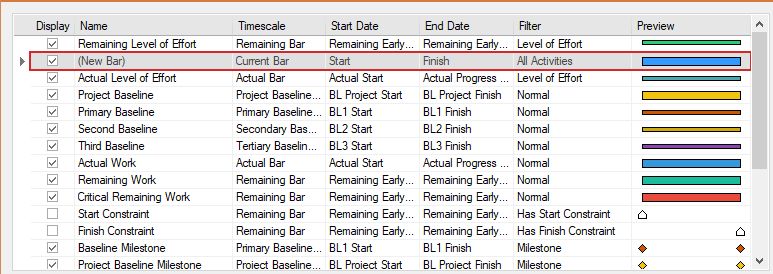
The following features are used for defining one bar:
Display An indicator that shows whether some bar is visible in the Gantt Chart or not.
Name An editable field where the user is inserting the name of the newly created bar or rename one of the existing bars. Timescale Time-period that is defined by different activity parameters. The following options are available for plotting: % Complete Bar, Actual Bar, Current Bar, Early Bar, Floating Bar, Late Bar, Neg. Float Bar, Performance % Complete Bar, Plan Bar, Primary Baseline Bar, Project Baseline Bar, Remaining Bar, Secondary Baseline Bar, Tertiary Baseline Bar, and User Dates. Start Date The starting point of the bar. This field is editable only if the User Dates option from Timescale’s drop-down list is selected. End Date The finishing point of the bar. This field is editable only if the User Dates option from Timescale’s drop-down list is selected. Filter Apply the filtering criteria for presenting the bars in the Gantt Chart. Preview The visual look of the bar.
The Visual Part of Bars Dialog
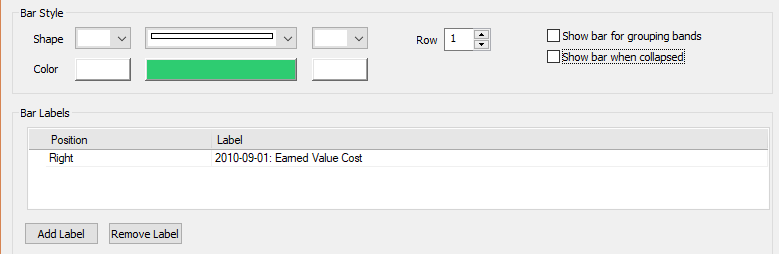
The following features are used for visual modifying one bar:
Start Shape Select the starting shape of the bar. Starting shape is not mandatory for drawing ordinary activities. It is used when Start Milestone or Summary Activity is presented in the Gantt Chart. Middle Select the appropriate shape that will present the “body” of the activity. All types of activities have this shape part, except the milestones. End Shape Select the finishing shape of the bar. Finishing shape is not mandatory for drawing ordinary activities. It is used when Finish Milestone or Summary Activity is presented in the Gantt Chart. Row Each row in the Gantt chart is divided into 3 sub-rows, used for drawing bars. Selecting “1” means that the bar will be plotted in the top of the row, “2” means that the bar will be plotted in the middle of the row and “3” at the bottom of the row> Very useful feature when comparing baselines. Color Select the color for each part of the bar. All three parts can have its own color. Show bar for grouping bands Convert one bar category into the summary bar and plot into the summary band. The normal bar for those particular activities will disappear from the chart because the Filter will be changed to Summary. Show bar when collapsed Select this feature if you want to present the select category of activities to the summary activity. This will allow us to have more detailed summary activity in those cases where most of the activities in the project plan are collapsed. Bar Labels Insert additional data to the selected bar category. You can add this data on various locations around the bar
Create a New Bar
Adding a new bar in the layout is simple and can be done in several steps:
- 1. Click on the Add button in the Bars dialog; 2. Insert Name for the newly created item;
- 3. In the Timescale select the time-period that will reflect strictly defined activity parameter; 4. In the Filter column select the filtering criteria that will be applied to the bar-style; 5. Click on the OK button.
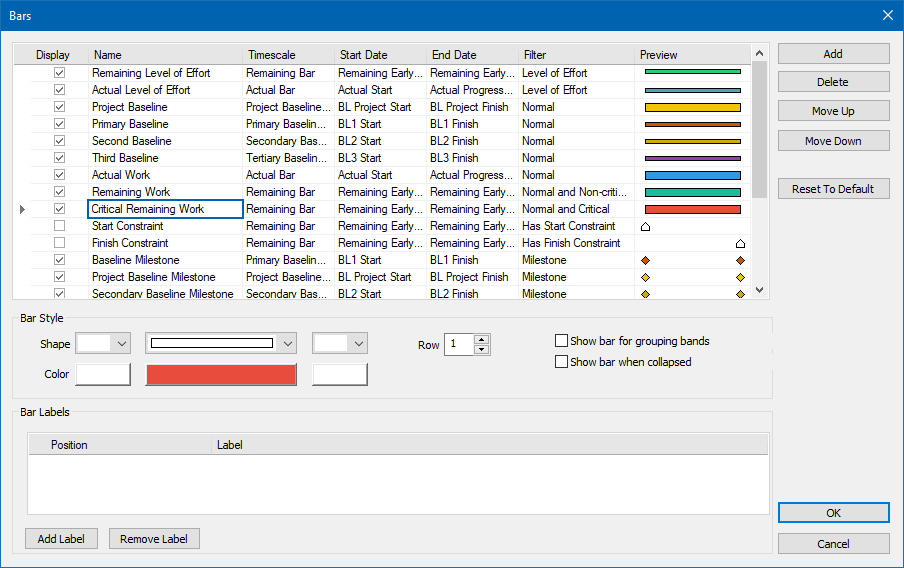
Several important notes that must be outlined, when the user creates a new bar style:
- All parameters from the Timescale’s drop-down list, except User Dates, have predefined values for Start Date and End Date, and they cannot be changed.
- If the user selects User Dates from the Timescale’s drop-down list, he will be able to select the parameters that will define the Start and End dates of the bar. These dates are UDF (User-Defined Fields) and they are created in Primavera P6 by the project manager.
- Entire customization that has been done in the Bars dialog is saved in the layout that is applied and can be exported to other project participants or team members.
- Bars in the Bars dialog are organized into bar stack where the bars that are located higher in the stack have display advantage over the bars that are located lower in the stack. To change the order for presenting use the “Move Up” and “Move Down” buttons to change the location of the bars.
- Resetting to the initial bar styles can be done using the Reset to Default feature, where the entire customization that is done will be deleted permanently for all bar categories and the system will be brought to the original state.
Custom Fields
User-defined fields (UDF’s) are used to add additional data for projects to assist your business processes. For example, you can have custom fields for sale order number, delivery dates and profits.
Calendar Activity Modes
ScheduleReader offers several viewing modes for viewing the activities in the calendar view: Day, Week, Working Week, and Month. Day mode
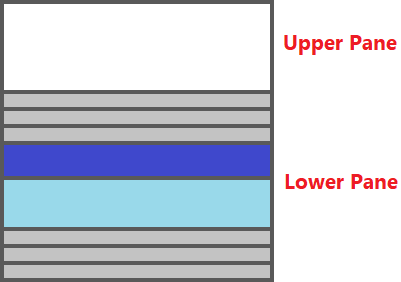
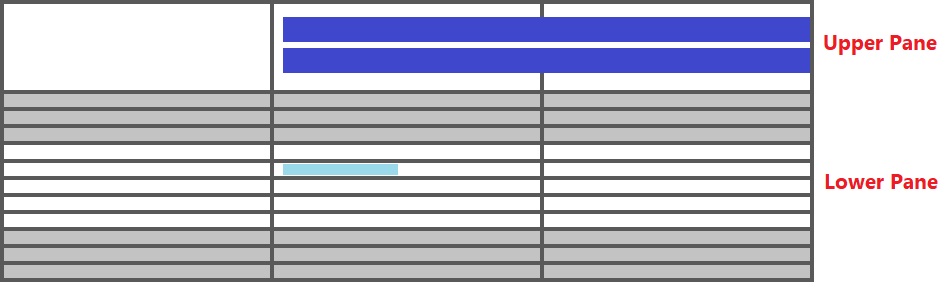
Day displays all activities that are scheduled for the selected day from the Calendar bar. The “Day” mode consists of two panes: Upper and Lower pane.
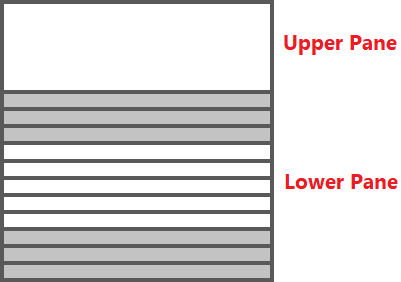
The upper pane contains all the activities that start on the given day and last several days, as well as those activities whose duration is included in the selected day.
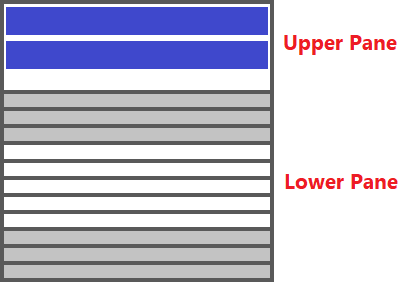
The lower pane contains those activities that start and end on that the same day. The duration of these activities can be read from the vertical - time axis. Mostly, these are activities that last several hours or project milestones.
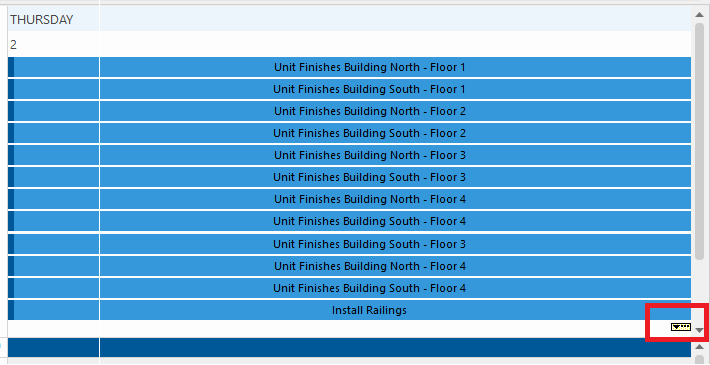
If there are multiple activities that are scheduled during that day, then a graphic indicator will appear in the lower right part of the cell, informing the user that there are activities that are not visible, and it is necessary to interact with the software to see them all information.
Work Week Mode
The “working week” mode shows, by default the days from Monday to Friday. Just like for the “Day” mode, the view is divided into an upper pane and a lower pane.
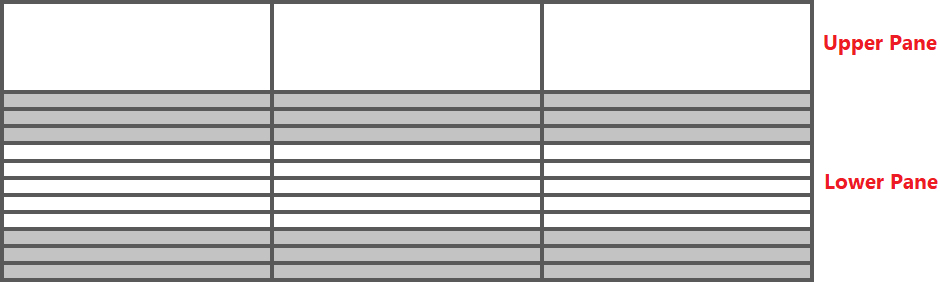
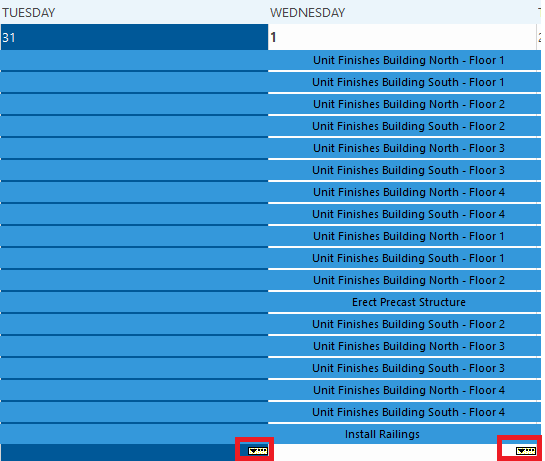
The activities whose duration goes through the selected week are shown as a continuous ribbon that goes through the corresponding days. Milestones that are scheduled in the given week are shown in the lower part of the corresponding day.
If there are multiple activities that are scheduled during the days of the week, then a graphic indicator will appear in the lower right part of the cell, informing the user that there are activities that are not visible, and it is necessary to interact with the software to see them all information.
Week Mode
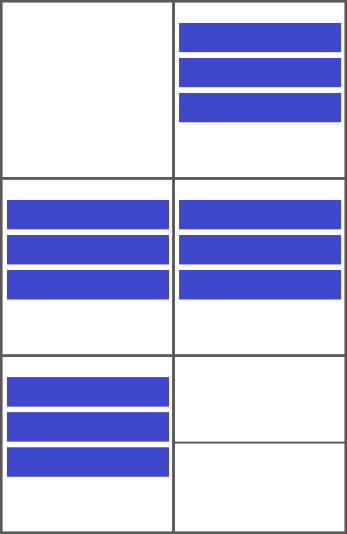
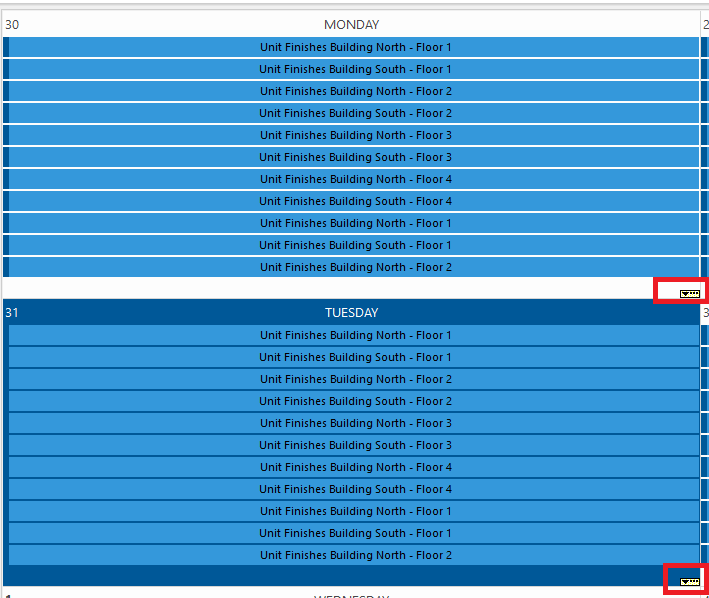
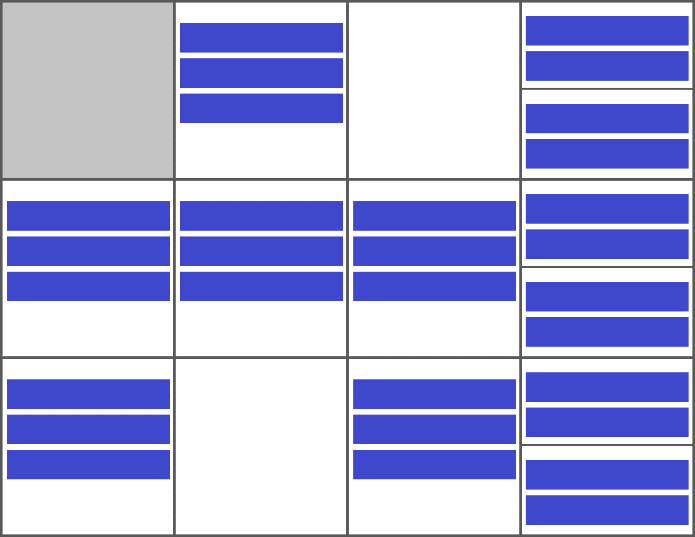
Week displays a full week Sunday through Saturday. The working week layout is presented as a grid of all the days that make up the week. A day of the week is represented by one square. Non-working days (Saturday and Sunday) are represented by one square, so that half of the square belongs to one non- working day, while the other half of the square belongs to the other non-working day. The activities of the project, as in the previous views, are represented by ribbons, which, depending on the type, are painted with different colors: blue for activities and gray for milestones.
Month Mode
The Month Mode view presents project activities one month at a time, using a calendar format. The project activities are spread across the cells that make up the month.
If there are multiple activities that are scheduled during one day of the month, then a graphic indicator will appear in the lower right part of the cell, informing the user that there are activities that are not visible, and it is necessary to interact with the software to see them all information.
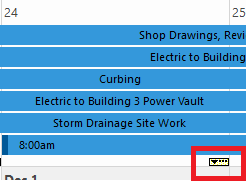
Once the user clicks on this button, the “Day” mode will be activated, giving the user more information about the scheduled activities on that day. Resource Modes
Beside the activity mode, where users can see how the activities are spread across different time periods, ScheduleReader gives an option to view the resource assignments in calendar format. Team Organizer
The Team Organizer view is a specialized resource assignment category display designed to showcase allocated tasks for resources. This view is divided into two frames: a top tier sheet and a bottom organizer. The Team Organizer view showcases activity assignments on a per-day basis.
The sheet section presents the resources assigned in the project in a tabular format, making it easy to assess the team's involvement in the project.
Conversely, the chart section visually represents each task, typically using activity bars. The length and position of these bars on the vertical timeline provide a clear indication of task start and end times. Additionally, you can access specific details about each activity and resource.
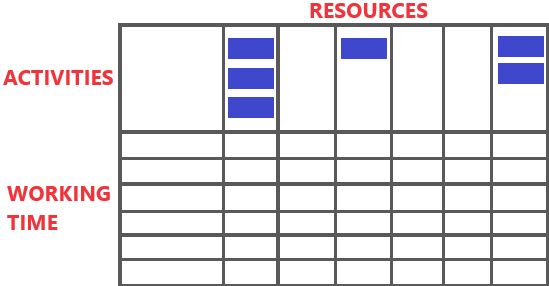
The Team Organizer view allows you to utilize various activity filters to tailor the displayed information according to your preferences. When you select a filter, the Team Planner view displays information in line with the filter's specified criteria. By default, the view remains unfiltered.
In addition to the default filters, users have the option to create custom filters and apply them within the Team Organizer view.
Schedule View
Schedule View is a specialized resource assignment category view designed to display assigned activities for resources. This view is split into two sections: a sheet on the left side and a chart on the right side. The Schedule View displayed the assignments per day.
The sheet section presents resource information in a tabular format, allowing you to easily review the team that is participating in the project.
On the other hand, the chart section visually represents each task, in general as a task bar. The length and position of these bars on the timescale provide a clear indication of when each task starts and ends. In addition, you can view details about each activity and resource.
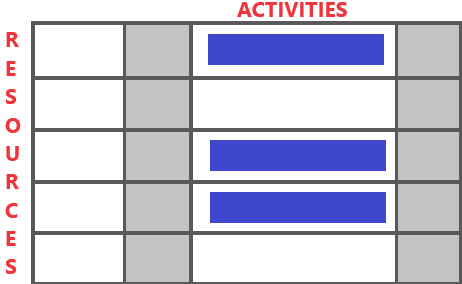
The Schedule View can use any of the activity filters to display only the information you want to see. When you select a filter, the Schedule View displays the information as defined by that filter's criteria. By default, no filter is applied to the view.
Beside the default filters, users can create user-defined filters and applied them in the Schedule View. Calendars
Different calendars can be assigned to each resource, activity or project in Primavera P6 to support different work patterns. Use the Calendar dialog box, to view the following:
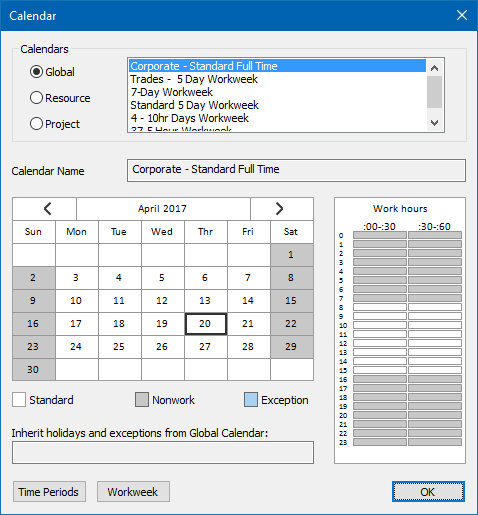
- List of calendars used in one of the global, project or resource pools. The global calendar pool applies to all projects. The project calendar pool contains calendars for each project, while the resource calendar pool can be separated for each resource.
- Available work hours in each calendar day. Get informed about the start, end and break hours.
- National and company’s holidays
- Project-specific work and nonwork days as well as resource days off.
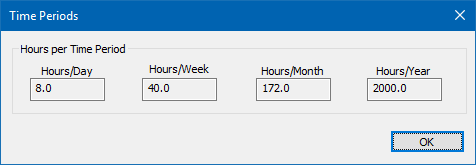
- Time Periods displays the default hours per time period settings that are used as conversion factors when entering or displaying units in time increments other than hours.
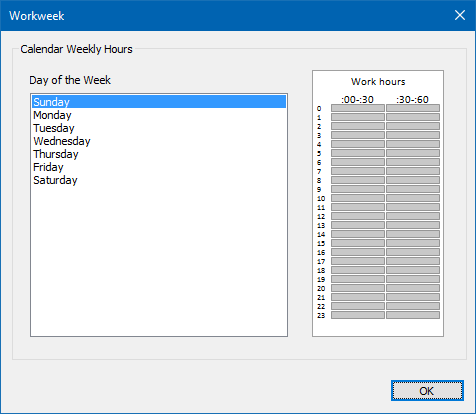
- Workweek displays workdays and hours during the week. For example, some workweek may start on Sunday and end on Thursday.
Whether an activity uses its assigned calendar, or the calendar of an assigned resource depends on the activity type you specify (task-dependent versus resource-dependent).
Show Codes as Overall List
In the most general form, the Activity, Projects, Resources, and other codes are custom fields that are generated for the purpose of easier navigation through the project and faster obtaining of the desired information. Those codes that are used in the project plan are exported in the project file and they can be presented in the ScheduleReader.
Important Note: The Activity, Project and Resource codes can be created, modified, assigned, and deleted only in Oracle Primavera P6. In ScheduleReader, the Activity, Project and Resource codes can be viewed only.
Activity Codes
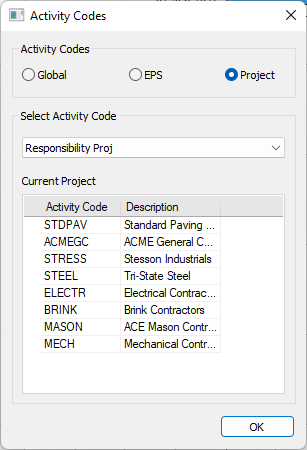
As it is known, in Oracle Primavera P6 there are 3 types of activity codes, namely: Global, EPS and Project. They help the ScheduleReader users more easily to filter, group, and sort the activities according to the company requirements.
To view which Activity Codes are inserted in the project plan, perform the following steps:
- 1. Select the Activity view. 2. Click on the “Activity Code” functionality. 3. Select one of the available Activity Code Type by clicking on the radio-button in front of the code’s name. 4. Select the Activity Code from the drop-down list. 5. View the values and the description in the preview table.
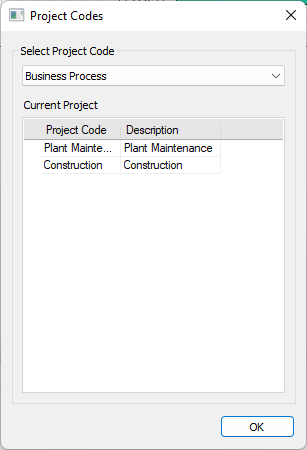
Project Codes
In the case when many projects are exported to a file and there is a need to group or filter them according to certain parameters, the project codes are used.
To see which project codes are used in projects, perform the following steps:
- 1. Select the Project view (ribbon). 2. Click on the “Project Code” functionality. 3. Select the Project Code from the drop-down list. 4. View the values and the description in the preview table.
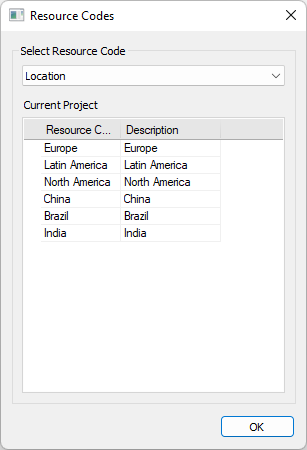
Resource Codes
Hundreds of resources assigned to tasks in different projects can be filtered, grouped and sorted using resource codes.
To see which resource codes are used in projects, perform the following steps:
- 1. Select the Resources view (ribbon). 2. Click on the “Resource Code” functionality. 3. Select the Resource Code from the drop-down list. 4. View the values and the description in the preview table.
Timescale Customization
All views that contain Gantt Chart, such as Activity and Assignment views, have a timeline or timescale, that shows the order in which the activities in the project plan happened. The ScheduleReader users can customize the look of the timescale by changing the timescale format according to the specific project need. The modifications that are made in the timescale will be saved in the layout and can be shared with the team members. This process can be overviewed in the opposite direction: the user will be able to use complete prepared and customized timescale by importing the layout where the table’s modifications are saved. In this way, the company’s standards and procedures for managing projects will be fully satisfied.
ScheduleReader users can select which “Primary Dates” type will be applied in the timescale. The available options are:
- “Calendar” – the date intervals will be displayed according to the standard calendar that is used in the project plan.
- “Week of Year” – the date intervals will be displayed as numbers for each week of the year, sequentially, beginning from January.
The steps to customize the timescale can be summarized as follows:
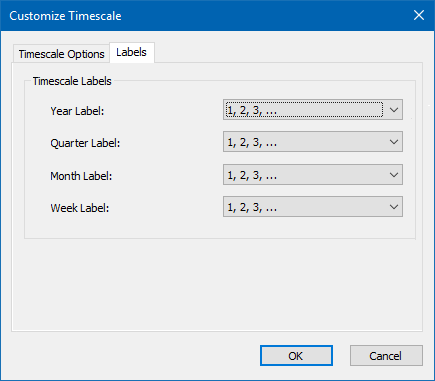
- 1. In the Timescale group, in Activity ribbon, click on the Customize Timescale. 2. In the newly open dialog, in the “Timescale Options” tab, select the date format. 3. In the Labels tab, define the label you want for displaying the time unit.
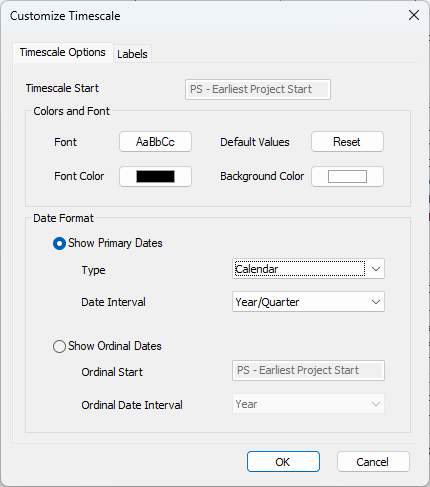
User can choose to change the date interval in the timescale to view different activity information or to get quality and quantitative information about the project’s schedule:
- Show Primary dates (“Calendar” Type) - Changing the date interval in the timescale, the user will be able to view different activity information.
- Show Primary dates (“Week of Year” Type) – Having the weeks in the timescale, will allow the user to use the “week” as a unit for describing the activity’s property.
- Show Ordinal dates - Presenting ordinal dates in the timescale will allow the user to get quality and quantitative information about the project’s schedule.
Color and Fonts
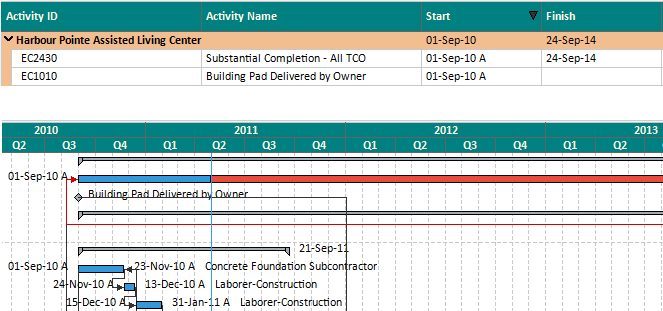
ScheduleReader includes a customization feature that allows users to adjust the font style, size, and color of the Gantt chart timescale and Gantt table column headings. This functionality helps users modify the visual appearance of the schedule to match their preferences or project standards. It improves readability by allowing important information to be highlighted through formatting choices. Customization settings are applied simultaneously on the Gannt Chart timescale and the Gantt Table header, improving presentation quality in project presentation. This feature supports better visual clarity and user experience without altering the underlying project data.
Modify Timescale Labels
When the “Ordinal Dates” format is selected for the project’s timescale, the user can select the label for the time units.
To change the labels for the ordinal dates in the timescale, perform the following steps:
- 1. Click on the Labels tab. 2. Select the appropriate label for the corresponding date interval.
PRESENT FINANCIAL PERIODS “Financial periods” functionality will help project managers, team leads and other project participants to have a complete overview of project performance for a certain period of time. In order to have these financial periods available for viewing in ScheduleReader, project scheduler must create them in Oracle P6 and the values to be saved using the “Store Period Performance”.
Once the necessary operations are done in Oracle P6, ScheduleReader users can see the project performance in the predefined period in order to make resource allocation or unit adjustments, if necessary.
Financial Periods in Activity View
How to view these parameters in ScheduleReader? Let’s have a simple example:
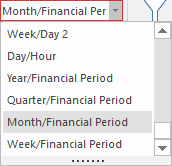
- 1. Open the XER file that contains financial periods. 2. To view the financial periods in the timescale, in the “Timescale” drop-down menu from the “Activity” ribbon, select one of the available options that are most appropriate for your work. In our case, we will select “Month/Financial Period”.
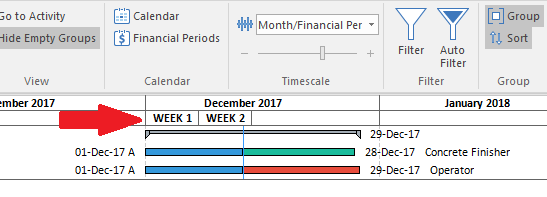
- 3. After performing this action, the project timescale will transform as the timescale presented in the image below.
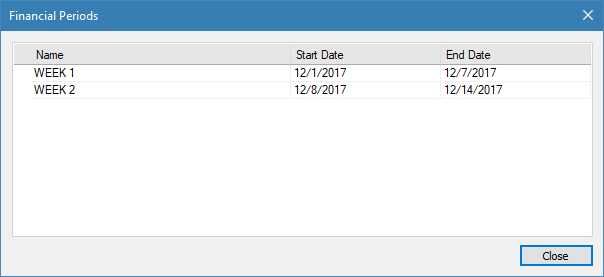
- 4. To view the financial periods that the project scheduler had created in Oracle P6, along with the starting and finishing dates, select the “Financial Periods” feature, located in the “Calendar” group, within “Activities” ribbon.
- 5. To view the values for the project’s performance over a specific period, you need to insert the columns that contain the needed values. Open the “Activity Table” and from the “Financial Period Value” menu select the values for the specific period. For every specified period, the following values can be presented: Actual Expenses Cost, Actual Labor Cost, Actual Labor Units, Actual Material Cost, Actual Nonlabor Cost, Actual Nonlabor Units, Earned Value Cost, Earned Value Labor Units, Planned Value Cost and Planned Value Labor Units.
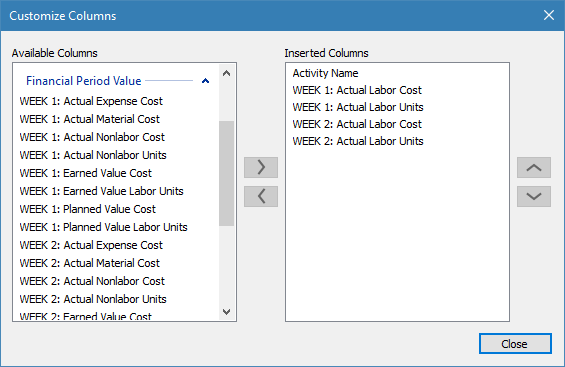
Note: To view these values in ScheduleReader, project scheduler must save them in Oracle P6 using the “Store Period Performance” feature.
- 6. Finally, the “Financial Periods” layout is presented in the image below.
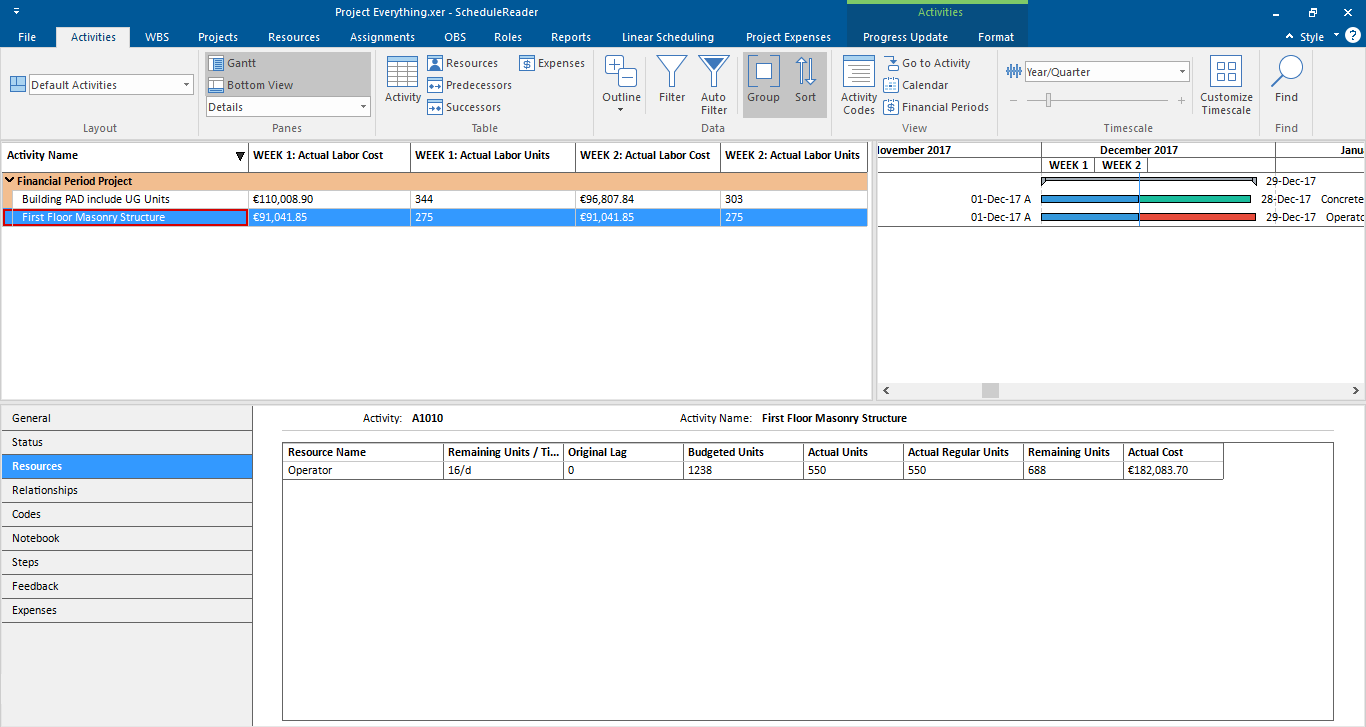
- Another way to present the Financial Periods in the Activity view is the graphical display, through the function "Display Actuals using Financial Periods".
- which is located in the "Option".
- dialogs. For Activity Usage Profile/Resource Usage Profile view.
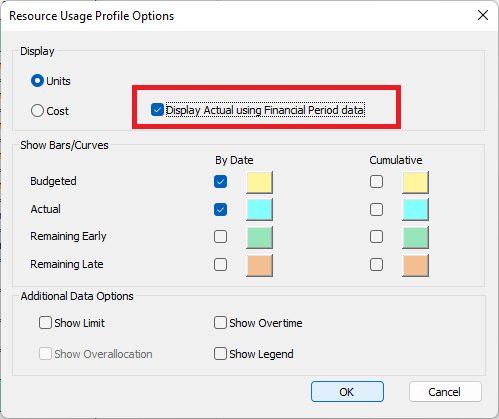
With a simple selection, the graphic chart will show the current values for costs and units that have been spent in the specific time periods.
Financial Periods in Assignment View
Depending on the needs of the user, the Financial Periods in the Assignment view can be displayed in 2 ways: in the Assignment table and in the Spreadsheet.
If the user wants to see a specific value for costs and units in a specific period, he should open the “Assignment table” and insert the necessary fields. Inside the dialog there is a special category named “Financial Period Value” that contains values for Costs and Units divided according to the periods specified in Oracle Primavera P6.
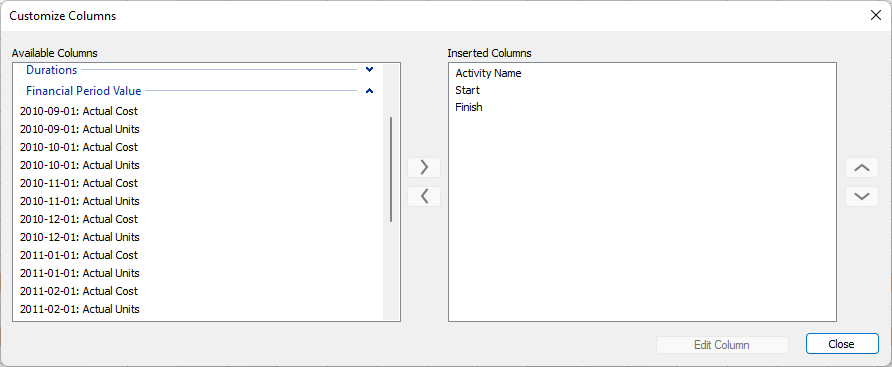
In case the user wants to see the financial periods in the assignment’s spreadsheet, the user should open the “Spreadsheet table” and insert the cumulative and/or actual fields. As in all dialogs in ScheduleReader, the values for the Financial Periods are stored in special categories inside the dialog.
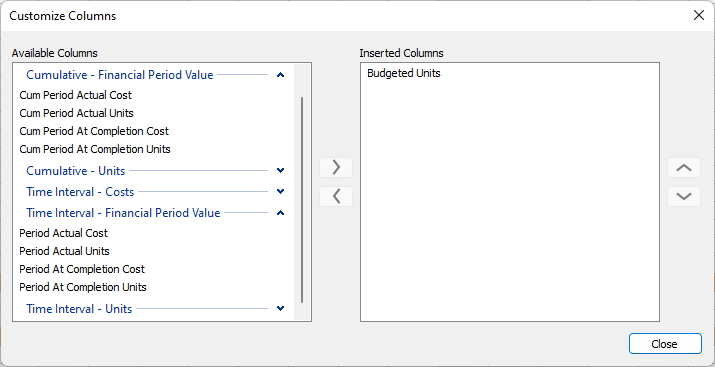
Group, Sort and Summarize Data
Introduction to Grouping
Layouts define which columns to be shown in a given table, how project data is grouped and sort. Use the standard layouts for activity, WBS, project or resource table to display data in one of the predefined formats. For example, in the Activity table, you can choose to display data by Activity Status where activities are grouped by their status (completed or in progress) in ascending order of their start date. By default, the Activity ID, name, start and finish dates are shown in the table.
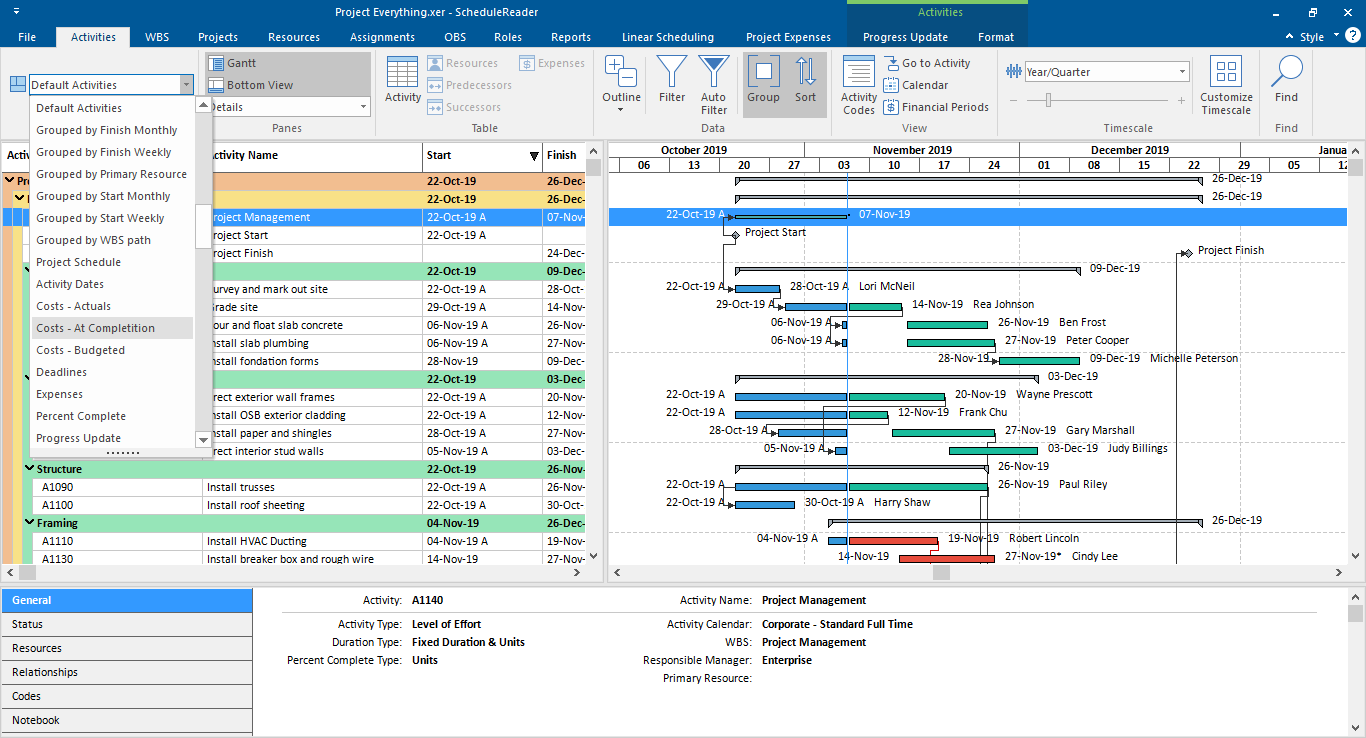
There are different layouts that can be applied in the activity, project, WBS or resource table. You can further organize your layout by using sorting to arrange the order of items. Click on the column header to sort data within a group by ascending or descending order. When you group a layout by a data item, you can easily roll up activity data to calculate group totals and simplify the data presentation. From Ribbon, use the Expand All or Collapse All, or click the plus (+) or minus (-) symbols to the left of any grouping band to expand or collapse information.
Create Custom Group in Activity View
Now you can create your own custom, user-defined groups, where you can view the activities grouped in a certain manner, whether that be an activity status, remaining duration, etc. You can define not only one group condition but specify multiple grouping criteria. X`
If you want to group activities by several grouping criteria, you have to do the following:
- 1. Open the Activities view, by clicking on the Activities tab. 2. Click on the Group option in the ribbon.
- 3. Choose the Group By criteria from the dropdown list. 4. Enter additional Interval and Indent Level Values for the grouping criteria. 5. Click OK.
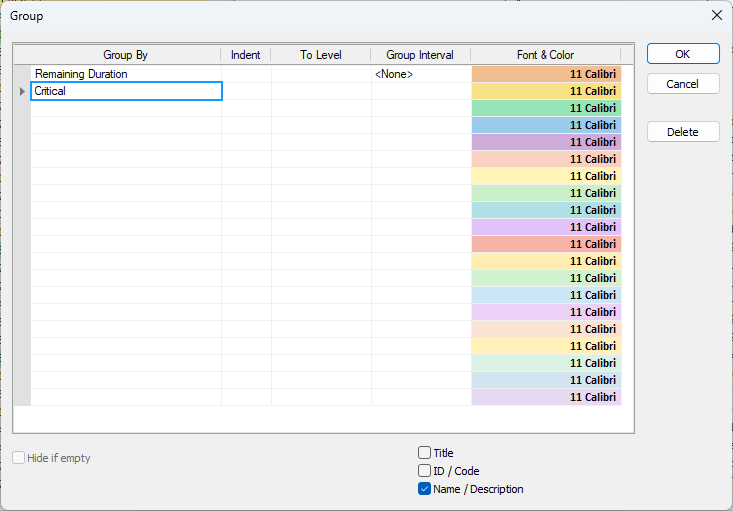
In the example above, you can see that this activity grouping is made with two conditions (criteria), by Remaining Duration and which of the activities with the given remaining duration are Critical. This is how the different groups are visualized in the Activities table.
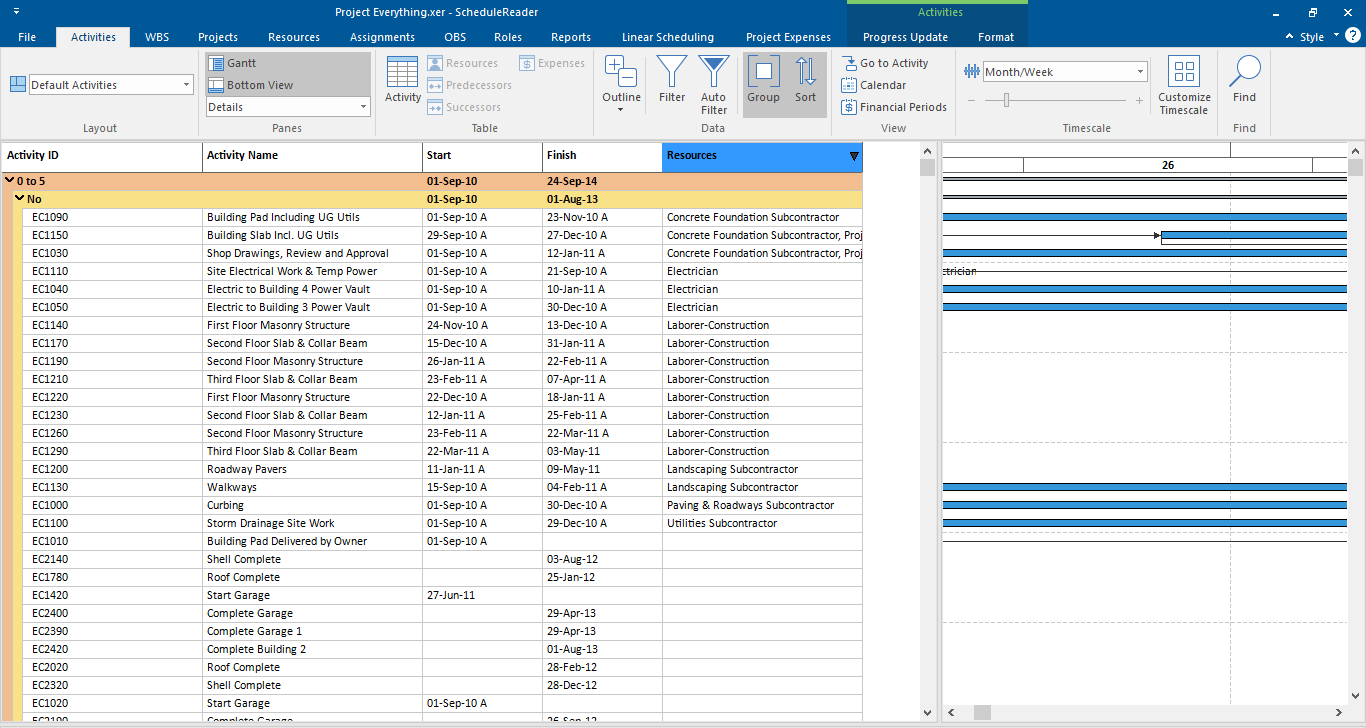
Hide If Empty
The “Hide if Empty” check-box is used to show or hide empty group title bands in the view. This mean that after grouping the Activity view according specific parameters, you have the opportunity to choose whether the group bands that don’t have any activities will be displayed or hide in the view.
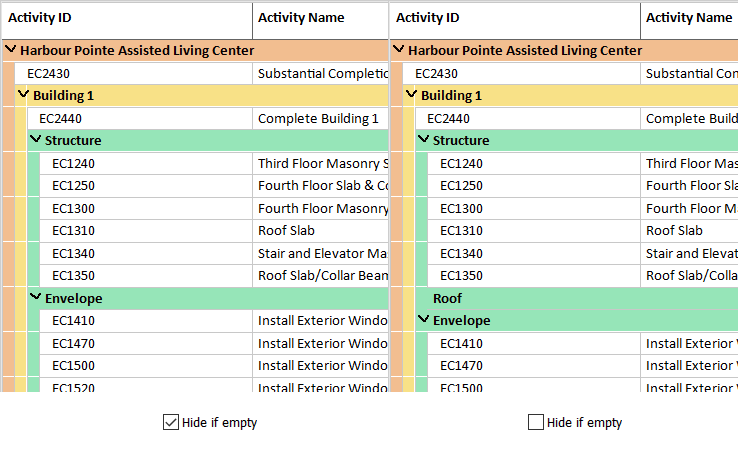
Color WBS Bands
The application offers a feature for customizing the font style, size, and background color of WBS bands (rows) within the Gantt Chart view. Users can access this functionality by double-clicking the “Font & Color” cell in the “Group” dialog. This customization helps visually differentiate WBS levels, making it easier to navigate and interpret the project structure. It increases clarity by allowing users to highlight key sections of the schedule based on hierarchy or importance. The feature improves the overall readability and presentation of the Gantt Chart without affecting the project data itself.
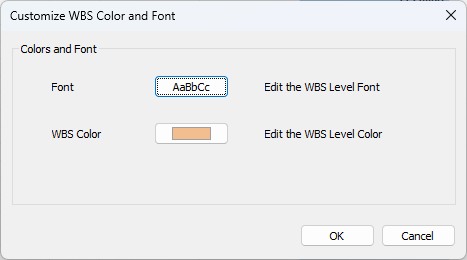
Show ID/Code
The “ID/Code” functionality is used to format the display of the band title. Using the implemented functionality within the “Group” dialog, you can choose to display the ID or Code value on the grouping band.
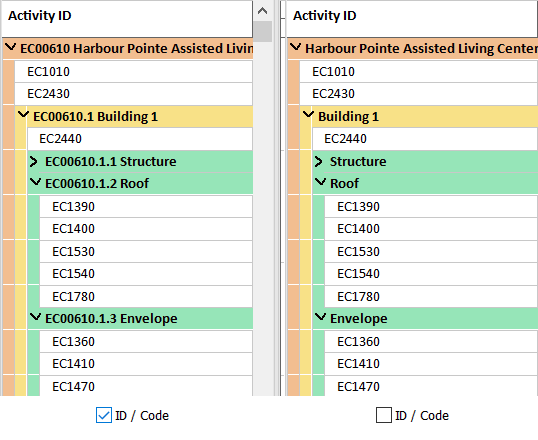
Show Name/Description
In most of the cases, the “Name/Description” displays the same information as the “ID/Code” feature. The difference occurs when user groups by Activity Codes or Project Codes.
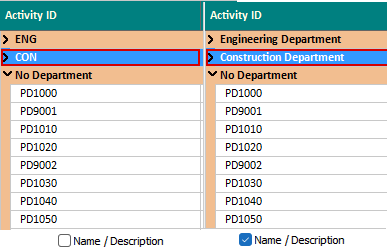
Show Title
The “Title” feature allows user to include the field name in the grouping band.
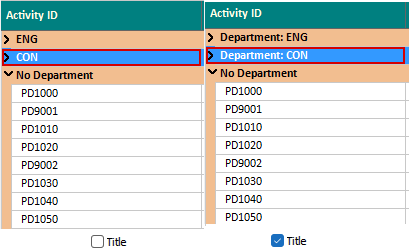
Create Custom Group in WBS View
The WBS view contains predefined groups that can be used for rearrange the WBS in the project plan.
If you want to group the WBS in the project plan, you have to do the following:
- 1. Open the WBS view, by clicking on the WBS tab. 2. Click on the Group option in the ribbon. 3. Choose one of the available grouping criteria from the dropdown list.
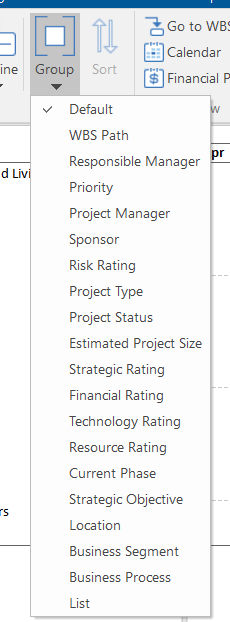
The grouping criteria in the WBS view cannot be edited.
Note: The “Show ID/Code” and “Hide if Empty” are not available for use in the WBS view.
Create Custom Group in Project View
There are 2 ways to group in a project view. The first way is by using the predefined groups that are located in the “Group” menu. The second way is by using the “Customize” dialog, where the user defines the grouping conditions.
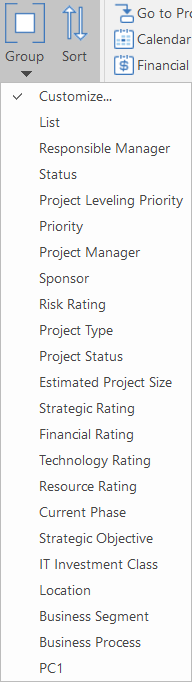
The “Group” feature in the project view is best to use on a master project, ie. when multiple projects are placed in the exported XER or XML file.
If you want to group assignments by different grouping criteria, you have to do the following:
- 1. Open the Project view, by clicking on the Project tab. 2. Click on the Group option in the ribbon. 3. Select the Cuzomize option from the menu. 4. Choose the Group By criteria from the dropdown list. 5. Enter additional Interval and Indent Level Values for the grouping criteria. 6. Click OK.
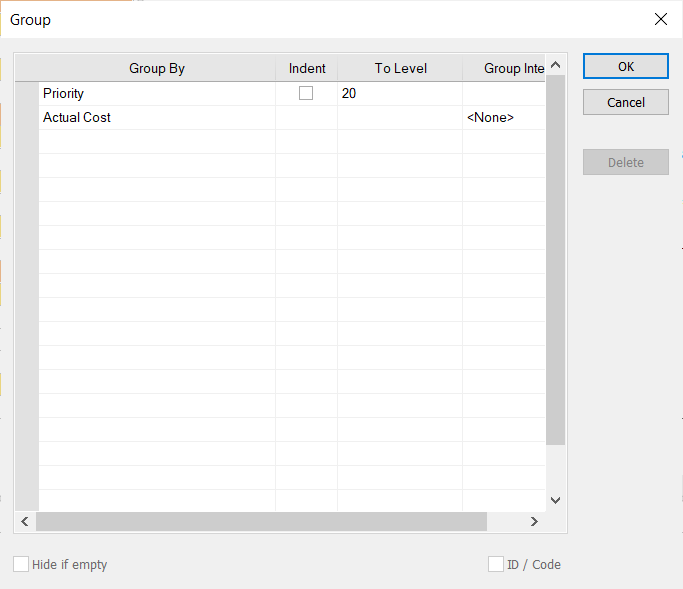
After grouping the projects by different criterias, the Project table and the Gantt chart will look like the image below.
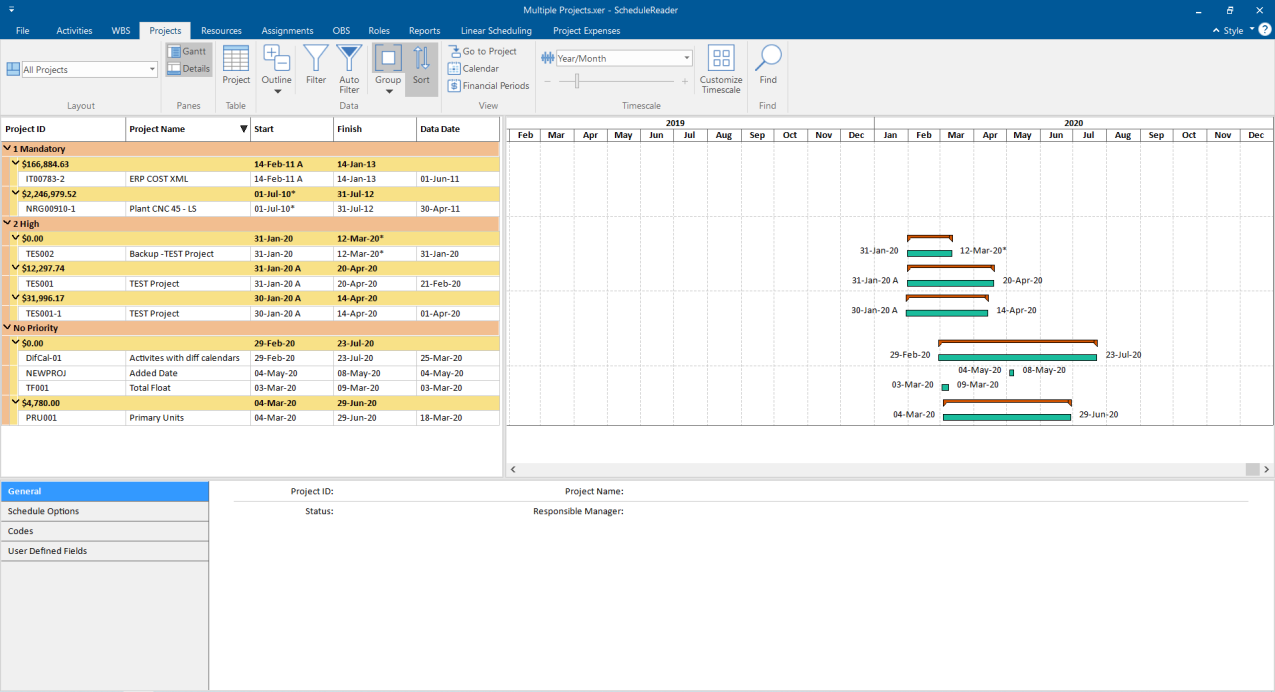
The “Hide if Epmty” check-box is used to show or hide empty group title bands in the view. This mean that after grouping the Project view according specific parameters, you have the opportunity to choose whether the group bands that don’t have any activities will be displayed or hide in the view.
Note: The “Show ID/Code” is not available for use in the Project view.
Create Custom Group in Assignment View
Now you can create your own custom, user-defined groups, where you can view the activities grouped in a certain manner, whether that be an activity status, remaining duration, etc. You can define not only one group condition but specify multiple grouping criteria.
- 1. Open the Assignment view, by clicking on the Assignment tab. 2. Click on the Group option in the ribbon. 3. Choose the Group By criteria from the dropdown list. 4. Enter additional Interval and Indent Level Values for the grouping criteria. 5. Click OK.
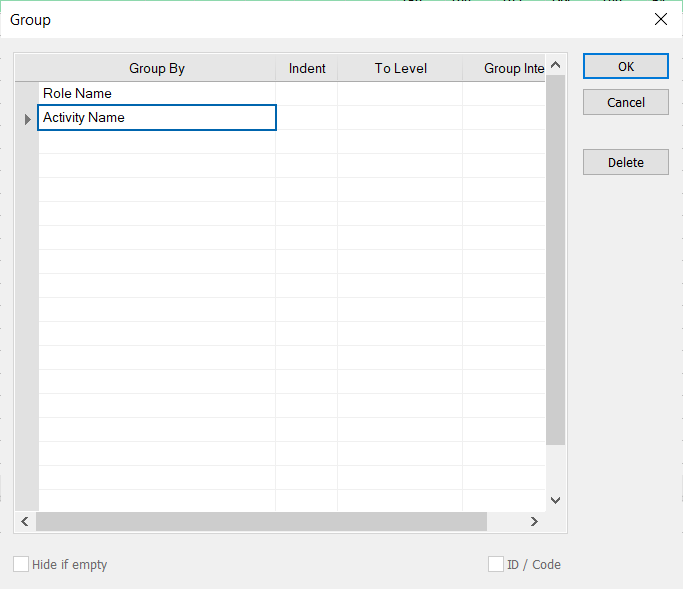
After grouping the assignments by different criterias, the Assignmen table will look like the image below.
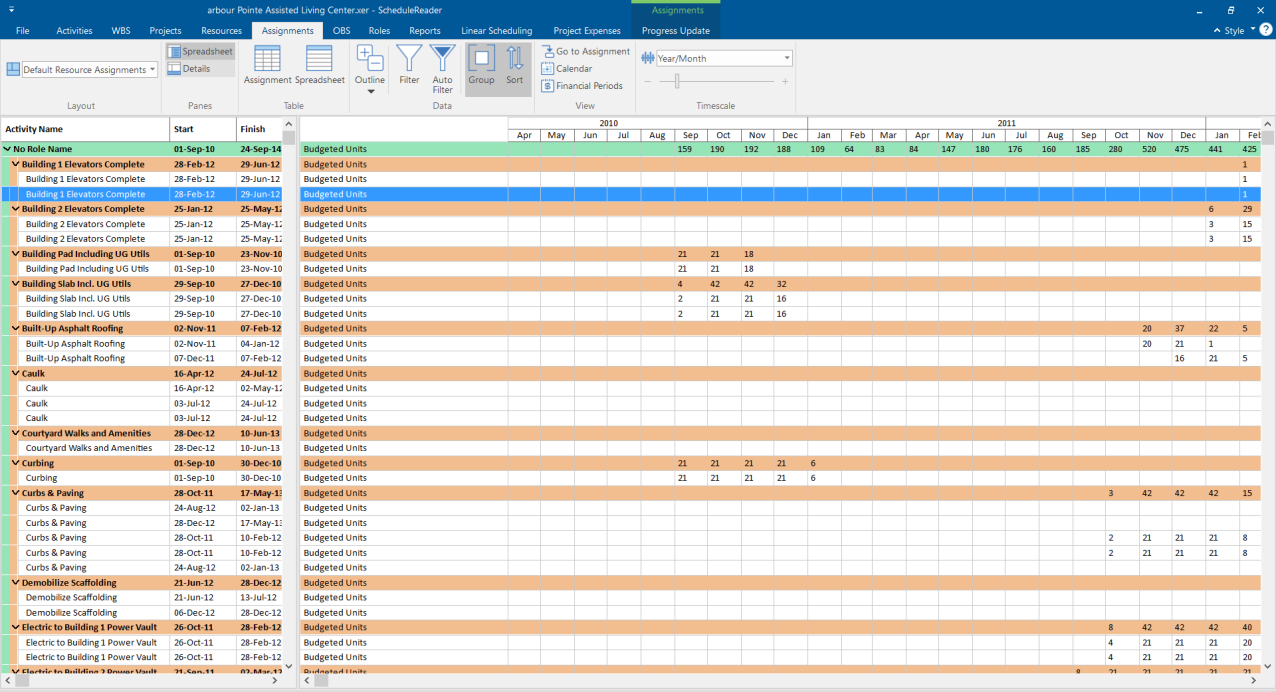
The “Hide if Epmty” check-box is used to show or hide empty group title bands in the view. This mean that after grouping the Assignment view according specific parameters, you have the opportunity to choose whether the group bands that don’t have any activities will be displayed or hide in the view.
Filtering Data
Apply Default, Layout and User-Defined Filters
You can use filters to display items in a table that meets certain criteria such as milestones, critical activities, in progress or completed activities. In the Filter dialog box, there is a list of Default filters, Layout Filters and User-Defined filters. You can check multiple filters to be applied to the current table view. To reset any applied filter, you can click on the Clear Filter button.
Use one of the following options to show items when more than one filter is selected:
- All selected filters: display items that meet all selection criteria in each filter.
- Any selected filter: display items that must meet at least one selection criteria.
Layout Filters will be visible in the Filters dialog when you import a custom layout file (PLF). Filters that are not used in the layout are visible under the User-defined Filters category.
Note: Filters that contain fields that are not supported will not be applicable in the table view.
Note: 1. When you import XLS file in ScheduleReader™ the following filters will not work:
- By UDF
- Activity codes
- Calendar
- WBS
- Primary resource
- 2. When you import XER file the custom filter will not work for:
- WBS is under - Primary resource is under
Activity View
Create Custom User-Defined Filters
In ScheduleReader™, you can create custom user-defined filters that can be saved and applied to any project for faster filtering. In order to create a custom filter, you need to take the following steps:
- 1. In the Activities ribbon tab, click on the Filter option. 2. In the Filters dialog box, click on the New button.
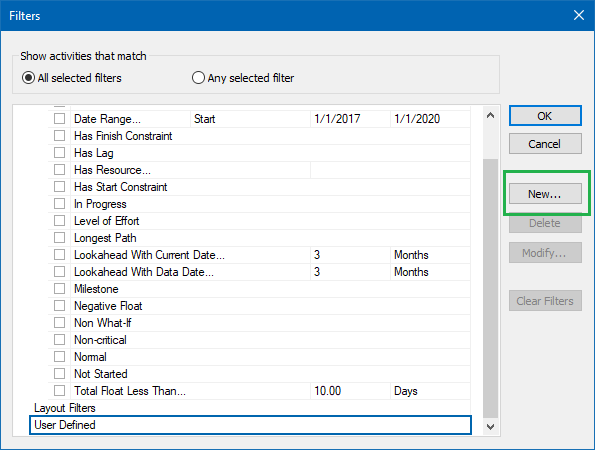
- 3. A new Filter dialog opens, and add a name for the new filter e.g. (Activities with less than 50% Complete). 4. Fill in the necessary filter criteria fields:
- Displaying all rows field– Select the logic operator (“And” or “OR”) that will help you to create the filter's logic.
- Parameters field – Displays the chosen parameter for each filter criteria. (e.g. Activity % Complete)
- Is field – Contains the corresponding operator for a specific filter criteria
- Value/High-Value fields – Presents the values for each filter criteria 5. In order for the filter criteria to be saved, click OK. 6. To apply the filter, select the checkbox in front of the user-defined filter and click OK.
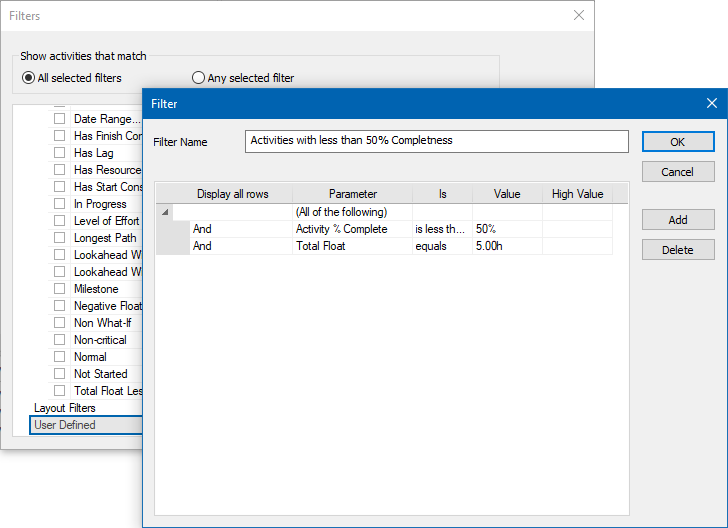
Modify Existing User-Defined Filter
In ScheduleReader™ you can modify existing Custom filter imported with the Layout (PLF) file and User- defined filters which are globally applicable for any project file. To change the filter criteria for a given user-defined filter, do the following steps:
- 1. Select the desired filter from the Filters dialog. 2. Click on the Modify button. 3. Change filter criteria or update with a new condition. 4. Click OK to save the changes.
Apply Auto Filter
Use Auto Filter to filter data in columns based on the cell values. To turn on the auto filtering option in ScheduleReader™ click on the Auto Filter button placed in the Ribbon. In the column header, you will see the filter icon. Filter contains the list of all data cell values, the option to select all values or show blanks.
Note: the Date values are always displayed together with the Time unit, even though it might not be displayed in a cell because of the chosen date format setting as shown on the image below:
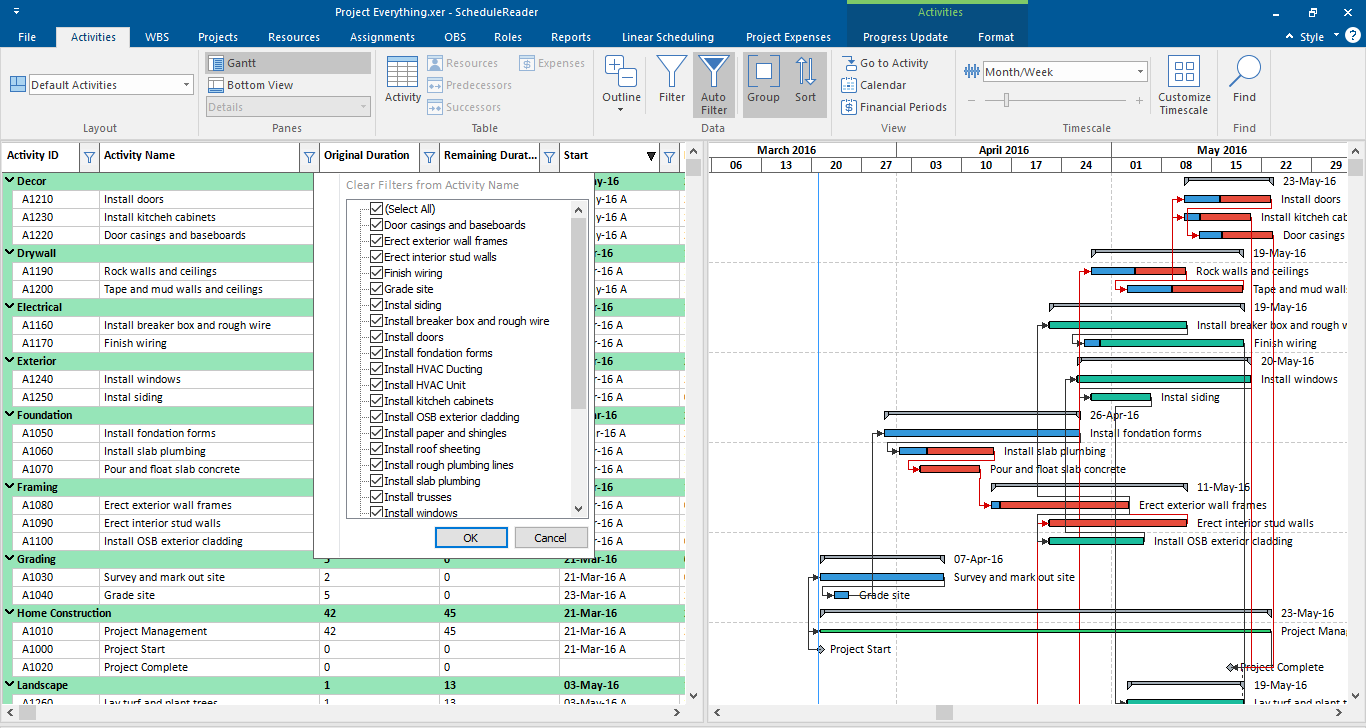
Another specific case is when you filter Milestones in ScheduleReader™. Since, the milestone activity has the same start and finish date, for Finish Milestone and Start Milestone in ScheduleReader™ whether the date is displayed as empty the Auto Filter option will show the same date as for the start or finish.
To clear a specific column filter, select the Clear filter option from the drop-down menu. If would you like to clear all auto filters, applied “Turn-off” the Auto Filter button.
Note: If you remove the column, where the filter is applied, the applied filter won't be removed.
If you change layout all filters will be reset.
Assignment View
The filtering functionality in the Assignments view comes with predefined and user-defined filters. Unlike the other views, only one filter at time can be applied in the Assignment view
In addition to the user-defined filters, the layout filters imported in ScheduleReader can be used and modified. Once the layout filters are imported, they will be placed in the “User Defined” category.
Create User-Defined Filters
In order to create a custom filter, you need to take the following steps:
- 1. In the Assignment ribbons, click on the Filter option. 2. In the Filters dialog box, click on the New button.
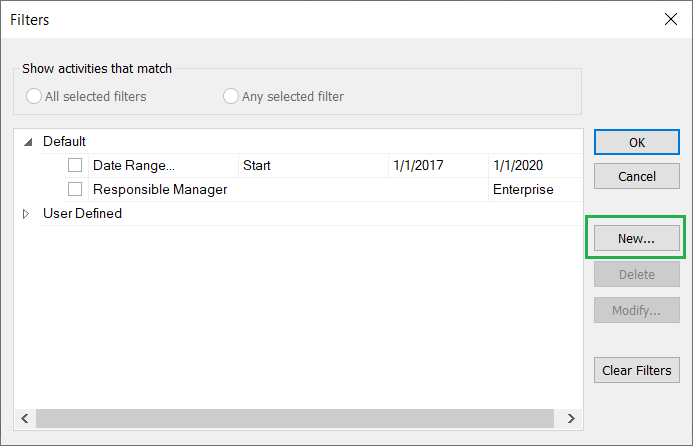
- 3. In the newly opened dialog, and add a name for the new filter e.g. (Activities with less than 50% Complete). 4. Fill in the necessary filter criteria fields:
- Displaying all rows field– Select the logic operator (“And” or “OR”) that will help you to create the filter's logic.
- Parameters field – Displays the chosen parameter for each filter criteria.
- Is field – Contains the corresponding operator for a specific filter criteria
- Value/High-Value fields – Presents the values for each filter criteria 5. In order for the filter criteria to be saved, click OK. 6. To apply the filter, select the checkbox in front of the user-defined filter and click OK.
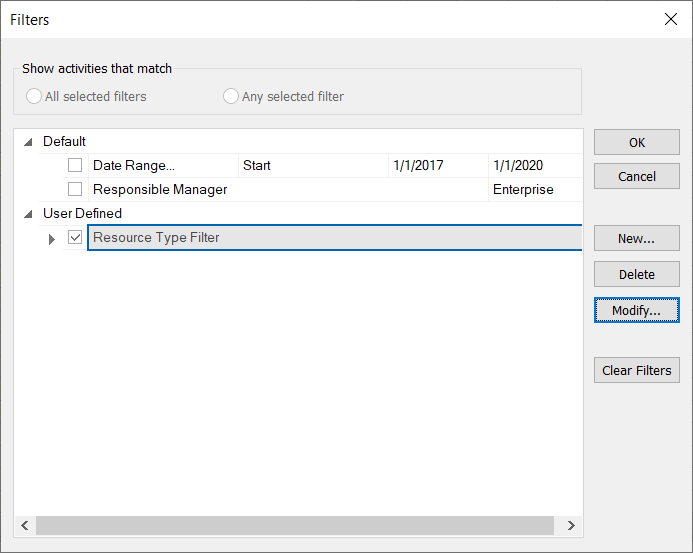
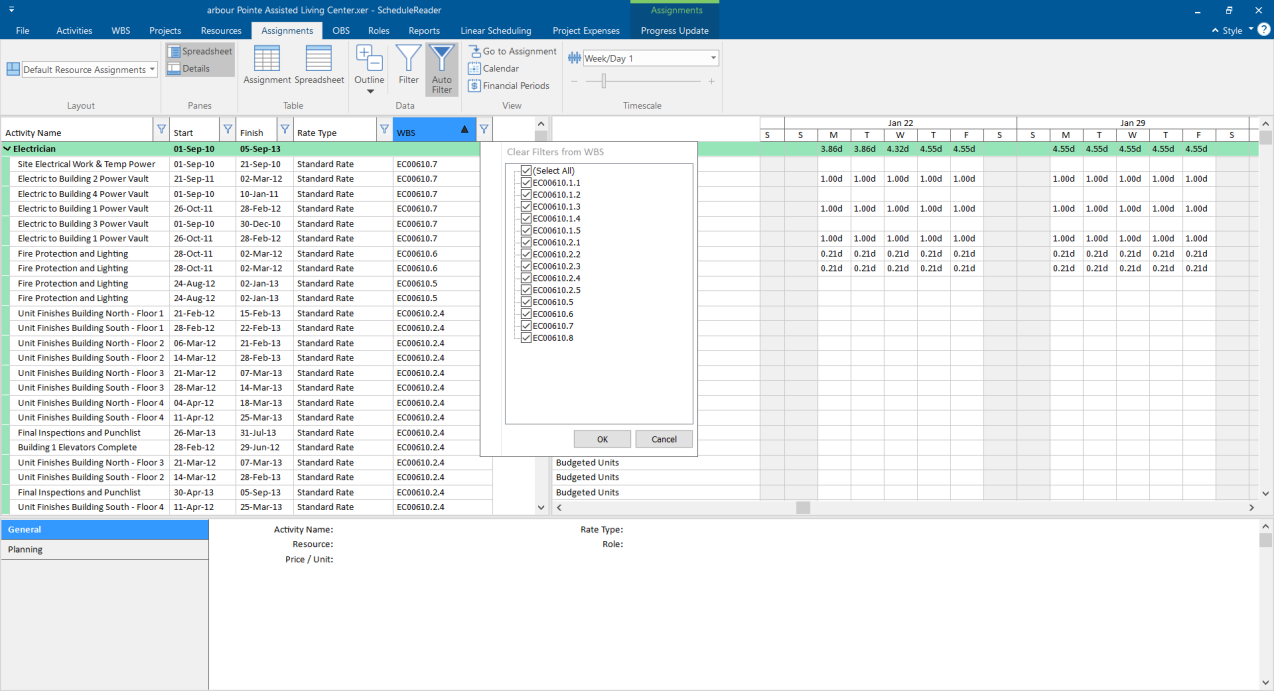
Project View
- 1. In the Project ribbon tab, select the Filter option. 2. In the Filters dialog box, click on the New button.
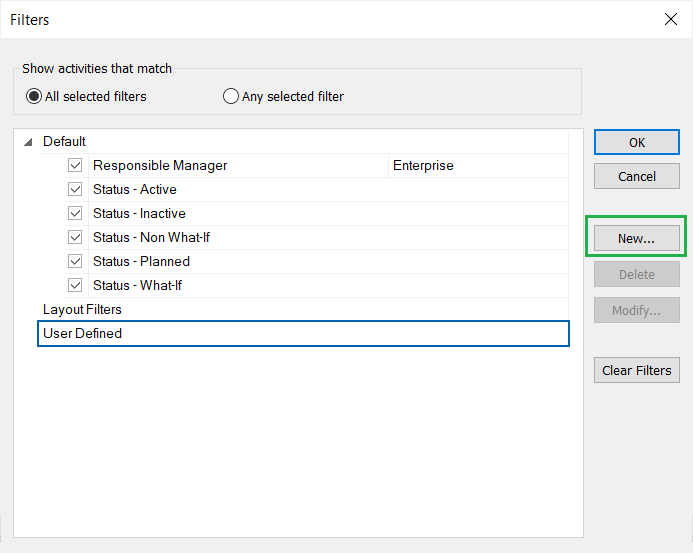
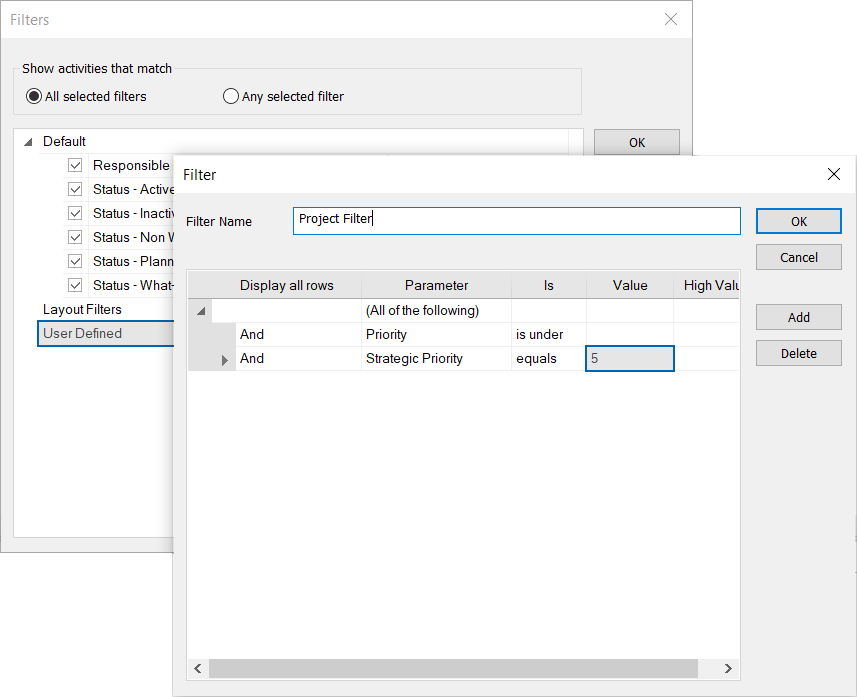
- 5. Select the desired filter from the Filters dialog. 6. Click on the Modify button. 7. Change filter criteria or update with a new condition. 8. Click OK to save the changes.
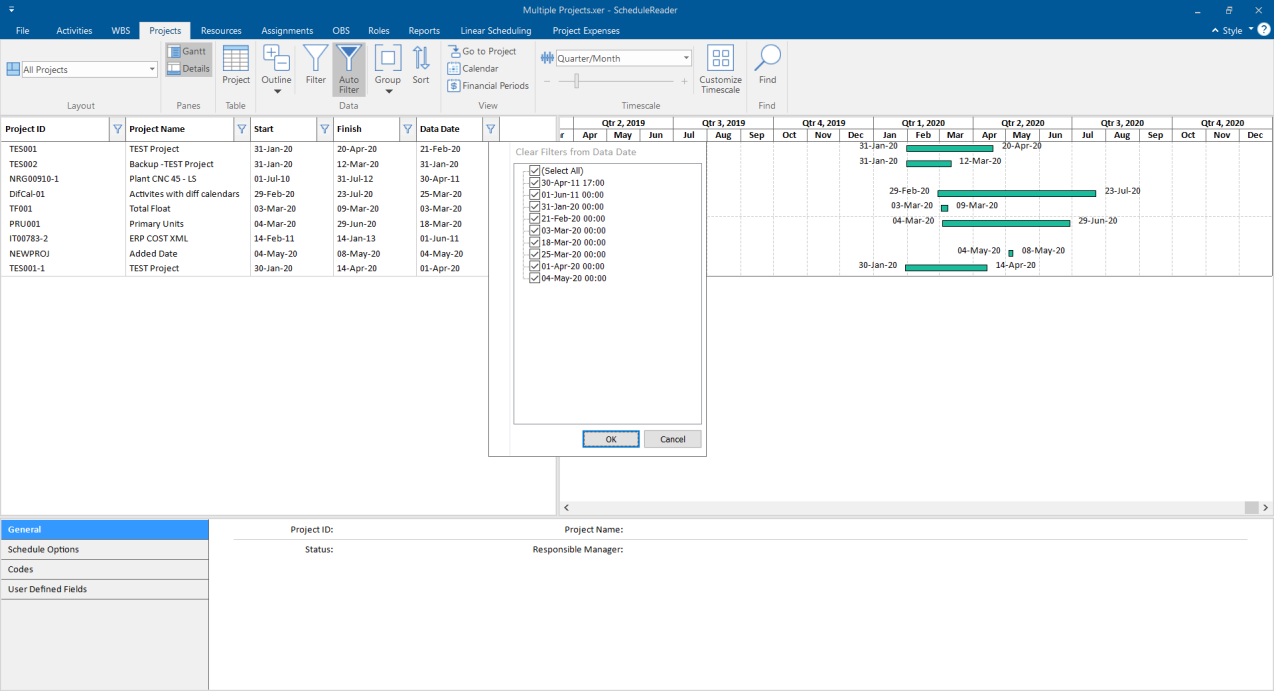
Note: If you change layout all filters will be reset.
Sort Data
ScheduleReader™ supports different sorting options for the activities shown in the Activity view. Users can sort the information in any custom way they want, specifying their own sorting criteria. To apply different sorting criteria, that will match your needs, do the following steps:
- 1. Click on the Sort feature in the Activities ribbon; 2. In the Field Name drop-down list select the field that will present the criteria according to the sorting process that will be performed. 3. Select the sorting order by choosing the Ascending or Descending options from the same name column. 4. In case, the sorting criteria are more complicated, ScheduleReader allows you to add additional fields by using the Add button. 5. After hitting the Ok button, the sorting criteria will be applied in the view.
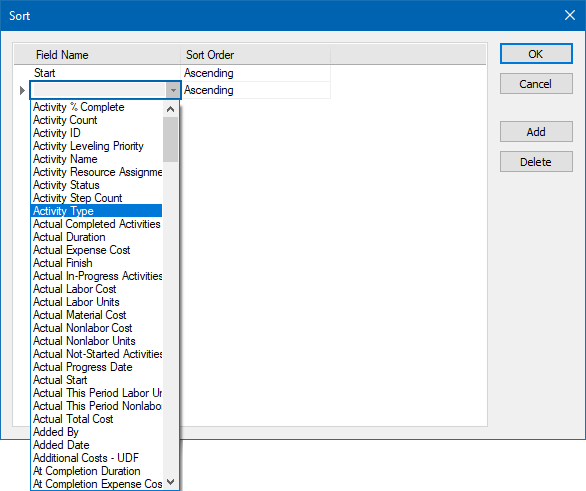
Find Data
Use the Find dialog box to search for an item in the current Table.
- 1. From the Find by dropdown menu select a column name to search in; 2. Choose the criteria to Match whole world (phrase) or Match case (upper and lower letters); 3. In the Find field enter the word and click on Find Next; 4. Can change the direction of searching to up or down.
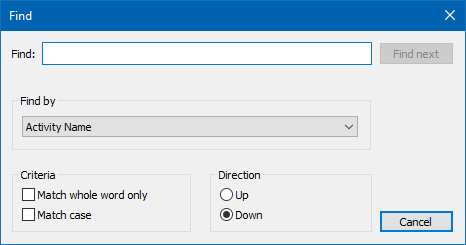
Time-Location View
Introduction
Time-Location view (other names: Time-Location chart, Time-Distance chart, etc.) is a view that is used in projects that have repetitive activities. Repetitive activities are commonly found in projects for gas and oil pipelines, rails, bridges, tunnels, roads, high-rise buildings, transmission lines construction, etc. In the industry, these projects are known as linear projects.
The time-location chart will help project managers and team leaders to view the time and location at which certain project teams will be work on the specified project’s assignment.
Main Elements
The time-location chart consists of two axes: one for the distance (location) and the other for a time. In ScheduleReader, the time axis is presented in a month, while for the distance axis the units depend on the metric that is inserted in the user-defined field.
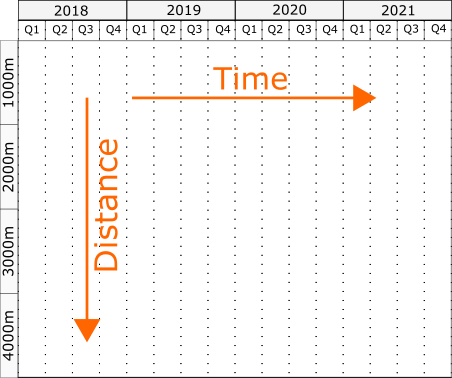
Each activity in the Time-Location chart is presented with a specific bar. The following bar shapes are available in ScheduleReader:
- Line – line shape in a time-location chart is used to represent simple activity that is undertaken by a particular project team, such as pulling telecommunication or transmission line cable, asphalting specific sections of the highway, etc. The project team starts working on the given start location, on the specified start date and work until reaching the finish location on the planned finish date.
- Bar – similar to the line shape. The difference is in the time needed to complete the assignment.
- Block – when project activity lasts a significant time, it is represented in the chart with block shape. In this case, the one side length of the rectangle corresponds with the time needed for completing the activity, while the length of the other side corresponds with the amount of assigned work.
- Diamond – as in the traditional presentation of the project plan, diamond bar shape represents a milestone, a specific point on the project timeline.
Which bar will be assigned to each project activity, depends on the user’s decision.
View Time-Location Chart in ScheduleReader
Linear project plans from Civil Engineering and Construction (Traffic engineering, Highway engineering, Railway systems engineering, Tunnel Engineering) and Power engineering and construction (Power line engineering) can be created and managed in Primavera P6.
In order to view the project plans in Time-Location diagram, project schedulers must create three user- defined fields (UDF):
- Two fields (data type: Number) for starting and ending point of the activity,
- One field (data type: Text) for activity shape.
Create User-Defined Field
Creating User-Defined Fields (UDF) is performed in Primavera P6. The process consists of the following steps:
- 1. Click on the “Enterprise” menu and select the “User Defined Fields…”. 2. In the “User Defined Fields” dialog select the “Activity” option in the drop-down list and click on the “Add” button. 3. Create the first user-defined field that will represent the starting point for the activity by clicking on the “Add” button. 4. In the title field enter “LINEAR_START_POSITION”. Select “Number” for Data Type.
- 5. Create the second user-defined field that will represent the ending point for the activity by clicking on the “Add” button. 6. In the title field enter “LINEAR_END_POSITION”. Select “Number” for Data Type.
- 7. Create one user-defined field with the title “LINEAR_SHAPE_CODE” and select “Text” for Data type.
- 8. After creating the mentioned fields, the “User Defined Fields” dialog will look like the image below.
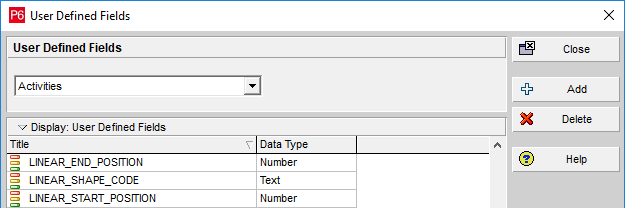
- 9. Close the dialog.
Important Note: UDFs names must be inserted as in the example: “LINEAR_START_POSITION”, “LINEAR_END_POSITION” and “LINEAR_SHAPE_CODE”. Otherwise, the application will inform you that the required fields, for drawing the time-location diagram, are missing from the project.
Once the UDFs are created, insert them in the Activity table and populate the values for Start Point”, “End Point” and “Shape”. Example for populating these fields is presented on the image below:

Apply Time-Location Chart
When the project file is loaded, ScheduleReader checks whether the mentioned user-defined fields (LINEAR_START_POSITION, LINEAR_END_POSITION and LINEAR_SHAPE_CODE) exists in the .xer file. If these fields are not part of the project plan, the ScheduleReader will pop-up a message when a time- location diagram is selected.
The initial look of the time-location diagram for any project is presented on the image below.
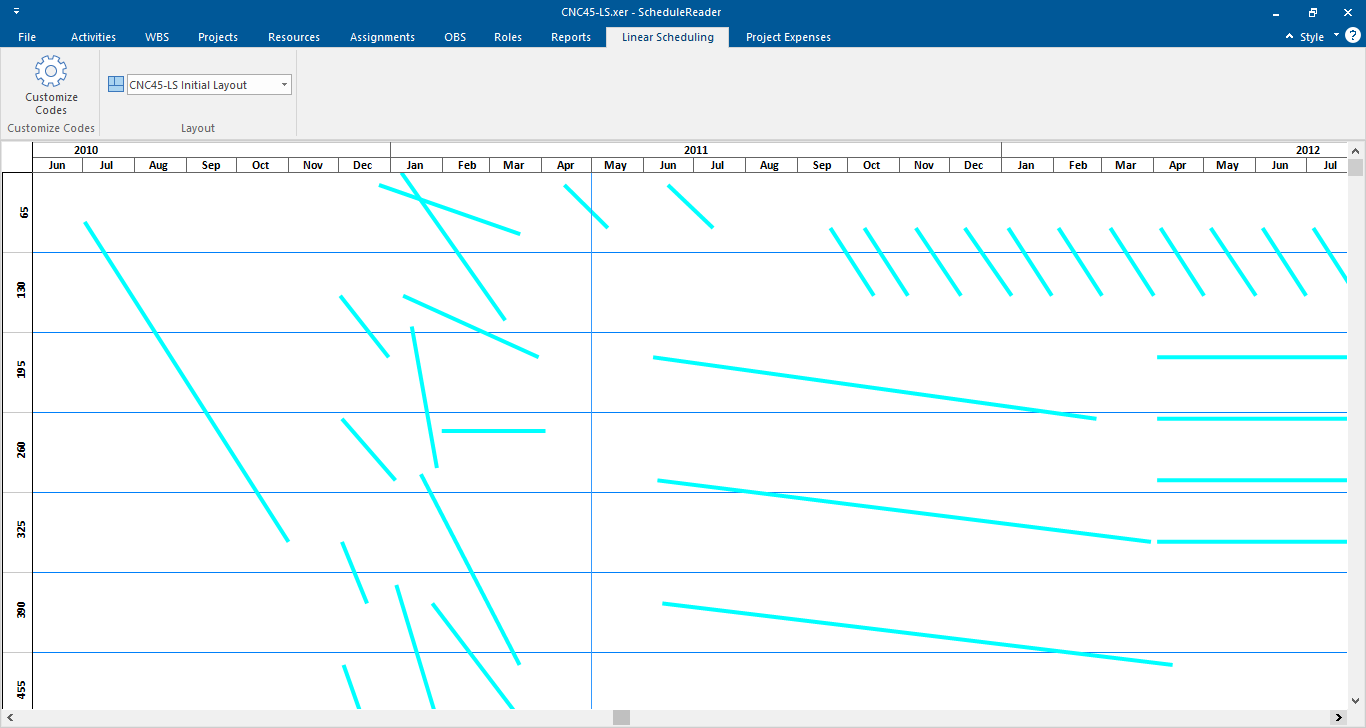
Chart’s customization can be done using the “Customize Codes” option. Using this dialog, users can choose whether the cone bar will be presented or not, choose the graphical type that will be associated with specific code and the object’s colors as well.
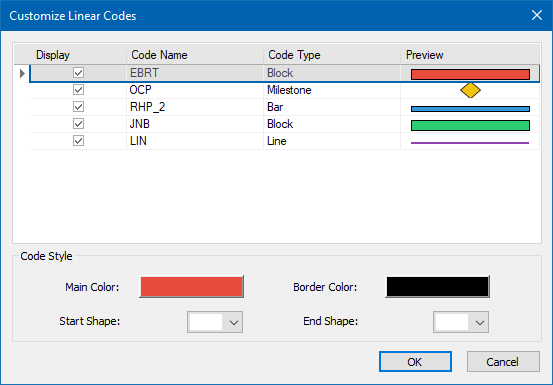
Chart’s customization is performed with the following steps:
- 1. Using the check-boxed in the “Display” column, the user decides whether that particular shape will be presented in the view or not; 2. Each field from the “Code Type” column contains a drop-down list with the available shapes. By default, all codes have a “Line” type, but the user can change it.
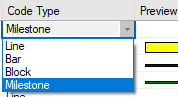
- 3. Changing the color of a specific code is done by using the features in the “Code Style” section. User can change the “Main Color” and the “Border Color”. 4. Assigning start and finish shapes can be done by using the eponymous functionalities from the “Code Style” section.
After customization, the view will be changed according to the standards, rules and recommendations that are used in each company when linear projects are managed.
The initial project, that is loaded as an example in ScheduleReader, after customization will look like the image below.
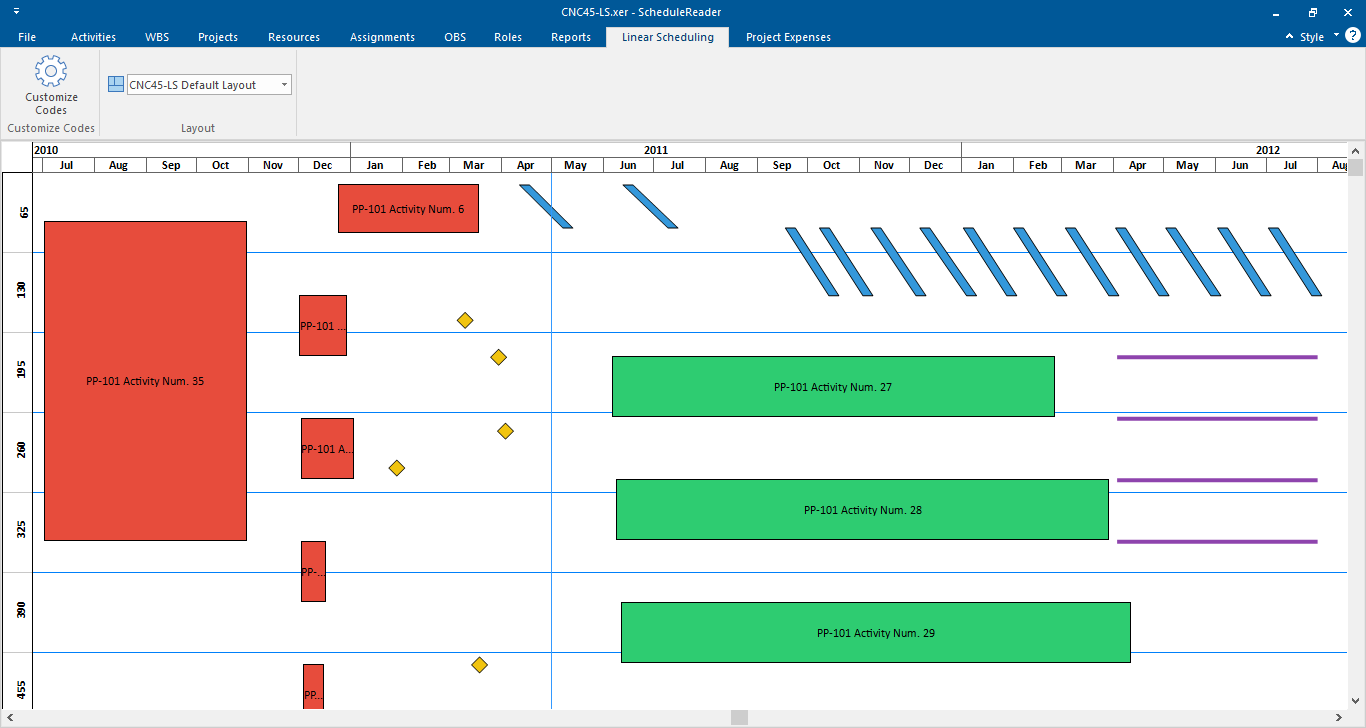
Critical Path and Driving Activities
Critical Path
The critical path is a chain of project activities that determine the project's end date. Each activity with its duration defines when the project plan will be finished. Thus, completing the activities from the critical path on time is of great importance and will guarantee to fulfill the project goals and complete the project milestones.
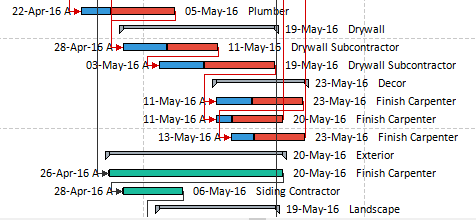
Every critical task when viewed in Activity view in ScheduleReader™ is colored red together with the relationships toward predecessor(s) and successor(s). If the same activities are viewed in Trace Logic view, they will be presented with boxes rounded with the red line and their relationships will be colored red too.
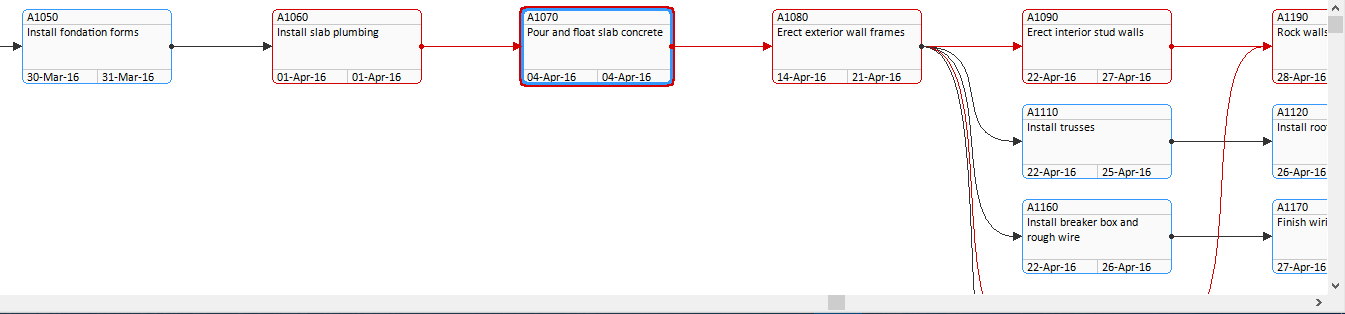
Driving Activities
The project plan is a set of activities connected with different types of connections. Having thousands of tasks in your project plan, it is hard to detect which activities are of great importins and defines the end date of your project plan. Thus, using the “Driving Activities” feature ScheduleReader users can clearly view the activities that drive the project and needs more attention and analysis. The relations between driving activities are presented with a solid line.
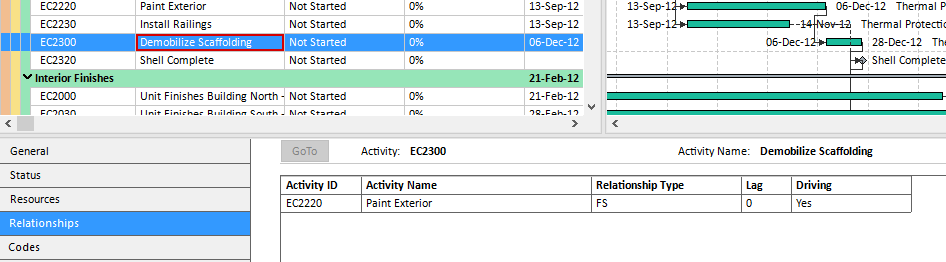
Manage Layouts
Within ScheduleReader™ there are default layouts for the activities, WBS, projects, resources and assignments. The layout consists of information about the arrangement of different table elements in the appropriate view: Activities, WBS, Projects, Resources and Assignments View. There are several ways to manage layouts in ScheduleReader™:
- Import a layout
- Export a layout
- Copy a Layout
- Rename, Reset and Remove a Layout IMPORT CUSTOM LAYOUTS In ScheduleReader™, you can use your custom made layouts in Oracle Primavera P6 by importing the .plf file format. The layouts bring the information on applied grouping, sorting and user-defined filters.
To import custom layout follow these steps:
- 1. From File Menu, click on the Layouts Submenu;
- 2. Click on the Import Option.
- 3. Choose a PLF file from the desired location.
- 4. Click on the Open button to import the layout.
Export a Layout
In ScheduleReader™ you can use your custom made layouts in Oracle Primavera P6 by importing the .plf file format. The layouts bring the information on applied grouping, sorting and user-defined filters.
To export a layout follow these steps:
- 2. Click on the Export Option.
- 3. Choose the desired location where the file will be saved.
- 4. Click on the Save button to export the layout as an XML file.
Create a Layout
You can easily create a new layout by copying a default layout or copying an imported layout in the Manage Layouts view. Follow these directions, to create a new layout.
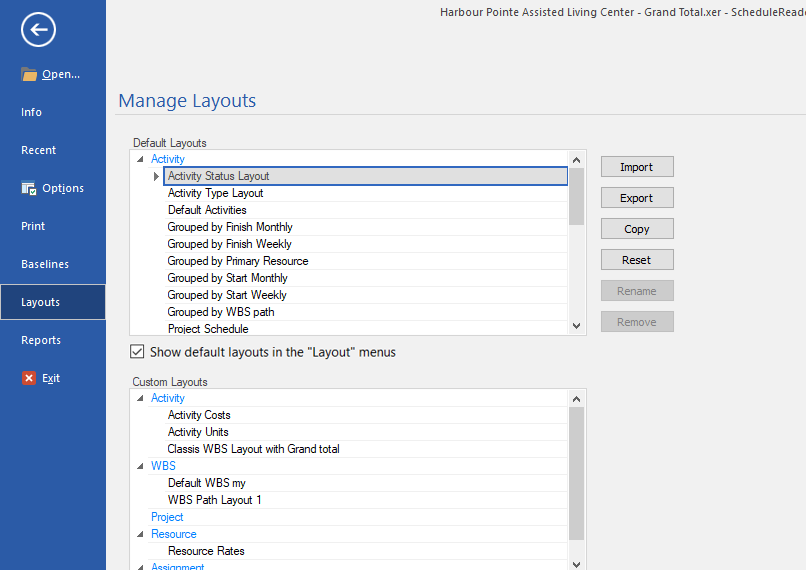
- 2. Select the desired layout and click on the Copy Option.
- 3. Rename the new, copied layout.
- 4. Click on the OK button to finish creating the new layout.
Once the custom layout is created, return to the activity view. The next step is to apply the created layout and make some modification:
- 1. From the Layout drop-down menu in the Activity ribbon, select the layout that you have created it. Usually, the layout is located at the bottom of the list;
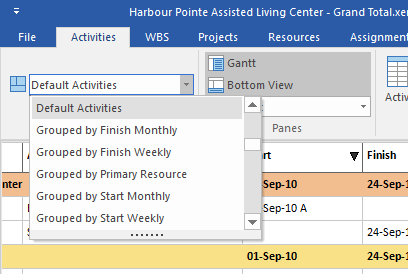
- 2. You can make customization in the layout by:
- Add new columns;
- Remove existing columns from the table;
- Change the colors of the bars;
- Add bar labels;
- Apply specific filter;
- Apply a specific group;
Note: Adding or removing columns from the Activity table can be done using the Activity Table feature.
Note: Customizing the Gantt chart can be done using the Bars feature, from the Format ribbon. The dialog where these customizations can be done is presented in the image below.
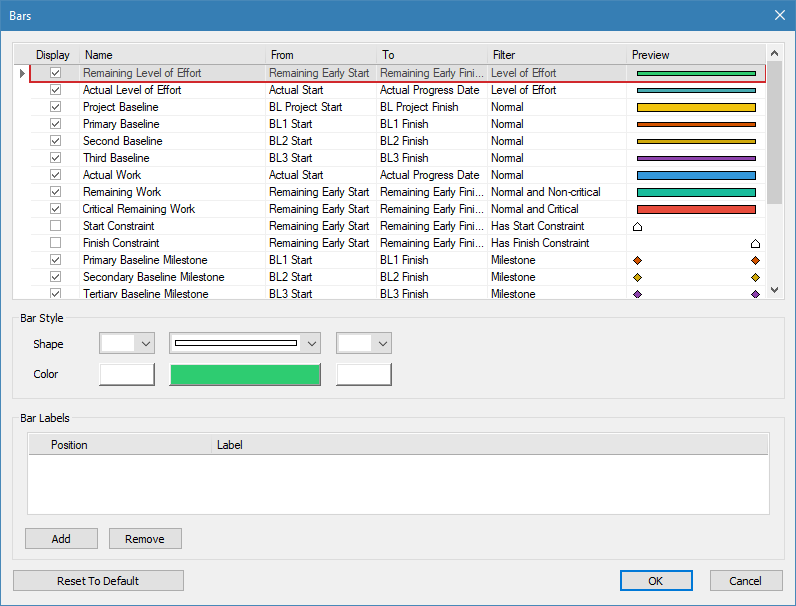
Show/Hide Default Layouts
In order to enable better management of the layouts and create a better working environment that will be useful to our users, we have implemented a functionality that allows temporary removal of default layouts from the appropriate menus in all views.
“Show default layouts” is a functionality that will remove all layouts that are implemented by default in the application from the corresponding menus in all views (Activity, WBS, Project, Assignment, Resources, etc.), while layouts that are created by the users or imported will be displayed in the menus.
If the “Show default layouts” check-box is selected in the Layou menu, then “Layout” menu will contain all the layouts, as it is presented on the image below.
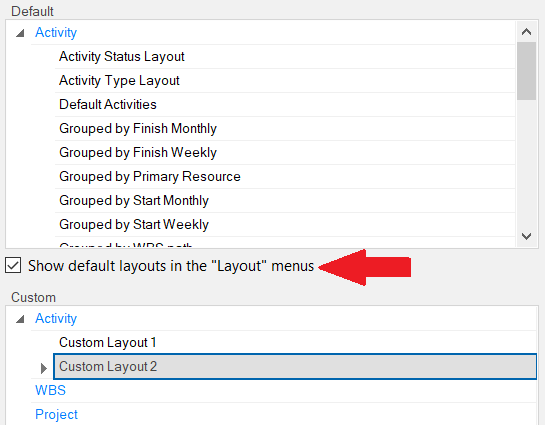
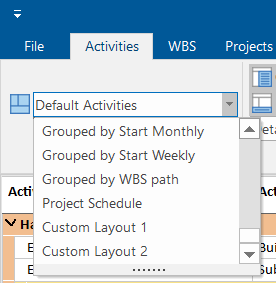
In case the “Show default layouts” check-box is unselected in the Layou menu, then “Layout” menu will contain only the custom layouts, as it is presented on the image below.
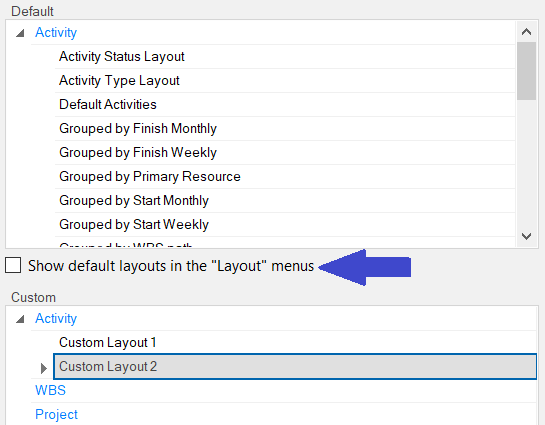
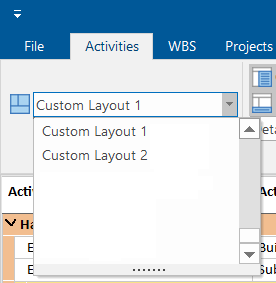
Baselines
Baseline vs. Actual
To view side-by-side several updated versions of a project file in ScheduleReader™ use the Baselines functionality placed in the File menu. You can import up to four baselines as shown on the image below:
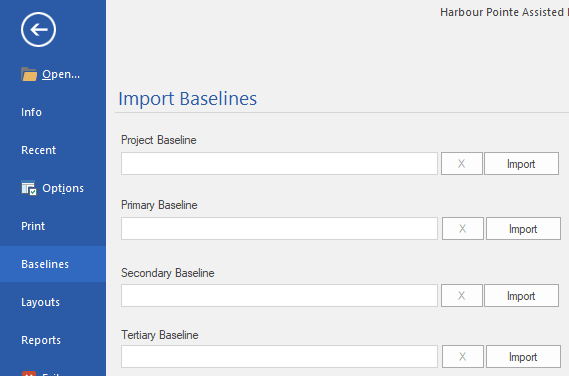
Importing Baselines from XER File
For importing baselines using the XER file, perform the following steps:
- 1. Open the XER file; 2. In the File menu, click on the Baseline sub-menu; 3. The baselines are inserted in ScheduleReader using the Import button; 4. Navigate to the location where the XER file that represents the baseline is placed. 5. Click on the Open button in the dialog.
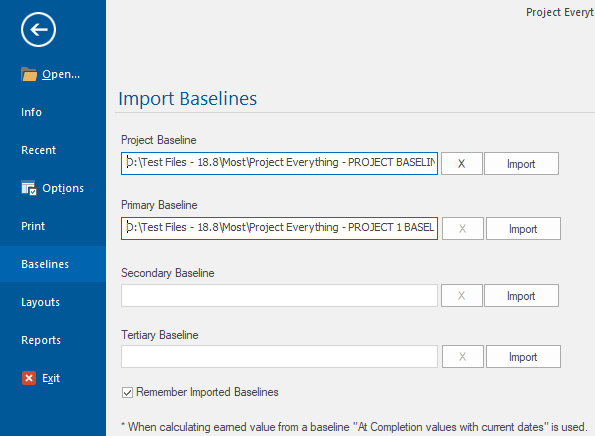
Importing Baselines from .xml File
The procedure for adding baselines from .xml file is a little bit different compared with the previous one because the baselines are saved in the .xml file, together with the project plan.
- 1. Open the .xml file, that contains baselines; 2. In the File menu, click on the Baseline sub-menu; 3. In the “Project” table select the appropriate project, on which the baselines will be applied;
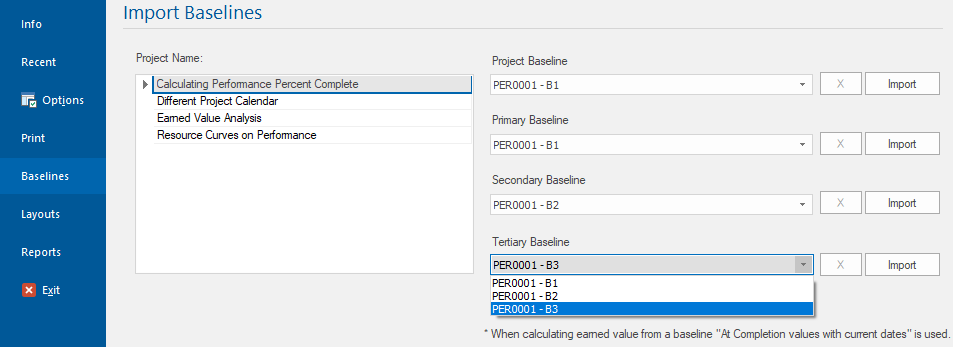
- 4. Under the desired baseline category (Project, Primary, Secondary or Tertiary) click on the drop- down symbol and select the appropriate baseline; 5. Once the baseline is selected, click on the “Import” button.
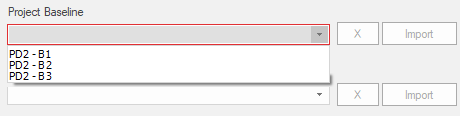
Note: When you compare projects use the same project with the same activities IDs. The baseline values in ScheduleReader™ are displayed as exported in the XER files. When calculating earned value from a Baseline “At competition values with current date” option is used.
Note: “Remember Imported Baselines” functionality will allow you to save the baselines once they are imported. This means that each time the appropriate project plan is open, the baselines will be loaded automatically. Once the baselines projects are loaded into the application, they should not be renamed, deleted or relocate from their original location. “Remember Imported Baselines” feature works per project.
In the Gantt chart, you can see the graphical presentation of the Baselines bars, given right below the original activity bar so you can easily compare the schedule changes that have been made.
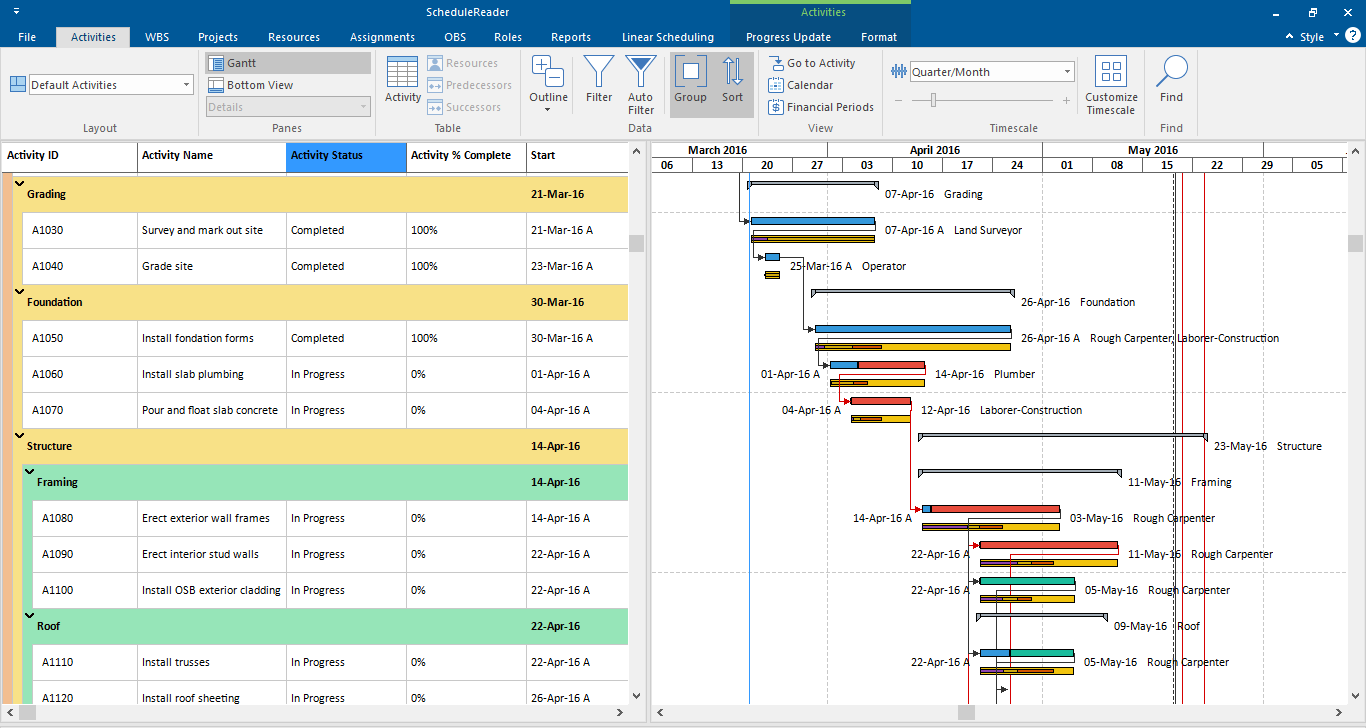
Here is the legend of bars displayed in Gantt chart:
- The light yellow bar shows the Project baseline - The orange bar shows the Primary baseline - The dark yellow bar shows the Secondary baseline - The purple bar shows the Tertiary baseline
To get the exact values of Baselines, in Activity table you should add the corresponding Baselines columns from Activity Table:
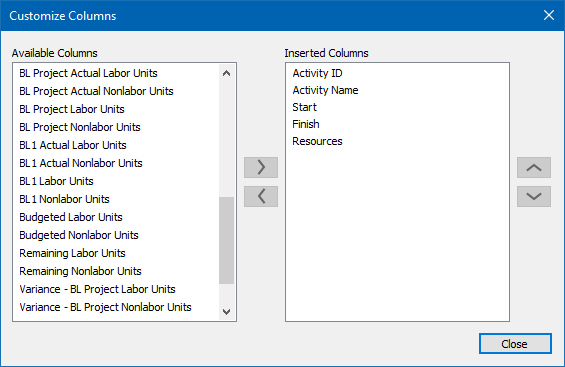
Note: If baseline columns are empty, this means that that there is no change made on these activities from the original project.
If in the Baseline project there are more activities than in the main project, these activities will not be shown in the Gantt chart, science there is no activity in the main project to compare with.
Compare Projects
Overview
The Compare Projects feature enables you to view and analyze differences between two versions of the same project side-by-side. Whether you're comparing the current project state against its baseline, evaluating changes between saved snapshots, or reviewing updates made over time, this functionality provides clear visual insights into what has changed. User can examine differences through an interactive Gantt Chart view that highlights schedule modifications, task shifts, and dependency changes, or switch to the Activity Table view for a detailed, line-by-line breakdown of specific changes to tasks, durations, and other project attributes. This comparison capability helps you track project evolution, understand the impact of changes, identify scope creep, and maintain better control over project planning and execution.
Note: Only projects with same “Project ID” can be compared.
Import Project
To import project that will be used for comparison, perform the following steps:
- 1. Open the XER file; 2. In the File menu, click on the Compare sub-menu; 3. The project is inserted in ScheduleReader using the Import button; 4. Navigate to the location where the XER file that represents the baseline is placed. 5. Click on the Open button in the dialog.
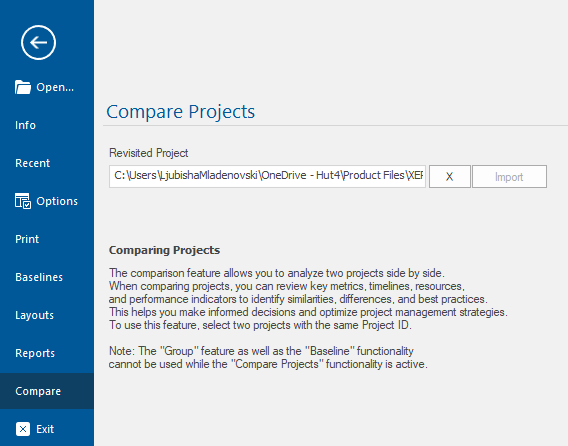
The “Compare Activities” layout displays both project versions simultaneously, allowing the user to visualize schedule changes and activity movements at a glance. In this layout, each activity from the current project is represented with top-oriented bar, while the activity from the imported project is presented with bottom-oriented bar.
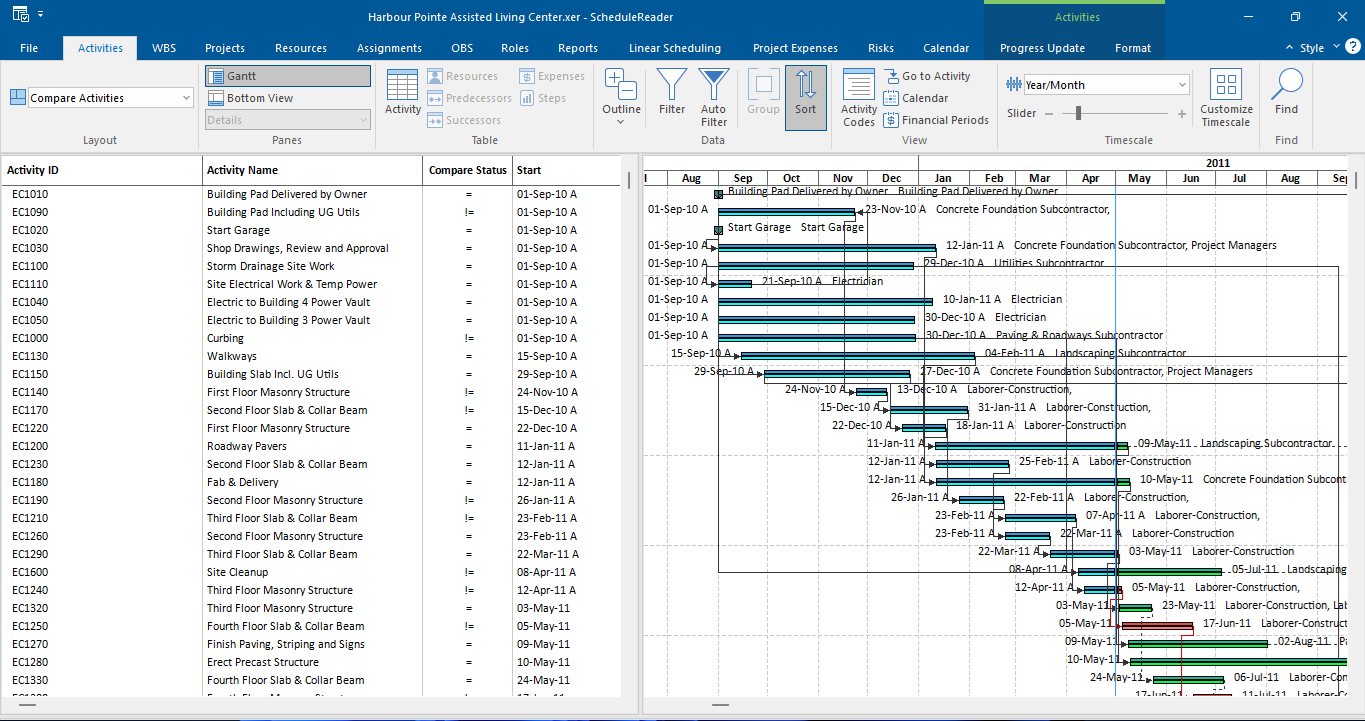
This visual layering makes it immediately apparent where tasks have shifted in time, extended or shortened in duration, or remained unchanged.
The colors that are used in the “Compare Activity” layout are:
- Dark blue bar for presenting the current Actual Work - Light blue bar for presenting the revisited Remaining Work - Dark green bar for presenting the current Actual Work - Light green bar for presenting the revisited Remaining Work - Dark red bar for presenting the current Critical Remaining Work - Light red bar for presenting the revisited Critical Remaining Work
Modification of the layout’s bars can be done using the “Bars” dialog, located in the “Format” ribbon.
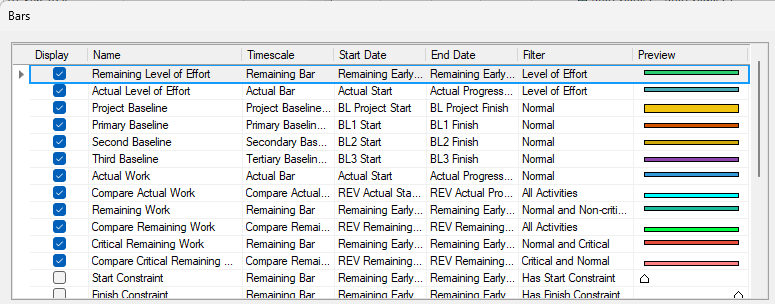
To view the new values of the project and make tabular comparison in Activity table, you should add the corresponding REV columns from Activity Table:
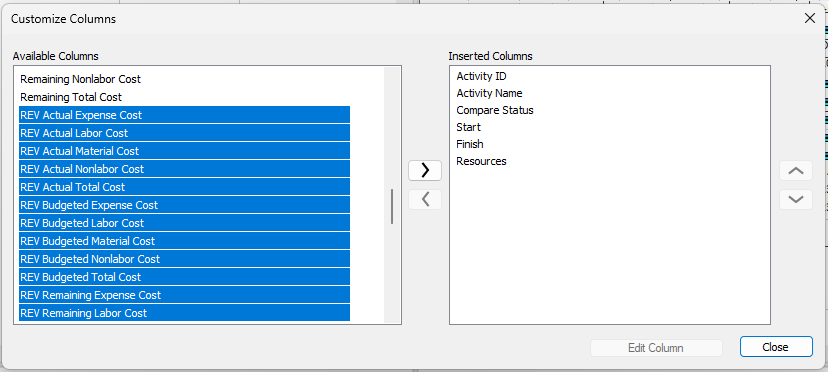
The prefix “REV” stands for Revisited and these fields are implemented through the available categories.
Details Compare
The Bottom View – Details Compare provides quick access to different comparison perspectives within the Compare Projects functionality. This navigation panel displays a list of available comparison tabs, allowing you to switch between different analytical perspectives of your project versions:
- Compare Activities - View changes to tasks and activities, including additions, deletions, and modifications
- Compare WBS - Analyze changes to the Work Breakdown Structure and project hierarchy
- Compare Project - Review high-level project metrics such as dates, duration, and milestones
- Compare Project Budget - Examine budget differences across various cost categories Simply click on any comparison option to instantly switch to that view. The currently active comparison is highlighted in blue, making it easy to identify which perspective you're currently viewing. This streamlined navigation ensures you can efficiently move between different aspects of your project comparison without returning to the main menu, enabling comprehensive analysis of all project changes from a single interface.
Compare Activities
The “Compare Activities” tab provides a summary of activity changes between two project versions, highlighting what has been added, removed, or modified. This view consists of two integrated sections:
- Comparison Table (Left) - The table displays activity statistics across two columns: Original Project and Revisited Project. Each row tracks a specific type of activity change: o Total Activities: The complete count of activities in each project version o Added Activities: Number of new activities introduced in the Revisited Project (this row is blank for Original Project as it serves as the baseline) o Deleted Activities: Number of activities removed from the Original Project (this row is blank for Revisited Project) o Modified Activities: Number of existing activities that have been changed in the Revisited
Project (such as duration, dates, resources, or other attributes) • Visual Chart (Right) - The bar chart titled "Compare Activities" provides a clear visual representation of activity changes: o Side-by-side bars compare values across categories, with blue bars representing the
Original Project and orange bars representing the Revisited Project o Total Activities shows both versions for direct comparison of overall project scope o Added Activities, Deleted Activities, and Modified Activities display single bars (orange for additions and modifications, blue for deletions) to emphasize the nature of each change o A data table below the chart provides exact numerical values for each category o The legend clearly identifies which color represents each project version
This view enables you to quickly assess the extent of project changes, understand whether the scope has expanded or contracted, and identify how many existing activities have been updated between the two versions you're comparing.
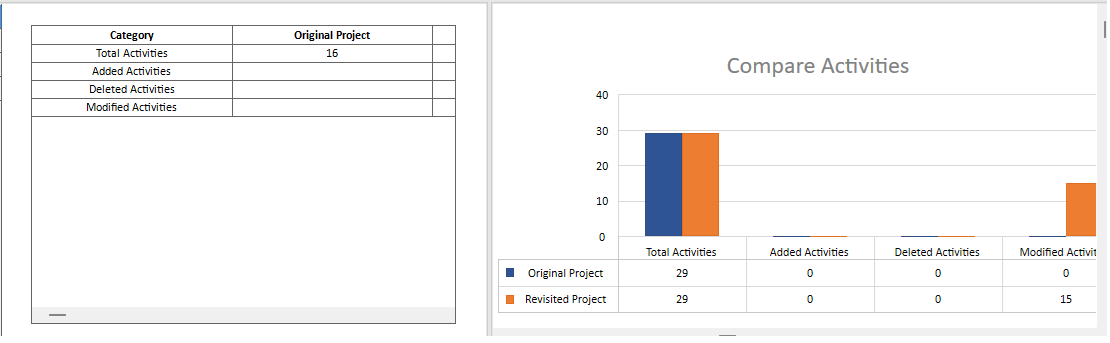
Compare WBS
The “Compare WBS” tab displays changes to the Work Breakdown Structure between two project versions, showing how the project's hierarchical organization has evolved. This view is divided into two coordinated sections:
- Comparison Table (Left) - The table presents WBS statistics across two columns: Original Project and a column for the revised version (header appears to be cut off in the image). Each row tracks a specific aspect of WBS structure: o Total WBS Elements: The complete count of all WBS nodes (work packages, deliverables, and summary tasks) in each project version o Added WBS Nodes: Number of new WBS elements introduced in the revised project (this row is blank for Original Project as it serves as the baseline) o Deleted WBS Nodes: Number of WBS elements removed from the Original Project (this row is blank for the revised version) • Visual Chart (Right) - The bar chart titled "Compare WBS" provides a graphical representation of WBS changes: o Side-by-side bars display values for each category, with blue bars representing the Original Project and orange bars representing the Revisited Project o Total WBS Elements shows both versions side-by-side to compare the overall project structure size o Added WBS Nodes and Deleted WBS Nodes display single bars to highlight structural changes o A data table below the chart shows exact numerical values for each category (Total WBS Elements, Added WBS Nodes and Deleted WBS Nodes) o The legend clearly distinguishes between Original Project (blue) and Revisited Project (orange)
This view helps you understand whether the project scope and organizational structure have changed between versions, indicating if new work packages have been added, deliverables removed, or if the WBS hierarchy has been reorganized while maintaining the same total element count.
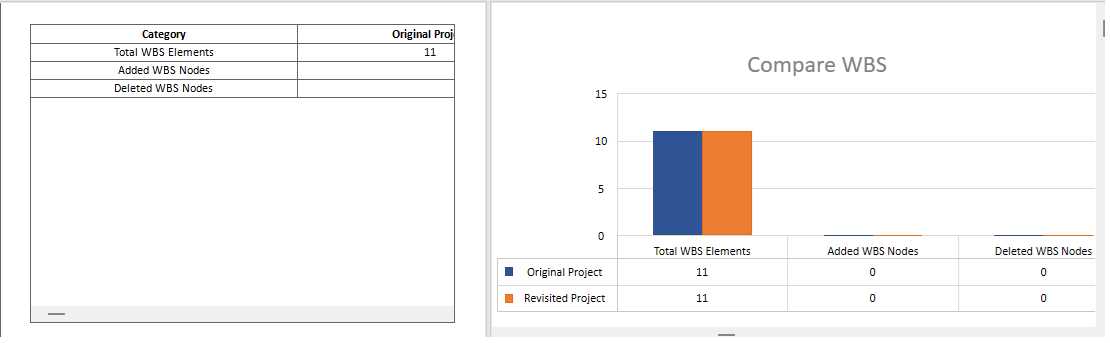
The “Compare Project” tab displays key project metrics and summary statistics between two project versions. This view is organized into two complementary sections:
- Comparison Table (Left) - The table provides a structured comparison of essential project attributes across three columns: Original Project, Revisited Project, and Variance. Each row displays a specific project metric: o Project Start Date: The scheduled beginning date for both versions o Project Finish Date: The planned completion date for both versions o Project Duration: Total project length measured in days o Critical Path Length: The duration of the longest sequence of dependent tasks o Total Float: The total amount of schedule flexibility (slack time) available o Number of Milestones: Count of key project milestones o Data Date: The reference date for the project data snapshot o The Variance column shows the numerical difference between versions, with "0" indicating no change has occurred for that particular metric. • Visual Chart (Right) - The bar chart titled "Compare Project" provides a graphical comparison of selected numeric metrics: o Side-by-side bars display values for each metric, with blue bars representing the Original
Project and orange bars representing the Revisited Project o The chart focuses on key metrics such as Critical Path Length and Number of Milestones o A red variance line can track differences when values change between versions o The Y-axis scale adjusts automatically to accommodate the metric values being displayed
This dual-view format allows you to quickly assess whether fundamental project parameters have changed between versions, helping you understand the scope and scale of project revisions at a high level before diving into detailed schedule or budget comparisons.
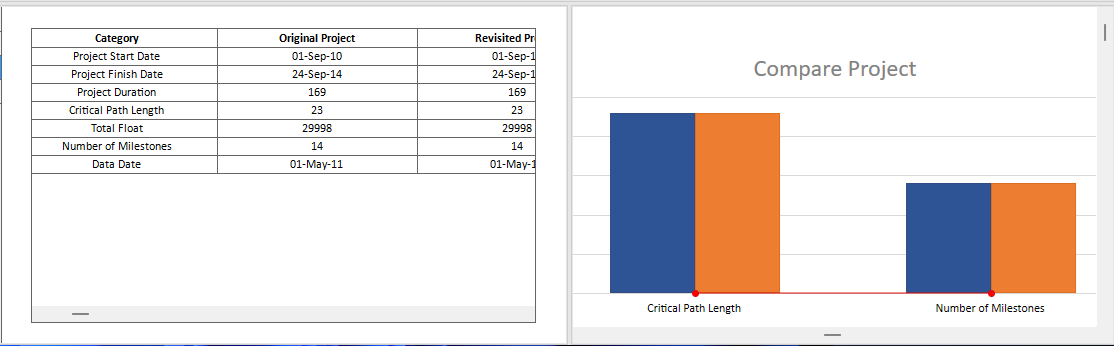
Compare Project Budget
The “Compare Project Budget” tab displays a complete side-by-side analysis of budget data between two project versions. This view is divided into two sections that work together to help you understand financial changes:
- Comparison Table (Left) - The table presents a detailed breakdown of budget categories across three columns: “Original Project”, “Revisited Project”, and “Variance”. Each row represents a specific cost category, allowing you to examine: o Original Budget and Actual Total Cost o “At Completion” costs broken down by type (Expense, Labor, Material, Nonlabor) o “At Completion Total Cost” summary o Variance amounts showing the financial difference between versions (negative values indicate cost reductions, positive values indicate cost increases)
- Visual Chart (Right) - The interactive chart provides a graphical representation of the budget comparison, featuring: o “Side-by-side bar pairs” for each cost category, with blue bars representing the Original
Project and orange bars representing the Revisited Project o An “Orange variance trend line” that tracks the financial differences across categories, making it easy to spot where the largest changes have occurred o Dual Y-axes: the left axis shows absolute cost values in dollars, while the right axis displays variance amounts o Category labels along the X-axis for easy reference
This combined view enables you to quickly identify budget changes, understand cost trends, and assess the financial impact of project revisions at both detailed and high-level perspectives.
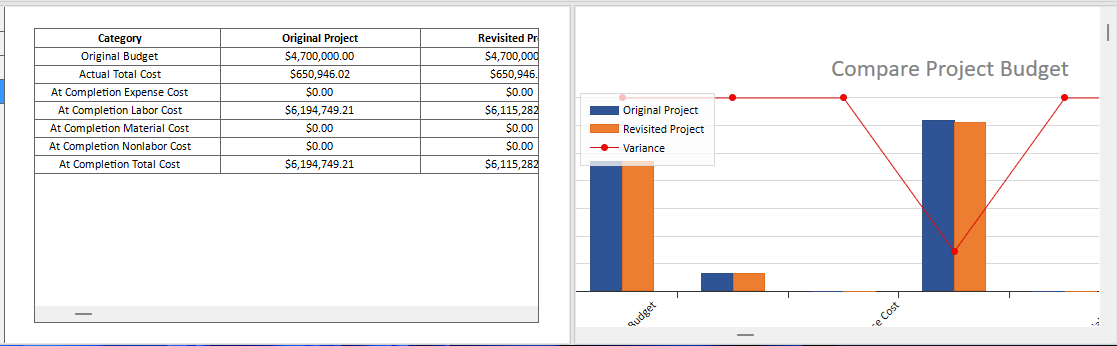
Earned Value Analysis
Overview
Earned Value Analysis (EVA) is an advanced PM technique for measuring project performance according to costs and schedules. The concept that EVA relays on is on comparing the planned work with the work that is actually done, at a specific date (usually the Data Date). Knowing the schedule variance and cost variance, project managers and the other project officials will be able to determine the exact state of the project and make decisions that will contribute to the timely fulfillment of project objectives.
The calculation for EVA in ScheduleReader™ is made on Activity, WBS and Project level.
Implemented Fields
The following fields are implemented in ScheduleReader™:
Cost: Accounting Variance, Budget At Completion (BAC), Cost Performance Index, Cost Variance, Cost Variance Index, Earned Value Cost, Estimate at Completion Cost, Estimate To Complete, Planned Value Cost, Schedule Performance Index, Schedule Variance, Schedule Variance Index, To Complete Performance Index, Variance At Completion.
Labor: Accounting Variance – Labor Units, Budget At Completion (BAC) - Labor Units, Cost Performance Index - Labor Units, Cost Variance - Labor Units, Cost Variance Index - Labor Units, Earned Value Labor Units, Estimate at Completion - Labor Units, Estimate To Complete Labor Units, Planned Value Labor Units, Schedule Performance Index - Labor Units, Schedule Variance - Labor Units, Schedule Variance Index - Labor Units, Variance At Completion - Labor Units.
View EVA Parameters
The following steps are our recommendation for viewing the values calculated with the EVA:
- 1. Open the project plan that should be analyzed. 2. Import the baseline for the opened project plan. 3. Create a different layout for costs and units: 1. Cost Variance Layout - Cost Variance, Cost Variance Index, Cost Variance - Labor Units, Cost Variance Index - Labor Units. 2. Performance index - Cost Performance Index, Cost Performance Index - Labor Units, Schedule Performance Index, Schedule Performance Index - Labor Units, Planned Value Labor Units, Earned Value Labor Units.
Note: You will have to import the project baseline in order the EVA parameters to be calculated
Note: Default P6 settings are used for calculating the Earned Value parameters:
- “ETC=PF*(Budget at Completion – Earned Value), where PF=1” – is the technique that is used for calculating Estimate to Complete (ETC);
- “Planned values with planned dates” – is the P6 option used for calculating earned values from the assigned baseline.
Overview
Different roles are working and collaborating on the project plan: architects, engineers, civil engineers, construction workers, etc. Inserting the right information for the status of each activity will help the project manager, investor to have the real picture for the project’s status and how the project progresses.
Users can insert proposal for updates in the following views:
- Activities;
- Assignments.
When entering in “Progress update” mode in one of the mentioned views, several columns from that particular view will be available for updating. These fields are:
- For Activities: Activity % Complete, Physical % Complete, Units % Complete, Actual Start, Actual Finish, Activity Status, Remaining Duration, Activity Codes and User Defined Fields (UDF).
- For Assignments: % Units Complete, Actual Cost, Actual This Period Units, Actual Start, Actual Finish, Remaining Units and Remaining Units/Time.
Which fields will be available for inserting updated depends on the working habits and the workflows that exist in the company. Usually, the project scheduler defines which fields will be available for updates.
Note: For updating the “Actual This Period Units” field, the activity status must be “In Progress”.
The proposals for the updated activities or assignments are saved in a .xls file. This .xls file is placed in a newly created folder with the same name as the project plan and located in the same position as the XER file.
The updating flow in which project scheduler and team members take part is as follow:
- 1. Project scheduler prepares the project plan and exports it in XER file format.+ 2. He makes a reflection of the project plan. 3. The project plan is distributed to the teams. 4. Each member inserts a proposal for updates and these updates are saved in the newly created .xls/.xlsx file. 5. The project scheduler imports the .xls/.xlsx file into the project’s reflection. 6. In the merging process, the project schedule will have a detailed view of every changed parameter of each activity and can decide whether to accept or reject the updates.
In addition, for inserting proposals for updates, users are able to give proposals for inserting new activities in the project plan, a proposal for deleting existing ones or propose reassignment. All activities proposals can be seen directly on the Gantt Chart, in the Activity view.
Important Note 1: Before starting the updating process, make sure that the ScheduleReader™ and Primavera P6 have the same ”Units Format” and "Duration Format" settings. You can set these parameters in the Options dialog, in the “Time Units” tab.
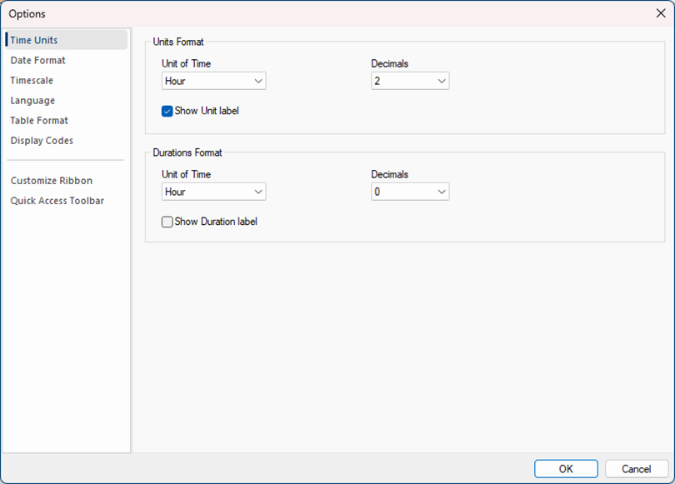
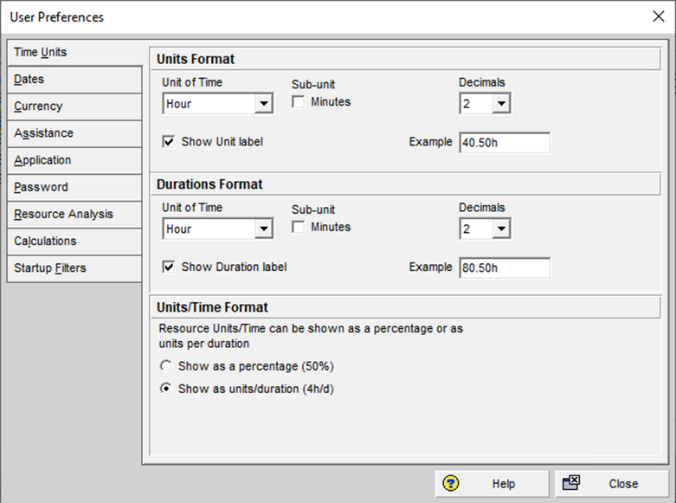
Time Units settings in ScheduleReader Time Units settings in Primavera P6
Important Note 2: The decimal symbol for the currency and the currency must be the same for OS system where Primavera P6 is installed and Primavera P6 itself.
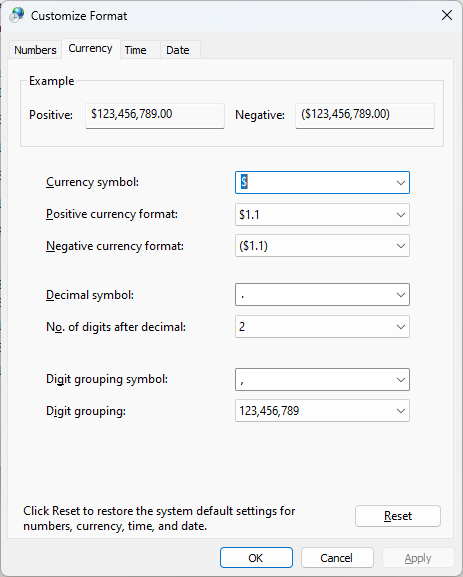
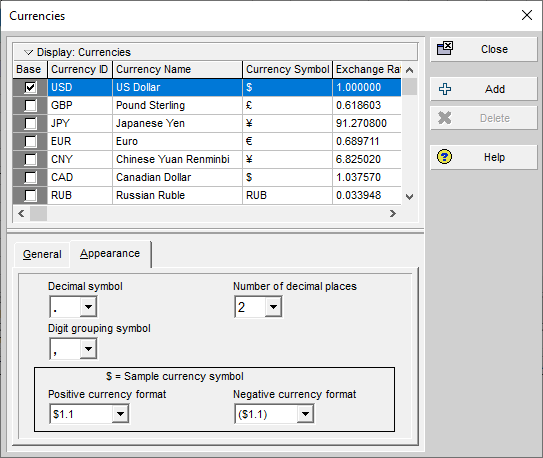
Decimal Symbol and currency in OS Decimal Symbol and currency in P6
Important Note 3: The system settings of PCs where ScheduleReader™ and Primavera P6 are installed should be the same.
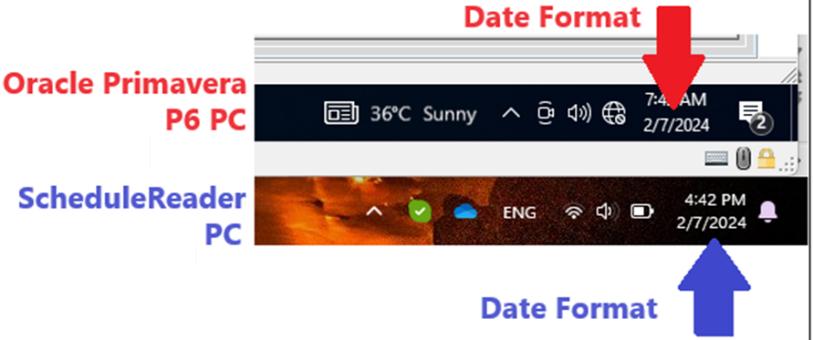
Important Note 4: When updating activities in a project that is part of a master project plan, .xls/.xlsx file will be created only for the project plan that contains that particular activity.
Inserting Progress Update
Starting the “Progress Update” mode is very easy and requires three steps:
- 1. Open the project file (XER file) in which you want to insert a proposal for updates; 2. Select the Activities view; 3. In the Progress Update ribbon, click on the Progress Update Mode.
The Activity table will be slightly changed and you will see some of the fields are framed with a tiny black line, as it is presented in the image below. These are fields for updating.
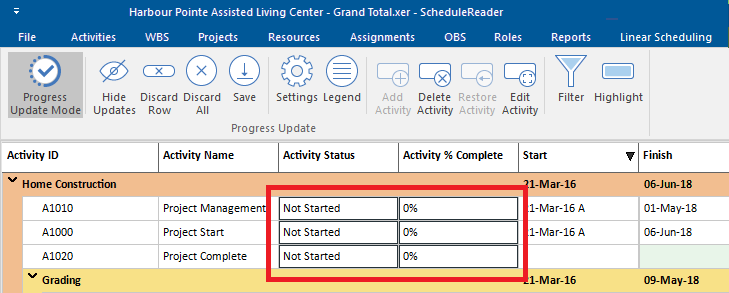
The next steps are for inserting the updates.
- 1. Double click on the Activity Status cell; 2. A drop-down list will be opened, as in the image below. Select “In progress” if you are working on the activity or “Completed” if the activity is finished.
- 3. Insert value in Activity % Complete.
- 4. Save the updates.
Progress Updates in Bottom View
Another option for updating the project assignments is by using the Bottom view in the Activity ribbon. The process is similar to the "ordinary" progress update:
- 1. Open the project file (.xer file) in which you want to insert a proposal for updates; 2. Select the Activities view; 3. In the Progress Update ribbon, click on the Progress Update Mode.
Besides the Activity table, the Assignment table will be slightly changed and you will see some of the fields are framed with a tiny black line, as it is presented in the image below. These are fields for updating.
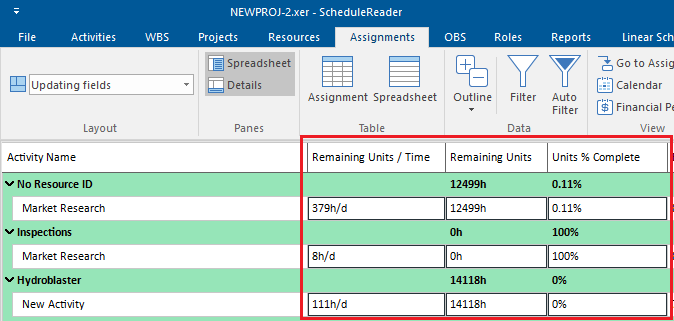
To update the fields that are available in the Assignment table, using the Bottom view in Activity view, perform the following steps:
- 1. In the Bottom view drop-down menu, select the "Details" option;
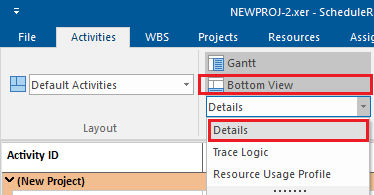
- 2. Once the Details are applied in the bottom section, select one activity from the project plan and click on the "Resources" tab.
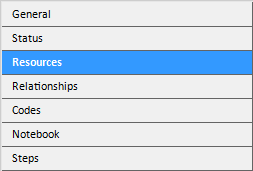
- 3. The look of the resource table is presented in the image below.

- 4. To insert the assignment fields in the resource table, like Remaining Units or Units % Complete, click on the "Resources" table in Activity ribbon.
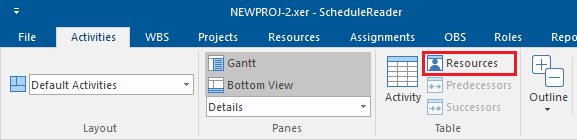
- 5. Using the dialog insert the required fields in the table.
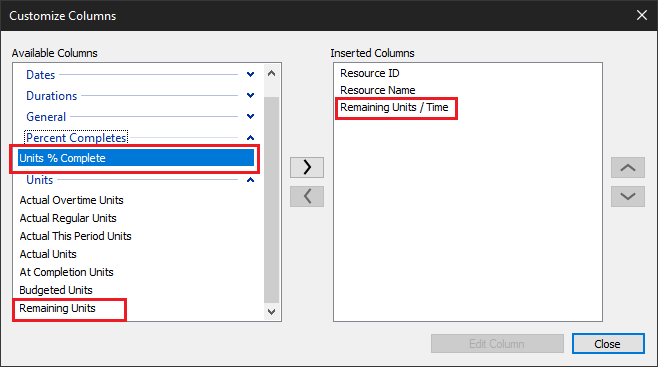
- 6. Insert the updated.

Add Activity in Gantt Chart
You can use this function if you want to inform your manager that additional effort is undertaken, that is planned with the ongoing version of the project plan. Several settings must be performed in order for the new activities to be visible in the Gantt Chart.
- 1. Open the Settings dialog from the Progress Update ribbon; 2. In Start UDF and Finish UDF select the fields that will be used for the updating process.
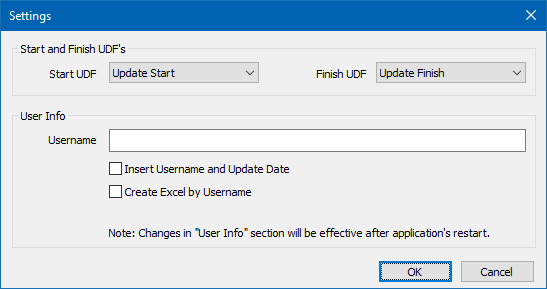
Note: UDF (User-Defined Fields) are created by the project manager in Primavera P6 and inserted in the XER file. ScheduleReader users only use the fields for various tasks. You cannot create UDF in ScheduleReader.
Note: User info section is mot obligatory for filling up and its main purpose is to give more detailed information about the updates: who inserted them and when:
- If the Insert Username and Update Date check-box is selected, then when any activity is updated, the Username and the Date & Time will be written in the Excel files that are used for data exchange between ScheduleReader and P6; - If the Create Excel by Username check-box is selected, then an Excel file with the inserted user name will be created and will contain only the updates that particular user inserts. This option is useful when the project manager wants to receive separate updates from each person that he/she manages.
Note: After inserting data in the User Info section, close the project and restart the application.
To insert new activity, perform the following tasks:
- 1. Select the WBS in which the new activity will be placed. 2. Select the Add Activity feature in the Progress Update ribbon. 3. Insert the Name of the newly inserted activity.
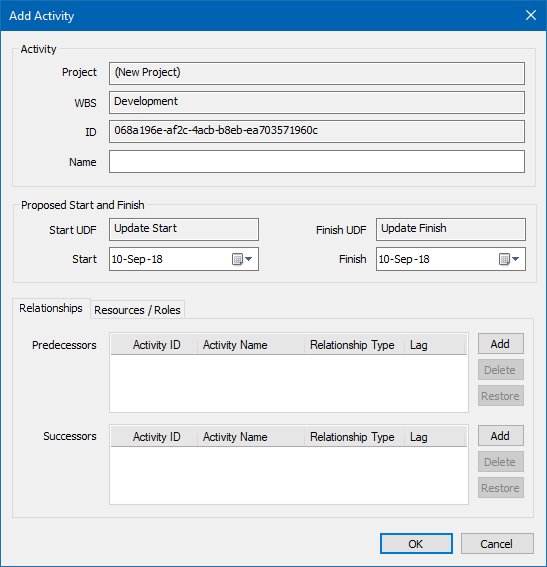
- 4. Define the Start and Finish dates of the activity. 5. If necessary, insert the activity’s predecessor(s) and successor(s).
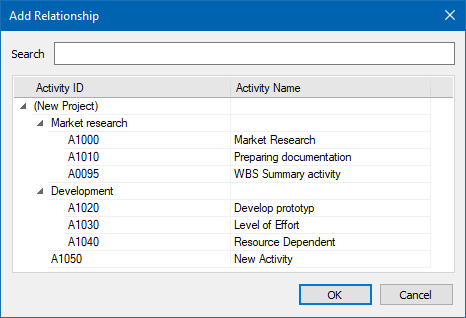
Once the inserting process is done, the row that contains the new activity will be painted green, while the new bar will be painted pink .
An example of inserting new activity is presented in the image below.
Assign Resources or Roles
Once the proposal for the new activity is inserted into the project plan, the user can give a proposal who can work on the newly created activity or which role can best perform the work. The process for inserting resource/role is as follow:
- 1. Select the activity that is added and click on the Edit Activity button in the Progress Update ribbon. 2. In the Add Activity dialog, select the Resource/Role tab.
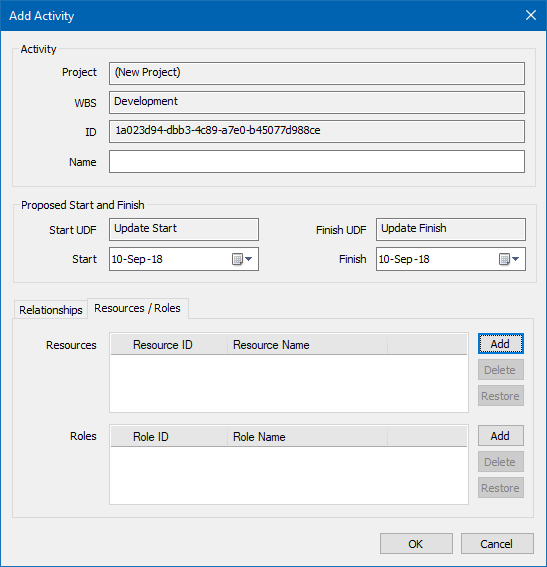
- 3. For adding resources on the newly created activity, click on the “Add” button for Resources.
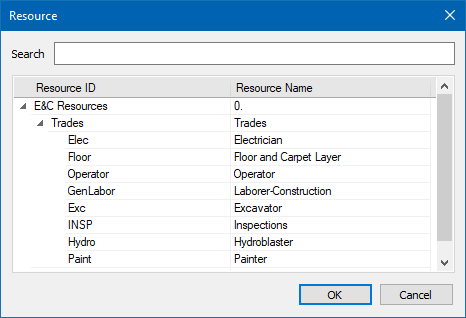
- 4. In the newly opened window, select the appropriate resource for the activity. 5. If you want to assign a role, perform the same action as for resources. Instead of resources, you will see the available roles.
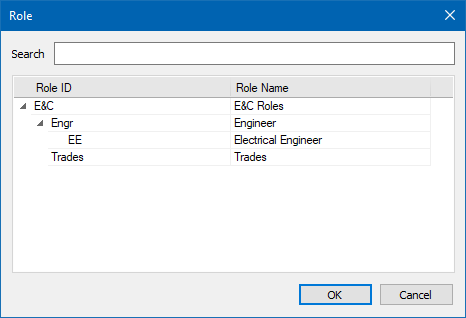
Delete Activity from Gantt Chart
You can insert a proposal for deleting activity from the Gantt Chart. For that purpose, select the activity that should be deleted from the Gantt Chart and choose the Delete Activity functionality from the Task Update ribbon.
Once the deleting process is done, the row that contains the activity that should be deleted will be painted red.
An example of activity deleting from the project plan is presented in the image below.
Filter, Highlight and Legend
Filter
Viewing the updating activities and their parameters can be a very tricky process when the project contains several thousand activities. That is the main resource for implementing the filtering option. Selecting the “Filter” feature from the ribbon will show only those activities whose parameters have been modified.
Highlight
Highlighting functionality gives visual information of the updated activities. Each activity row in the table, depending on the undertaken action, is colored with different colors. See the “Legend” section for a detailed overview of the colors used in the updating process.
Legend
The legend dialog implemented in the Progress Update ribbon gives an explanation for the meaning of the row colors that are used in the activity table during the updating process. The colors that are used in the Progress Update mode are presented in the image below.
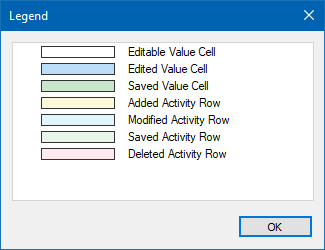
WHAT TO EXPECT WHEN WORKING WITH PROGRESS UPDATE What to expect when updating Actual Start and Actual Finish
The Actual Start field shall always be enabled when working with Progress Update.
When you set the Actual Start, the Activity status "Not Started" is automatically changed to "In Progress" status.
When the activity status is "Completed", the Actual Start can only have a date value lower or equal as the date value for Actual Finish.
The Actual Finish field will always be enabled when working with Progress Update.
When you choose a date for the Actual Finish of the activity, the activity changes the "In Progress" status into "Completed" status.
When you update the Actual Finish date, the status of the activity from "Not Started" changes to "Completed".
What to Expect When Changing Activity Status
When you change the activity status from "Not Started" to "In Progress", the Actual Start inherits the value for the Start Date.
When you change the activity status from "Not Started" to "Completed", the Actual Start field inherits the value for the Start Date and the Actual Finish inherits the value from the Finish Date.
When you change the activity status from "Completed" to "In Progress", the value for the Actual Finish is deleted.
- When you change the activity status from "In Progress".
- to "Completed".
- the Actual Finish field inherits the same date as the Finish date.
What to Expect When Updating Remaining Duration or % Complete
When it comes to updating the Remaining Duration field, it cannot be changed for Completed Activities.
The Remaining Duration and % Complete values are not changed automatically when one of the previously mentioned fields are updated.
This is left to Primavera P6 because it only applies its own calculations for these fields when importing the XLS/XLSX files.
The % Complete field cannot be updated or changed for activities with status set as "Not Started" or "Completed".
If you want to manually change the values for the Remaining duration and the % Complete than you can only do it to one field.
Graphical Reports
Graphical Reports and Dashboards displays the project data using charts and graphics. Compared with the traditional, table-text spreadsheet design, these reports are much easier for understanding, making the business reporting process meaningful. Presented on one page, containing summary information about the project’s status, graphical reports allow project managers, project stakeholders and sponsors to quickly receive the information status that is business-critical.
Accepting the Graphical Reports and Dashboard functionality as a working tool will improve your business reporting process and information exchange. Among the benefits that your company gains are:
- Suitability – project information is presented in a way that is understandable by every project participants and PMO can help bringing business decisions in a reasonable time, based on the presented information;
- Time-saving – All graphical reports are created with one click of the button. In addition, the user can create more complicated reports and then exported it to the other project participants or team members;
- Comparison Reports – Some graphical reports can compare two or more project parameters from the same category or present the changes for one project parameter through time;
- Less Effort – Usually creation of one report requires a specific role in the organization and can be time-consuming. Changing the report’s components can be done quickly, by anyone and every report can be customized with less effort.
Predefined Reports and Dashboards
ScheduleReader has predefined graphical reports that give overall information about the status of the project plan. These reports will help fewer experienced users to create graphical reports and dashboards and present the status of particular project parameters in front of management.
Predefined reports are divided into two groups:
- DCMA 14 Schedule Analysis o DCMA 14 Schedule Analysis; o Activity Metrics; o Relationship Types; o Constraint Types. • Activity Overview o Activity Steps; o Activity Status; o Activity Units; • WBS Overview o WBS Cost; o WBS Duration; o WBS Units; • Project Overview o Project Cost; o Project Units; o Project Duration.
DCMA 14-Point Schedule Assessment
DCMA 14-Point Schedule Assessment report is a guideline created by The Defense Contract Management Agency (DCMA) in order for the Department Defense (DoD) to evaluate the number of schedules received from the defense suppliers. Through the years, DCMA 14-Point Schedule Assessment becomes a universal guideline for project scheduling and incorporated into various numbers of software.
The following project’s parameters are tested:
- 1. Logic – search the activities that are missing predecessors or successors; 2. Leads – search the activities that have relationships with lag duration less than 0; 3. Lags - search the activities that have relationships with a lag duration greater than 0; 4. Relationship Types – examines the relationships in the project. Majority of the relationships should be Finis-to-Start (FS); 5. Hard Constraints – examines the inserted constraint in the project plan. Hard constraints should be a minority in the project plan; 6. High Float – search for activities with a Total Float greater than 352 hours; 7. Negative Float – search for activities with a Total Float less than 0; 8. High Duration – search for activities that have Remaining Duration greater than 352 hours; 9. Invalid Dates – search for activities that have invalid actuals or remaining; 10. Resources – search for activities with duration of at least one day that don’t have resources assign; 11. Missed Tasks – search for activities whose actual finish date is later than their earlier planned finish date; 12. Critical Path Test – on identified activity from critical chain grossly extend its remaining duration, and project completion date should be extended correspondently; 13. Critical Path Length Index (CPLI) – measures the ratio of the project critical path length plus the project total float to the project critical path length; 14. Baseline Execution Index (BEI) – calculates the ratio of all of the tasks that have been completed versus the tasks that ‘should have been completed’ in the period between the Baseline Schedule and the current schedule.
The look of the DCMA 14-Point Schedule Assessment report is presented in the image below.
The table within DCMA 14 report gives tabular information for each metric i.e. details and percentage of completeness and a graphical indicator whether the metrics are fulfilled or not. If the user clicks on the outcome in the “Details” column, presented as a hyperlink, a new window will pop up with detailed information for the activities that do not meet the specified requirement.
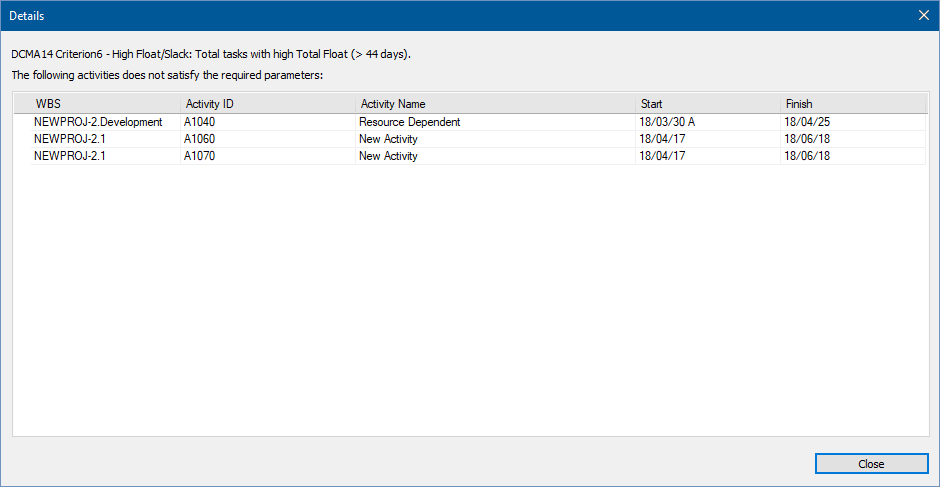
Note: Using the “Ctrl” + “C” functionality, you can copy the repot’s details into MS Excel. Supported versions for this functionality are MS Excel 2010/2013/2016/2019.
Dynamic Criteria Limits for DCMA 14-Point Schedule Assessment Report
DCMA 14-Point Schedule Assessment report is created by predefined parameters. However, in some cases, ScheduleReader users will need to modify these settings and to insert their own, project-specific criteria. Thus, using the formatting functionality, they can change the criteria for all fourteen metrics, calculated in the report.
The following steps should be performed for changing the report’s metrics:
- 1. Create the DCMA 14-Schedule Assessment report; 2. Select the DCMA 14 Limits Settings, located in the “Reports” ribbon.
- 3. From the “Pass If” columns for each metric, select the operator that will be used for validating the project data. 4. Define the value that will be used to determining whether the metric is fulfilled or not.
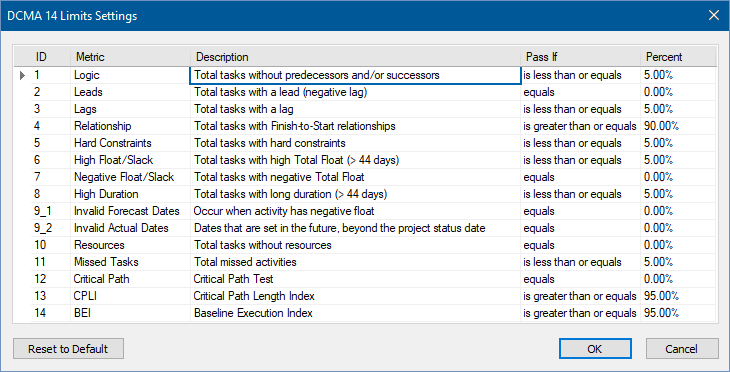
“Reset to Default” will bring the initial state of the report’s metrics.
Activity Metrics
Activity Metrics graphical report gives a detailed comparison between the current version of the project plan and one of the saved baselines. The activities status from the current project (completed, in progress and not started) are compared with the baseline version that is imported in ScheduleReader and the result is presented graphically, with the “Doughnut” chart.
This report type is very useful for the project participants because everyone can see how the project is progressing between two consecutive baselines.
The look of the Activity Metrics graphical report is presented in the image below.
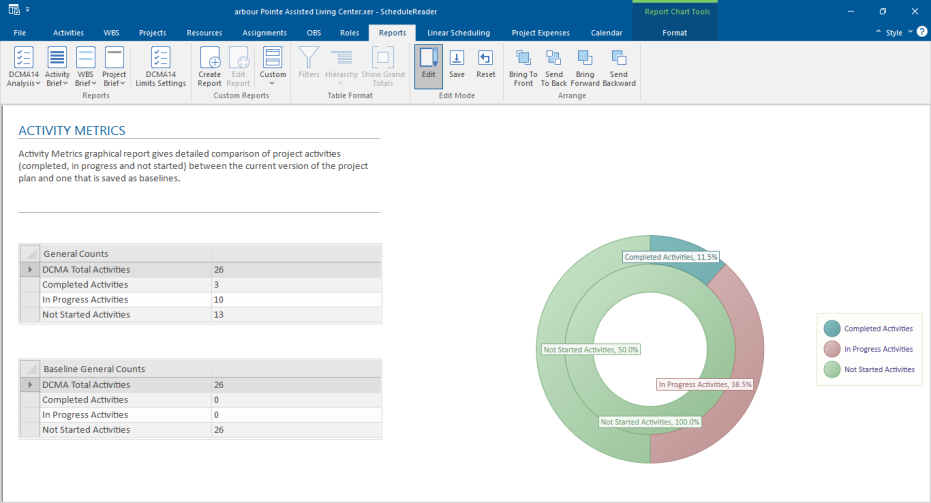
Relationship Types Report
According to DCMA 14 Point Schedule Assessment, at least 90% of all total predecessors' relationship in the project plan should be Finish-to-Start relationship type. This graphical report gives project managers an overview of which type of relationship is the most used while creating the project plan and what are the consequences of using different relationships for connecting two or more activities.
The look of the Relationship Types report is presented in the image below.
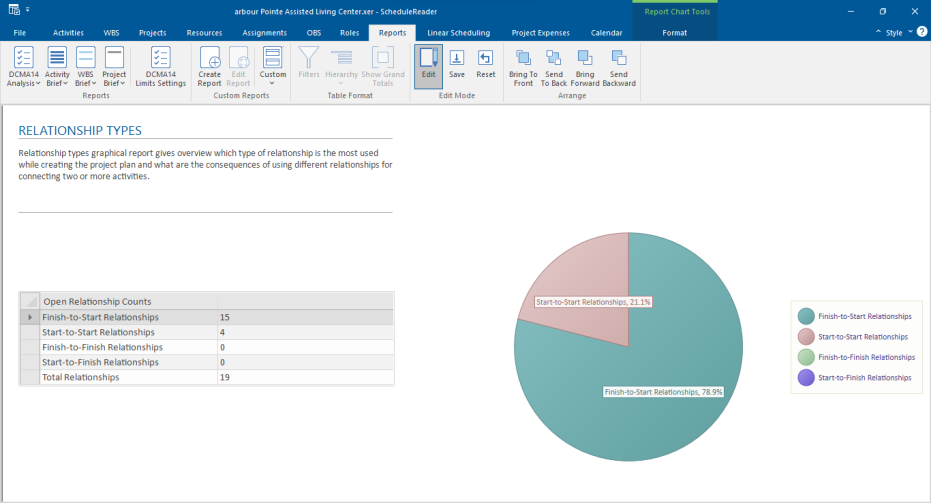
Constraint Types Report
Usually, the constraints are divided into two groups: Hard and Soft constraints. The difference between these two groups is about respecting the relationship logic. Hard constraints override the relationship logic that is inserted by the project scheduler and they will be not rescheduled according to the logic that exists in the project plan.
The following constraints are considered as Soft Constraints:
- As Late As Possible
- Start On
- Start On or Before
- Start On or After
- Finish On
- Finish On or Before
- Finish On or After while
- Mandatory Start
- Mandatory Finish are considered as Hard Constraints.
Constraint Types' graphical report may give answers to the project managers why the project plan is scheduled as it is and why some activities do not respects the scheduling rules.
The look of the Constraint Types graphical report is presented in the image below.
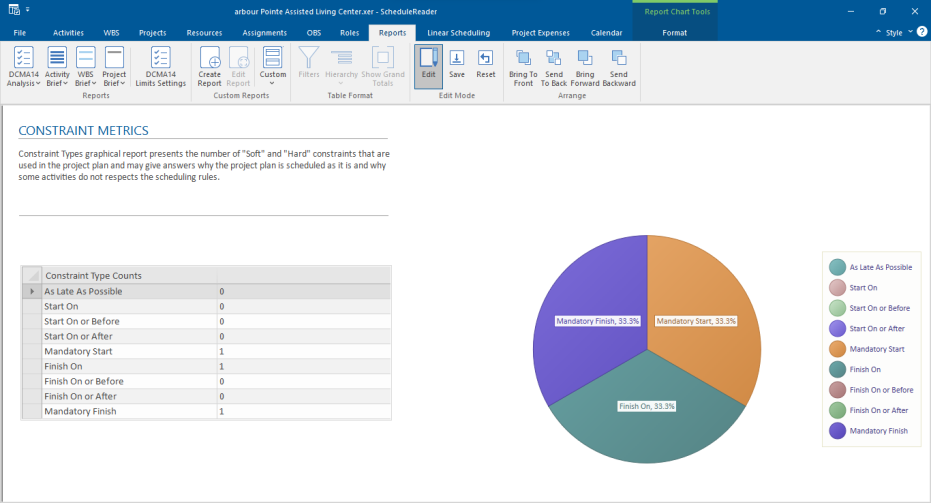
Activity Steps
Activity steps are used to divide the activity into smaller pieces of work (phases), without adding additional sub-tasks in the Gantt Chart. Usually, they are named after the phases that the activity is consisted of, informing the project viewer to be precisely informed about the activity stage.
In the Activity Steps report, the user is able to view the status of the steps (not started, in progress or completed) that are assigned to the activities.
Activity Status
Activity status is probably the most used report in the application. As the name said, the user will be able to view the status for all activities in the project and their contribution to the completion of the project plan.
Users can use the “Filter” functionality for viewing specifying activity’s aspect, along with the activity status or present the project hierarchy in the status report.
The look of the Activity Status report is presented in the image below.
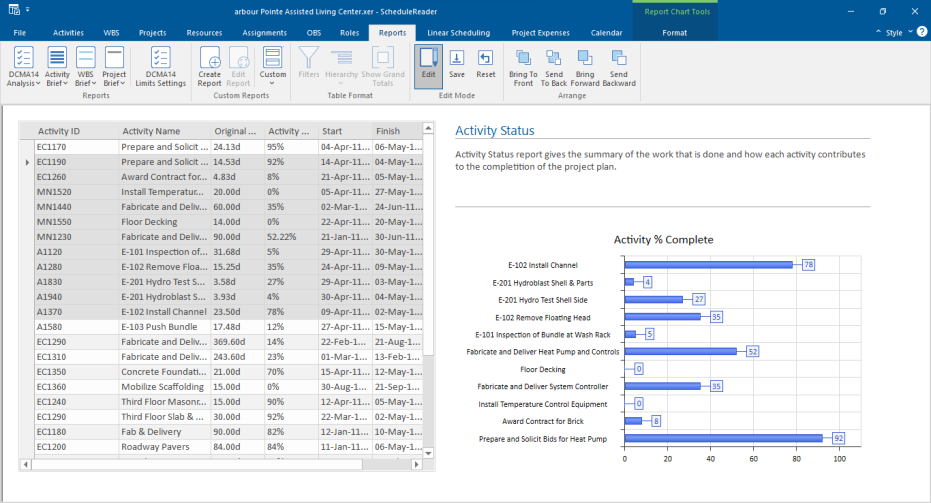
Activity Units
Activity Units report informs you about the current units of all activities that are part of the project plan. In the table, information for the budgeted, actual and remaining units, as well as baselines, project total units and unit variance.
Using the default filters or customized ones, users can observe activity units and analyze whether they are aligned according to the project budget or not.
The look of the Activity Units report is presented in the image below.
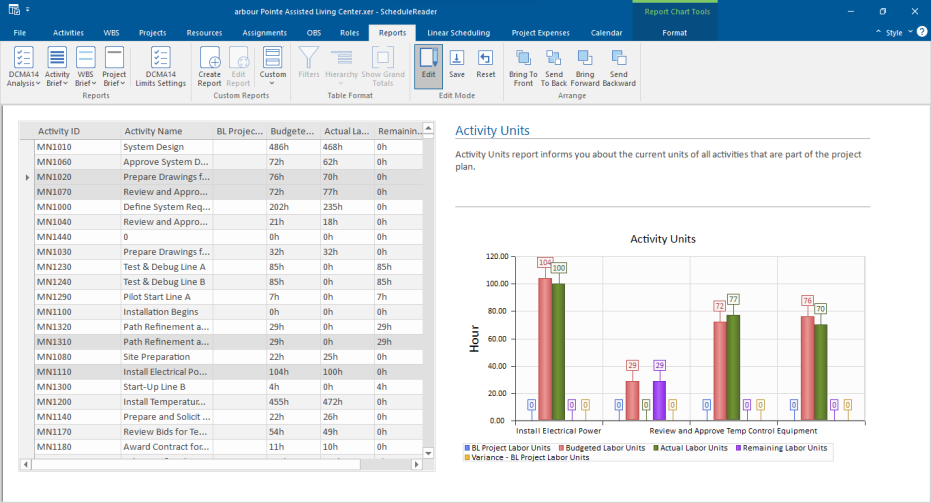
WBS Costs
WBS Costs report informs you about the current costs of each WBS segment that is part of the project plan. The table part of the report gives information about the actual and remaining costs as well as baselines project total costs and costs variance. Presented values are on the WBS level.
The look of the WBS Cost report is presented in the image below.
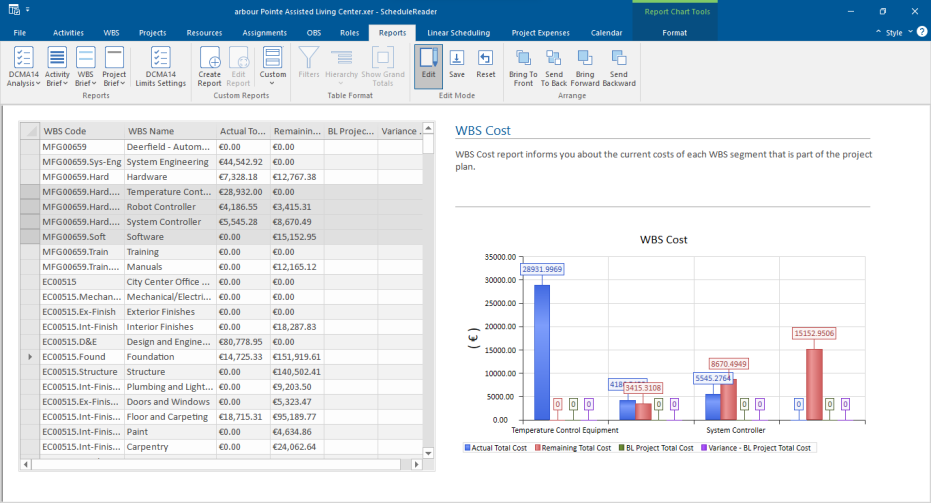
WBS Duration
WBS Duration report informs you about the current duration of each WBS segment that is part of the project plan. The table part of the report gives information about the actual and remaining duration as well as baselines project total duration and duration variance. Presented values are on the WBS level.
The look of the WBS Duration report is presented in the image below.
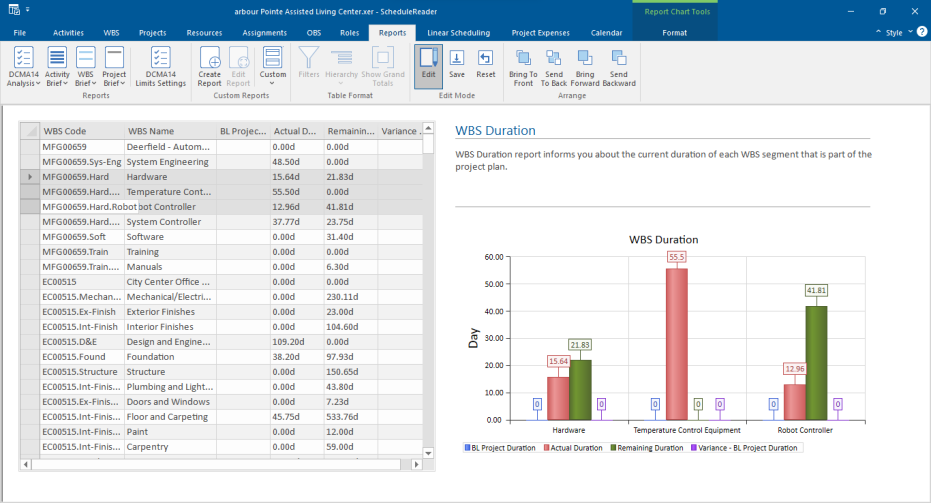
WBS Units
WBS Units report informs you about the current units of all WBSs’ that are part of the project plan. In the table, information for the budgeted, actual and remaining units, as well as baselines, project total units and unit variance.
The look of the WBS Units report is presented in the image below.
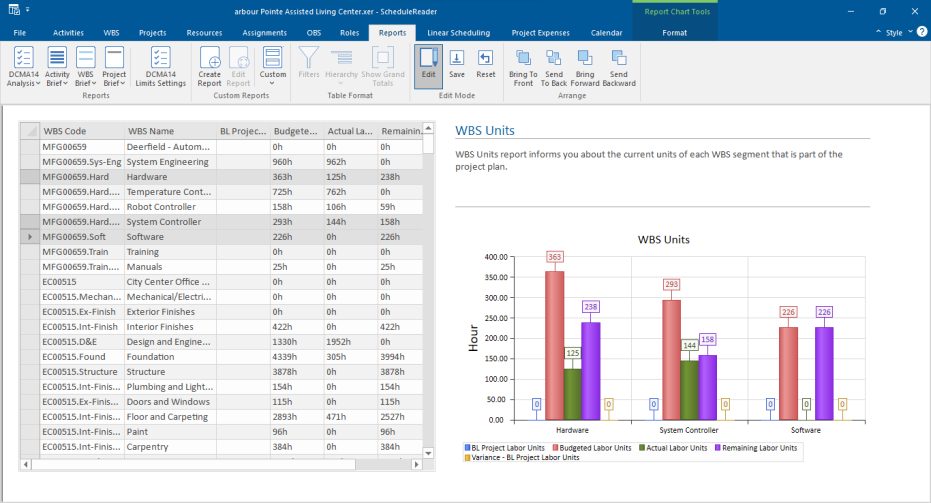
Project Cost
Project Costs report informs you about the current costs of the project plan or in case of a master project, for each project that is exported in the XER file. The table part of the report gives information about the actual total and remaining total costs as well as baselines project total costs and costs variance. Presented values are on the project level.
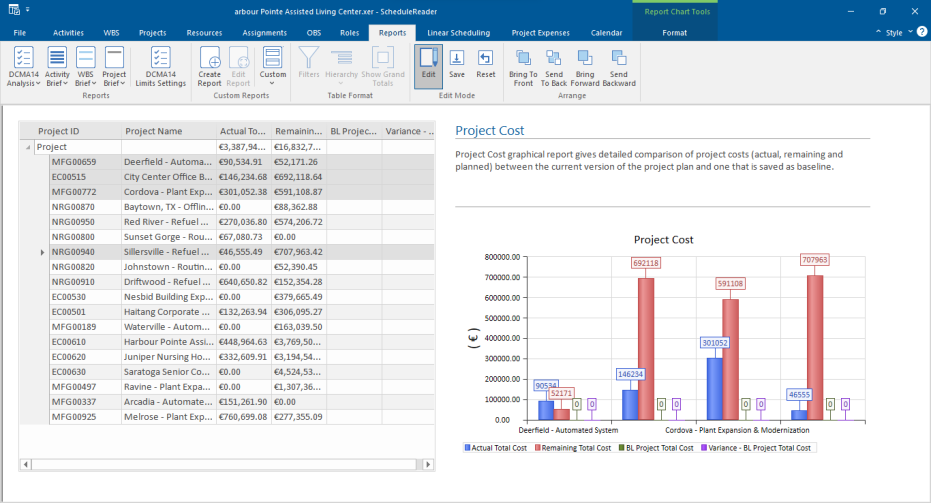
Project Units
Project Units report informs you about the current units of projects that are exported in the .xer file. In the table, information for the budgeted, actual and remaining units, as well as baselines, project total units and unit variance.
The look of the Project Units report is presented in the image below.
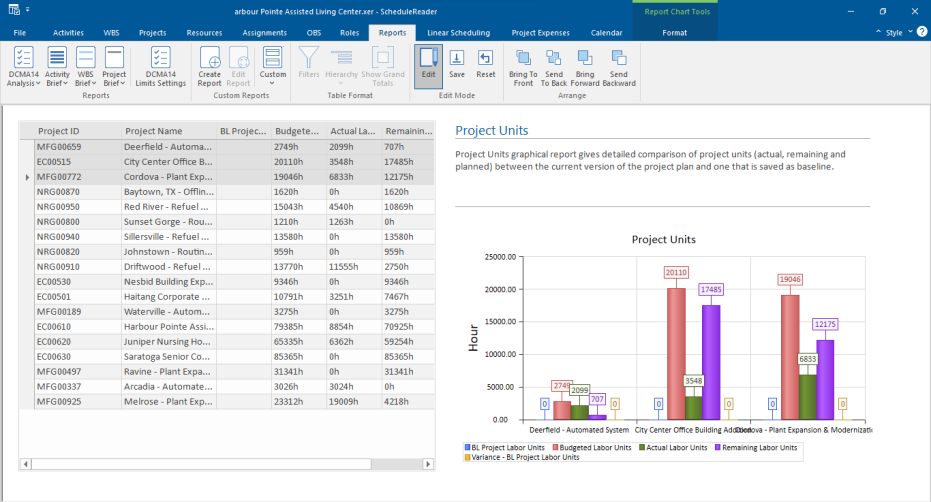
Project Duration
Project Duration report informs you about the current duration of each WBS segment that is part of the project plan. The table part of the report gives information about the actual and remaining duration as well as baselines project total duration, at completion duration and duration variance. Presented values are on the project level.
The look of the Project Duration report is presented in the image below.
Create Custom Graphical Reports
Predefined graphical reports give a brief overview of the different aspects of the project plan and sometimes they do not satisfy user’s needs. In that case, the user can create their own, custom reports that will fulfill their requirements.
Create a Custom Report
Creation of customized report in ScheduleReader can be done in several steps:
- 1. Click on the Create Report feature, within Reports ribbon; 2. Name the new report; 3. Select the layout that is most appropriate for you;
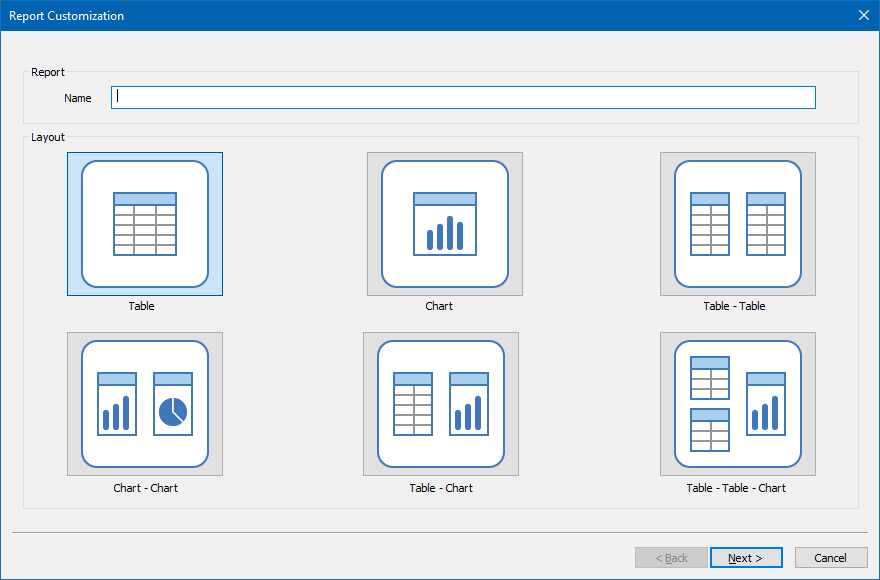
- 4. Customize the table(s)/charts.
The first three steps are in common for any type of report. Whether the user will customize the table, chart or both will depend on the selected layout.
Table Layout
Table layout will create a report that is consists of only one table. User should perform the following steps:
- 1. Choose the columns from the “Available Columns” table the will be presented in the report;
- 2. With and buttons arrange the order of the columns in the table; 3. If necessary, apply some of the available filters; 4. Select the “Hierarchy” type, if you like to see the project hierarchy in the table. 5. Click on the Finish layout.
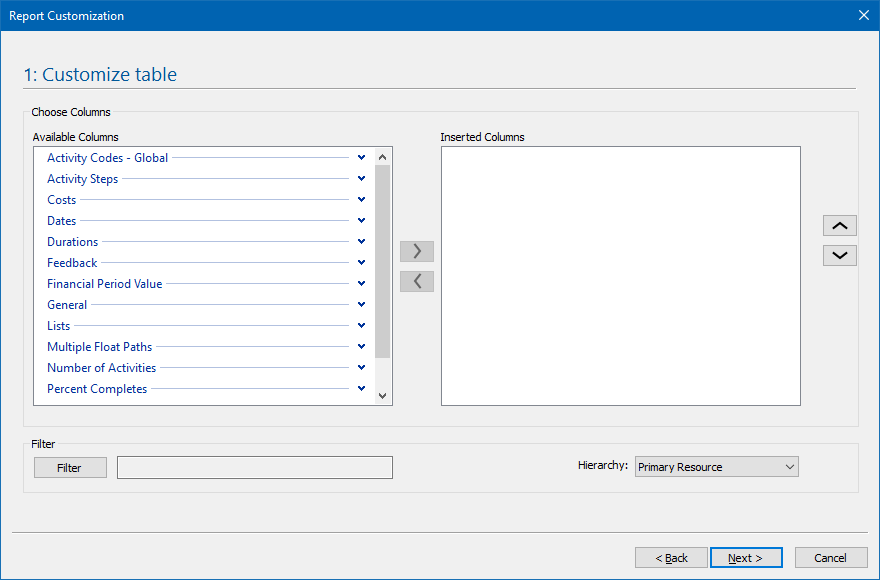
Chart Layout
Chart layout will create a report that is consists of only one chart. User should perform the following steps:
- 2. With and buttons arrange the order of the columns in the table; 3. If necessary, apply some of the available filters; 4. From the “Chart category” drop-down list selects the chart type that will present graphically the selected columns values. 5. Click on the Finish layout.
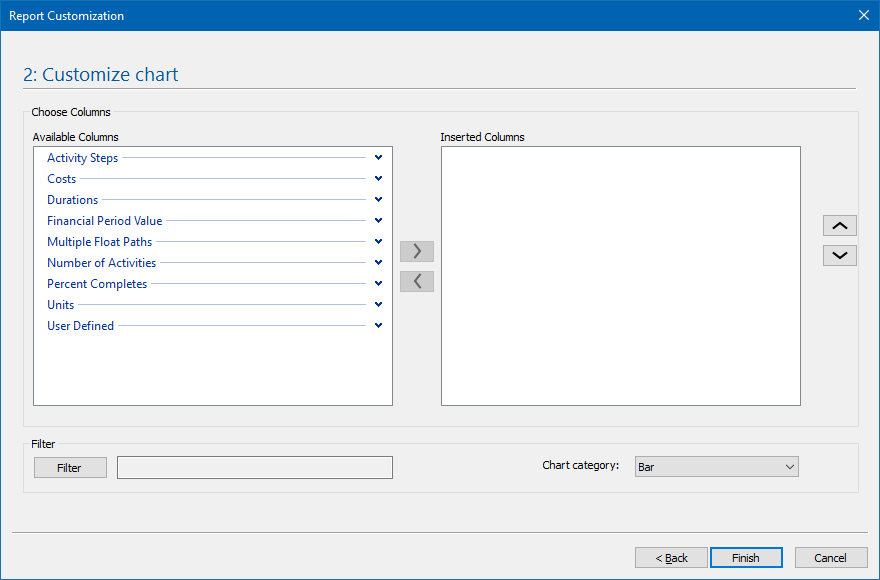
Table-Table Layout
The table-table layout will create reports that contain two tables. Users must customize both tables in two different dialogs in order for the report to be created successfully. User should perform the following steps:
- 2. With and buttons arrange the order of the columns for the First table; 3. If necessary, apply some of the available filters; 4. Select the “Hierarchy” check-box if you like to see the project hierarchy in the First table. 5. Click on the Next button; 6. Repeat the steps from 1 to 4 for the Second table; 7. Click on the Finish layout.
Chart-Chart Layout
Chart-Chart layout will create reports that contain two graphical charts. Users must customize both charts in two different dialogs in order for the report to be created successfully. User should perform the following steps:
- 2. With and buttons arrange the order of the columns in the table for the First chart; 3. If necessary, apply some of the available filters; 4. From the “Chart category” drop-down list select the chart type that will present graphically the selected columns values; 5. Click on the Next button; 6. Repeat the steps from 1 to 4 for the Second chart; 7. Click on the Finish layout.
Table-Chart Layout
The Table-Chart layout will create a report that will contain a table and graphical chart. Two-step customization (table and chart) must be done in order for the graphical report to be successfully created. This layout will be the most used one while creating reports in ScheduleReader.
User should perform the following steps for creating a table-chart report:
- 2. With and buttons arrange the order of the columns for the in the table; 3. If necessary, apply some of the available filters; 4. Select the “Hierarchy” check-box if you like to see the project hierarchy in the table. 5. Click on the Next button; 6. Choose the columns from the “Available Columns” table the will be presented in the report;
- 7. With and buttons arrange the order of the columns in the table for the chart; 8. If necessary, apply some of the available filters; 9. From the “Chart category” drop-down list select the chart type that will present graphically the selected columns values;
- 10. Click on the Finish button;
Table-Table-Chart Layout
The last layout, but not least is the table-table-chart type of layout. It contains three main elements: two tables and one chart. It is a very useful chart because each of these elements can contain different information from the project plan. A very useful chart for presenting project plan parameters in one chart.
User should perform the following steps for creating a table-table-chart report:
- 2. With and buttons arrange the order of the columns for the in the first table; 3. If necessary, apply some of the available filters; 4. Select the “Hierarchy” check-box if you like to see the project hierarchy in the first table. 5. Click on the Next button; 6. Choose the columns from the “Available Columns” table the will be presented in the report;
- 7. With and buttons arrange the order of the columns for the in the second table; 8. If necessary, apply some of the available filters; 9. Select the “Hierarchy” check-box if you like to see the project hierarchy in the second table. 10. Choose the columns from the “Available Columns” table the will be presented in the report;
- 11. With and buttons arrange the order of the columns in the table for the chart; 12. If necessary, apply some of the available filters; 13. From the “Chart category” drop-down list select the chart type that will present graphically the selected columns values; 14. Click on the Finish button.
Edit Custom Report
After the user finishes with the creation of the graphical report, it is possible to modify some parts of the report. Using the Edit Report functionality, the user can change the inserted columns in the table/chart or change the chart type.
Steps for editing report are:
- 1. Select the report that will be modified; 2. Select the Edit report feature; 3. Choose the layout that you want to have in the modified report; 4. Depending on the selected layout modify the table content and the chart 5. Click on the Finish button.
Manage Reports
If the user-defined report meets the particular aspects of the project plan and gives the required information, the user can export the report’s parameters into a file and share it with the other team members. In case other project participants create reports that are suitable for some teams, these users will import the previously created report and work instantly. There are several ways to manage reports in ScheduleReader™:
- Import report
- Export report
- Remove a Report Import Custom reports
In ScheduleReader™ you can use custom made reports made by other project participants, by importing .xml file format, where all report’s settings are saved.
To import custom report follow these steps:
- 1. From File Menu, click on the Reports Submenu;
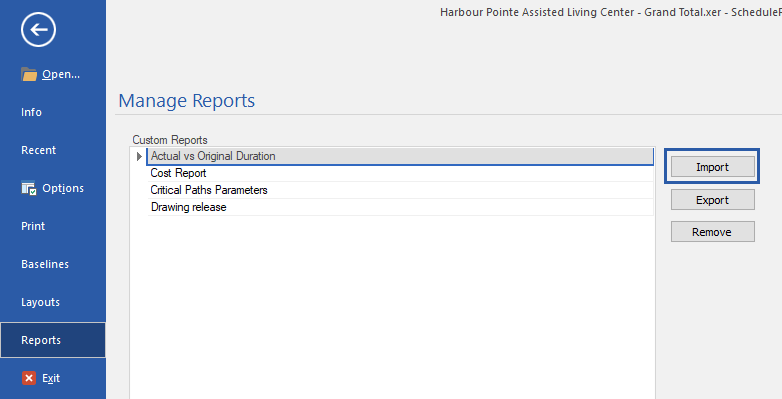
- 3. Choose an XML file from the desired location, that contains reports parameters.
- 4. Click on the Open button to import the report.
Export Custom Report
In ScheduleReader™ you can export the reports that you have made, by saving the report’s settings into .xml file format.
To export a custom report follow these steps:
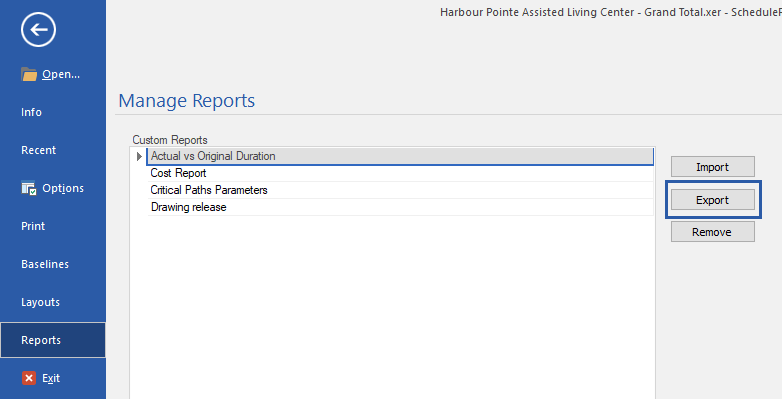
Report Customization
Text Customization
With text customization functionalities, implemented in the “Report Text Tools”, you have the flexibility to modify the text within the predefined and custom reports to suit your project's unique requirements. By enabling you to customize the text, we aim to provide you with greater control over how you communicate project status and insights across your team.
The following text customizations are available:
- Change the background’s color of the text label.
- Modify the color, gradient and line opacity for the outline of the text label.
- Adjust the text style by selecting the appropriate font and font size as well as by adding variety of styles like weight, alignment or drawing angle.
To customize the text in the reports, perform the following steps:
- 1. Select the report that you want to modify.
- 2. In the “Reports” ribbon, select the “Edit” button. 3. Once you are in the editing mode, select the text that you want to customize. The selected text should look like the image below.
- 4. In the ribbon strip, click on the “Format” ribbon.
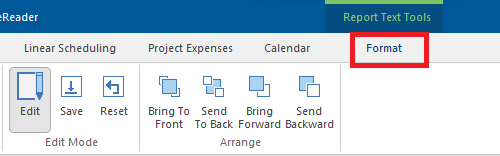
- 5. Use the available functionalities for modifying the text.
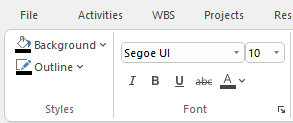
- 6. Save the changes using the “Save” button, located in the “Report” ribbon.
If you want to delete all text modifications and restore the report into the initial state, you can use the
“Reset” button.
Table Customization
The table customization features within the “Reports Table Tools” ribbon, allows you to modify the appearance and layout of tables within your reports. Whether you're adjusting column widths, rearranging data fields, or applying custom formatting, this contextual ribbon lets you to create visually compelling and informative reports that precisely reflect the project data. By offering this level of flexibility and control, we aim to enhance your ability to present information effectively and make informed decisions.
The following table customizations are available:
- Adjust the table’s text style by selecting the appropriate font and font size as well as by adding variety of styles like weight, alignment or drawing angle.
- Change the visual style of the report table with uniform and non-unform colors. Each style uses a unique combination of borders and shading to change the appearance of your table. Hover over a style in the gallery to preview it in your document.
- Modify the visual style and the content of the even and odd rows by selecting the appropriate color and font for the text as well as the color for the background, cell border and the gradient.
- Modify the visual style and the content of the table’s header and offset by selecting the appropriate color and font for the text as well as the color for the background, cell border and the gradient.
To customize the table in the reports, perform the following steps:
- 2. In the “Reports” ribbon, select the “Edit” button.
- 3. Once you are in the editing mode, select the table that you want to customize. The selected table should look like the image below.
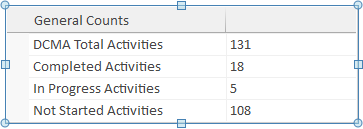
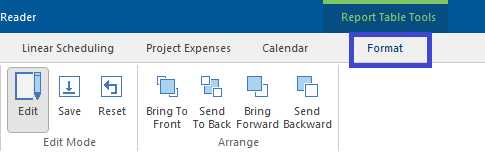
- 5. Use the available functionalities for modifying the text and table.

Chart Customization
Using the functionalities within the “Reports Chart Tools”, you have the ability to select the appearance and behavior of charts within your reports in order to meet the specific project needs or PMO requirements.
Whether you're adjusting colors, modifying chart types, or fine-tuning axis labels, Chart “Reports Chart Tools” entitle you to create visually impactful and insightful reports that effectively communicate your project data. By offering this level of flexibility and control, we aim to provide you with the tools you need to present information with clarity and precision, ultimately enabling better decision-making and project management.
- Change the overall visual style of the chart.
- Modify the overall layout of the chart by adding various elements such as data tables and labels, legend, gridlines as well as using various coloring themes.
- Select the appropriate colors for graph’s plot area, title, legend, axis and the graph itself.
To customize the chart in the reports, perform the following steps:
- 2. In the “Reports” ribbon, select the “Edit” button. 3. Once you are in the editing mode, select the chart that you want to customize. The selected chart should look like the image below.
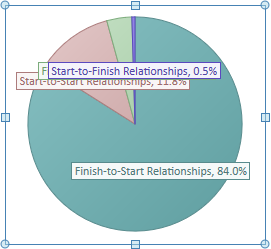
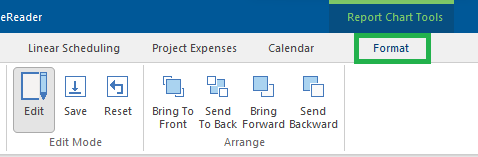

User Preferences
Options
Use the Options dialog box to specify your preferences, which includes how to display time units, layouts, and gridlines. To open Options dialog box go to File and select Options. The following dialog will be shown on the screen:
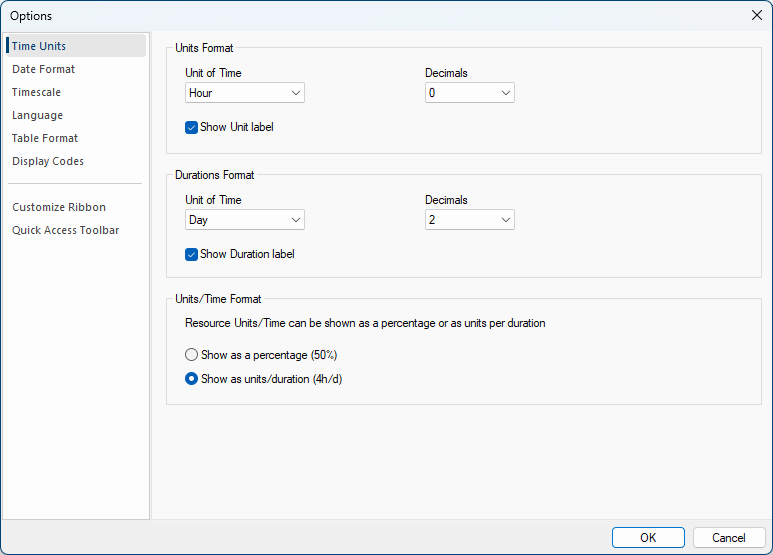
Time Units
Time Units define a unit of time, hour, day, week, month or year, to display values in unit and duration fields. Define how many place values to be shown for a decimal number (0, 1, or 2). Choose to show a duration label right next to the value as shown in the image below.
Note: For .xls file this option is disabled. Time units are retrieved from the file because there is no information for the assigned calendar to be used to convert values.
Date Formats
Under Date Format, you can select different options to define how the dates to be displayed in the application. Specify the order of days, months and years in dates, choose the time format and show minutes, etc.
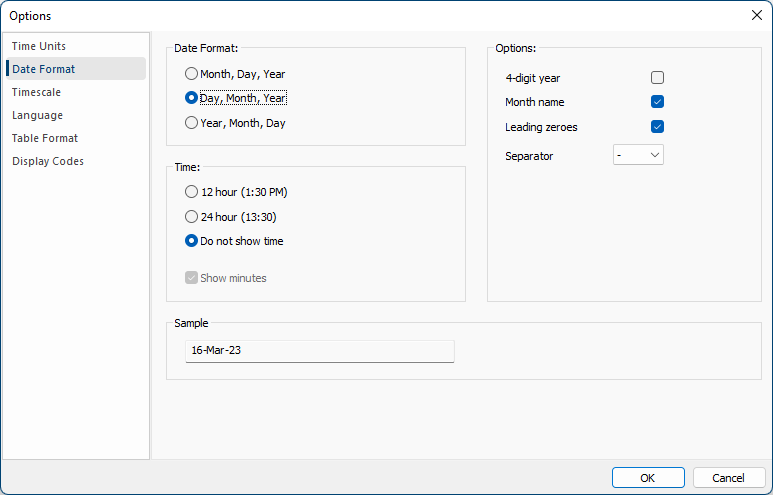
Timescale
Gridlines define the period of time for vertical and horizontal faint lines to appear in the Gantt chart view. The application includes a feature that allows users to open the project plan, aligned to either the Current Date or the Data Date. This helps users focus on the most relevant point in time, whether for real-time progress tracking or reviewing the project's last status update.
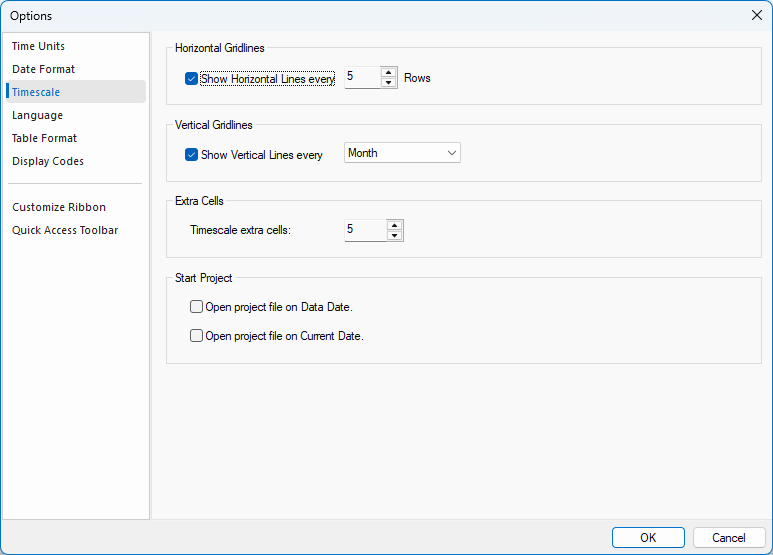
Language
From the Language drop-down list, you can choose the language on which ScheduleReader will work. The following languages are available: German, French, Spanish, Russian and Chinese (Simplified).
The encoding standard helps the program determine how to represent the text (alphabetical characters, numbers, and other symbols). When you share XER files with people who work in other languages, or other computer systems, you may need to choose an encoding standard so when you open the file it would be readable.
Table Format
Table format sub-menu allows you to format the row’s height in application tables (view table and details table). If there are external activities (activities from other project that are directly connected to the activities in the opened project) user can choose to display them in the Gantt Chart, depending on the project requirements.
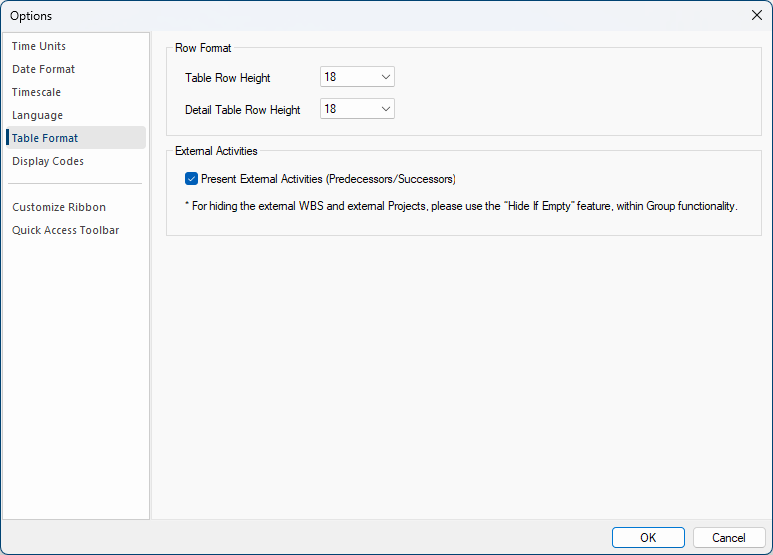
Display Codes
Display codes options allow you to choose whether the code values or code descriptions will be presented in view’s table. It is applicable to all types of codes.
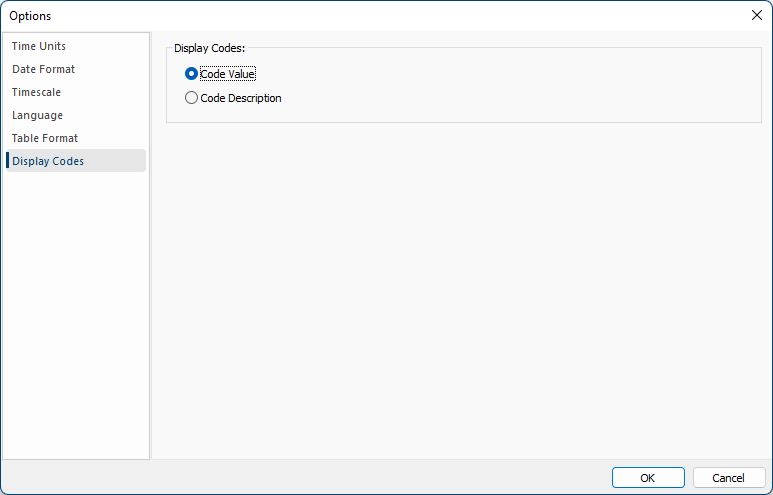
Customize Ribbons
Overview
Customize your ribbon to arrange tabs and commands in any order that suits your preferences. Additionally, you have the option to hide or unhide the ribbon, as well as conceal commands you use less frequently. Furthermore, enjoy the flexibility of exporting or importing your personalized ribbon, making it easy to switch between different setups.
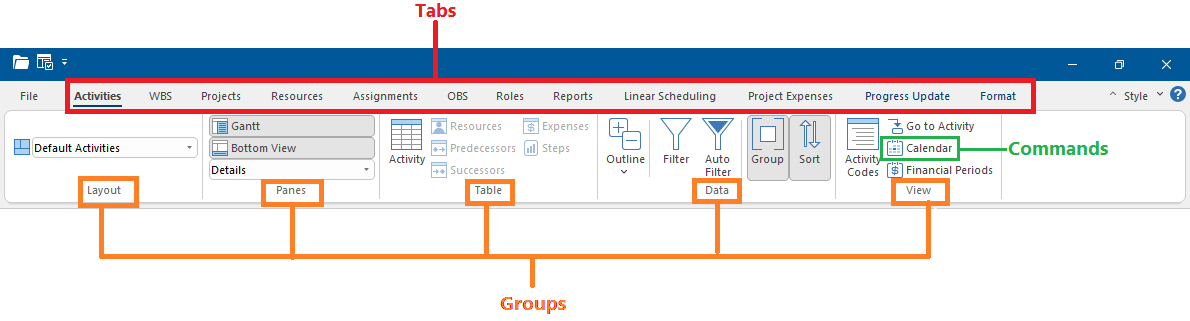
Currently, it is not possible to directly resize the ribbon, alter the size of the text or icons on it. To achieve this, you would need to adjust your display resolution, which would affect the size of all elements on your
page. Unfortunately, changing the color of the ribbon and its icons is not supported. However, you do have the option to modify the overall color scheme that ScheduleReader utilizes across its interface.
Note: For a successful ribbon customization, only one instance of ScheduleReader must be open.
Show or Hide Ribbon
To get a larger desktop, you can minimize the ribbons, using the option located in the upper right part of the application.
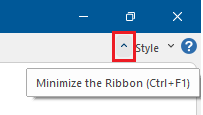
Customize the Ribbon
There are several things that you can do regarding the customization of the ribbons in the ScheduleReader. To start the customization of the ribbons you have to perform the following steps:
- 1. Go to the File menu. 2. Select the Options menu. 3. Select the “Customize Ribbon” feature.
Once the new window is open you can make several changes.
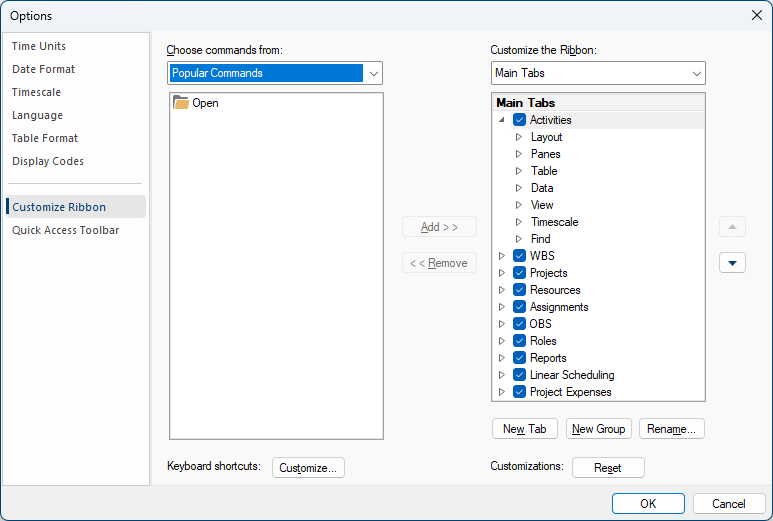
Rename a Tab, Group or Command
You have the ability to rename both default and custom tabs or groups according to your preferences. However, please note that renaming commands is limited to those you have personally added to a custom group. This ensures that you can easily organize and label your customized elements while maintaining the integrity of default configurations.
To rename a tab or a group, you have to perform the following steps:
- 1. In the “Customize Ribbon” window, select a tab or the group that should be renamed. 2. Click on the “Rename” button. 3. Insert the new name.
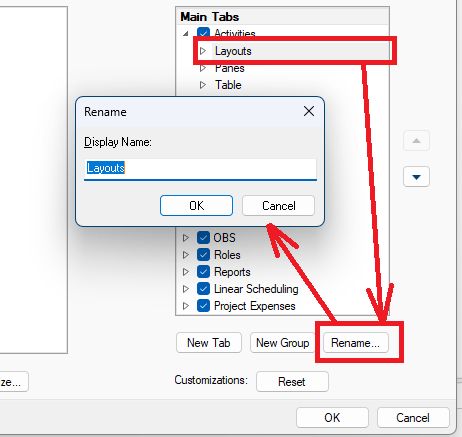
Note: You can rename commands only in custom groups.
Change the Order of Default or Custom Tabs or Groups
To change the order of default tabs or groups or the order of the custom ribbons or groups, perform the following steps:
- 1. In the “Customize Ribbon” window, select the tab that should be moved.
- 2. Using the and buttons move the tab to the desired location.
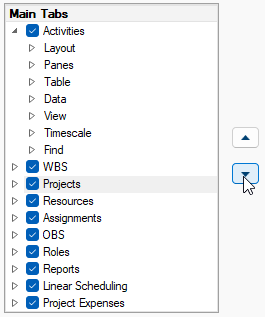
Hide a Default or Custom Tab
You have the option to hide both custom and default tabs. However, when it comes to removal, only custom tabs can be removed. It's important to note that the File tab cannot be hidden, as it remains a constant and essential part of the interface for accessing various file-related functions.
To hide a default or custom tab perform the following steps:
- 1. In the “Customize Ribbon” window, select the tab that should be moved. 2. Deselect the checkbox beside the default tab or custom tab that you wish to hide.
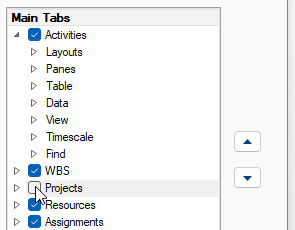
Add or Remove Tabs or Groups
In the Customize the Ribbon window, you have the freedom to enhance the ribbon's functionality by adding custom tabs or groups, allowing you to incorporate extra commands seamlessly. Moreover, you can also personalize the ribbon further by replacing default tabs with your own customized versions. It's worth noting that custom tabs and groups will be identified with the label "Custom" after their names in the Customize the Ribbon window, while the ribbon itself won't display the word "Custom". This ensures a streamlined and uncluttered appearance in your workspace.
Add Custom Group to a Tab
Either a default or a custom tab can accommodate the addition of a custom group.
To create new group within any ribbon, perform the following steps:
- 1. Choose the tab in which you wish the new group to be displayed.
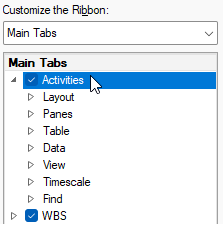
- 2. Click on the “New Group” button.
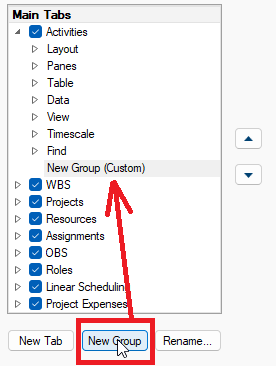
- 3. Click on the “Rename” button to rename the new group.
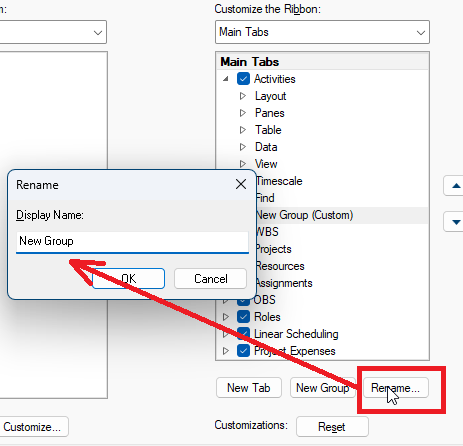
Remove a Tab
To remove a tab performed the following steps:
- 1. Select the custom tab that should be removed from the application.
- 2. Click on the “Remove” button.
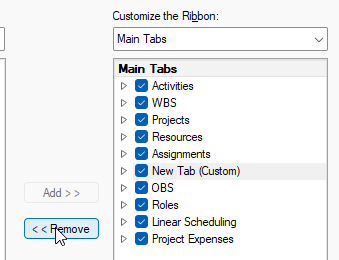
Another method for removing custom created tab is to use the “Delete” functionality by using the right- mouse button after selecting the custom tab.
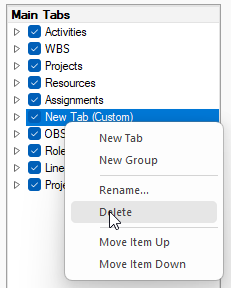
Note: Default tab cannot be removed from the application.
Remove Default or Custom Group
To remove default or custom group in ScheduleReader, perform the following steps:
- 1. Open the Customize ribbon dialog. 2. Expand the tab that you want to customize. 3. Select the group that you want to remove from the tab.
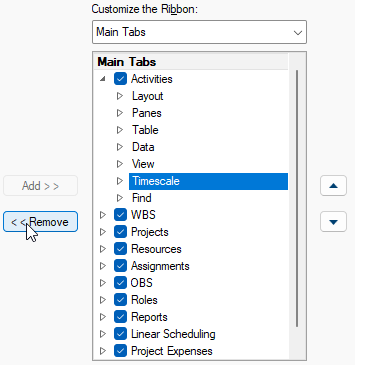
- 4. Click on the Remove button. 5. Click OK to see and save your changes.
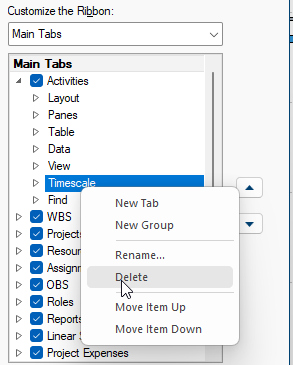
ADD, MOVE, OR REMOVE COMMANDS FROM CUSTOM GROUPS To include commands within a group, you need to start by adding a custom group either to a default tab or a newly created custom tab. It's important to note that only commands placed in custom groups can be renamed.
Default commands are easily recognizable by their appearance in gray text, and they possess limited customization options. For instance, you cannot rename them, alter their icons, or change their order.
However, when it comes to managing commands, you have the flexibility to add, move, or remove them exclusively within custom groups. This allows you to have greater control over the arrangement and organization of your commands to suit your specific preferences.
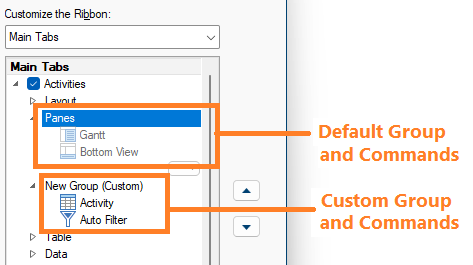
Add Command to Custom Group
You can add as many commands as you want to the group and name them according to your need.
To do this, it is necessary to perform the following steps:
- 1. In the “Customize ribbon” window, select the group that will receive new commands.
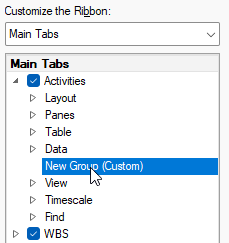
- 2. From the “Choose commands from” list, select the most appropriate list you want to add commands from.
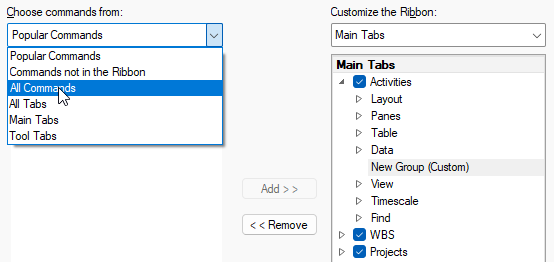
- 3. Select a command. 4. Click on the “Add >>” button.
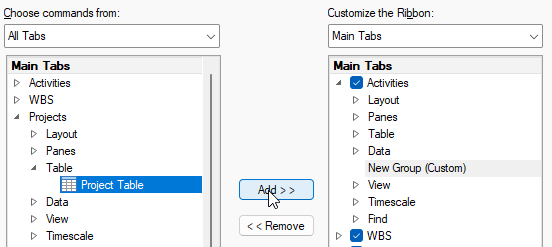
- 5. Using the and buttons place the command in the proper location.
Remove Command from Custom Group
Commands can solely be removed from a custom group.
The steps for removing command from custom group are:
- 1. In the “Customize the Ribbon” window, choose the command that you want to remove. 2. Click on the “Remove” button.
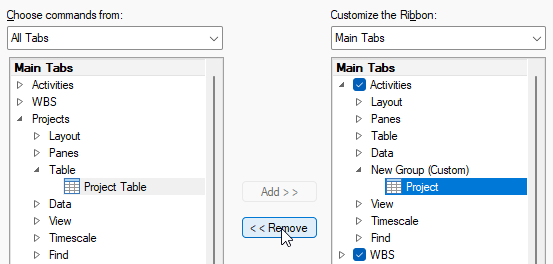
Another method for removing custom created command is to use the “Delete” functionality by using the right-mouse button after selecting the custom tab.
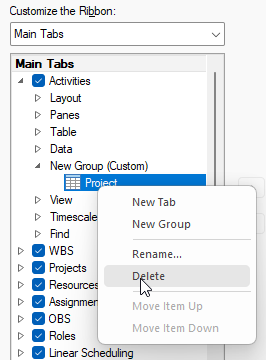
Rename Command in a Custom Group
You can only rename commands that you've added to a custom group.
To do that, perform the following steps:
- 1. Within the "Customize the Ribbon" window, select the command you wish to rename. 2. Click on the “Rename” button.
- 3. Insert the new name for the command.
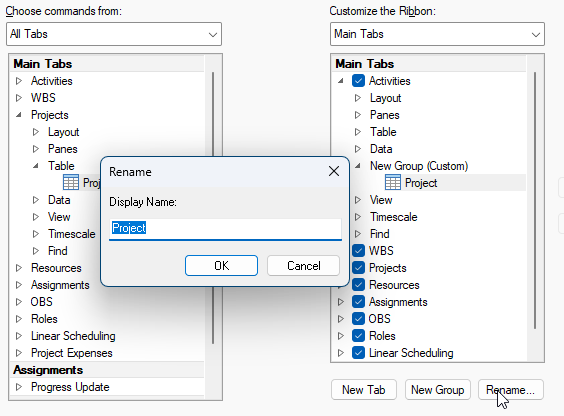
Customize Quick Access Toolbar
The highly customizable Quick Access Toolbar offers a collection of commands that remain independent of the currently displayed tab on the ribbon. It grants you the flexibility to relocate the Quick Access Toolbar to either of the two possible locations, while also providing the ability to add buttons representing various commands to it.
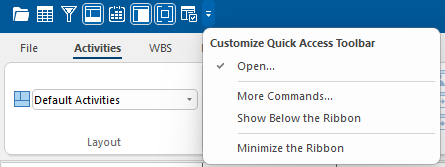
Note 1: In ScheduleReader, there is no direct option to increase the size of buttons representing commands. However, one workaround to achieve this is by reducing the screen resolution you are using.
Note 2: The Quick Access Toolbar cannot be displayed on multiple lines; it remains confined to a single line.
Note 3: The Quick Access Toolbar exclusively accommodates commands; it does not support adding the contents of most lists, including indent and spacing values and individual styles found on the ribbon.
Move the Quick Access Toolbar
The Quick Access Toolbar can be situated in one of two locations: the default location is above the ribbon, on the title bar, or alternatively, below the ribbon. You have the flexibility to move the Quick Access Toolbar from one location to the other according to your preference.
Changing the Quick Access Toolbar’s location is done using the following steps:
- 1. Click on the “Customize Quick Access Toolbar” button. 2. In the list select the “Show Below the Ribbon” option.
The difference between is presented on the image below.
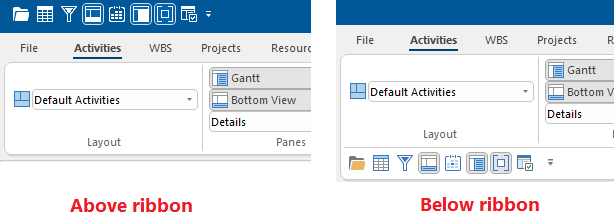
Add Command to Quick Access Toolbar
Utilizing the “Options” feature in the File menu, you have the ability to add, remove, and rearrange commands on the Quick Access Toolbar.
To add commands to the Quick Access Toolbar, do the following steps:
- 1. In the “File” menu, select the “Options” feature. 2. Select the “Quick Access Toolbar” option.
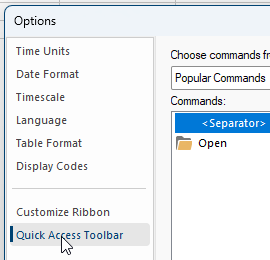
- 3. From the “Choose commands from” list, select the most appropriate list you want to add commands from (For example: Activity tab).
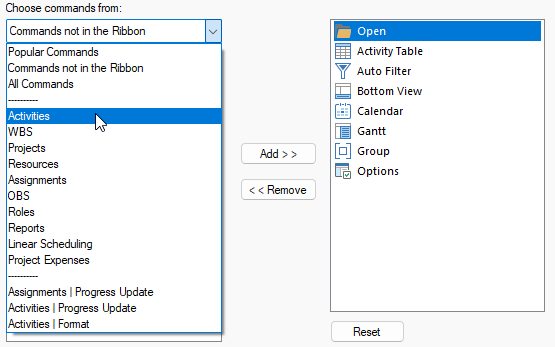
- 4. Select a command.
- 5. Click on the “Add >>” button.
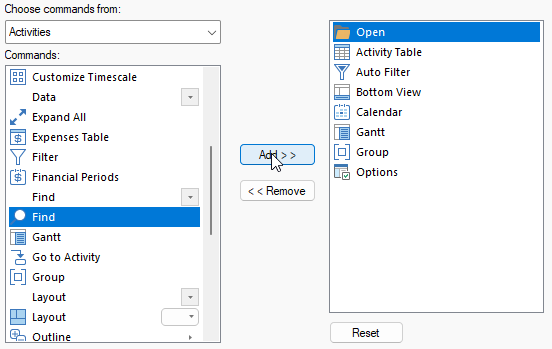
- 6. Using the and buttons to change the commands order.
Remove Command from Quick Access Toolbar
Commands can solely be removed from the Quick Access Toolbar.
The steps for removing command from the Quick Access Toolbar are:
- 1. In the “Quick Access Toolbar” window, choose the command that you want to remove. 2. Click on the “Remove” button.
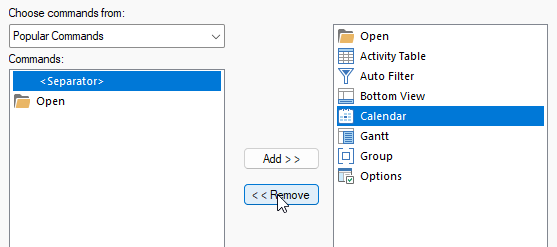
Print Preview
From File → Print open the Print Preview to see the print output of the current view. In this window, you can define pages, print settings and printer properties.
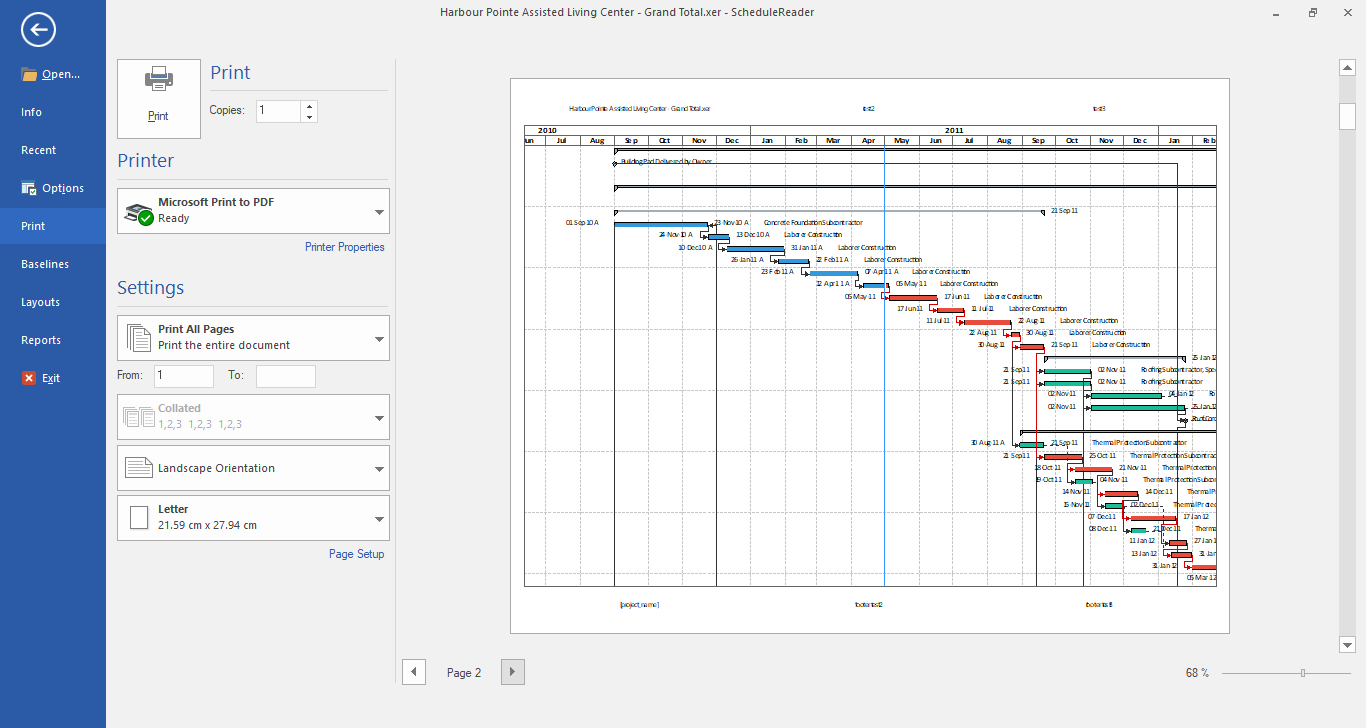
Page Settings
Under Settings, you can specify which project pages to be printed out. You can select to print the entire project, the current page or range of pages from/to.
To sort your multiple copies select collated to print pages in order 1,2..1,2 or uncollated to print pages in order 1,1..2,2. Change the page orientation to portrait or landscape. Select a page size (A3, A4, A5, Letter, etc.) that best suits your needs.
Page Setup
In the Page Setup dialog box, you can define time periods, scaling, margins, and page header and footer.
Once the “Time Periods” are set (Timescale Start and Timescale Finish), the values for the time-scale periods will be saved. Next time when the project plan is opened, these values will be loaded and the user can print the project plan without the need for inserting the time-periods once again.
The other printing settings that is saved, after the fine tuning is performed, is the zoom functionality.
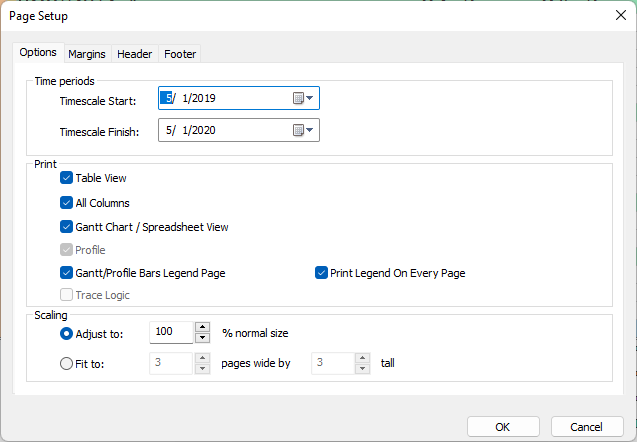
In the Options tab you can find the following settings for time periods, print view and scale:
Timescale Start From the start date. Timescale Finish To end date. Table View Print only the visible columns in the active table view. All Columns All columns in the active table. Gantt chart view/Spreadsheet view
Print only the Gantt chart or Spreadsheet for Resource Assignments.
Profile Print only the Resource Usage Profile view, Activity Usage Profile view or Stacked Histogram, depending on the selected view. Gantt/Profile Bars Legend Page
Print the Legend page for the Gantt Chart/Resource Usage Profile views Print Legend On Every Page Print the Gantt bars description on each page Trace Logic Print the Trace Logic view Adjust Magnify or reduce a print by an exact percentage. Fit to Small pages up and large pages down to fit the paper. In the Margins tab, define the empty space to be left from top, down, left and right in inches.
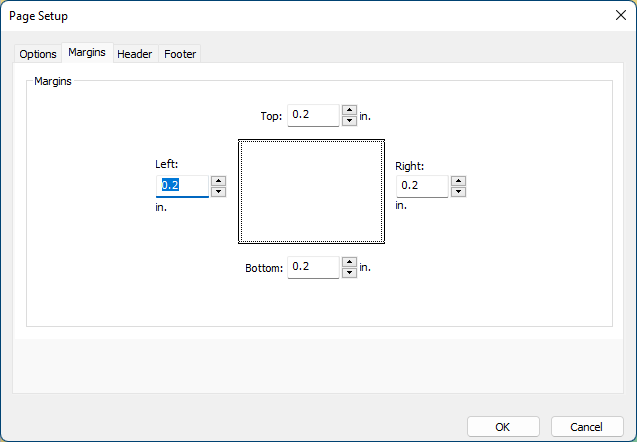
Under the Header tab, you have the following options:
- Number of sections – you can choose in how many sections or columns, the Header area will be divided
- Height – the height of the Header row
- Type of data – Text, Image or Field
Supported Field data types:
Current Date Page Number Current Date Time Project Finish Current Month Project ID Current Week Project Name Date/Date Project Start File Name
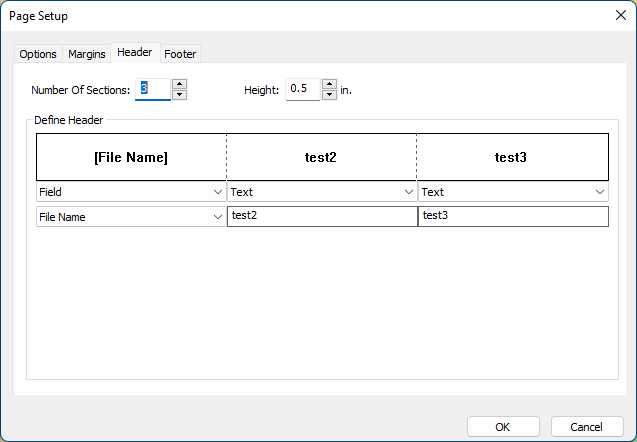
Under the Footer tab, you can do the following options:
- Number of sections – you can choose in how many sections or columns, the Header area will be divided
- Height – the height of the Header row
- Type of data that will be inserted in the defined number of sections with a specific value
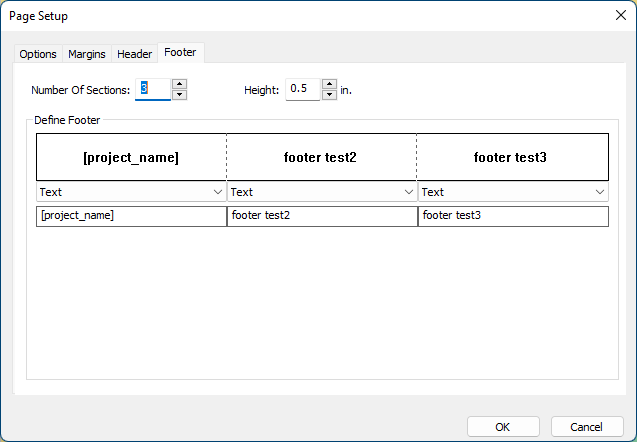
Printer Properties
Open the Printer properties dialog box to define layout and paper/quality. The following options are available:
Orientation Landscape, portrait or rotated landscape. Page order Front to back or Back to front order of pages in the document. Pages per sheet How many pages to be printed on a page. Paper source Automatically select tray or only one tray. Color Black and white or color. Advanced... Advanced document settings.
Save Print Preferences
After the printing parameters are set up for a nice print layout, the following settings will be saved:
- Page Setup dialog: o Options tab (all available features) o Margin tab (all available features) o Header tab (all available features) o Footer tab (all available features) • Orientation (Portrait, Landscape) • Paper Size (A4, A3…)
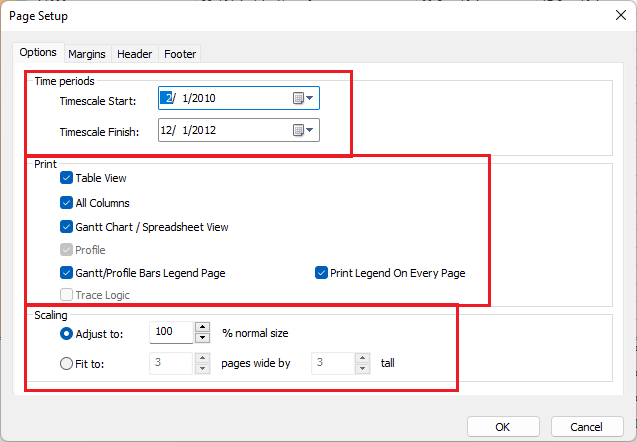
Note 1: The saved process is automatic.
Note 2: The print settings are saved per layout.
Revoke License and Subscription Information
Revoke License
Revoking a license means deactivating the software on a specific device, making the license key available for use on another system. This process is useful when switching devices, reinstalling the software, or freeing up a license for another user. Once revoked, the software will no longer function on the current device unless reactivated with a valid license. An internet connection is usually required to complete the revocation and update the licensing server.
To revoke a license in Schedule Reader, perform the following steps:
- 1. Open the application and navigate to the “Info” tab. 2. Click on the “Revoke Software Activation” button to initiate the process.
- 3. A confirmation prompt will appear, asking you to confirm the revocation—select “Ok” to proceed.
Once the license is revoked, the software will deactivate on your system, and the license key will become available for activation on another device. Ensure you have an active internet connection during this process to sync the revocation with the licensing server.
Subscription Information
Displaying the subscription's expiration date in ScheduleReader is important to ensure users are aware of their license status and renewal deadlines. It helps prevent unexpected service interruptions by allowing users to take timely action before the subscription expires. Clear visibility of the expiration date also improves user experience by reducing confusion and the need for support inquiries. Additionally, it enables organizations, departments and locally distributed teams to manage their software assets efficiently, ensuring compliance and avoiding downtime.
To view the subscription’s expiration date in Schedule Reader, perform the following steps:
- 1. Open the application and navigate to the “Info” tab. 2. In the left side on the “Info” panel, there is label “Subscription Expiration Date”.
The date gives you the final date until the application will work. It is recommended that you renew your subscription in order to continue using the ScheduleReader.